
SIXWIN 2G+64G Android Car Play Screen for Dodge Durango 2014-2020
SIXWIN 2G+64G Android Car Play Screen User Manual
For Dodge Durango 2014-2020
1. Product Overview
The SIXWIN 2G+64G Android Car Play Screen is a 9-inch touch screen head unit designed specifically for Dodge Durango models from 2014 to 2020. It features an Android 13 operating system with 2GB RAM and 64GB ROM, offering a comprehensive in-car entertainment and navigation solution. Key functionalities include wireless CarPlay, Android Auto, Mirror Link, Bluetooth hands-free calling, FM radio, GPS navigation, and support for a backup camera and steering wheel controls.

Figure 1.1: The SIXWIN 9-inch Android Car Play Screen, showcasing its interface and included accessories such as a backup camera, external microphone, and icons representing CarPlay and Android Auto compatibility.
2. What's in the Box
Upon unboxing, verify that all components are present:
- Car Stereo Head Unit
- Power Cable
- USB Cable (multiple)
- RCA Input/Output Cables
- Reversing Camera Input Cable
- GPS Antenna
- Radio Antenna
- Canbus Decoder
- External Microphone
- Installation Tool
- Backup Camera
- User Manual (digital/printed)

Figure 2.1: A visual representation of the packing list and the physical dimensions of the 9-inch head unit, including various cables, antennas, and tools.
3. Installation Guide
The SIXWIN Android Car Play Screen is designed for plug-and-play installation in compatible Dodge Durango models (2014-2020). Ensure your vehicle's original car system configuration, year, and central control map match the compatibility requirements before proceeding.
3.1 Compatibility Check
This car radio is for the basic version of the Dodge Durango only. Refer to the compatibility images to confirm your vehicle's dashboard layout.
3.2 Installation Steps (General)
- Carefully remove the original car radio unit from your Dodge Durango dashboard.
- Connect the provided power cable, USB cables, RCA cables, GPS antenna, radio antenna, and reversing camera input cable to the corresponding ports on the new SIXWIN head unit.
- Integrate the Canbus decoder. For basic versions, set the Canbus to: 1234-Simple.
- Securely mount the new head unit into the dashboard opening.
- Test all functions before fully reassembling the dashboard.
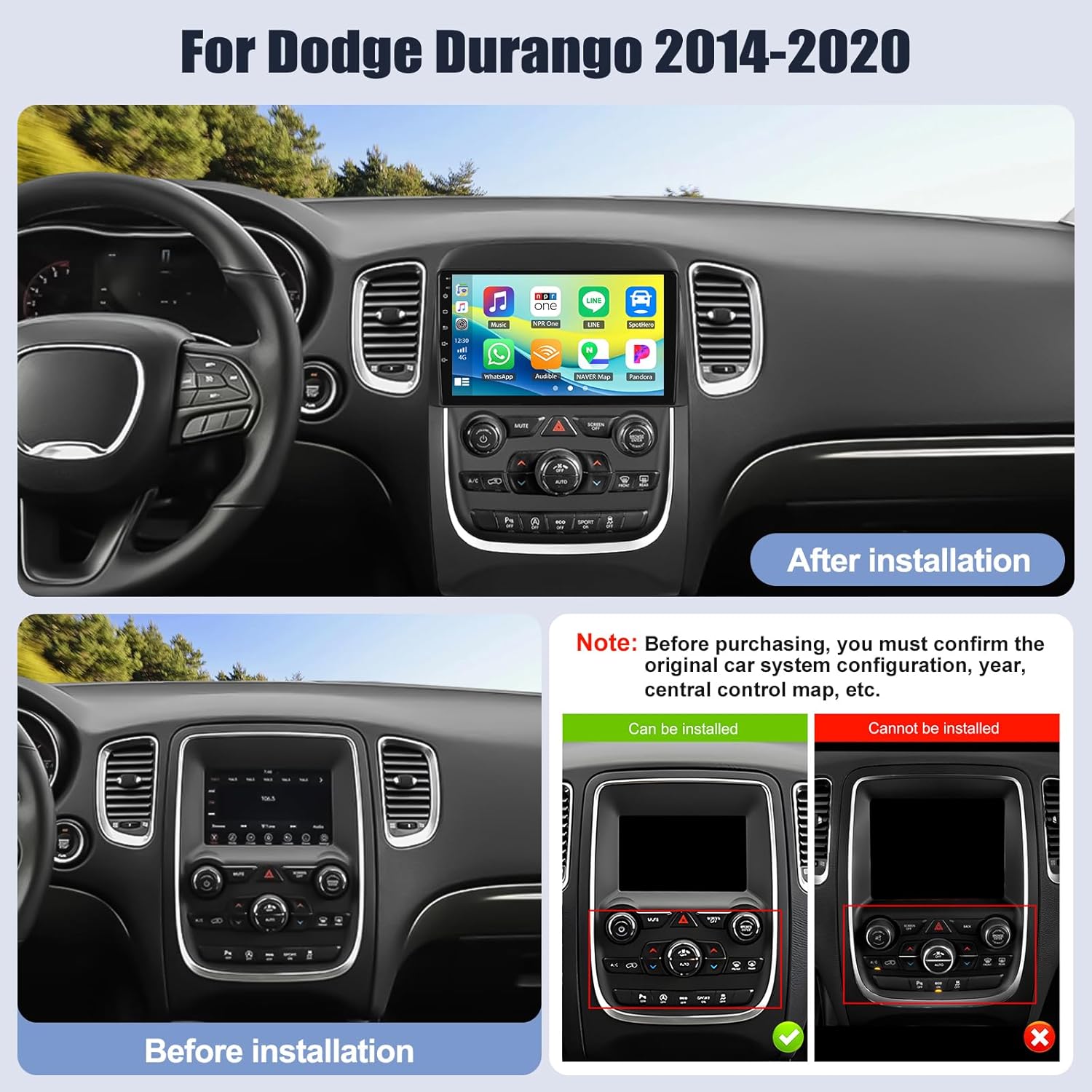
Figure 3.1: Comparison of the Dodge Durango dashboard before and after the installation of the SIXWIN Android Car Play Screen, along with a visual guide for compatibility verification.
4. Operating Instructions
4.1 Wireless CarPlay & Android Auto
The unit supports both wireless and wired CarPlay and Android Auto. This allows seamless integration with your smartphone for navigation, communication, and entertainment.
- Wireless Connection: Establish a Bluetooth connection between your smartphone and the car stereo. Then, open the 'Zlink5' app on the car stereo to enjoy wireless Apple CarPlay or Android Auto.
- Wired Connection: Connect your smartphone via a USB cable. Ensure the 'Zlink5' app is open on the car stereo.
- Note: Some Samsung phones may not be fully supported for Mirror Link.

Figure 4.1: Step-by-step instructions for connecting your smartphone wirelessly to the car stereo for Apple CarPlay and Android Auto functionality.
4.2 Mirror Link
Mirror Link allows you to display your phone's screen directly on the car stereo. For iOS devices, connection is typically via Wi-Fi. For Android devices, both USB and Wi-Fi connections are supported.

Figure 4.2: Illustration of the Mirror Link feature, showing how a smartphone screen can be mirrored onto the car stereo display for both iOS (via Wi-Fi) and Android (via USB/Wi-Fi) devices.
4.3 Bluetooth Hands-free & FM Radio
Connect your phone via Bluetooth for hands-free calling and audio streaming. The FM radio supports 18 preset stations with a frequency range of 87.50-108.0 MHz.
- Bluetooth: Pair your device to make and receive calls, and play music directly from your phone.
- FM Radio: Scan and save your favorite radio stations for news, music, and traffic updates.
4.4 GPS Navigation & WiFi
The head unit includes built-in GPS navigation. It comes pre-installed with the 'Here We Go' app, allowing for both online and offline navigation. Connect to Wi-Fi to download additional apps from the Play Store, such as YouTube, TikTok, and Spotify.
4.5 Backup Camera Support
The system supports a backup camera, providing a clear view of the area behind your vehicle to assist with safer parking and reversing. The included camera offers 170° wide-angle view, clear night vision, and is waterproof.

Figure 4.3: Demonstration of the backup camera functionality, showing both daytime and clear night vision views on the car stereo screen, highlighting the wide-angle and high-definition capabilities.
4.6 Steering Wheel Control (SWC)
The unit supports steering wheel controls, allowing you to manage audio volume, switch songs, and answer calls directly from your steering wheel for convenience and safety. Set the SWC to: 1234.
4.7 User Interface Customization
The system offers 28 unique gradient UI interfaces, allowing users to personalize the look and feel of their car stereo display.

Figure 4.4: A collage showcasing the variety of 28 unique gradient user interfaces available for customization on the SIXWIN car stereo, allowing users to select their preferred visual theme.
4.8 Audio Equalizer (EQ)
Adjust audio settings using the built-in equalizer to optimize sound output according to your preferences and music genre.

Figure 4.5: Visual representation of the audio equalizer settings and sound field adjustment options, allowing users to fine-tune the audio output for an optimal listening experience.
5. Maintenance
To ensure the longevity and optimal performance of your SIXWIN Android Car Play Screen, follow these general maintenance guidelines:
- Cleaning: Use a soft, dry cloth to clean the screen and exterior. Avoid abrasive cleaners or solvents that could damage the surface.
- Software Updates: Periodically check for and install any available software updates to ensure system stability and access to new features.
- Environmental Conditions: Avoid exposing the unit to extreme temperatures, direct sunlight for prolonged periods, or excessive moisture.
6. Troubleshooting
If you encounter issues with your SIXWIN Android Car Play Screen, consider the following common troubleshooting steps:
- No Power: Check all power connections and ensure the vehicle's ignition is on. Verify fuses if necessary.
- No Sound: Check volume levels, audio source selection, and speaker connections. Ensure the mute function is not active.
- Touchscreen Unresponsive: Try restarting the unit. If the issue persists, a factory reset might be required (consult support).
- CarPlay/Android Auto Not Connecting: Ensure Bluetooth is enabled on both devices. For wired connections, try a different USB cable. Verify the 'Zlink5' app is running.
- GPS Signal Issues: Ensure the GPS antenna is properly installed and has a clear view of the sky.
- Steering Wheel Controls Not Working: Verify the Canbus settings (1234) and ensure the SWC wires are correctly connected.
For persistent issues, refer to the support section for contact information.
7. Specifications
| Feature | Specification |
|---|---|
| Operating System | Android 13 |
| RAM | 2GB |
| ROM (Internal Storage) | 64GB |
| Display Size | 9 Inches |
| Connectivity | Bluetooth, WiFi |
| Special Features | Touchscreen, Wireless CarPlay, Android Auto, Mirror Link, GPS Navigation, FM/RDS Radio, Backup Camera Support, Steering Wheel Control |
| Audio Output Mode | Stereo |
| Product Dimensions | 1 x 1 x 1 inches (approximate) |
| Item Weight | 3.56 pounds (approximate) |
8. Warranty Information
This SIXWIN product comes with a 1-year warranty from the date of purchase. Please retain your proof of purchase for any warranty claims. The warranty covers manufacturing defects and malfunctions under normal use. It does not cover damage caused by misuse, accidents, unauthorized modifications, or improper installation.
9. Customer Support
For online help, technical assistance, or user manual inquiries, please contact SIXWIN customer support:
Email: sixwin_vip@163.com
When contacting support, please provide your product model number (SIXWIN 2G+64G Android Car Play Screen) and a detailed description of your issue.

Figure 9.1: A customer support representative ready to assist with product inquiries and technical support.
Ask a question about this manual
Ask about setup, troubleshooting, compatibility, parts, safety, or missing instructions. Manuals+ will review the question and use this page’s manual context to help answer it.