
HiDock H1E
HiDock H1E AI Voice Recorder
Model: H1E | Brand: HiDock
1. Introduction
The HiDock H1E is an advanced AI voice recorder and 8-in-1 docking station designed to streamline your workflow by capturing, transcribing, and summarizing audio content. It integrates seamlessly with various communication platforms and offers robust features for efficient note-taking and data management. This manual provides detailed instructions for setting up, operating, and maintaining your HiDock H1E device.
2. Package Contents
Please verify that all items are present in your package:
- HiDock H1E AI Voice Recorder and Docking Station
- Wireless Open-Ear Earphone
- Power Adapter
- USB-C Cable
- User Manual (this document)
3. Product Overview
Familiarize yourself with the components and controls of your HiDock H1E.
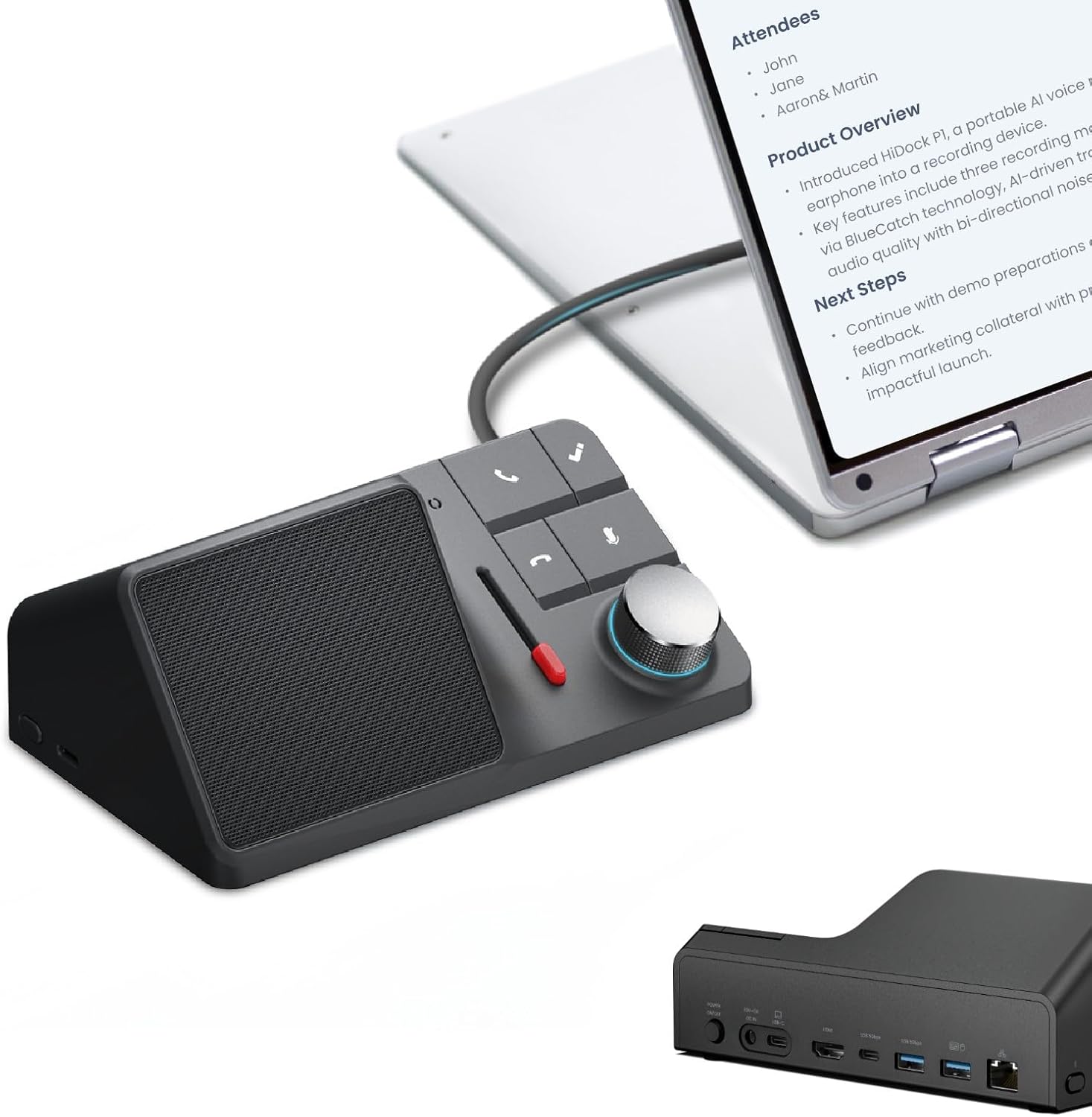
Figure 3.1: HiDock H1E AI Voice Recorder and Docking Station
This image displays the HiDock H1E device from a front-top perspective, showcasing its compact design and primary speaker grille.
3.1. Control Panel

Figure 3.2: Intuitive Control Panel
This image highlights the control panel of the HiDock H1E, labeling key functions such as Answer/End Call buttons, Recording & Mark button, Mute button, Volume knob (also Play/Pause), and the Bi-directional Noise Cancellation (BNC) slider.
- Answer Call & End Call Buttons: Used to manage phone calls.
- Recording & Mark Button: Initiates recording and adds VoiceMarks to highlight key information.
- Mute Button: Mutes the microphone during calls or recordings.
- Volume Knob: Adjusts speaker volume. Press to Play/Pause audio.
- BNC Slider: Activates Bi-directional Noise Cancellation.
3.2. 8-in-1 Docking Station Ports

Figure 3.3: 8-in-1 Docking Station Ports
This image shows the rear and side views of the HiDock H1E docking station, detailing its various ports: DC-In (20V/5A), Power Switch, USB-C PD (65W PD Charging), USB-C 3.2 (5Gbps, video not supported), Ethernet (1Gbps), HDMI 2.0 (4K@60Hz HDR), USB-A 3.2 (5Gbps), Bluetooth 5.2, and USB-C 3.2 PD (18W PD Charging, video not supported).
- DC-In (20V/5A): Power input for the docking station.
- Power Switch: Turns the device on or off.
- USB-C PD (65W): Power Delivery port for charging compatible devices.
- USB-C 3.2 (5Gbps): Data transfer port (video not supported).
- Ethernet (1Gbps): For wired network connection.
- HDMI 2.0 (4K@60Hz HDR): Video output for external display.
- USB-A 3.2 (5Gbps): Standard USB-A data transfer ports.
- Bluetooth 5.2: For wireless connectivity with devices like the included earphone.
4. Setup Guide
4.1. Powering On the Device
- Connect the power adapter to the DC-In port (20V/5A) on the back of the HiDock H1E.
- Plug the power adapter into a wall outlet.
- Press the Power Switch to turn on the device.
4.2. Connecting to a Computer
The HiDock H1E functions as a docking station for your computer.
- Connect your computer to the HiDock H1E using a USB-C cable.
- For external display, connect an HDMI cable from the HiDock H1E's HDMI 2.0 port to your monitor.
- For wired internet, connect an Ethernet cable to the Ethernet port.

Figure 4.1: Single 4K@60Hz Display Setup
This image demonstrates the HiDock H1E connected to a computer and an external monitor, supporting a single 4K@60Hz display. Note: Due to macOS limitations, Mac systems may only support mirroring mode.
4.3. HiNotes App Installation
To utilize the AI transcription and summarization features, install the HiNotes App on your computer or mobile device. The app is essential for managing recordings and accessing advanced AI functionalities.

Figure 4.2: System Compatibility
This image illustrates the compatibility of the HiDock H1E with various laptop brands (Lenovo, Dell, MacBook Air/Pro, HP) and operating systems (Windows 10/11, macOS 11 and above, ChromeOS). The device is not compatible with Linux.
5. Operating Instructions
5.1. Recording Audio
The HiDock H1E can record audio from various sources, including online meetings (Zoom, Teams, WhatsApp, FaceTime), podcasts, and direct speech.
- Ensure the HiDock H1E is connected to your computer or paired with your mobile device via Bluetooth.
- To start recording, press the Recording & Mark button on the control panel.
- To stop recording, press the Recording & Mark button again.
- Recordings are automatically saved and can be accessed via the HiNotes App.

Figure 5.1: Auto Record, Transcribe, and Summarize Workflow
This diagram illustrates the seamless process: the HiDock H1E automatically records audio, which is then transcribed into text in 75 languages, and finally summarized into AI meeting notes.
5.2. AI Transcription and Summarization
The HiDock H1E leverages advanced AI to convert audio into text and generate concise summaries.
- Automatic Transcription: Once recorded, audio files are automatically transcribed into text within the HiNotes App.
- AI Summaries: Powered by AI technologies like ChatGPT 4.1 and Claude 3.5 Sonnet, the app generates accurate summaries of your recordings.
- Language Support: Transcription is available in 75 languages.
- Customized Templates: Over 20 templates are available for customized meeting summaries.

Figure 5.2: AI Summaries Interface
This image shows a smartphone screen displaying the HiNotes App with an AI-generated summary, highlighting the support for 75 languages and 20+ templates, powered by ChatGPT 4.1.
5.3. VoiceMark Feature
Easily highlight important moments during a recording:
- During an active recording, press the Recording & Mark button to insert an AI-powered VoiceMark.
- VoiceMarks allow you to quickly locate specific details within your transcriptions later.
5.4. Bi-directional Noise Cancellation (BNC)
The HiDock H1E features unique BNC technology to improve audio clarity and transcription accuracy.
- Slide the BNC Slider on the control panel to activate or deactivate noise cancellation.
- BNC removes noise from both your side and the caller's side, ensuring clearer audio for all participants and better transcription results.

Figure 5.3: BNC Feature
This graphic illustrates the Bi-directional Noise Cancellation feature, showing how it filters out common background noises like barking dogs, fan sounds, and keyboard clicks to improve audio quality.
5.5. Using the Wireless Earphone
A lightweight, open-ear earphone is included for private, hands-free communication during meetings or calls.
- The earphone connects wirelessly to the HiDock H1E via Bluetooth 5.2.
- It is designed for voice communication, allowing you to stay aware of your surroundings.

Figure 5.4: Wireless Earphone Usage
This image shows a person using the HiDock wireless open-ear earphone while participating in a video conference, demonstrating its use for hands-free communication.
5.6. Data Privacy and Recording Notifications
HiDock prioritizes your data privacy and adheres to GDPR compliance.
- Optional Recording Notification: The HiNotes App features an optional setting to alert both parties with a "start recording" tone when recording begins. This can be activated manually in the app.
- Data Security: No customer data is used to train the AI. Partnerships with OpenAI and Anthropic include robust measures to ensure data security.

Figure 5.5: Optional Recording Notification
This image displays a toggle switch within the HiNotes App interface for an "Optional Recording Notification," allowing users to enable an audible alert at the start of a recording.
6. Maintenance
To ensure the longevity and optimal performance of your HiDock H1E:
- Keep the device clean by wiping it with a soft, dry cloth. Avoid abrasive cleaners or solvents.
- Do not expose the device to extreme temperatures, humidity, or direct sunlight.
- Avoid dropping the device or subjecting it to strong impacts.
- Ensure proper ventilation when using the docking station features, especially during prolonged use.
7. Troubleshooting
If you encounter issues with your HiDock H1E, refer to the following common problems and solutions:
| Problem | Possible Cause | Solution |
|---|---|---|
| Device does not power on. | Power adapter not connected or faulty; Power switch off. | Ensure power adapter is securely connected and plugged into a working outlet. Check if the power switch is in the 'On' position. |
| No audio recording. | Microphone muted; Device not connected to audio source; HiNotes App not running. | Check the Mute button on the control panel. Ensure the device is properly connected to your computer/phone. Verify the HiNotes App is open and configured for recording. |
| Transcription is inaccurate. | High background noise; Speaker far from microphone; Poor audio quality. | Activate the BNC slider to reduce noise. Ensure the speaker is close to the device. Improve original audio source quality if possible. |
| External display not working. | Incorrect cable; Driver issues; Mac mirroring mode. | Ensure HDMI cable is securely connected. Update graphics drivers on your computer. Note that macOS may only support mirroring. |
| Wireless earphone not connecting. | Earphone not charged; Out of range; Pairing issue. | Charge the earphone. Ensure it is within 10 meters of the HiDock H1E. Re-pair the earphone with the device if necessary. |
If the problem persists, please contact HiDock customer support for further assistance.
8. Specifications
| Feature | Detail |
|---|---|
| Model Number | H1E |
| Product Dimensions | 7 x 3 x 4 inches |
| Item Weight | 1.15 pounds (520 Grams) |
| Memory Storage Capacity | 32 GB |
| Battery Life | 4 Hours (recording) |
| Microphone Form Factor | Built-In |
| Audio Format | MP3 Audio |
| Headphones Jack | 3.5 millimeters |
| HDMI Port | HDMI 2.0 (4K@60Hz HDR) |
| USB Ports | 3x USB-C 3.2, 2x USB-A 3.2 (5Gbps data transfer) |
| Ethernet Port | 1Gbps |
| Power Delivery | 65W (USB-C PD), 18W (USB-C 3.2 PD) |
| Bluetooth | 5.2 |
| Compatible Devices | Personal Computer (Windows 10/11, macOS 11+, ChromeOS) |
9. Warranty and Support
9.1. Warranty Information
The HiDock H1E comes with a standard manufacturer's warranty. Please refer to the warranty card included in your package or visit the official HiDock website for detailed terms and conditions. Note that the complimentary open-ear earphone is not covered under warranty.
9.2. Customer Support
For technical support, troubleshooting assistance, or inquiries regarding your HiDock H1E, please contact HiDock customer support through their official website or the contact information provided in your product packaging. Ensure you have your model number (H1E) and purchase details ready when contacting support.
Related documentsH1E


Ask a question about this manual
Ask about setup, troubleshooting, compatibility, parts, safety, or missing instructions. Manuals+ will review the question and use this page’s manual context to help answer it.