
1. Introduction
This manual provides detailed instructions for the installation, operation, and maintenance of your WONLINK WL-NA1605 WiFi 6 USB Adapter. This device is designed to provide high-speed wireless connectivity and Bluetooth functionality to your desktop or laptop computer, supporting the latest WiFi 6 (802.11ax) standard and Bluetooth 5.3.

2. Package Contents
Please verify that all items are present in your product package:
- 1 x WONLINK WL-NA1605 WiFi 6 USB Adapter
- 1 x Quick Installation Guide / User Manual
3. Product Features
The WONLINK WL-NA1605 WiFi 6 USB Adapter offers advanced features for enhanced wireless performance:
- WiFi 6 (802.11ax) Support: Provides faster speeds, lower latency, and increased network capacity compared to previous WiFi standards.
- AX900Mbps Dual Band: Supports up to 600Mbps on the 5GHz band and 287Mbps on the 2.4GHz band for flexible and high-speed connections.
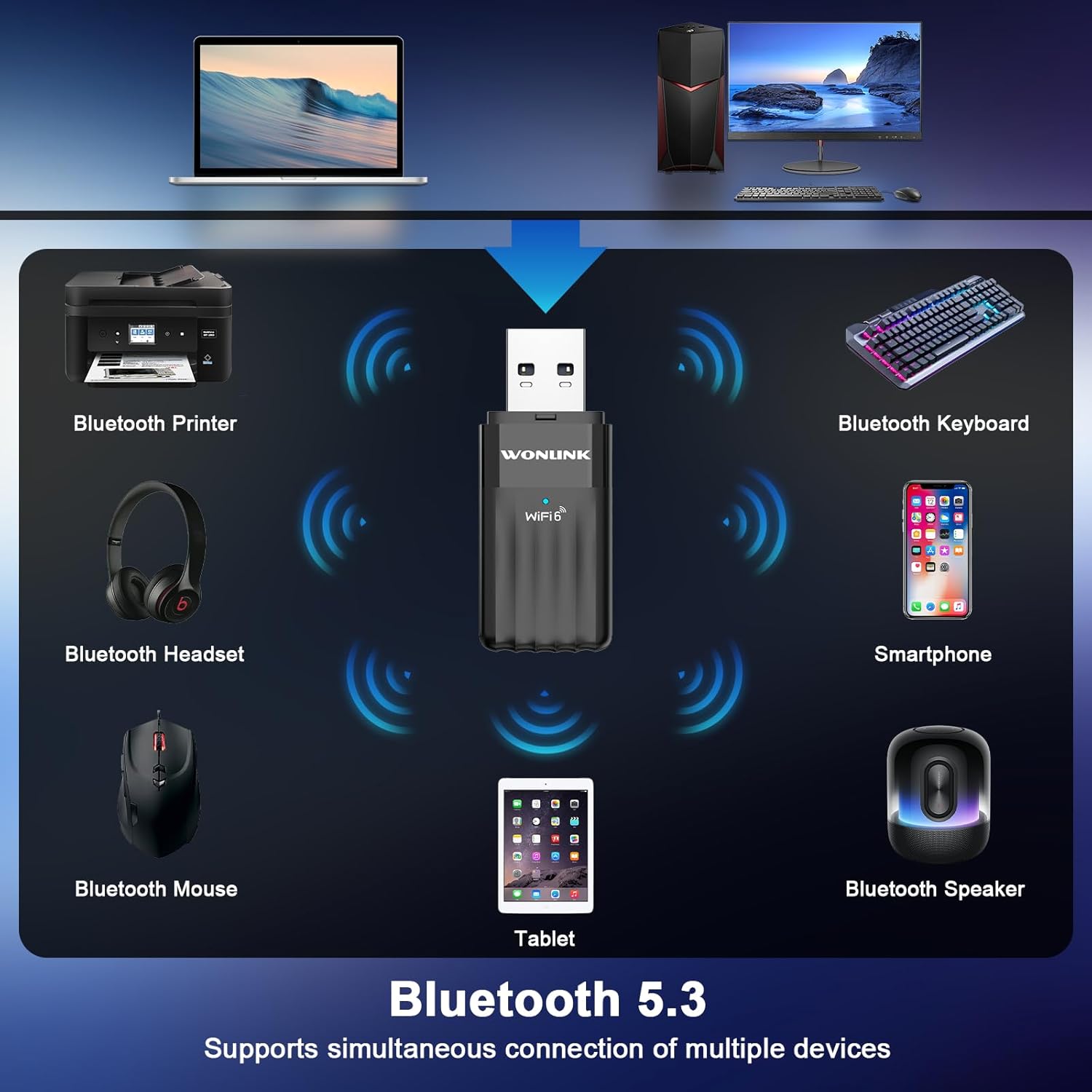
- Bluetooth 5.3: Enables stable and efficient connection to various Bluetooth devices such as headphones, speakers, keyboards, and mice.
- WPA3 Security: Offers enhanced security protocols for a safer wireless network experience.
- Built-in Driver: Simplifies installation on compatible Windows systems, often requiring no manual driver download.
- Wide Compatibility: Fully supports Windows 10 and Windows 11 operating systems.


4. Specifications
Technical specifications for the WONLINK WL-NA1605 WiFi 6 USB Adapter:
| Feature | Specification |
|---|---|
| Model Number | WL-NA1605 |
| Hardware Interface | USB |
| Wireless Standard | WiFi 6 (802.11ax) |
| Data Transfer Rate | Up to 900 Mbps (600 Mbps on 5GHz, 287 Mbps on 2.4GHz) |
| Bluetooth Version | Bluetooth 5.3 |
| Compatible Devices | Desktop, Laptop |
| Operating Systems | Windows 10, Windows 11 |
| Security Protocols | WPA3 |
| Item Weight | 1.44 ounces |
| Package Dimensions | 4.33 x 3.58 x 0.75 inches |
5. Setup and Installation
Follow these steps to install your WONLINK WiFi 6 USB Adapter:
- Insert the Adapter: Plug the WONLINK WiFi 6 USB Adapter into an available USB port on your PC or laptop.
- Automatic Driver Installation: For Windows 10/11, the system should automatically detect the adapter and install the necessary drivers. Wait for a notification indicating successful installation.
- Manual Driver Installation (if needed): If the driver does not install automatically, open "This PC" or "My Computer", locate the "CD Drive (F:) WifiAutoInstall" (or similar named USB drive), and double-click "WifiAutoInstall.exe" to run the installer. Follow the on-screen prompts to complete the installation.
- Restart Your Computer: After the driver installation is complete, restart your computer to ensure all changes take effect.

6. Operating Instructions
6.1. Connecting to WiFi
After successful driver installation and computer restart:
- Click the network icon (usually a WiFi symbol) in the system tray on your Windows taskbar.
- A list of available WiFi networks will appear. Select your desired network.
- Click "Connect". If prompted, enter the network security key (password) and click "Next".
- Your computer should now be connected to the WiFi network.
6.2. Using Bluetooth Functionality
To connect Bluetooth devices:
- Go to Settings > Devices > Bluetooth & other devices on Windows 10, or Settings > Bluetooth & devices on Windows 11.
- Ensure Bluetooth is turned On.
- Click Add Bluetooth or other device and select Bluetooth.
- Put your Bluetooth device into pairing mode.
- Select your device from the list and follow any on-screen prompts to complete pairing.
6.3. AP Mode (Hotspot Function)
The adapter can also function as a WiFi hotspot, sharing your internet connection with other devices:
- Ensure your computer is connected to the internet via an Ethernet cable or another WiFi adapter.
- Go to Settings > Network & Internet > Mobile hotspot.
- Toggle the "Mobile hotspot" switch to On.
- You can customize the network name (SSID) and password by clicking Edit.
- Other devices can now connect to your computer's hotspot using the provided SSID and password.

7. Maintenance
To ensure optimal performance and longevity of your WONLINK WiFi 6 USB Adapter:
- Keep the adapter clean and free from dust. Use a soft, dry cloth for cleaning.
- Avoid exposing the adapter to extreme temperatures, humidity, or direct sunlight.
- Do not attempt to disassemble or repair the adapter yourself. This may void the warranty.
- Ensure your computer's operating system and drivers are kept up to date for the best performance and security.
8. Troubleshooting
If you encounter issues with your WONLINK WiFi 6 USB Adapter, refer to the following common problems and solutions:
- Problem: Adapter not recognized or driver not installing.
Solution: Try plugging the adapter into a different USB port. Ensure your Windows operating system is up to date. Manually run the driver installer from the adapter's virtual CD drive as described in Section 5. Temporarily disable antivirus software during installation if it interferes. - Problem: Cannot connect to WiFi network.
Solution: Verify that your WiFi router is powered on and broadcasting a signal. Double-check the WiFi password. Ensure the adapter's WiFi function is enabled in Windows settings. Try restarting your computer and router. - Problem: Bluetooth devices not pairing or connecting.
Solution: Ensure Bluetooth is enabled in Windows settings. Put your Bluetooth device into pairing mode. Make sure the device is within range and fully charged. Remove and re-add the Bluetooth device in Windows settings if it was previously paired. - Problem: Slow WiFi speed.
Solution: Ensure you are connected to the 5GHz band if your router supports it and you are close enough. Reduce interference by moving the adapter or router away from other electronic devices. Update your router's firmware. Check for other devices consuming bandwidth on your network. - Problem: Intermittent connection.
Solution: Check for physical obstructions or sources of interference. Ensure the adapter is securely plugged into the USB port. Update the adapter's driver to the latest version.
9. Warranty and Support
WONLINK products are designed for reliability and performance. This product comes with a standard manufacturer's warranty. For specific warranty terms and conditions, please refer to the documentation included with your purchase or visit the official WONLINK website.
If you require technical assistance or have questions not covered in this manual, please contact WONLINK customer support through the official channels provided on the product packaging or website. When contacting support, please have your product model number (WL-NA1605) and purchase information ready.


