
1. Introduction
The Caydo P1 Art Projector is designed for artists and creative individuals, offering versatile image projection for tracing, sketching, and artistic creation. This portable LED projector features auto-focus and keystone correction, 4K video support, and a display up to 100 inches. It is compatible with iOS and Android devices and includes an exclusive drawing app to enhance your artistic process.
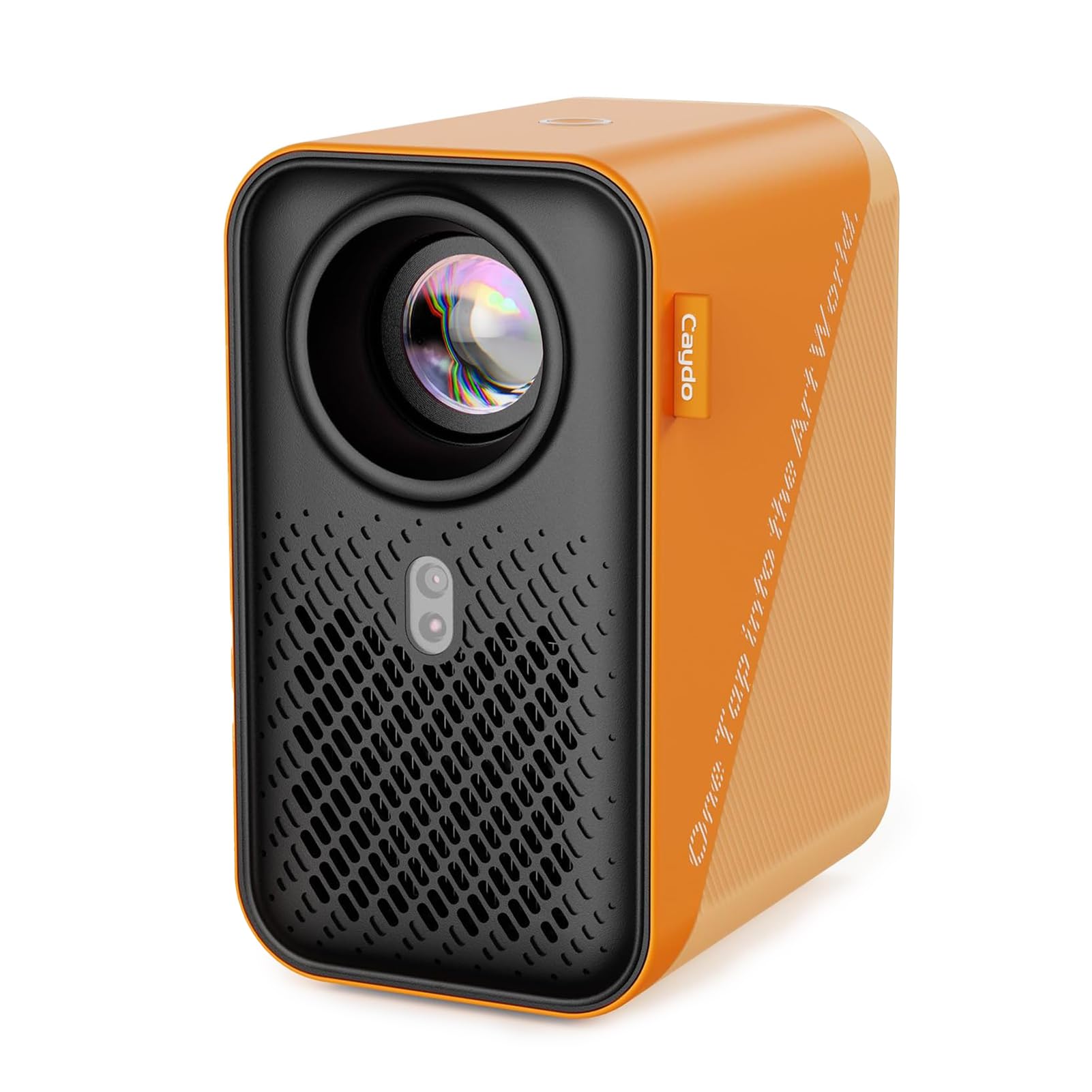
Figure 1: Caydo P1 Art Projector (Amber & Honey)
2. What's in the Box
Upon unboxing your Caydo P1 Art Projector, please ensure all the following items are present:
- 1x Caydo P1 Art Projector
- 1x Power Adapter
- 1x Remote Control (requires 2 AAA batteries, not included)
- 1x User Manual (this document)
3. Setup
3.1 Initial Placement
Place the projector on a stable, flat surface. For optimal projection, ensure the lens is clear of obstructions. The projection distance ranges from 3.1 feet to 10.5 feet, allowing for image sizes from 30 inches to 100 inches.

Figure 2: Optimal Projection Distances and Screen Sizes
3.2 Power Connection
Connect the power adapter to the projector's DC input port and then plug it into a power outlet. The projector will power on automatically or can be turned on using the power button on the device or the remote control.
3.3 Remote Control Setup
Insert 2 AAA batteries (not included) into the remote control. The remote allows navigation through menus, adjusting settings, and controlling media playback.

Figure 3: Projector with Remote Control and App Interface
3.4 Auto Focus & Keystone Correction
The P1 projector features automatic screen-fit, auto-focus, and keystone correction. This ensures a clear and properly shaped image even when the projector is not perfectly aligned with the projection surface. The projector will automatically adjust the image when moved.

Figure 4: Auto Focus and Keystone Correction in action
For a visual guide on how to use the auto screen-fit feature, please refer to the video below:
Video 1: How to use auto screen-fit. This video demonstrates the automatic screen-fit feature of the Caydo P1 Art Projector, showing how it adjusts the image for optimal display.
For optimal auto curtain alignment, ensure the canvas has distinct edges and is fully within the projection area. Refer to the video below for a demonstration:
Video 2: Caydo P1 Art Projector. This video provides an overview of the Caydo P1 Art Projector, including its features and how to use it for artistic purposes.
4. Operating Instructions
4.1 Exclusive Drawing App
The P1 projector comes with a built-in exclusive art drawing app. Please ensure the app is updated to the newest 1.8 version for the best experience. The app includes tools for flexible zoom, 360° rotation, and 3x3 grids. It offers four unique drawing modes: Gridify, Sketchify, Comicize, and Monochromize, along with three background colors (black, grey, white).

Figure 5: Exclusive Art Drawing App Interface
4.2 Effortless Image Transfer
Transfer images to the projector easily by scanning a QR code within the app or by using a USB drive. This allows for immediate creative work without reliance on internet connectivity.

Figure 6: Image Transfer Options
4.3 Wireless Screen Mirroring
Enjoy movie entertainment and other content through multiple screen mirroring options, including EShare, AirPlay, and Miracast. This allows you to project content directly from your iOS or Android devices.

Figure 7: Wireless Screen Mirroring
4.4 Connectivity
The P1 projector offers 5G/2.4G dual-band WiFi for faster data transmission and lower latency. It supports two-way Bluetooth 5.0 audio transmission, allowing connection to mobile devices as a standalone stereo speaker or pairing with external Bluetooth speakers, headphones, and soundbars. Note: Bluetooth function supports audio transmission only, not video.
Additional connectivity options include HDMI, USB, and a 3.5mm audio jack.

Figure 8: Connectivity Ports (HDMI, USB, 3.5mm Jack)
5. Maintenance
The Caydo P1 Art Projector features a fully sealed optical core, which prevents dust entry and reduces the risk of screen black spots and image degradation. This design ensures long-lasting, high-quality performance.
- Cleaning the Lens: Gently wipe the projector lens with a soft, lint-free cloth. Avoid abrasive materials or harsh chemicals.
- General Cleaning: Use a dry or slightly damp cloth to clean the exterior of the projector. Do not allow liquids to enter the device.
- Storage: When not in use, store the projector in a cool, dry place away from direct sunlight and extreme temperatures.

Figure 9: Enclosed Optical Engine for Durability
6. Troubleshooting
| Issue | Possible Cause | Solution |
|---|---|---|
| App not working correctly / Issues with drawing app. | Outdated app version. | Upgrade the drawing app to the newest 1.8 version for improved functionality. |
| Difficulty connecting phone for screen mirroring. | WiFi incompatibility or network issues. | Ensure both devices are on the same 5G/2.4G dual-band WiFi network. Try using a mobile hotspot if direct WiFi connection fails. Check for app updates. |
| Image focus or clarity issues. | Projector moved, or manual focus needed. | The projector has auto-focus and keystone correction. If issues persist, manually adjust focus using the remote control. Ensure the lens cover is removed. |
| No audio or low audio from projector. | Volume settings, external speaker connection. | Adjust volume using the remote. Connect external Bluetooth speakers or headphones for enhanced audio, as the built-in audio may not be very loud. |
| Brown spot in projected image / Image degradation. | Potential burned polarizer issue (less common due to sealed optical core). | Contact customer support for assistance. The sealed optical core is designed to prevent dust and degradation, but manufacturing defects can occur. |
7. Specifications
| Feature | Detail |
|---|---|
| Brand | Caydo |
| Model Name | P1 |
| Model Number | P-004W |
| Display Resolution | Native 1280 x 720 Pixels (4K Support) |
| Display Type | LED |
| Projector Maximum White Brightness | 165 ANSI Lumens |
| Contrast Ratio | 1500:1 |
| Light Source Operating Life | Up to 10,000 Hours |
| Projection Size | 30 - 100 Inches |
| Throw Distance | 3.16 - 10.53 Feet |
| Connectivity Technology | 3.5mm Jack, Bluetooth 5.0, HDMI, USB, 2.4G/5G Wi-Fi |
| Special Features | Built-in Exclusive Art Drawing App, Auto Focus, Auto Keystone Correction, Wireless Screen Mirroring (EShare, AirPlay, Miracast), Fully Sealed Optical Core |
| Item Dimensions (L x W x H) | 3.66"L x 4.92"W x 6.61"H |
| Item Weight | 1.31 Kilograms |
| Power Adapter Output | 19.0V - 2.5A |
8. Warranty & Support
8.1 Manufacturer's Warranty
The Caydo P1 Art Projector comes with a 1-Year Manufacturer's Warranty. This warranty covers defects in materials and workmanship under normal use.
8.2 Customer Support
For any questions, concerns, or technical assistance, please contact Caydo customer support. We are committed to providing prompt assistance and addressing any issues within 24 hours.
You can find contact information on the official Caydo website or through your purchase platform.


