
1. Introduction
This manual provides instructions for the ALLIMITY ANPPACH03ABBT Replacement Voice Remote Control. This remote is designed to be compatible with various CHIQ Changhong 4K UHD Smart TV models, offering convenient control and voice search functionality.
Package Contents:
- 1 x ALLIMITY ANPPACH03ABBT Replacement Voice Remote Control
Compatible TV Models:
PA-CH03, K5, H9, H10, G7H, U50H, U55H, U50H10, U55H10 Series, L32G7H, L32K5, L40K5, L40G7H, U40G7H, U43G7H, U43H10, U55H7S, U50H7S, U50G7H, U55G7H, U65G7H, U58H10, U65H10, U75H9.
2. Setup
2.1 Battery Installation
- Locate the battery compartment on the back of the remote control.
- Slide the battery cover downwards to open it.
- Insert two AAA batteries (not included), ensuring the positive (+) and negative (-) terminals match the diagrams inside the compartment.
- Replace the battery cover by sliding it upwards until it clicks into place.

Figure 1: Battery compartment with AAA batteries.
2.2 Pairing the Remote Control
The ANPPACH03ABBT remote control needs to be paired with your CHIQ Changhong Smart TV before use, especially for voice control functionality. Refer to your TV's user manual for specific pairing instructions, as the process may vary slightly by TV model. Generally, the steps involve:
- Ensure your TV is powered on.
- Navigate to the TV's settings menu (often found by pressing a "Menu" or "Settings" button on your existing remote, or a generic remote).
- Look for options related to "Remotes & Accessories," "Bluetooth," or "Add Device."
- Follow the on-screen prompts to put your TV into pairing mode.
- On the new ALLIMITY remote, press and hold the OK button and the Volume Down button simultaneously for a few seconds until an indicator light on the remote flashes or the TV confirms pairing. (Note: This is a common pairing method; consult your TV's manual for the exact button combination if this does not work.)
- Once paired, a confirmation message should appear on your TV screen.
If you encounter difficulties, ensure the remote has fresh batteries and is within range of the TV's Bluetooth receiver.
3. Operating Instructions
To ensure proper operation, aim the remote control directly at the TV's remote control sensor, avoiding any obstacles.
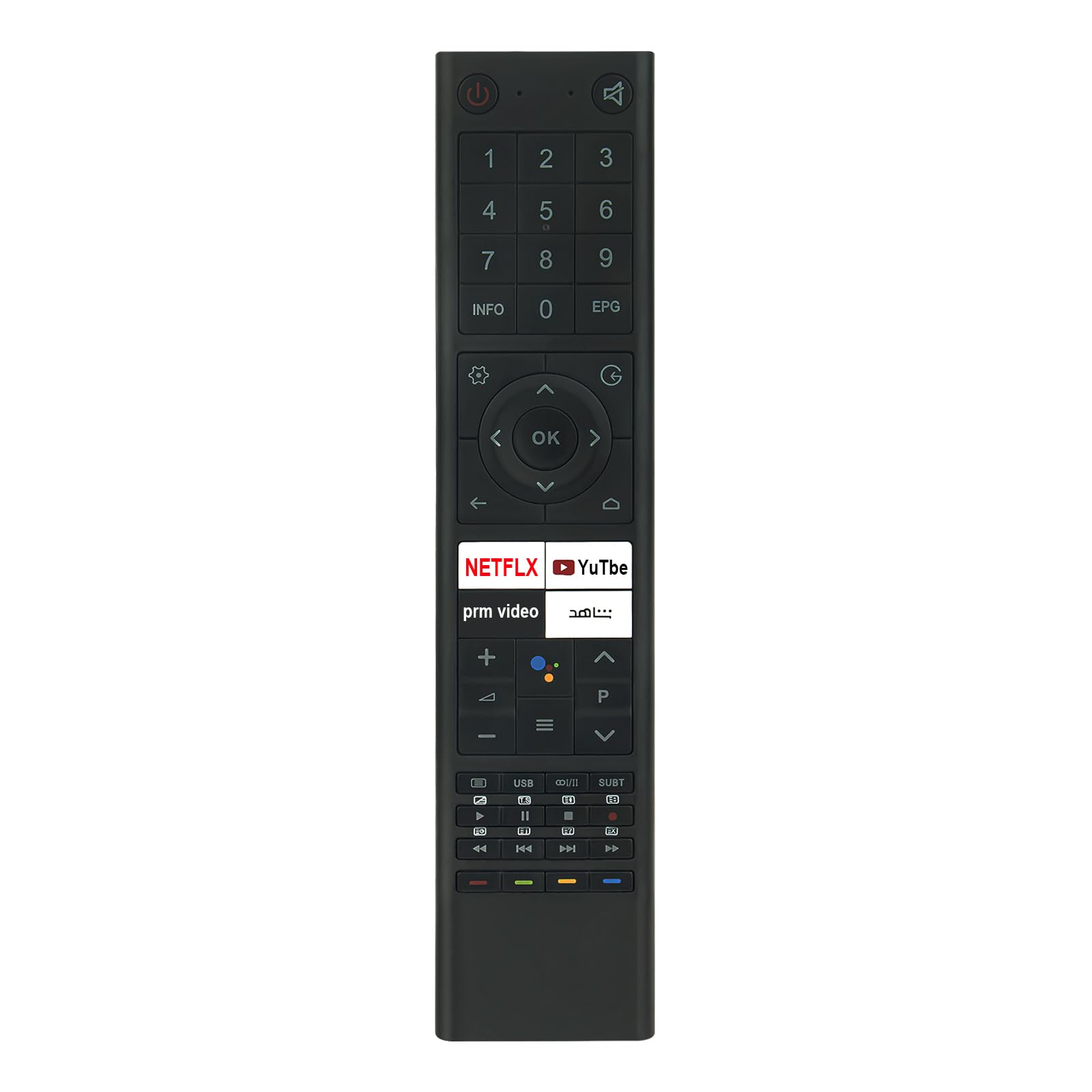
Figure 2: Front view of the remote control.
3.1 Button Functions
| Button | Function |
|---|---|
| Power () |
Turns the TV on or off. |
| Mute () |
Mutes or unmutes the TV sound. |
| Number Buttons (0-9) | Direct channel selection. |
| INFO | Displays program information. |
| EPG | Accesses the Electronic Program Guide. |
| Navigation Pad (Up, Down, Left, Right) | Navigates through menus and options. |
| OK | Confirms selections. |
| Back () |
Returns to the previous screen or menu. |
| Home () |
Accesses the TV's home screen or smart hub. |
| Volume Up/Down (+/-) | Adjusts the TV volume. |
| Channel Up/Down (P+/P-) | Changes TV channels. |
| Netflix, YouTube, Prime Video, etc. | Direct access buttons for streaming services. |
| Voice Control () |
Activates voice search or commands (requires pairing). |
| Media Playback Controls (Play, Pause, Stop, Rewind, Fast Forward) | Controls media playback. |
| USB, CO/II, SUBT | Specific functions related to USB input, audio language, and subtitles. |
3.2 Voice Control Functionality
After successful pairing, press the Voice Control button (microphone icon) on the remote. Speak clearly into the remote's microphone. You can use voice commands for tasks such as:
- Searching for content (e.g., "Find action movies").
- Opening applications (e.g., "Open Netflix").
- Changing channels (e.g., "Go to Channel 5").
- Adjusting settings (e.g., "Turn up the volume").
Ensure there are no obstructions between the remote and your mouth when using voice commands for optimal performance.
4. Maintenance
- Keep the remote control dry. Moisture can damage internal circuits.
- Avoid exposing the remote to extreme temperatures.
- Clean the remote with a soft, dry cloth. Do not use abrasive cleaners or solvents.
- If the remote will not be used for an extended period, remove the batteries to prevent leakage.
- Do not drop or subject the remote to strong impacts.
5. Troubleshooting
| Problem | Possible Solution |
|---|---|
| Remote not responding. |
|
| Voice control not working. |
|
| Buttons are sticky or unresponsive. |
|
If your TV model is not explicitly listed as compatible or if the product does not function as expected, please contact ALLIMITY customer support for assistance.
6. Specifications
| Feature | Detail |
|---|---|
| Brand | ALLIMITY |
| Model Number | ANPPACH03ABBT |
| Compatible Devices | CHIQ Changhong 4K UHD Smart Televisions |
| Special Feature | Voice Search |
| Color | Black |
| Material | Plastic |
| Power Source | 2 x AAA Batteries (not included) |
| Product Dimensions | 5 x 1 x 0.5 inches (approximately 12.7 x 2.54 x 1.27 cm) |
| Item Weight | 1 ounce (approximately 28 grams) |

Figure 3: Remote control dimensions.
7. Warranty and Support
ALLIMITY strives to provide high-quality replacement products. While specific warranty details are not provided in this manual, if you encounter any issues with your remote control, or if your TV model is not listed and you require assistance, please contact ALLIMITY customer support.
For support, refer to the contact information provided with your purchase or visit the ALLIMITY official website.
Note: If the product you received does not work, please inform us promptly for assistance.