
1. Introduction
The TP-Link Deco X20-OUTDOOR is an AX1800 Dual-Band Wi-Fi 6 outdoor mesh extender unit designed to expand your existing Deco mesh Wi-Fi network to outdoor areas. It provides reliable Wi-Fi coverage up to 2,200 sq. ft. and supports over 150 devices, ensuring seamless connectivity for various outdoor activities. The unit features an IP65 weatherproof design, making it suitable for harsh outdoor conditions.
What's in the Box
- 1 × Deco X20-Outdoor unit
- 1 × AC Power Cord
- 1 × RJ45 Ethernet cable
- Wall/Pole Mounting Kit (Pole Mounting Strap, Plastic Wall Anchors, Self-tapping Screws)
- Installation Guide

Image 1.1: TP-Link Deco X20-OUTDOOR unit.
2. Setup and Installation
Follow these steps to set up your Deco X20-OUTDOOR unit and integrate it into your existing Deco mesh network.
2.1 Powering the Device
The Deco X20-OUTDOOR supports two power options:
- Power over Ethernet (PoE+): Connect an Ethernet cable from a PoE+ enabled switch or injector to one of the Gigabit Ethernet ports on the Deco unit. This provides both power and data connectivity.
- AC Power Supply: Use the included AC power cord to connect the Deco unit to a standard electrical outlet.

Image 2.1: Bottom view of the Deco X20-OUTDOOR unit, highlighting the 2x PoE Gigabit Ports and AC Power Supply input.
2.2 Mounting Options
The Deco X20-OUTDOOR offers flexible mounting options for various environments:
- Pole Mount: Use the provided pole mounting strap to secure the unit to a pole.
- Wall Mount: Use the plastic wall anchors and self-tapping screws to attach the unit to a wall.
- Tabletop: Place the unit on a flat surface for indoor or sheltered outdoor use.

Image 2.2: Multi-placement options for the Deco X20-OUTDOOR, including pole, wall, and tabletop setups.
2.3 Initial Configuration with the Deco App
The Deco app guides you through the setup process. Ensure your main Deco unit is already set up and functioning.
- Connect: Power on the Deco X20-OUTDOOR unit and connect it to your modem or an existing Deco unit via Ethernet if using a wired backhaul.
- Download: Download the TP-Link Deco app from the App Store (iOS) or Google Play Store (Android).
- Configure: Open the Deco app, log in or create a TP-Link ID, and follow the in-app instructions to add your new Deco X20-OUTDOOR unit to your mesh network. The app will detect the new unit and guide you through its integration.

Image 2.3: Visual guide for the Deco app setup process, showing connection, app download, and configuration steps.
3. Operating Instructions
Understand the key features and functionalities of your Deco X20-OUTDOOR unit.
3.1 Wi-Fi 6 AX1800 Performance
The Deco X20-OUTDOOR utilizes Wi-Fi 6 technology to deliver high-speed dual-band connectivity:
- 5 GHz Band: Up to 1201 Mbps for demanding tasks like streaming and gaming.
- 2.4 GHz Band: Up to 574 Mbps for general browsing and smart home devices.
This ensures efficient data transfer and reduced latency across your network.
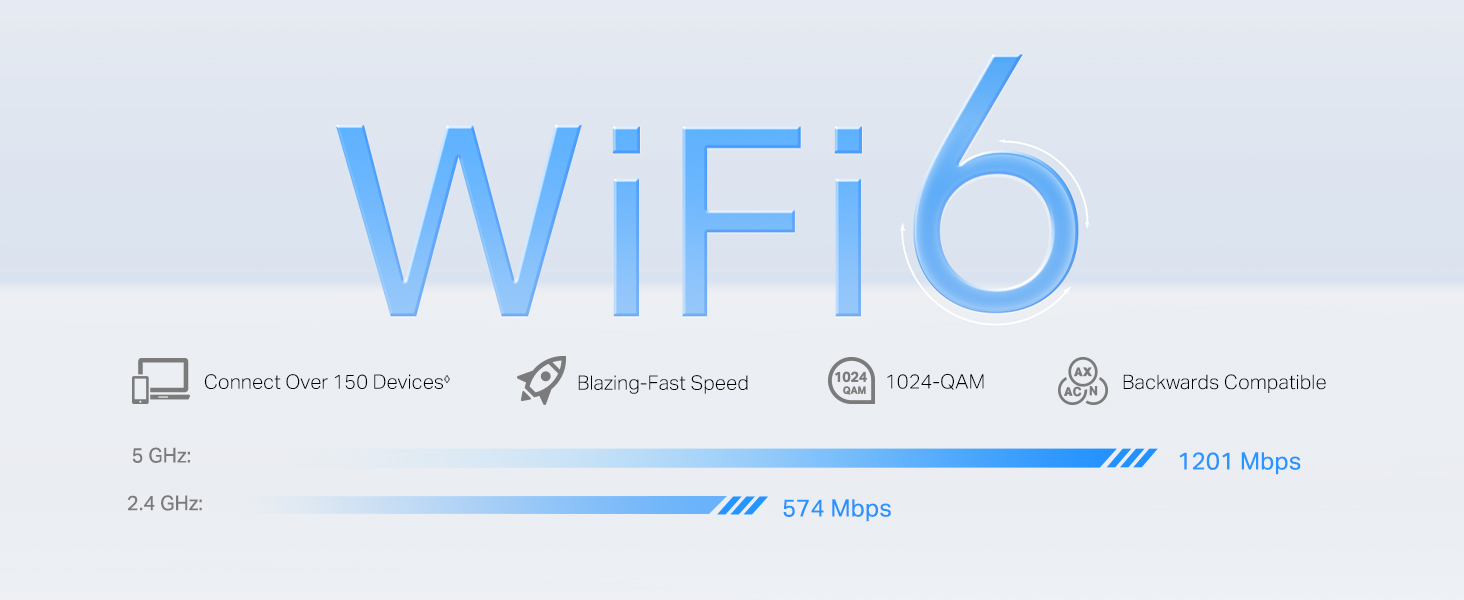
Image 3.1: Wi-Fi 6 speed capabilities, showing maximum theoretical speeds for 5 GHz and 2.4 GHz bands.
3.2 Seamless Roaming and AI-Driven Mesh
The Deco mesh system creates a unified network with a single Wi-Fi name. As you move between indoor and outdoor spaces, your devices automatically connect to the Deco unit providing the strongest signal, ensuring uninterrupted streaming and browsing. The AI-Driven Mesh technology continuously learns and adapts to your network environment for optimal performance.

Image 3.2: Seamless roaming functionality, depicting continuous Wi-Fi coverage indoors and outdoors.
3.3 HomeShield Security
TP-Link HomeShield provides comprehensive network protection and management features:
- Network Protection: Guards against cyber threats with features like DoS protection and SPI firewall.
- Robust Parental Controls: Manage internet access, filter content, and set time limits for family members.
- Quality of Service (QoS): Prioritize devices or activities to ensure optimal performance for critical applications.
- Comprehensive Reports: Monitor network usage and security events.
Network Protection

Parental Controls

Quality of Service (QoS)

Comprehensive Reports
4. Maintenance
Proper maintenance ensures the longevity and optimal performance of your Deco X20-OUTDOOR unit.
4.1 IP65 Weatherproof Design
The Deco X20-OUTDOOR features an IP65 rating, indicating its resistance to dust ingress and protection against water jets from any direction. This design allows the unit to operate reliably in various outdoor weather conditions, including rain and dust.

Image 4.1: IP65 Weatherproof Enclosure for Outdoor Environments, demonstrating resistance to dust and water.
4.2 Cleaning and Care
- Wipe the unit with a soft, dry cloth. Do not use liquid cleaners or aerosol sprays.
- Ensure all ports are free from debris, especially if the unit is exposed to dusty environments.
- Avoid placing the unit near heat sources or in direct sunlight for prolonged periods, despite its outdoor rating.
4.3 Firmware Updates
Regularly check for and install firmware updates via the Deco app. Firmware updates provide performance improvements, new features, and security enhancements.
5. Troubleshooting
If you encounter issues with your Deco X20-OUTDOOR unit, consider the following troubleshooting steps:
- No Internet Connection: Verify that your main Deco unit has an active internet connection. Check all Ethernet cable connections. Restart your modem, main Deco unit, and the outdoor unit.
- Weak Wi-Fi Signal: Ensure the outdoor unit is placed within the effective range of your existing Deco network. Adjust its position to minimize obstructions.
- Device Not Connecting: Confirm that the Wi-Fi password is correct. Try restarting the device you are trying to connect. Check the Deco app for any blocked devices.
- Deco App Issues: Ensure your Deco app is updated to the latest version. Try force-closing and reopening the app.
- LED Indicator Status: Refer to the Deco app or the product's online support page for explanations of different LED indicator colors and patterns, which can help diagnose issues.
For further assistance, consult the TP-Link support website or contact customer service.
6. Specifications
| Product Dimensions | 4.8 x 4.3 x 8.5 inches |
| Item Weight | 1.98 pounds |
| Model Name | AX1800 Outdoor/Indoor Mesh Wi-Fi 6 Unit |
| Special Features | Access Point Mode, Alexa Compatible, Guest Mode, Parental Control, QoS |
| Frequency Band Class | Dual-Band |
| Wireless Communication Standard | 802.11ac, 802.11ax, 802.11b, 802.11g, 802.11n |
| Compatible Devices | Personal Computer, Security Camera, Smart Television, Smartphone, Tablet |
| Connectivity Technology | Ethernet, Wi-Fi |
| Color | White |
| Manufacturer | TP-Link |
| Operating Temperature | -22°F to 104°F (-30°C to 40°C) |
| Operating Humidity | 10% to 90% RH, non-condensing |
7. Warranty and Support
TP-Link products come with a limited warranty. For detailed warranty information, product support, and technical assistance, please visit the official TP-Link website or refer to the documentation included with your purchase.
You can also find additional resources and FAQs on the TP-Link Amazon Store.
8. Important Safety Information
Please read and follow all safety instructions provided in the installation guide. The following legal disclaimer applies:
The ◈ Maximum wireless signal rates are the physical rates derived from IEEE Standard 802.11 specifications. Actual wireless data throughput and wireless coverage, and quantity of connected devices are not guaranteed and will vary as a result of network conditions, client limitations, and environmental factors, including building materials, obstacles, volume and density of traffic, and client location. Clients need to support 802.11k/v/r and may require additional set up. Performance may vary depending on the client device. ☃Protection against lightning and electro-static discharge may be achieved through proper product setup, grounding and cable shielding. Refer to the instruction manual and consult an IT professional to assist with setting up this product. *HomeShield includes the Free Basic Plan. Fees apply for the Pro Plan. Visit tp-link.com/homeshield for more information. Some features are under development and will be supported with subsequent software updates. ▲WiFi generations represent the wireless standard IEEE 802.11 a/b/g/n/ac/ax/be. Users may require an extra modem device that is compatible with their internet service provider to gain internet access. Actual network speed may be limited by the rate of the product's Ethernet WAN or LAN port, the rate supported by the network cable, Internet service provider factors and other environmental conditions. This Deco may not support all the mandatory features as ratified in IEEE 802.11ax specification. Further software upgrades for feature availability may be required.