
Introduction
This manual provides essential information for the proper setup, operation, and maintenance of your RAPIQUE R306C USB C Wireless Mouse. Please read these instructions carefully before using the product to ensure optimal performance and longevity.
Package Contents
- RAPIQUE R306C Wireless Mouse x 1
- USB-C Receiver x 1
- User Manual x 1
Product Overview
The RAPIQUE R306C is an ultra-slim, portable 2.4GHz wireless mouse designed for modern USB-C devices. It features silent clicks, a smooth scroll wheel, and adjustable DPI settings for precise control.

Image: The RAPIQUE R306C USB C Wireless Mouse, showcasing its sleek, minimalist design in white, alongside its compact USB-C receiver.
Key Features:
- Sleek and Minimalist Design: Streamlined shape with a premium finish, high-gloss top buttons, and a matte metallic base.
- Silent Click & Smooth Scroll: Enjoy low-noise clicks and a soft, silent scroll wheel for focused work environments. Note: The mouse wheel scrolls vertically only.
- Ultra-Slim and Portable: Compact and lightweight, ideal for travel and mobile use.
- Adjustable DPI: Easily switch between 800 / 1200 / 1600 DPI for precise tracking.
- Long Battery Life: Powered by one AA battery (not included), offering up to 480 hours of use with smart auto-sleep mode.
- Universal Compatibility: Works seamlessly with USB-C devices including MacBook Air/Pro, Mac, iPad Pro/Air, Android tablets, and other modern computers.
Setup Guide
1. Install Battery
- Gently slide off the top cover of the mouse to reveal the battery compartment.
- Insert one AA battery (not included) into the compartment, ensuring correct polarity (+/-).
- Replace the top cover, ensuring it clicks securely into place.
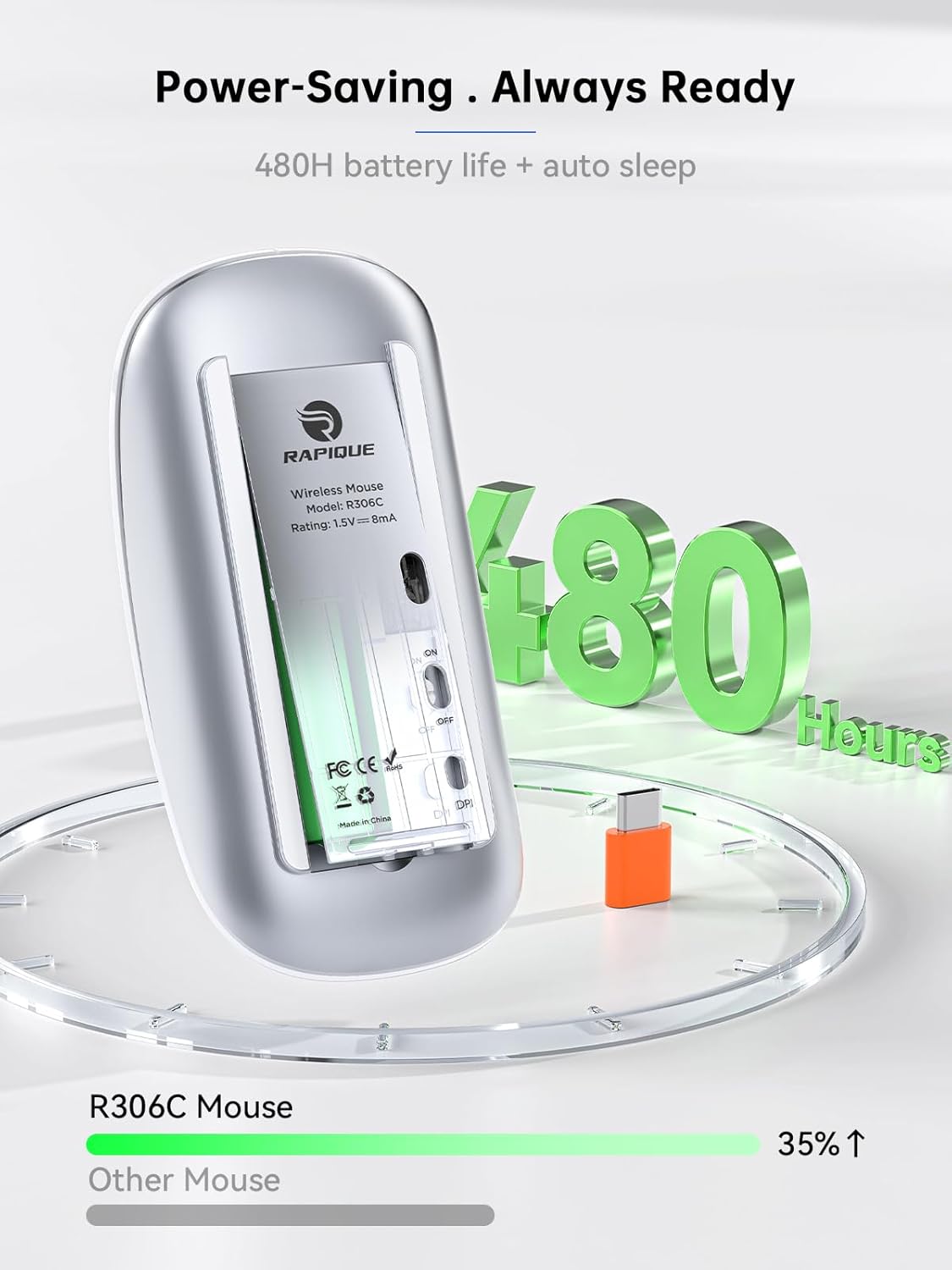
Image: The underside of the RAPIQUE R306C mouse with the battery cover removed, showing the AA battery slot and the USB-C receiver storage.
2. Connect USB-C Receiver
- Locate the USB-C receiver, typically stored within the mouse's battery compartment or packaged separately.
- Plug the USB-C receiver directly into an available USB-C port on your laptop, MacBook, iPad, or other compatible device.

Image: The RAPIQUE R306C mouse positioned next to a laptop, with its orange USB-C receiver visibly plugged into the laptop's USB-C port, illustrating a plug-and-play connection.
3. Power On
- Flip the ON/OFF switch located on the underside of the mouse to the "ON" position.
- The mouse should automatically connect to your device. No additional drivers are typically required for most operating systems.
Operating Instructions
Basic Functions
- Left Click: Press the left button.
- Right Click: Press the right button.
- Scroll: Roll the scroll wheel up or down to navigate vertically.
DPI Adjustment
The mouse features a DPI button on its underside, allowing you to adjust tracking sensitivity.
- Press the DPI button once to cycle through the available DPI settings (800 / 1200 / 1600 DPI).
- Select the DPI setting that best suits your task for optimal cursor speed and precision.
Auto-Sleep Mode
To conserve battery life, the mouse will automatically enter a sleep mode after a period of inactivity. To wake the mouse, simply move it or click any button.
Maintenance
Battery Replacement
When the mouse performance degrades or stops responding, it may be time to replace the AA battery. Follow the battery installation steps in the Setup Guide.
Cleaning
To clean your mouse, use a soft, dry cloth. Avoid using harsh chemicals or abrasive materials, as these may damage the surface.
Troubleshooting
- Mouse not responding:
- Ensure the mouse is powered ON.
- Check if the USB-C receiver is securely plugged into your device.
- Replace the AA battery if it is low or depleted.
- Try plugging the USB-C receiver into a different port on your device.
- Intermittent connection:
- Ensure the mouse is within the 10-meter operating range of the receiver.
- Avoid obstructions between the mouse and the receiver.
- Minimize interference from other 2.4GHz wireless devices.
- Cursor movement is erratic or slow:
- Adjust the DPI setting using the DPI button on the underside of the mouse.
- Ensure the mouse is used on a clean, non-reflective surface.
Specifications
| Feature | Detail |
|---|---|
| Model Number | R306C |
| Connectivity Technology | 2.4GHz Wireless (USB-C Receiver) |
| Movement Detection | Optical |
| DPI Settings | 800 / 1200 / 1600 |
| Battery Type | 1 x AA Battery (not included) |
| Battery Life | Up to 480 hours (may vary with usage) |
| Operating Range | Up to 10 meters |
| Dimensions | 4.5 x 2.3 x 0.98 inches (approx.) |
| Weight | 2.29 ounces |
Warranty and Support
For warranty information and customer support, please refer to the documentation included with your purchase or visit the official RAPIQUE website. Keep your proof of purchase for any warranty claims.