
1. Introduction
This manual provides detailed instructions for the installation, operation, and maintenance of your AINAVI 13.5" Android 13 Car TV Headrest Monitor. Please read this manual thoroughly before using the device to ensure proper functionality and safety.
2. Safety Information
- Do not attempt to disassemble or modify the device.
- Ensure all cables are securely connected to prevent disconnections during vehicle movement.
- Avoid exposing the device to extreme temperatures, direct sunlight for prolonged periods, or moisture.
- Clean the screen with a soft, dry cloth. Do not use liquid cleaners.
- Operate the device only within the specified voltage range (12V DC for car use).
3. Package Contents
Verify that all items listed below are included in your package:
- 13.5 Inch Headrest Monitor x 1
- Universal Mounting Bracket x 1
- 12V DC Adapter x 1 (for home use)
- Cigarette Lighter Power Cable x 1 (for car use)
- HDMI Cable x 1
- User Manual x 1

Figure 3.1: Included accessories and the headrest monitor.
4. Product Overview and Features
The AINAVI 13.5" Android 13 Car TV Headrest Monitor is designed to provide a comprehensive entertainment experience for rear-seat passengers. Key features include:
- Operating System: Android 13 with Cortex A55 CPU.
- Display: 13.5-inch 1920x1080 touchscreen, supporting 4K video playback.
- Memory: 4GB RAM + 64GB ROM.
- Connectivity: 5G/2.4 GHz WiFi, Bluetooth, Phone Mirroring (Happycast, iOS AirPlay, Android Miracast).
- Ports: SD card slot, USB port, HDMI input, HDMI output, Audio Out.
- Audio: Built-in dual speakers, FM transmitter, 3.5mm headphone jack.
- Customization: Customizable wallpaper, 7-color ambient LED lights.
- App Support: Google Play Store certified for safe app installation (e.g., YouTube, Netflix, Disney+, HBO, TikTok).

Figure 4.1: Key features of the headrest monitor.
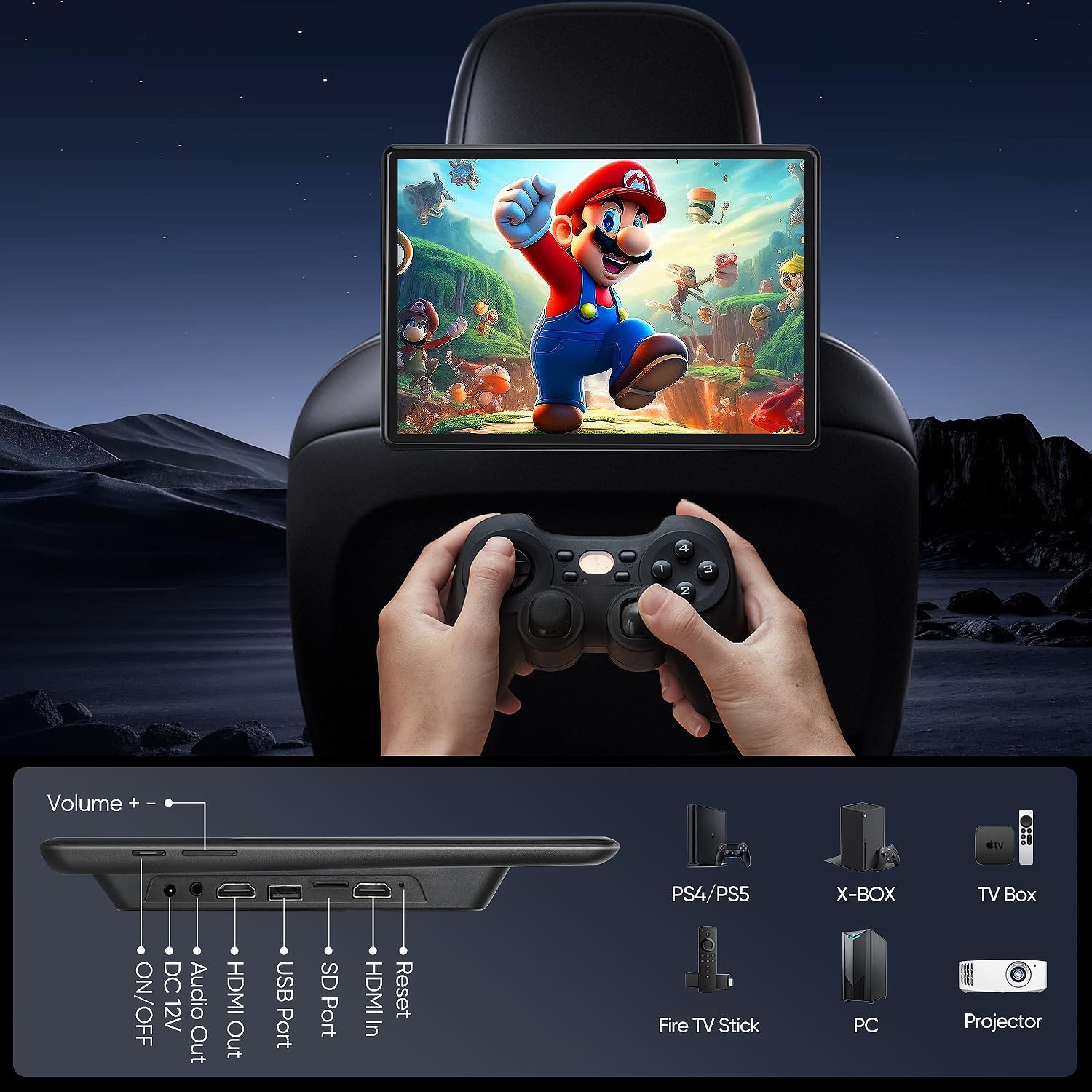
Figure 4.2: Device ports and compatible external devices.
5. Setup
5.1 Mounting the Monitor
The universal mounting bracket is designed for easy installation on most car headrest poles. It supports round headrest poles with a diameter between 130-200 mm. Square poles or headrests without poles are not compatible.
- Adjust the universal mounting bracket to fit the distance between your headrest poles.
- Securely attach the bracket to the headrest poles.
- Slide the monitor onto the bracket until it clicks into place.

Figure 5.1: Headrest mounting bracket installation.
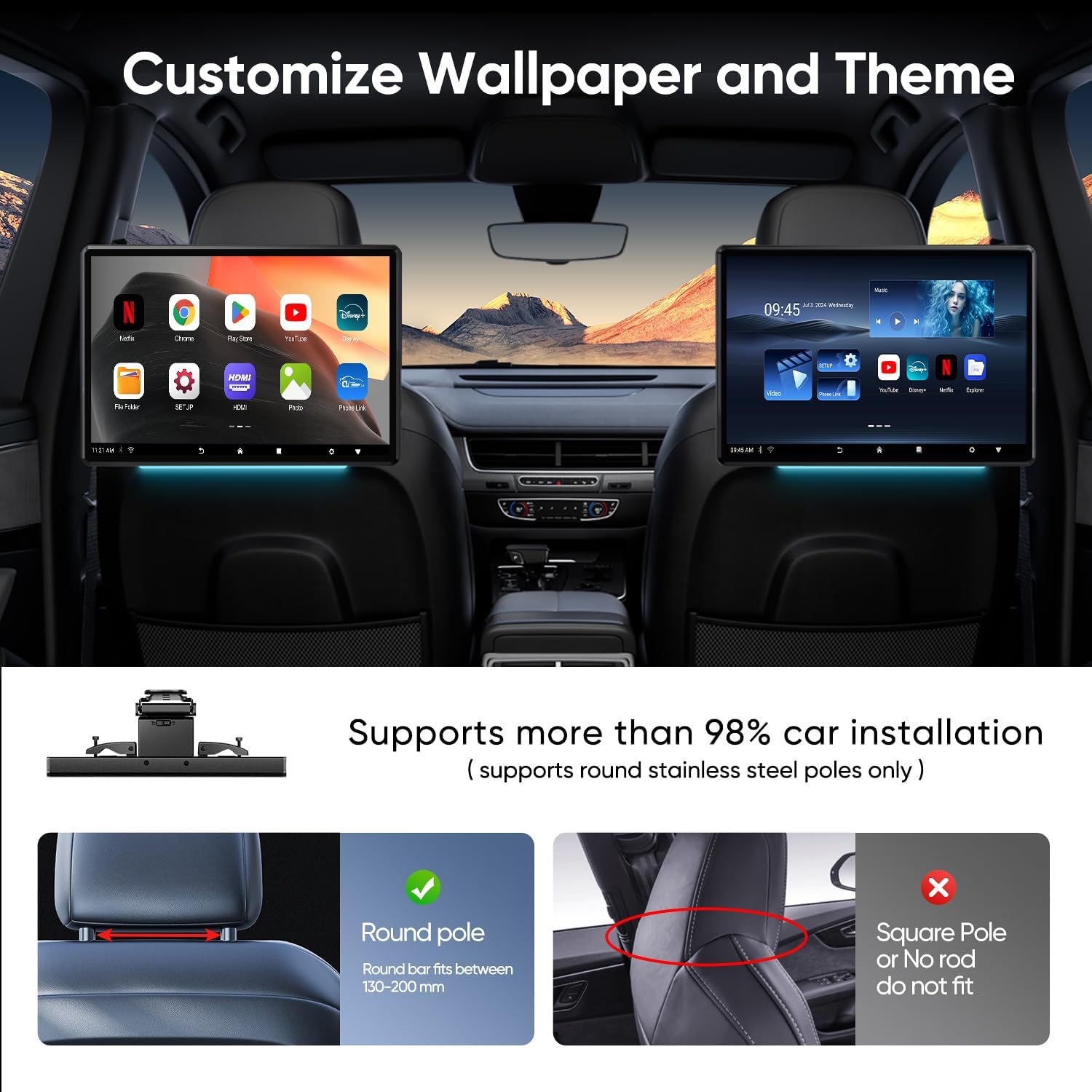
Figure 5.2: Headrest pole compatibility guide.
5.2 Power Connection
The monitor supports multiple power supply methods:
- In-Car Use: Connect the Cigarette Lighter Power Cable to your vehicle's 12V cigarette lighter socket and the monitor's DC 12V input.
- Home Use: Connect the 12V DC Adapter to a standard wall outlet and the monitor's DC 12V input.

Figure 5.3: Power connection options for car and home use.
5.3 Initial Power On and Wi-Fi Setup
- After connecting power, press the ON/OFF button to power on the device.
- Follow the on-screen prompts for initial setup.
- Navigate to Settings > Network & Internet > Wi-Fi.
- Select your desired Wi-Fi network and enter the password to connect.
6. Operating Instructions
6.1 Basic Navigation
The monitor features a responsive touchscreen. Swipe to navigate between screens, tap to select icons, and use pinch-to-zoom gestures where applicable.
6.2 App Installation and Usage
The device is Google Play Protect certified, allowing safe installation of applications from the Google Play Store. You can download streaming services, games, and social media apps.
- Ensure the monitor is connected to Wi-Fi.
- Open the Google Play Store app from the home screen.
- Search for your desired app and select Install.
- Once installed, the app icon will appear on your home screen or app drawer.

Figure 6.1: Available streaming and entertainment applications.
6.3 Media Playback
The monitor supports various media formats via USB, SD card, and streaming services.
- USB/SD Card: Insert a USB drive into the USB port or an SD card into the SD card slot. The device will detect the media, and you can use a file manager app to browse and play content. Supported formats include MP4, MPG, AVI, MKV, MOV, 3GP, MP3, WAV, FLAC, AAC, OGG, OGA.
- Streaming: Use installed apps like Netflix, YouTube, Disney+, etc., to stream content over Wi-Fi.
6.4 Screen Mirroring (Phone Link)
Mirror your smartphone screen to the monitor using Happycast, iOS AirPlay, or Android Miracast.
- Ensure both your phone and the monitor are connected to the same Wi-Fi network.
- On the monitor, open the screen mirroring application (e.g., Happycast).
- On your phone, activate screen mirroring (e.g., AirPlay for iOS, Smart View/Cast for Android) and select the monitor from the list of available devices.
You can also use the MyCar Link app on your phone to control the monitor remotely.

Figure 6.2: Phone screen mirroring in action.

Figure 6.3: Screen mirroring options and MyCar Link app.
6.5 HDMI Input and Output
The monitor features both HDMI input and output ports, allowing for versatile connectivity.
- HDMI Input: Connect external devices such as gaming consoles (PS4, PS5, Xbox), TV boxes, or PCs to the monitor using an HDMI cable to use it as a display.
- HDMI Output: Connect two AINAVI monitors via HDMI cable to sync and play the same content simultaneously.
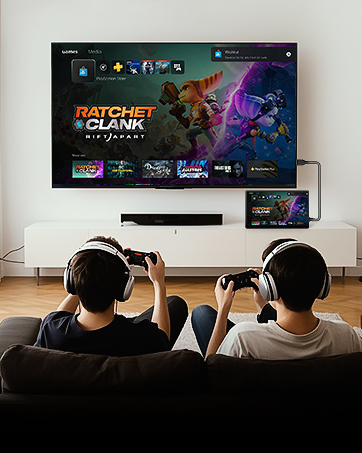
Figure 6.4: Using HDMI output to connect to an external display.
6.6 Audio Output Options
You have several options for audio output:
- Built-in Speakers: The monitor has integrated speakers for direct audio playback.
- FM Transmitter: Transmit audio to your car's speakers by tuning both the monitor's FM transmitter and your car radio to the same FM frequency.
- Bluetooth: Connect Bluetooth headphones or a Bluetooth speaker/subwoofer for wireless audio.
- Wired Headphones: Use the 3.5mm audio out port to connect wired headphones.

Figure 6.5: Various audio output methods.
6.7 Customization
- Wallpaper: Customize the device wallpaper through the settings menu to personalize your experience.
- Ambient Lights: The monitor features 7-color ambient LED lights. These can be set to switch automatically or manually selected via the settings.
Figure 6.6: Customizable wallpaper and themes.
7. Maintenance
- Cleaning: Use a soft, lint-free cloth to clean the screen and exterior. Do not use abrasive cleaners or solvents.
- Software Updates (OTA): The device supports Over-The-Air (OTA) system updates. Ensure the device is connected to Wi-Fi to receive and install updates for optimal performance and app compatibility.
8. Troubleshooting
| Problem | Possible Cause | Solution |
|---|---|---|
| Device does not power on. | No power connection or faulty cable. | Check power cable connection to the device and power source. Ensure the power source is active. |
| Cannot connect to Wi-Fi. | Incorrect password, out of range, or network issue. | Verify Wi-Fi password. Move closer to the Wi-Fi source. Restart your router and the monitor. |
| Screen mirroring not working. | Devices not on the same Wi-Fi network, or mirroring feature not activated. | Ensure both phone and monitor are on the same Wi-Fi. Activate mirroring on both devices. |
| No sound from car speakers via FM. | Incorrect FM frequency or car radio not tuned. | Ensure the monitor's FM transmitter and car radio are set to the exact same, clear frequency. |
| Apps are slow or crashing. | Too many apps running, low storage, or outdated software. | Close unused apps. Clear cache/data for problematic apps. Check for and install OTA updates. |
9. Specifications
| Feature | Detail |
|---|---|
| Brand | AINAVI |
| Model Number | 4G Ram+64G Rom |
| Operating System | Android 13 |
| Screen Size | 13.5 Inches |
| Display Type | LED Touchscreen |
| Resolution | 1920x1080 |
| RAM | 4GB |
| ROM | 64GB |
| Connectivity | 5G/2.4GHz WiFi, Bluetooth |
| Media Support | SD Card, USB |
| Video Formats | MP4, MPG, AVI, MKV, MOV, 3GP (and others) |
| Audio Formats | MP3, WAV, FLAC, AAC, OGG, OGA (and others) |
| Ports | USB, SD, HDMI In, HDMI Out, Audio Out, DC 12V |
| Power Input | DC 12V (Car), AC Adapter (Home) |
| Color | Black |
| Item Weight | 4.49 pounds |
| Package Dimensions | 10.5 x 10.2 x 10 inches |
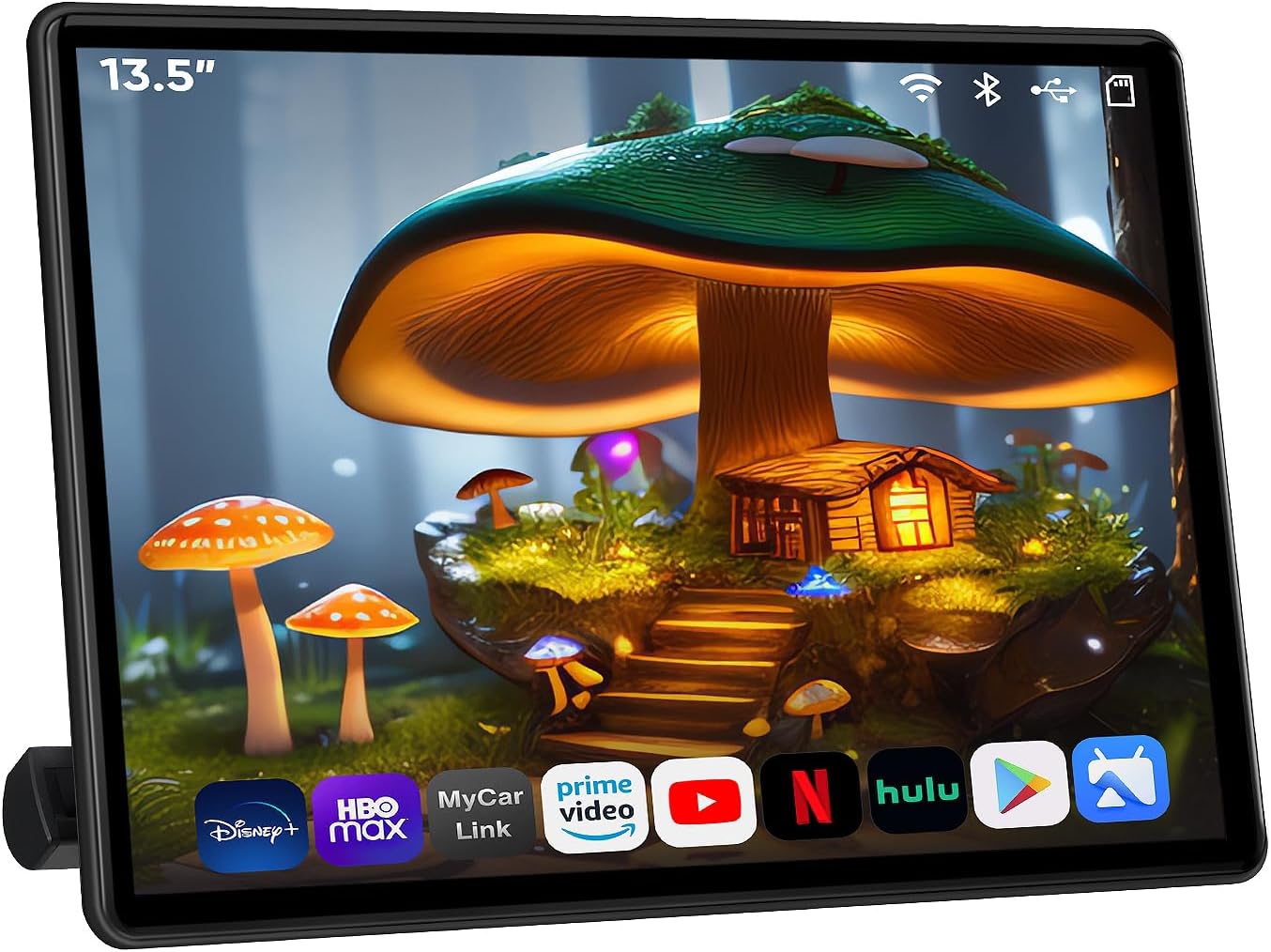
Figure 9.1: AINAVI 13.5" Android 13 Car TV Headrest Monitor.
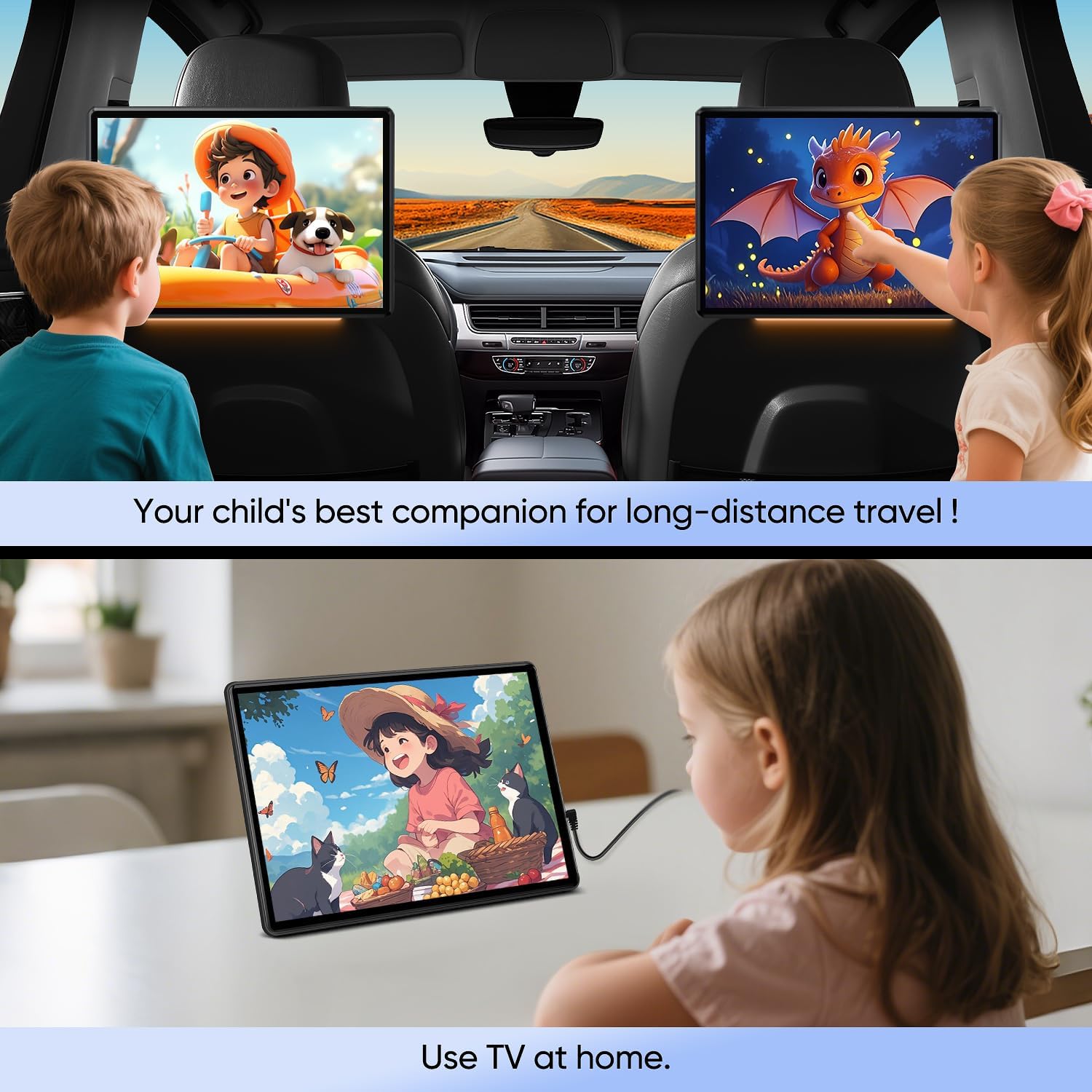
Figure 9.2: Monitor usage in car and at home.
10. Warranty and Support
This product comes with a standard manufacturer's warranty. For specific warranty details, please refer to the documentation included with your purchase or contact AINAVI customer support.
For technical assistance, troubleshooting, or further inquiries, please visit the official AINAVI website or contact their customer service department. Contact information can typically be found on the product packaging or the brand's official online presence.