
1. Introduction
This manual provides detailed instructions for the installation, operation, and maintenance of your AINAVI 13.5-inch Android 13 Car TV Touchscreen Headrest Monitor. Please read this manual thoroughly before using the device to ensure proper functionality and safety.
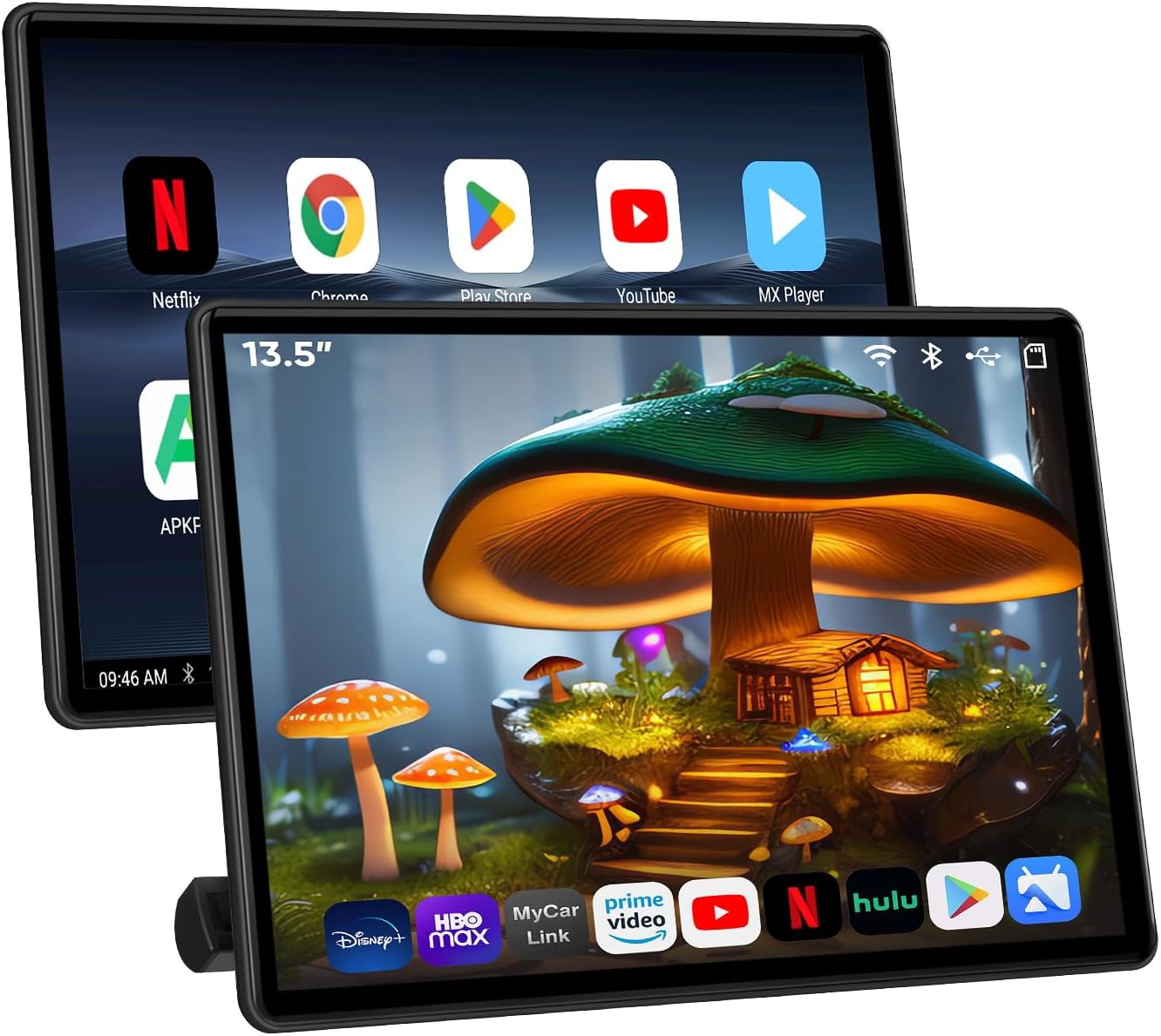
Image 1.1: AINAVI 13.5-inch Android 13 Car TV Touchscreen Headrest Monitor.
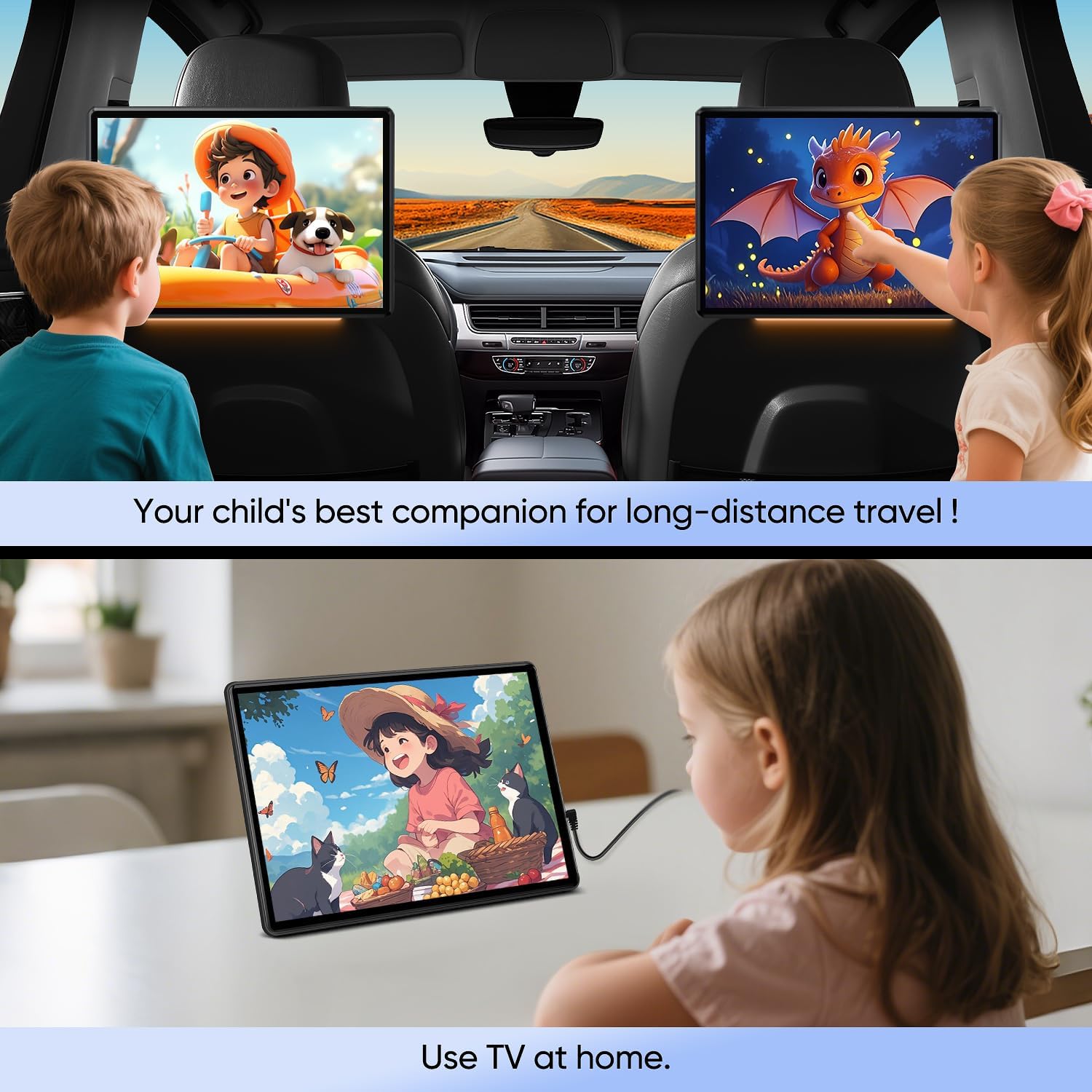
Image 1.2: The monitor provides entertainment for car trips and can also be used at home.
2. Safety Information
- Ensure the device is securely mounted to prevent movement during vehicle operation.
- Do not obstruct the driver's view or interfere with vehicle controls.
- Avoid exposing the device to extreme temperatures, direct sunlight for prolonged periods, or moisture.
- Use only the provided power adapters and cables.
- Do not attempt to disassemble or repair the device yourself. Contact customer support for assistance.
- Keep small parts and accessories out of reach of children.
3. Package Contents
Verify that all items listed below are included in your package:
- 13.5 Inch Headrest Monitor (x1)
- Universal Mounting Bracket (x1)
- 12V DC Adapter (for home use) (x1)
- Cigarette Lighter Power Cable (for car use) (x1)
- HDMI Cable (x1)
- User Manual (x1)

Image 3.1: Contents of the product package, including the monitor, mounting bracket, power cables, HDMI cable, and user manual.
4. Setup
4.1 Physical Installation
- Identify Compatible Headrest Poles: The universal mounting bracket supports round stainless steel headrest poles with a distance between 130-200 mm. Square poles or headrests without poles are not compatible.
- Attach Mounting Bracket: Secure the universal mounting bracket to the headrest poles. Ensure it is firmly tightened to prevent vibration or detachment during travel.
- Mount the Monitor: Slide the headrest monitor onto the secured mounting bracket until it clicks into place. Adjust the viewing angle as needed.
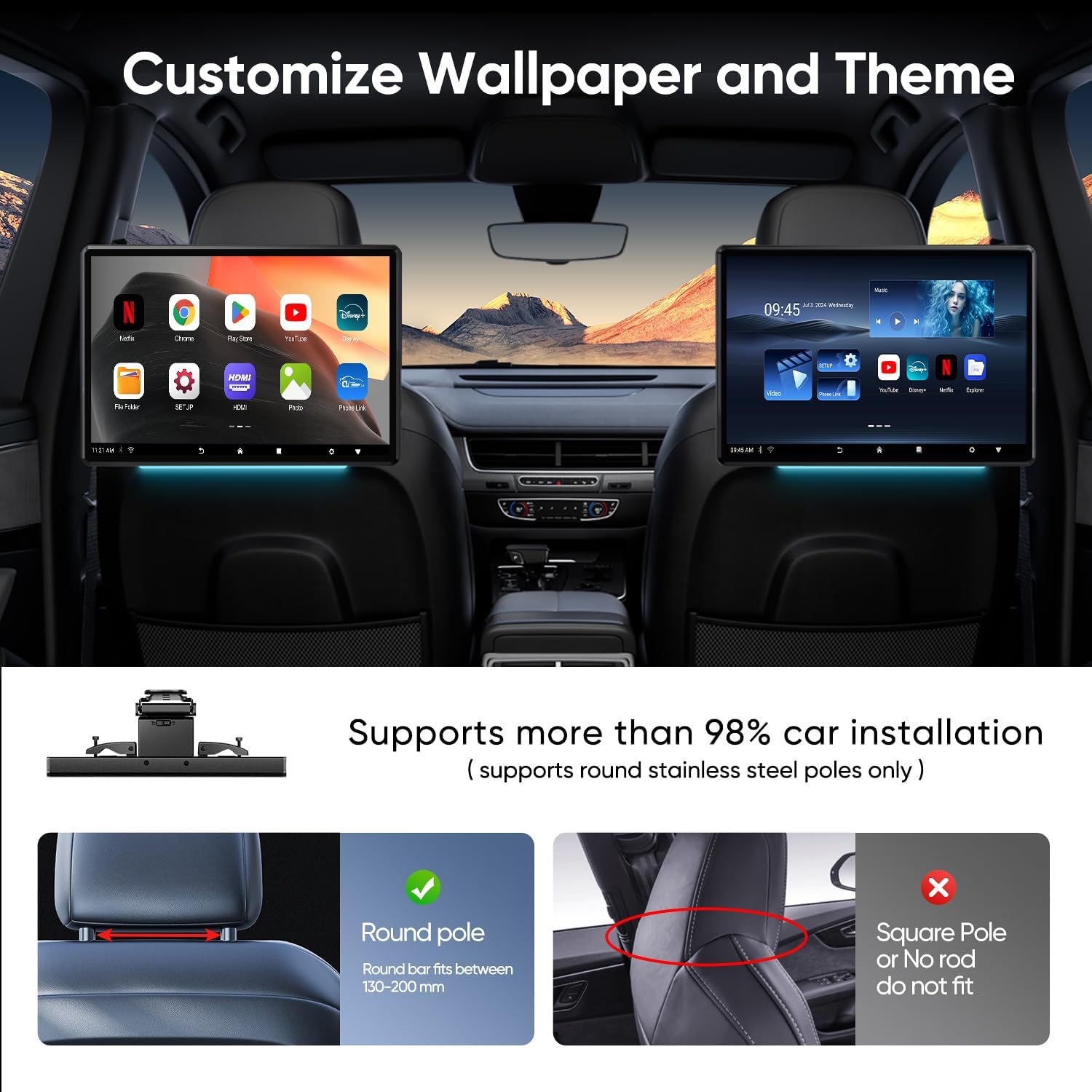
Image 4.1: Illustration of headrest pole compatibility and bracket attachment for installation.
4.2 Power Connection
The monitor can be powered in two ways:
- In-Car Use: Connect the provided cigarette lighter power cable to the monitor's DC 12V input port and plug the other end into your vehicle's 12V power outlet.
- Home Use: Connect the provided 12V DC adapter to the monitor's DC 12V input port and plug the adapter into a standard wall outlet.

Image 4.2: Depiction of connecting the monitor using a car charger or an AC adapter for home use.
5. Operating Instructions
5.1 Basic Operation
- Power On/Off: Press and hold the power button (ON/OFF) located on the side of the monitor to turn the device on or off.
- Touchscreen Navigation: The 13.5-inch touchscreen allows for intuitive navigation through the Android 13 interface. Tap, swipe, and pinch to interact with apps and settings.
- Volume Control: Use the volume buttons (+/-) on the side of the monitor to adjust audio output.
5.2 Android 13 System Features
The monitor runs on Android 13 with a Cortex A55 CPU, offering a responsive user experience.
- App Installation: Access the Google Play Store to download and install various applications, including streaming services (Netflix, Disney+, Prime Video, HBO, TikTok), games, and social tools. The device is Google Play Protect certified.
- Customization: Personalize your experience by setting custom wallpapers and choosing from multiple UI themes.

Image 5.1: Overview of key features including Android 13 system, memory, connectivity, and display.
5.3 Connectivity
- Wi-Fi Connection: Connect to 5G/2.4 GHz Wi-Fi networks or mobile hotspots to access online content and download apps.
- Bluetooth: Pair Bluetooth headsets or other Bluetooth-enabled audio devices for private listening.
- Screen Mirroring (Phone Link):
- iOS AirPlay: For Apple devices, use AirPlay to mirror your phone's screen to the monitor.
- Android Miracast: For Android devices, use Miracast to mirror your phone's screen.
Note: For screen mirroring, both your mobile phone and the car TV must be connected to the same Wi-Fi network.
- MyCar Link App: Download the MyCar Link app on your smartphone to use it as a remote control for the headrest monitor.

Image 5.2: Demonstrates wireless screen mirroring technology for projecting content from smartphones.
5.4 Media Playback
- USB and SD Card: Insert a USB drive into the USB port or an SD card into the SD card slot to play local media files. The monitor supports MP4, MPG, AVI, MKV, MOV, 3GP, MP3, WAV, FLAC, AAC, OGG, and OGA formats.
- HDMI Input: Connect external devices such as gaming consoles (PS4, PS5, Xbox), TV boxes, Fire TV Sticks, PCs, or projectors via the HDMI In port to use the monitor as a display.
- 4K Video Playback: The 1920*1080 resolution touchscreen supports playback of 4K video files.
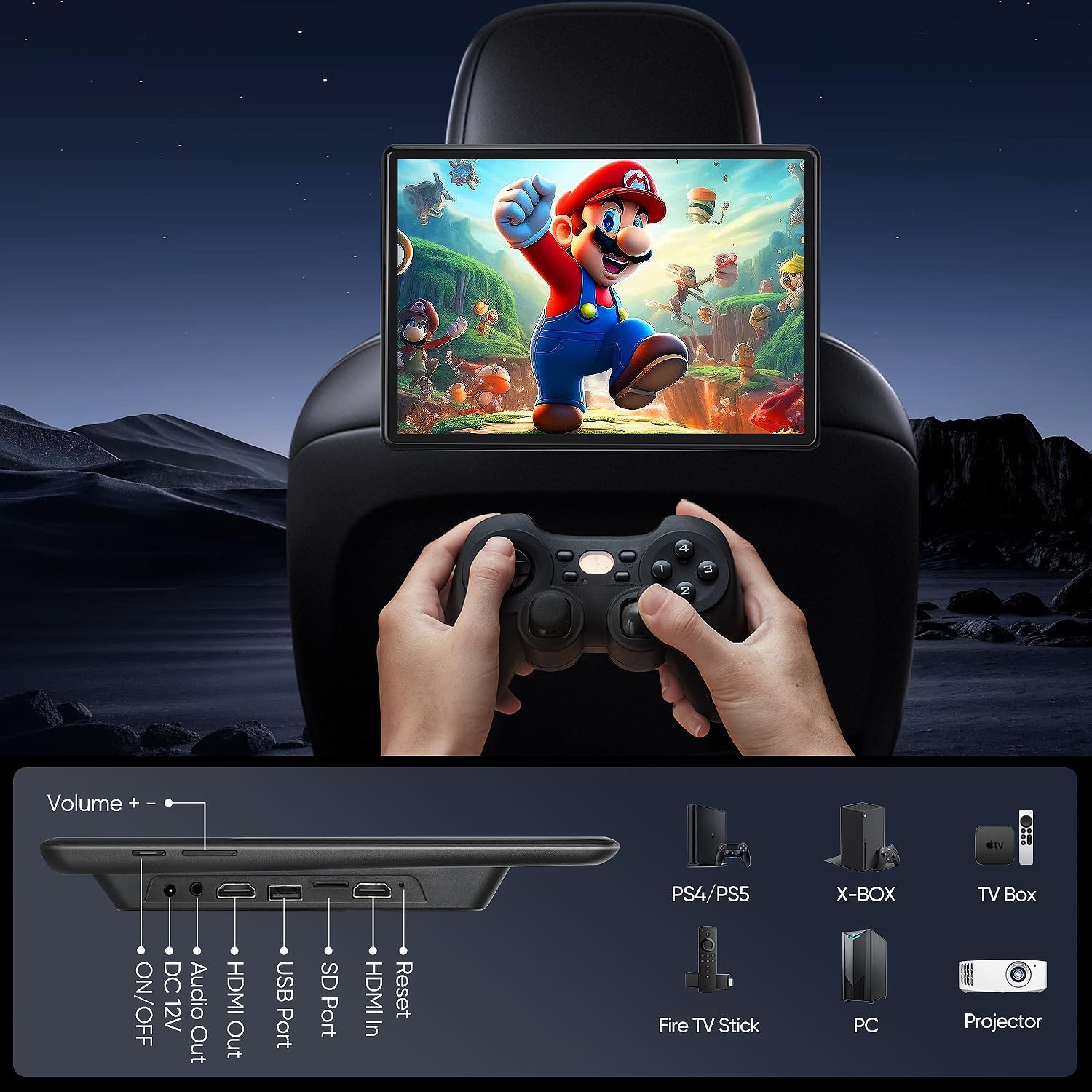
Image 5.3: Diagram showing the various ports (USB, SD, HDMI In/Out) and examples of external devices that can be connected.
5.5 Audio Output
- Built-in Speakers: The monitor features built-in dual speakers for direct audio output.
- FM Transmitter: Transmit audio wirelessly to your car's speakers by tuning the monitor's FM transmitter and your car radio to the same FM frequency.
- Bluetooth Headsets: Connect Bluetooth headphones for private listening.
- Wired Headsets: Use the 3.5mm headphone jack for wired headphones.

Image 5.4: Illustrates various audio output options including built-in speakers, headphone jack, FM transmitter, and Bluetooth.
5.6 Sync Screen Functionality
The monitor includes HDMI input and output ports. If you have two monitors, you can connect them via HDMI cables to display the same content simultaneously on both screens.
6. Maintenance
- Cleaning: Use a soft, dry cloth to clean the screen and exterior of the device. For stubborn smudges, lightly dampen the cloth with water or a screen-safe cleaner. Avoid abrasive materials or harsh chemicals.
- Storage: When not in use for extended periods, store the monitor in a cool, dry place away from direct sunlight and extreme temperatures.
- Software Updates: The device supports OTA (Over-The-Air) system updates. Ensure your device is connected to Wi-Fi to receive and install the latest software versions for optimal performance and security.
7. Troubleshooting
| Problem | Possible Cause | Solution |
|---|---|---|
| Device does not power on. | No power, loose connection, faulty power adapter. | Check power cable connection. Ensure power source is active. Try a different power outlet or cable if available. |
| No sound. | Volume too low, muted, incorrect audio output selected, faulty headphones. | Increase volume. Check if device is muted. Verify audio output settings (speakers, headphones, FM). Test with different headphones. |
| Screen mirroring not working. | Devices not on same Wi-Fi, Wi-Fi signal weak, mirroring feature not activated. | Ensure both phone and monitor are connected to the same 5G/2.4 GHz Wi-Fi network. Restart both devices. Check mirroring settings on both devices. |
| Cannot connect to Wi-Fi. | Incorrect password, out of range, router issue. | Verify Wi-Fi password. Move closer to the Wi-Fi router. Restart the router. |
| Apps are slow or crashing. | Too many apps running, low storage, outdated app/system. | Close background apps. Clear app cache. Check for system and app updates. Consider uninstalling unused apps. |
If you encounter issues not listed here or require further assistance, please contact customer support.
8. Specifications
| Feature | Detail |
|---|---|
| Model | 4G Ram+64G Rom (2*pcs) |
| Screen Size | 13.5 Inches (Visible screen diagonal: 14" / 35 cm) |
| Display Type | LED, 1920*1080 Resolution |
| Operating System | Android 13, Cortex A55 CPU |
| Memory | 4GB RAM + 64GB ROM |
| Connectivity | 5G/2.4 GHz Wi-Fi, Bluetooth |
| Ports | USB, SD Card, HDMI In, HDMI Out, 3.5mm Audio Out (Headphone Jack), DC 12V Power Input |
| Supported Video Formats | MP4, MPG, AVI, MKV, MOV, 3GP (supports 4K playback) |
| Supported Audio Formats | MP3, WAV, FLAC, AAC, OGG, OGA |
| Power Input | DC 12V (via car charger or AC adapter) |
| Item Weight | 8.43 pounds |
| Dimensions (Monitor) | Approximately 13.5" (width) x 8.4" (height) |
9. Warranty and Support
For warranty information, please refer to the documentation provided with your purchase or contact the seller directly. For technical support or assistance with installation and operation, you may contact customer service.
Customer Service Phone: +1 833 858 5016
You can also ask a question directly through the seller's page on Amazon.

Image 9.1: Screenshot indicating customer support contact options, including a phone number and an "Ask a question" button.