
1. Introduction
Thank you for choosing the FL ESPORTS GEO 65 HE Gaming Keyboard. This 60% mechanical keyboard features Hall Effect magnetic switches, rapid trigger functionality, and adjustable actuation for a highly customizable gaming experience. This manual provides detailed instructions for setup, operation, maintenance, and troubleshooting to ensure optimal performance.
2. Package Contents
Please verify that all items are present in your package:
- FL ESPORTS GEO 65 HE Gaming Keyboard
- USB-C to USB-A Cable
- Keycap Puller
- Switch Puller
- User Manual

Image: Contents of the FL ESPORTS GEO 65 HE keyboard package, showing the keyboard, USB-C cable, keycap puller, and switch puller.
3. Setup
- Connect the Keyboard: Plug the USB-C end of the provided cable into the keyboard and the USB-A end into an available USB port on your computer. The keyboard will automatically be recognized by your operating system.
- Install Software (Optional but Recommended): For full customization of RGB lighting, key remapping, macros, and performance settings (including rapid trigger and actuation point adjustment), download and install the official FL ESPORTS software from the manufacturer's website.

Image: Overview of the FL ESPORTS keyboard's features, including the software interface for customization and performance settings.
4. Operating Instructions
4.1 Basic Key Functions
The GEO 65 HE features a compact 60% layout. Many standard functions are accessed via the Fn key in combination with other keys. Refer to the keyboard's keycaps for secondary functions (e.g., arrow keys, function row).
4.2 Hall Effect Switches and Rapid Trigger
This keyboard utilizes Hall Effect magnetic switches, allowing for precise control over actuation and rapid trigger functionality. Rapid Trigger enables keys to reset instantly upon release, allowing for faster repeated inputs.
- Adjustable Actuation: The actuation point (the distance a key needs to travel to register an input) can be customized via the software. This allows you to set a shallow actuation for quick responses or a deeper one for more deliberate presses.
- Rapid Trigger: This feature can be enabled and configured through the software, allowing you to set the reset sensitivity for individual keys.
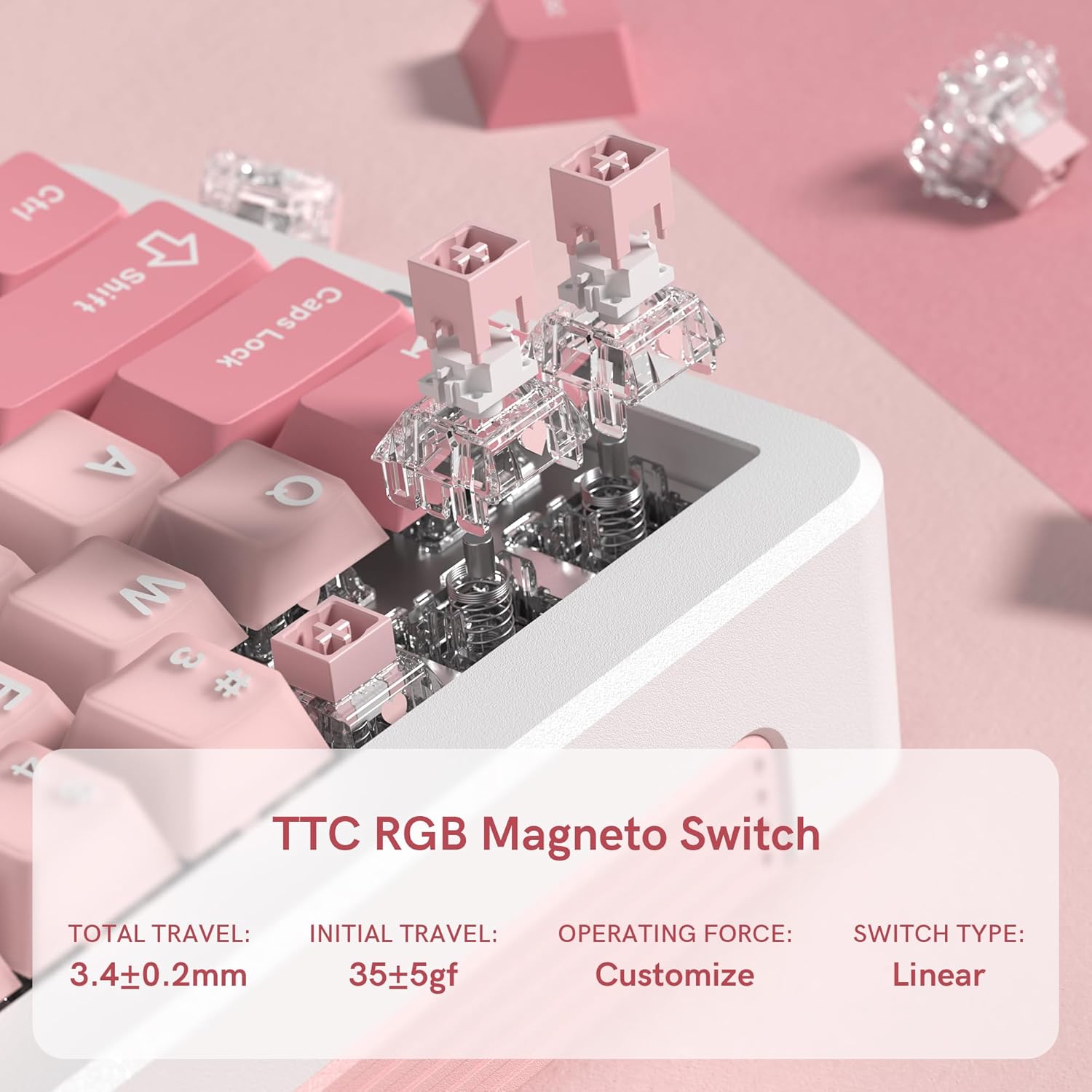
Image: A close-up view of the TTC RGB Magneto Switches, highlighting their design and key specifications such as total travel and operating force.
4.3 RGB Lighting Customization
The keyboard features per-key RGB lighting. Lighting effects, colors, and brightness can be adjusted using the FL ESPORTS software. Some basic lighting modes may be accessible via Fn key combinations.
4.4 Software Configuration
The dedicated software provides comprehensive control over your keyboard:
- Key Remapping: Assign custom functions to any key.
- Macro Management: Create and assign complex macros for gaming or productivity.
- Performance Settings: Fine-tune actuation points, rapid trigger sensitivity, and polling rate.
- Lighting Settings: Customize RGB effects, colors, and brightness.
- Firmware Updates: Keep your keyboard updated with the latest features and improvements.

Image: Multiple screenshots illustrating the FL ESPORTS software interface, showing options for key configuration, lighting settings, performance adjustments, and macro management.
5. Maintenance
5.1 Cleaning
To maintain your keyboard's appearance and functionality:
- Use a soft, dry cloth to wipe the keyboard surface.
- For deeper cleaning, use the provided keycap puller to remove keycaps and clean underneath with compressed air or a small brush.
- Avoid using harsh chemicals or abrasive materials.
5.2 Keycap and Switch Removal
The keyboard supports hot-swappable switches. Use the provided tools for safe removal:
- Keycap Removal: Gently attach the keycap puller to the keycap and pull straight up.
- Switch Removal: After removing the keycap, use the switch puller to grasp the top and bottom clips of the switch and pull straight up. Ensure the switch is properly aligned when reinserting.
6. Troubleshooting
- Keyboard Not Responding:
- Ensure the USB-C cable is securely connected to both the keyboard and the computer.
- Try connecting to a different USB port.
- Restart your computer.
- RGB Lighting Not Working/Incorrect:
- Check the lighting settings in the FL ESPORTS software.
- Ensure the keyboard firmware is up to date.
- Keys Not Registering or Double-Typing:
- Clean around the affected switch to remove any debris.
- If the issue persists, consider replacing the switch using the provided switch puller.
- Verify actuation settings in the software.
- Software Not Detecting Keyboard:
- Ensure the software is the latest version.
- Try reinstalling the software.
- Temporarily disable any antivirus or firewall software that might be interfering.
7. Specifications
| Feature | Specification |
|---|---|
| Model | GEO 65 HE |
| Brand | FL ESPORTS |
| Keyboard Layout | 60% (QWERTY) |
| Switch Type | Hall Effect Magnetic Switches (TTC RGB Magneto Switch) |
| Actuation | Adjustable |
| Special Features | Rapid Trigger, Aluminum Alloy Case, RGB Backlighting, PBT Keycaps |
| Connectivity | USB-C (Wired) |
| Compatible Devices | PC (Windows/Mac) |
| Polling Rate | 8KHz |
| Scan Rate | 256K |
| Low Latency | 0.125ms |
| Rapid Trigger (RT) | 0.005mm |
| Zero Dead Zone | 0 |
| Item Weight | 1.2 pounds |
| Package Dimensions | 10 x 2.7 x 2 inches |
| Keyboard Dimensions (Approx.) | 323.3mm (L) x 118.3mm (W) x 34mm (H) |
Image: Top and side views of the FL ESPORTS GEO 65 HE keyboard with approximate dimensions indicated in millimeters.
8. Warranty and Support
For warranty information and technical support, please refer to the official FL ESPORTS website or contact their customer service directly. Standard return policies typically allow for returns within 30 days of purchase. Extended protection plans may be available from your retailer.


