
1. Introduction
This manual provides detailed instructions for the installation, operation, and maintenance of your AINAVI 13.5-inch Android 13 Car TV Headrest Monitor. Please read this manual thoroughly before using the device to ensure proper functionality and safety. Keep this manual for future reference.
2. Package Contents
Verify that all items listed below are present in your package:
- 13.5 Inch Headrest Monitor (x2)
- Universal Mounting Bracket (x2)
- 12V DC Adapter (x2, for home use)
- Cigarette Lighter Power Cable (x1, for car use)
- HDMI Cable (x2)
- User Manual (x1)

Image: Package contents showing two headrest monitors, mounting brackets, power adapters, cigarette lighter cable, HDMI cables, and the user manual.
3. Product Features
- Operating System: Android 13 with Cortex A55 CPU.
- Memory: 2GB RAM + 32GB ROM for app storage and smooth operation.
- Display: 13.5-inch 1920x1080 touchscreen, supporting 4K video playback.
- Connectivity: 5G/2.4 GHz WiFi, Bluetooth.
- Ports: SD card slot, USB port, HDMI input, HDMI output.
- Screen Mirroring: Supports iOS AirPlay and Android Miracast (Happycast).
- Audio: Built-in dual speakers, 3.5mm headphone jack, FM transmitter for car speakers, Bluetooth headset support.
- Customization: Customizable wallpapers and themes.
- Lighting: 7-color ambient LED lights, automatic or manual selection.
- App Support: Download and update apps via Google Play Store (Google Play Protect certified).
- Power Supply: DC adapter (home), car charger (12V car).
- System Updates: Supports OTA (Over-The-Air) system updates.
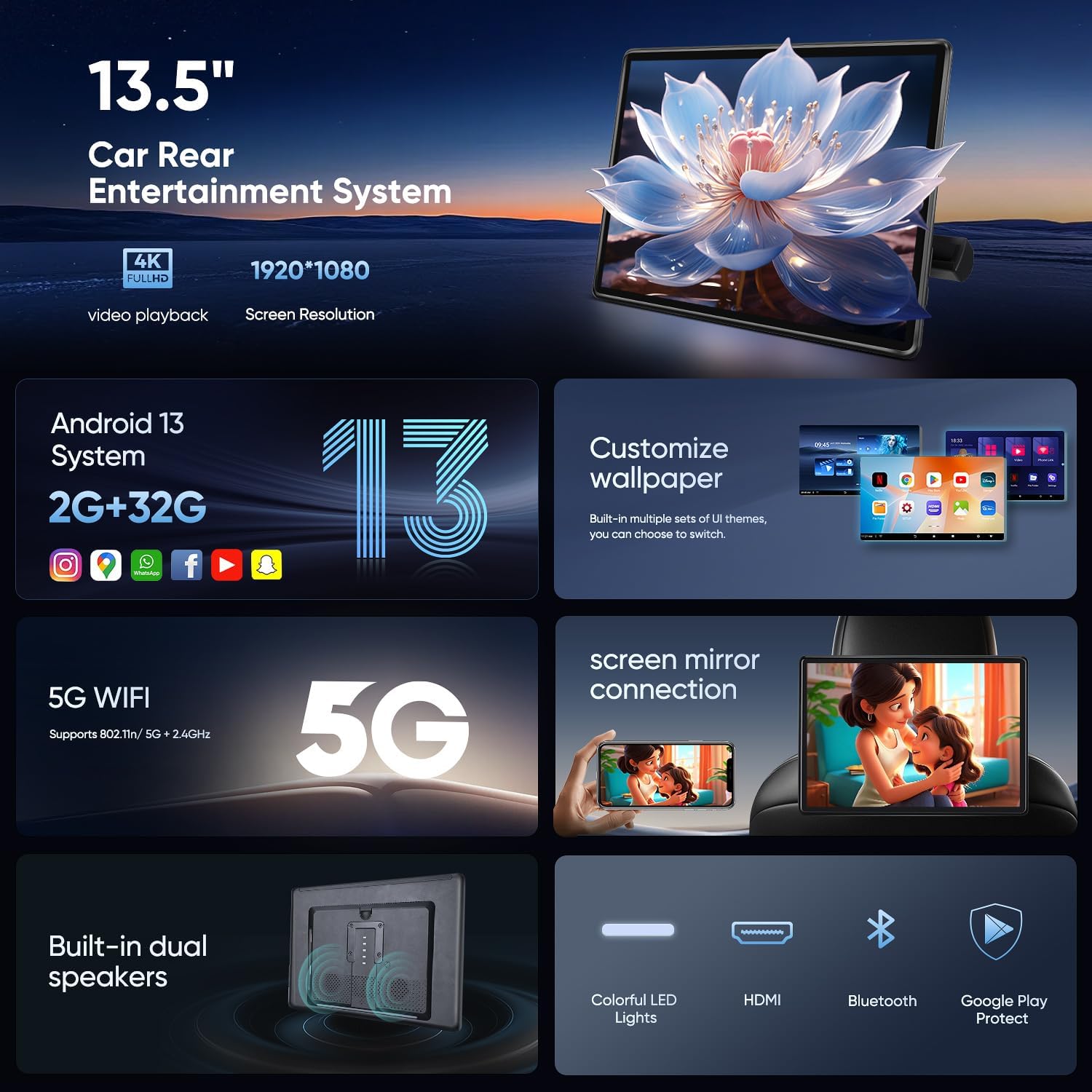
Image: Overview of the monitor's technical specifications and features.
4. Setup and Installation
4.1 Car Installation
- Ensure your car's headrest poles are round and fit within the 130-200 mm range. Square poles or no rods are not compatible.
- Attach the universal mounting bracket to the headrest poles. Adjust the bracket to securely fit the poles.
- Slide the headrest monitor onto the mounted bracket until it clicks into place.
- Connect the cigarette lighter power cable to the monitor and your car's 12V power outlet.
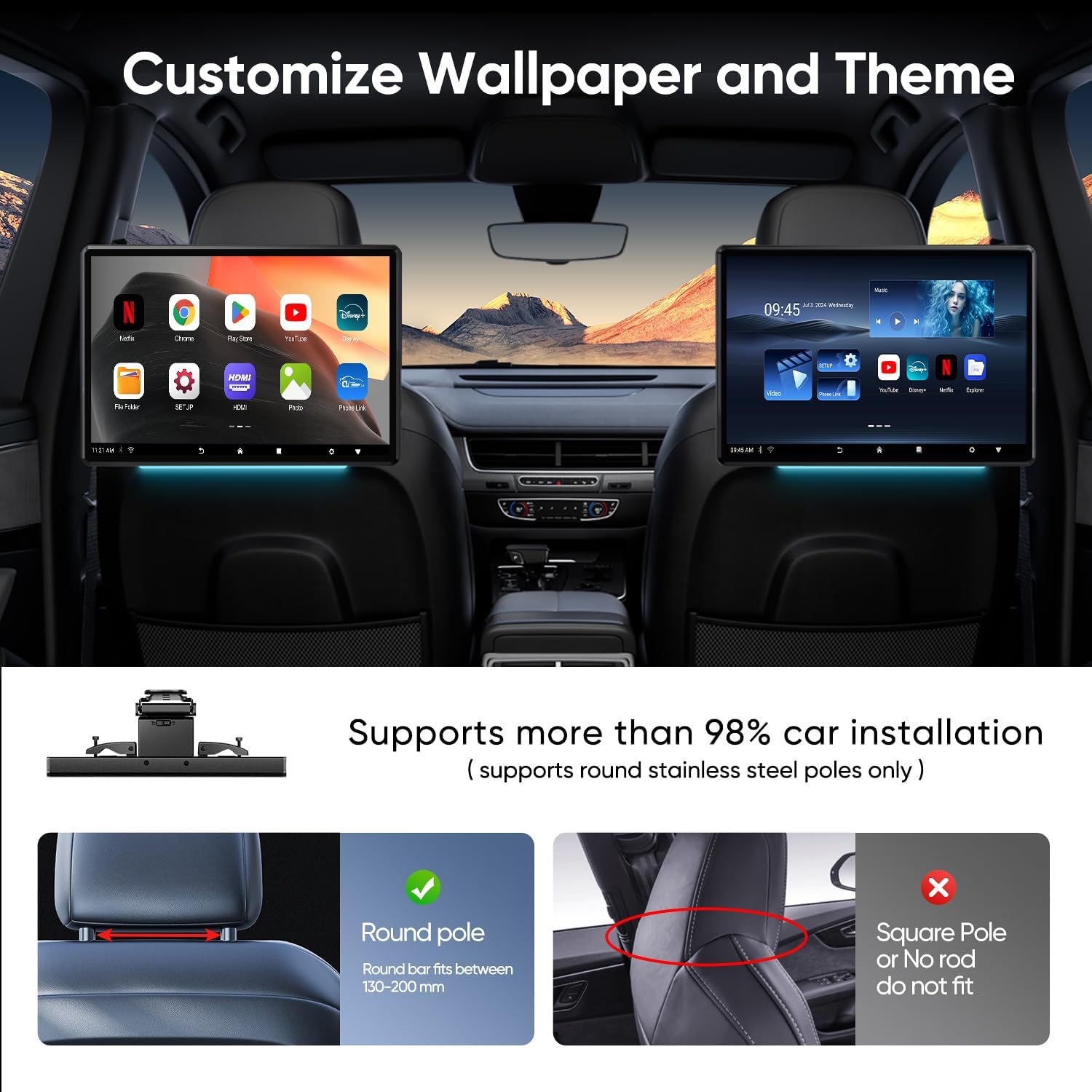
Image: Headrest installation compatibility and an example of two monitors installed in a car.
4.2 Home Use Setup
- Use the provided 12V DC adapter to power the monitor.
- Place the monitor on a stable surface.
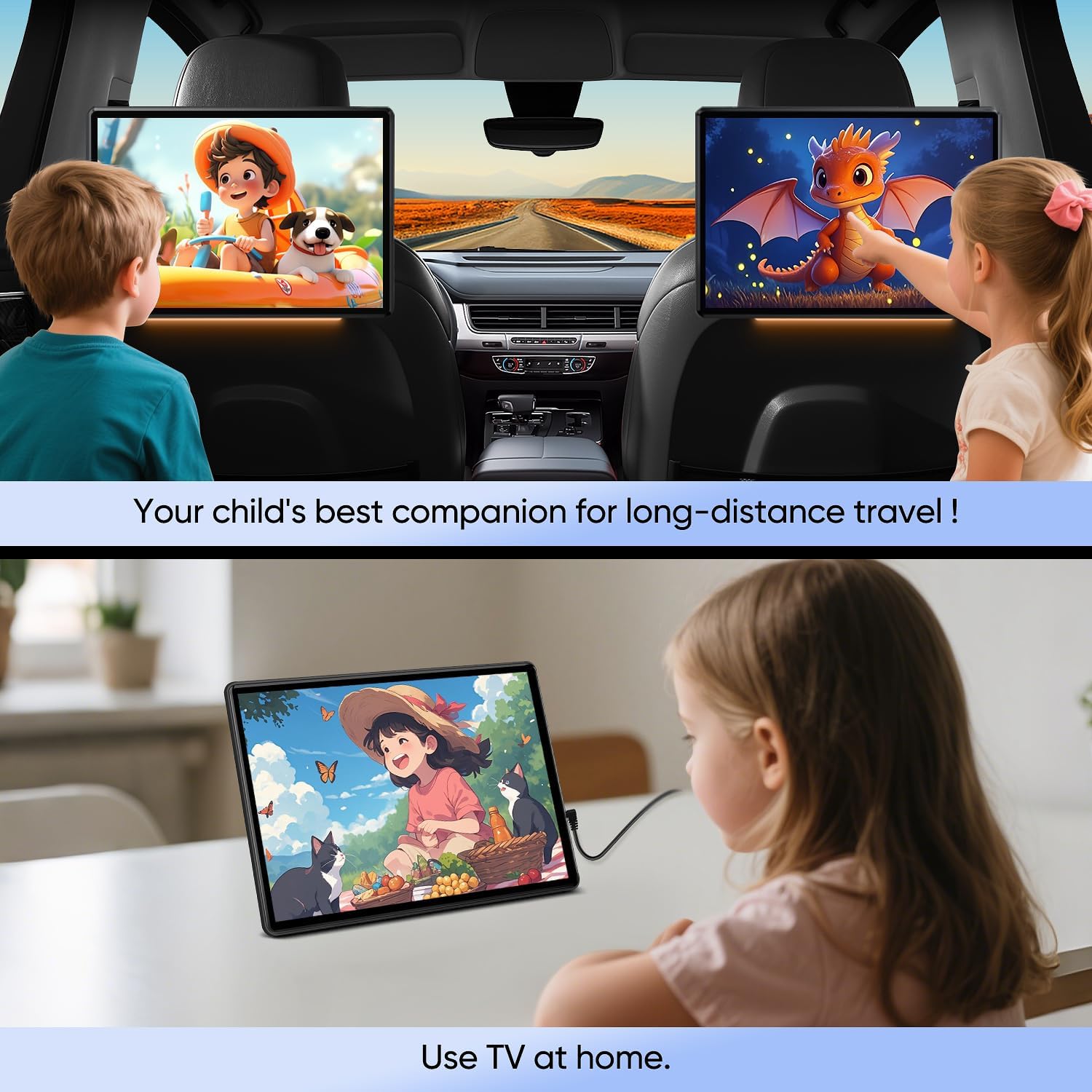
Image: Examples of the monitor being used in a car and at home.
5. Operating Instructions
5.1 Power On/Off
Press and hold the power button (located on the side of the monitor) to turn the device on or off.
5.2 Navigation and Interface
The monitor features an Android 13 touchscreen interface. Navigate by tapping, swiping, and pinching gestures similar to a smartphone or tablet. The home screen displays installed applications.

Image: The monitor's home screen showing various pre-installed and downloadable applications.
5.3 Connectivity
- WiFi: Go to Settings > Network & internet > Wi-Fi to connect to a 5G or 2.4 GHz wireless network.
- Bluetooth: Go to Settings > Connected devices > Bluetooth to pair with Bluetooth headphones or other devices.
5.4 Media Playback
The monitor supports various media formats including MP4, MPG, AVI, MKV, MOV, 3GP, MP3, MAV, FLAC, AAC, OGG, and OGA.
- USB/SD Card: Insert a USB drive into the USB port or an SD card into the SD card slot. Use a file manager app to browse and play media.
- Streaming Apps: Download and use streaming applications like YouTube, Netflix, Disney+, Prime Video, HBO, and TikTok from the Google Play Store.
5.5 Screen Mirroring
The monitor supports wireless screen mirroring from both iOS (AirPlay) and Android (Miracast) devices via Happycast. Ensure your phone and the monitor are connected to the same WiFi network.
5.6 HDMI Input/Output
The monitor features both HDMI input and output ports.
- HDMI Input: Connect external devices such as gaming consoles (Xbox, PS4, PS5), TV boxes, or Fire TV Sticks to the HDMI In port to use the monitor as a display.
- HDMI Output: Connect two monitors via HDMI cable to sync screens and play the same content simultaneously.
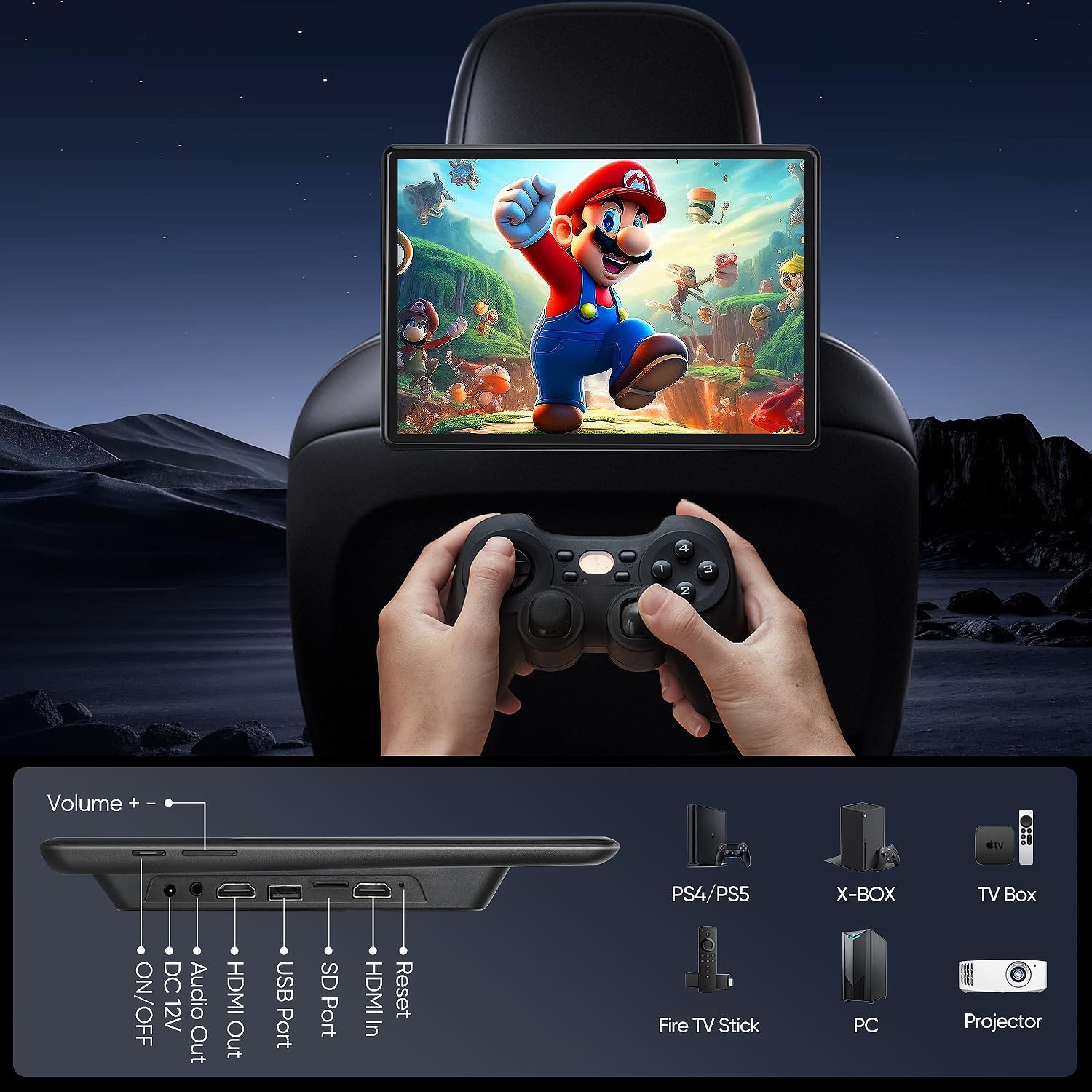
Image: Detailed view of the monitor's ports and compatible external devices.
5.7 Audio Output Options
- Built-in Speakers: The monitor has integrated dual speakers.
- Bluetooth Headsets: Pair Bluetooth headphones for private listening.
- Wired Headsets: Connect wired headphones via the 3.5mm audio out port.
- FM Transmitter: Transmit audio to your car's speakers by tuning the monitor's FM transmitter and your car radio to the same frequency.
5.8 App Installation
Access the Google Play Store to download and install various applications, including games, music players, video streaming services, and social media tools. The device is Google Play Protect certified for secure app installations.
5.9 Customizing Wallpaper and Theme
Personalize your monitor by selecting from multiple built-in UI themes and customizing the wallpaper through the device settings.
6. Maintenance
- Cleaning: Use a soft, dry cloth to clean the screen and exterior. Avoid abrasive cleaners or solvents.
- Software Updates: Regularly check for and install OTA system updates to ensure optimal performance and security.
- Storage: Avoid exposing the device to extreme temperatures or direct sunlight for prolonged periods.
7. Troubleshooting
- Device not powering on: Ensure the power cable is securely connected and the power source (car 12V outlet or DC adapter) is functional.
- No sound: Check volume settings, ensure headphones are properly connected, or verify FM transmitter frequency matches car radio.
- Screen mirroring issues: Confirm both devices are on the same WiFi network. Check app permissions for screen mirroring.
- Apps not downloading/updating: Verify internet connection. Clear Google Play Store cache or data if necessary.
- Slow performance: Close unused applications. Clear cache or consider a factory reset if issues persist (backup data first).
8. Specifications
| Feature | Specification |
|---|---|
| Model Number | 2G Ram+32G Rom |
| Screen Size | 13.5 Inches |
| Display Type | LED Touchscreen |
| Resolution | 1920x1080 |
| Operating System | Android 13 |
| RAM | 2GB |
| ROM | 32GB |
| Connectivity | 5G/2.4 GHz WiFi, Bluetooth |
| Ports | USB, SD Card, HDMI In, HDMI Out, Audio Out |
| Power Input | DC 12V (Car), DC Adapter (Home) |
| Item Weight | 8.47 pounds (per unit) |
| Package Dimensions | 13.82 x 10.83 x 6.93 inches |
9. Warranty and Support
For warranty information and technical support, please refer to the documentation provided with your purchase or contact AINAVI customer service. Keep your proof of purchase for warranty claims.