
Introduction
This manual provides detailed instructions for the setup, operation, and maintenance of your ATTACK SHARK MAMBASNAKE X60HE Mechanical Gaming Keyboard. Please read this manual thoroughly to ensure proper use and to maximize your keyboard's performance.
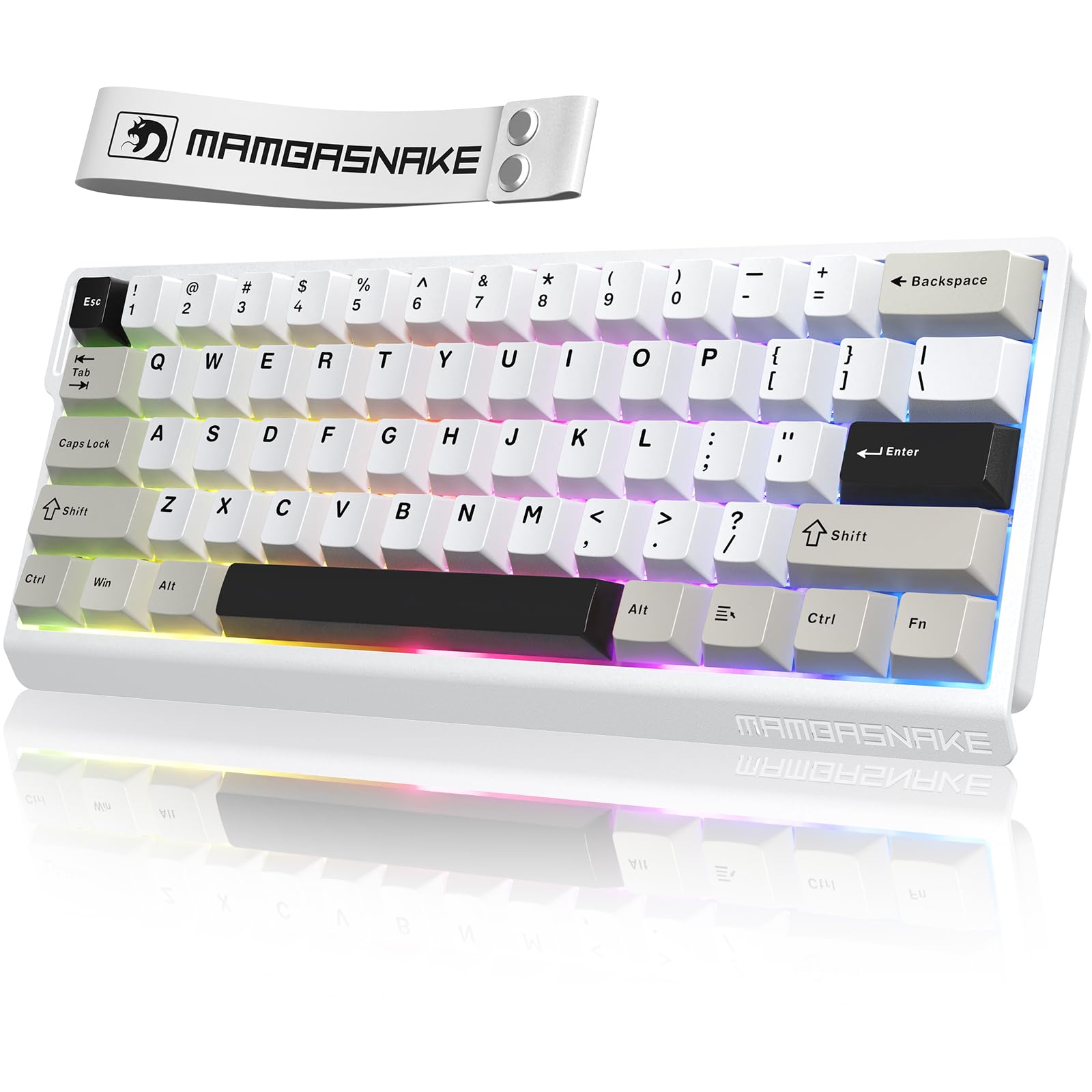
Figure 1: ATTACK SHARK MAMBASNAKE X60HE Mechanical Gaming Keyboard.
Package Contents
Verify that all items are present in your package:
- 1 x ATTACK SHARK MAMBASNAKE X60HE Keyboard
- 1 x USB-C to USB-A Braided Cable
- 1 x 2.4GHz USB Receiver
- 1 x Keycap / Switch Pulling Tool
- 1 x Clear Dust Cover
- 1 x Instruction Manual (this document)
Setup
1. Charging the Keyboard
Before first use, it is recommended to fully charge the keyboard. Connect the provided USB-C cable to the keyboard's USB-C port and the other end to a powered USB-A port on your computer or a USB wall adapter. The keyboard features a 4000mAh battery for extended use.

Figure 2: The keyboard is equipped with a 4000mAh rechargeable battery.
2. Connection Modes
The X60HE keyboard supports three connection modes: Wired, 2.4GHz Wireless, and Bluetooth.

Figure 3: The keyboard supports Tri-Mode Connection: Wired, Bluetooth, and 2.4G Wireless.
2.1 Wired Connection
- Connect the USB-C cable to the keyboard and the USB-A end to your computer.
- The keyboard will be automatically recognized by your system.
- In wired mode, the polling rate is 8KHz, providing ultra-low latency.
2.2 2.4GHz Wireless Connection
- Locate the 2.4GHz USB receiver (often stored in a compartment on the keyboard).
- Plug the USB receiver into an available USB port on your computer.
- Switch the keyboard to 2.4GHz wireless mode using the switch on the keyboard (refer to keyboard layout for exact switch location).
- The keyboard should connect automatically. In 2.4GHz wireless mode, the polling rate is 1KHz.
2.3 Bluetooth Connection
- Switch the keyboard to Bluetooth mode using the switch on the keyboard.
- On your device (PC, Mac, Laptop), open Bluetooth settings.
- Search for new devices and select "ATTACK SHARK X60HE" (or similar name) from the list.
- Pair the device. The keyboard can connect to up to 3 Bluetooth devices simultaneously.
- In Bluetooth mode, the polling rate is 1KHz.
3. Web Driver Software
For full customization, including key remapping, macros, RGB lighting, DKS, MT, TGL, and Snap Key functions, access the web driver software. No installation is required.
- Access the web driver at: qmk.top
- Follow the on-screen instructions to customize your keyboard settings.

Figure 4: Web Driver interface for advanced keyboard customization.
Operating Instructions
1. Rapid Trigger and Adjustable Actuation
The X60HE features Hall Effect Magnetic Switches with Rapid Trigger technology and adjustable actuation points. This allows for precise control and faster response times, especially beneficial in gaming.
- Rapid Trigger: Allows keys to activate and deactivate based on movement rather than a fixed point, enabling quicker repeated inputs.
- Adjustable Actuation: Customize the actuation distance of each key from 0.1mm to 3.4mm using the web driver. This allows you to set how far a key needs to be pressed to register an input.

Figure 5: Adjustable actuation point from 0.1mm to 3.4mm for personalized key sensitivity.

Figure 6: Visual representation of 0.01mm RT accuracy and 128KHz scan rate in gaming.
2. RGB Lighting Control
The keyboard features 16.8 million color RGB backlighting with 21 preset modes and 9 light colors. Lighting effects can be customized via the web driver.

Figure 7: Overview of X60HE features including RGB lighting.
3. Advanced Customization (Web Driver)
The web driver allows for extensive customization:
- Key Combos & Macros: Assign multiple functions or complex sequences to a single key.
- DKS (Dynamic Keystroke): Assign different actions based on how far a key is pressed.
- MT (Macro Trigger): Trigger macros with specific key presses.
- TGL (Toggle): Toggle functions on/off with a single key.
- Snap Key: Advanced key behavior for rapid actions.
- RGB Lighting: Fine-tune lighting effects and colors.

Figure 8: Custom dynamic keying capabilities for enhanced gameplay.
4. Battery Check Function
To check the current battery level, press the FN key + Right Ctrl key simultaneously. The space bar will flash to indicate a low battery status.
Maintenance
1. Cleaning the Keyboard
- Disconnect the keyboard from all power sources before cleaning.
- Use a soft, lint-free cloth slightly dampened with water or a mild cleaning solution to wipe the keycaps and chassis.
- For dust and debris between keys, use compressed air.
- Avoid using harsh chemicals or abrasive materials.
2. Keycap and Switch Replacement
The X60HE features hot-swappable magnetic switches, allowing for easy replacement without soldering. The PBT keycaps are also durable and can be removed.
- Use the provided keycap/switch pulling tool to carefully remove keycaps and switches.
- When replacing switches, ensure they are aligned correctly before pressing them into place.
- Refer to the exploded view for internal components.

Figure 9: Exploded view showing internal components like PBT keycaps, magnetic switches, aluminum alloy plate, and PORON foam.
Troubleshooting
| Problem | Possible Cause | Solution |
|---|---|---|
| Keyboard not responding (Wired) | Loose cable connection, faulty USB port. | Ensure USB-C cable is securely connected. Try a different USB port on your computer. |
| Keyboard not connecting (2.4GHz Wireless) | USB receiver not plugged in, keyboard not in 2.4GHz mode, low battery. | Plug in the USB receiver. Ensure keyboard switch is set to 2.4GHz mode. Charge the keyboard. |
| Keyboard not connecting (Bluetooth) | Keyboard not in Bluetooth mode, not paired, low battery, interference. | Ensure keyboard switch is set to Bluetooth mode. Re-pair the keyboard in your device's Bluetooth settings. Charge the keyboard. Move closer to the device. |
| Keys not registering or double-typing | Switch issue, incorrect actuation setting, debris under keycap. | Check actuation settings in the web driver. Clean under the keycap. If issue persists, consider replacing the switch. |
| RGB lighting not working or incorrect | Software setting, low battery. | Check RGB settings in the web driver. Ensure keyboard is sufficiently charged. |
| Battery drains quickly | High RGB brightness, frequent use, aging battery. | Reduce RGB brightness. Ensure keyboard enters smart sleep mode (adjustable via web driver). |
Specifications
| Feature | Detail |
|---|---|
| Model | X60HE |
| Keyboard Layout | 60% (61-key ANSI layout) |
| Switch Type | Hall Effect Magnetic Switches (Outemu) |
| Actuation Range | 0.1mm - 3.4mm (Adjustable) |
| Rapid Trigger Accuracy | 0.01mm |
| Scan Rate | 128KHz |
| Polling Rate (Wired) | 8000Hz |
| Polling Rate (Wireless/Bluetooth) | 1000Hz |
| Connectivity | USB-C Wired, 2.4GHz Wireless, Bluetooth (up to 3 devices) |
| Battery Capacity | 4000mAh |
| Keycaps | PBT |
| RGB Lighting | 16.8 million colors, 21 backlit modes, 9 light colors |
| Compatible Devices | PC, Mac, Laptop |
| Dimensions | 11.5 x 4.5 x 1.5 inches (approximate, based on review) / 13.07 x 6.57 x 2.17 inches (Package Dimensions) |
| Item Weight | 2.05 pounds |
| Material | Metal, Plastic, Silicone |
Official Product Video
Video 1: Overview of the ATTACK SHARK MAMBASNAKE X60HE RT Mechanical Gaming Keyboard, highlighting its features and performance.
Warranty and Support
For warranty information, technical support, or further assistance, please refer to the official ATTACK SHARK website or contact their customer service directly. Warranty terms and conditions may vary by region and retailer.
Manufacturer: ATTACK SHARK


