
1. Introduction
This manual provides detailed instructions for the HODO 9-in-1 USB C Docking Station. Please read this manual carefully before use to ensure proper operation and to maximize the product's capabilities. This docking station is designed to expand the connectivity of your USB-C enabled laptop, offering multiple display outputs, USB ports, and power delivery.

Image 1.1: The HODO 9-in-1 USB C Docking Station with its various connection options.
2. Package Contents
Please verify that all items are present in your package:
- HODO 9-in-1 USB C Docking Station
- Instruction Manual (this document)
If any items are missing or damaged, please contact customer support.
3. Product Features
The HODO 9-in-1 USB C Docking Station offers comprehensive connectivity:
- Dual HDMI 4K Ports: One HDMI port supports up to 4K@60Hz, and the other supports up to 4K@30Hz.
- DisplayPort (DP): Supports up to 8K@30Hz or 4K@144Hz.
- VGA Port: Supports up to 1080P@60Hz.
- USB 3.0 Port: One port with data transfer speeds up to 5Gbps.
- USB 2.0 Ports: Two ports with data transfer speeds up to 480Mbps, ideal for keyboard and mouse.
- USB C Data Port: One port for data transfer.
- USB C Power Delivery (PD) Port: Supports up to 100W input and 87W (safe) output for laptop charging.

Image 3.1: Overview of the 9-in-1 ports on the HODO USB C Docking Station.
4. Setup Instructions
- Verify Laptop Compatibility: Ensure your laptop's USB-C port supports DisplayPort Alternate Mode (DP Alt Mode) and Power Delivery for full functionality. Refer to your laptop's specifications or Section 7 for more details.
- Connect Power Adapter (Optional but Recommended): If you intend to charge your laptop via the docking station, connect a USB-C power adapter (not included, at least 65W, 100W recommended) to the PD port on the docking station.
- Connect External Displays: Connect your monitors to the HDMI, DisplayPort, and/or VGA ports on the docking station using appropriate cables.
- Connect USB Peripherals: Plug in your USB devices (keyboard, mouse, external drives) to the available USB 3.0, USB 2.0, or USB C data ports.
- Connect Docking Station to Laptop: Plug the integrated USB-C cable from the docking station into your laptop's USB-C port.
- Verify Connection: The docking station features two detection lights: a white working detection light (indicates connection to laptop) and a blue compatibility detection light (indicates video output support). Both lights should be on for proper operation.
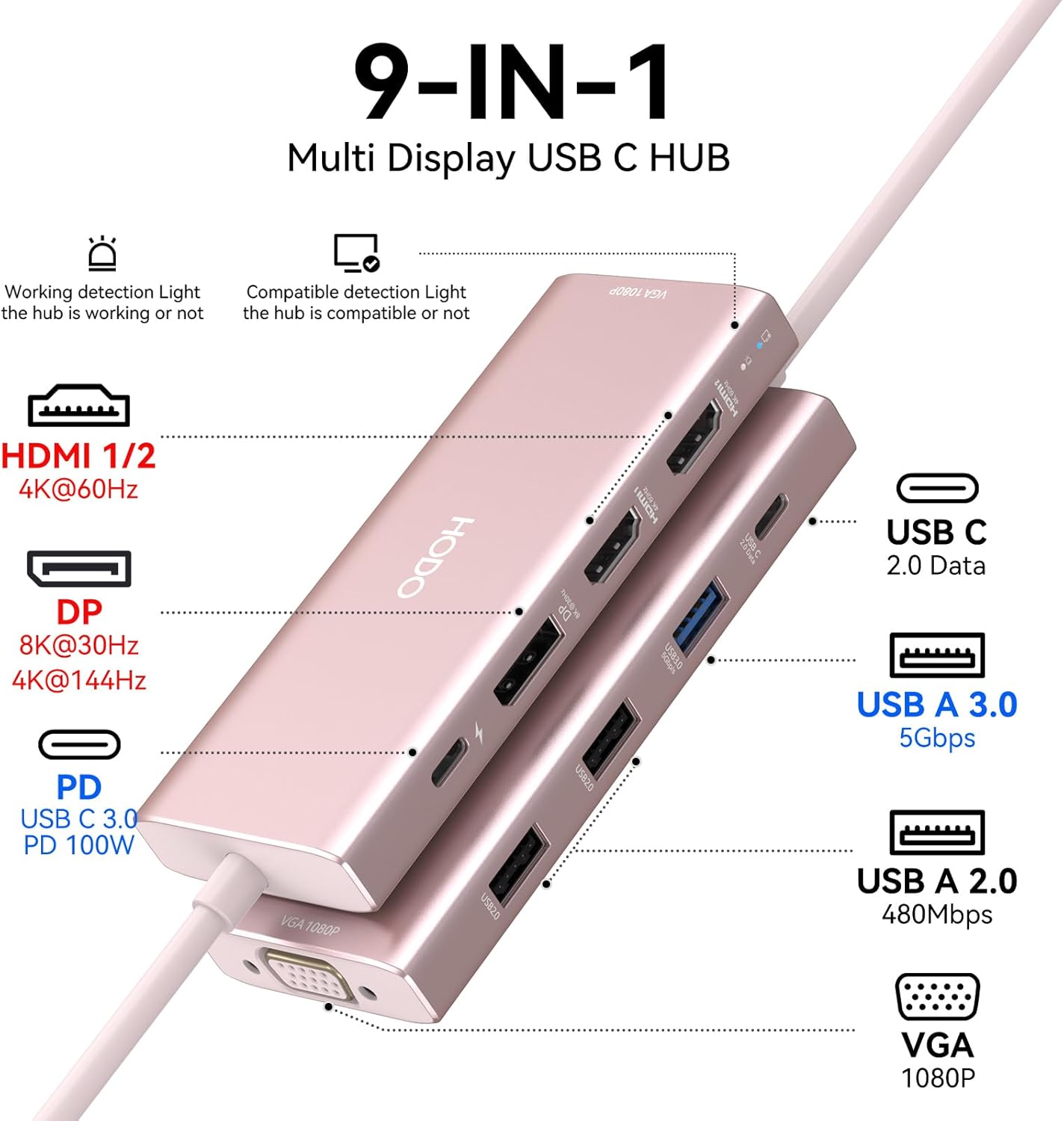
Image 4.1: The docking station features two indicator lights for connection status and video compatibility.
5. Operating Instructions
5.1 Display Configuration
The docking station supports various display modes, including mirror, extend, and quad display, depending on your laptop's operating system and DP version (DP 1.4 with DSC is required for optimal performance).
Windows Operating System:
For Windows laptops, the docking station supports single, dual, triple, and quad display configurations. Resolutions vary based on your laptop's DP version and the number of connected displays.

Image 5.1: Multiple display modes available for Windows systems.

Image 5.2: Example of a quad display setup with a Windows laptop.

Image 5.3: Dual 4K display setup for Windows laptops with DP 1.4 DSC support.

Image 5.4: Achieving 8K@30Hz or 4K@144Hz clarity with a laptop supporting DP 1.4 with DSC.
Refer to the following tables for detailed resolution support on Windows:

Image 5.5: Windows Single Display Resolution Table.

Image 5.6: Windows Dual Display Resolution Table.

Image 5.7: Windows Triple Display Resolution Table.

Image 5.8: Windows Quad Display Resolution Table.
macOS Operating System:
On macOS systems, external monitors will display the same content in both mirror and extended modes due to macOS limitations regarding Multi-Stream Transport (MST).

Image 5.9: Multiple display modes for macOS, highlighting MST limitations.

Image 5.10: macOS Quad Display Resolution Table.
5.2 Power Delivery
The USB C PD port supports up to 100W input and provides up to 87W of safe power output to your laptop. A separate power adapter (not included) is required for charging. Ensure your laptop's USB-C port supports the Power Delivery protocol.
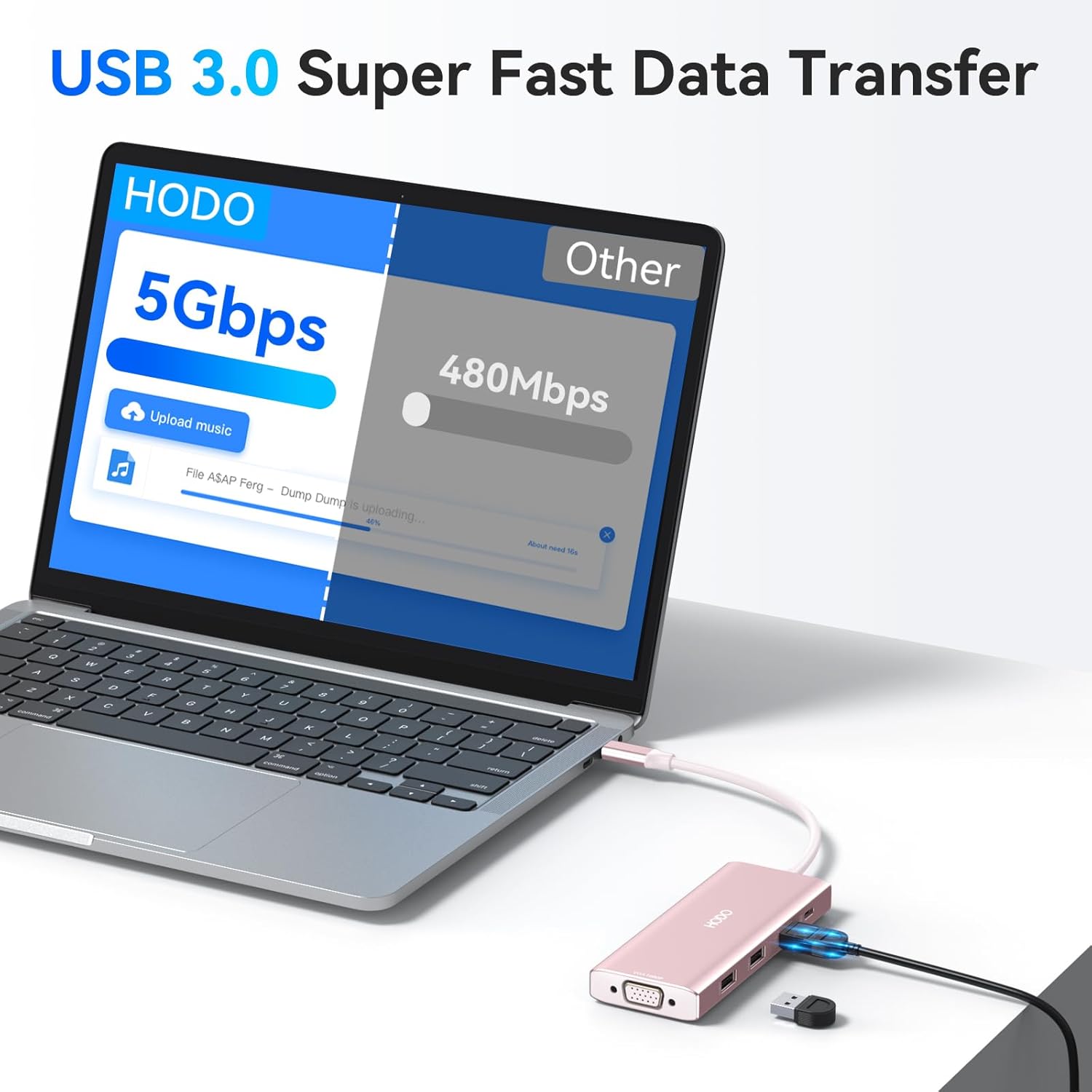
Image 5.11: Power delivery functionality, illustrating 100W input and 85W output.
5.3 Data Transfer
Utilize the USB 3.0 port for high-speed data transfer up to 5Gbps, allowing quick file transfers. The two USB 2.0 ports are suitable for connecting peripherals like keyboards and mice, offering speeds up to 480Mbps without lag. An additional USB C data port is also available.

Image 5.12: High-speed data transfer via the USB 3.0 port.
6. Maintenance
- Keep the docking station clean and free from dust. Use a soft, dry cloth for cleaning.
- Avoid exposing the device to extreme temperatures, humidity, or direct sunlight.
- Do not attempt to disassemble or repair the device yourself. Contact customer support for assistance.
- Disconnect the docking station from your laptop and power source when not in use for extended periods.
7. Compatibility
This USB C Docking Station is specifically designed for laptops with a full-featured USB Type-C port that supports DisplayPort Alternate Mode (DP Alt Mode), charging, and data transfer protocols (e.g., Thunderbolt 3/4, USB-C 3.1 Gen1/Gen2 with DP, USB-C 3.2 Gen 1/Gen2 with DP).

Image 7.1: Check your laptop's USB-C port functionality before purchase.
Compatible Devices (Partial List):
- Dell: XPS 13/15/17, Latitude series (e.g., 3440, 3540), Inspiron series, Alienware series.
- HP: Spectre series, EliteBook series, Envy series.
- Lenovo: ThinkPad series, Yoga series, Legion series.
- Surface: Surface Pro 7/8, Surface Laptop Go/Studio.
- Apple: MacBook Pro/Air (2018-2023), iMac/iMac mini (2018-2023), iPad/Pro (2018-Newest).
Operating Systems Supported: Windows, macOS, Linux, iPad OS, Android.

Image 7.2: Compatible devices and operating systems.
Incompatible Devices (Partial List):
- HP Pavilion x360, HP ProBook 650 G2, HP Elitebook 840 G3.
- Dell Latitude e7450, Dell Inspiron 15 3535.
- ThinkPad L13 Gen 3 (AMD), ThinkPad L15 Gen 3 (AMD).
- IdeaPad Slim 3 Chromebook, Surface Laptop 3/Surface Pro.
- Acer Chromebook, Acer Aspire series.
- Samsung Galaxy Tab A 2018, Samsung Galaxy S23 FE phones.

Image 7.3: Incompatible devices list.
8. Troubleshooting
8.1 Display Issues
- No Display/Flickering: Ensure your laptop's USB-C port supports DP Alt Mode. Reconnect the docking station and display cables. Check display settings on your laptop.
- Resolution Problems: The actual output resolution is determined by your graphics card's bandwidth. If you experience system freezes or an unresponsive cursor at higher resolutions, reconnect the hub and lower the display resolution within your computer's settings.
- VGA Connection: If the VGA port is connected, it may limit the resolution of all displays to 1080P.
- macOS Display Limitations: On macOS, external monitors will show the same content (mirror mode) regardless of extended mode settings due to the lack of Multi-Stream Transport (MST) support.

Image 8.1: Important note on resolution support and graphics card bandwidth.
8.2 Power Delivery Issues
- No Charging: Ensure your laptop's USB-C port supports Power Delivery. Use a power adapter of at least 65W (100W recommended) connected to the PD port of the docking station. The power cord and adapter are not included.
- Slow Charging: Using a lower wattage power charger than recommended may result in slow charging or a system warning.
8.3 USB Device Issues
- USB Peripherals Not Working: Ensure the docking station is properly connected to your laptop. Try connecting the peripheral directly to the laptop to rule out device issues.
- USB Port Limitations: The USB data ports do not support power supply or video output.

Image 8.2: Additional suggestions for power supply, display, and macOS compatibility.
9. Specifications
| Feature | Specification |
|---|---|
| Model | 9 Port USB C Docking Station |
| HDMI 1 Output | Up to 4K@60Hz |
| HDMI 2 Output | Up to 4K@30Hz |
| DisplayPort (DP) Output | Up to 8K@30Hz / 4K@144Hz |
| VGA Output | Up to 1080P@60Hz |
| USB 3.0 Port | 1x, 5Gbps data transfer |
| USB 2.0 Ports | 2x, 480Mbps data transfer |
| USB C Data Port | 1x |
| USB C PD Charging Port | Max 100W input, 87W output |
| Compatible Devices | Laptops with full-featured USB-C (DP Alt Mode, PD, Data) |
| Operating Systems | Windows, macOS, Linux, iPad OS, Android |
| Dimensions | 5.79 x 3.07 x 0.75 inches |
| Item Weight | 3.84 ounces |
10. Warranty and Support
HODO products come with a standard manufacturer's warranty. For specific warranty details, please refer to the product packaging or contact HODO customer support directly. If you encounter any issues or have questions regarding the HODO 9-in-1 USB C Docking Station, please reach out to our support team. We are committed to resolving any problems within 24 hours.
Contact Information: Please refer to the contact details provided on the product packaging or the official HODO website.


