Sihao A3 L805 UV Flatbed Printer Instruction Manual
Your guide to setting up, operating, and maintaining your Sihao A3 L805 printer.
1. Introduction
The Sihao A3 L805 is a versatile UV Flatbed Printer capable of both Direct-to-Garment (DTG) and Direct-to-Film (DTF) printing. It is designed for high-precision printing on a wide array of materials and products, offering exceptional color accuracy and detail. This manual provides essential information for the proper installation, operation, and maintenance of your printer.

The Sihao A3 L805 UV Flatbed Printer, designed for direct-to-garment (DTG) and direct-to-film (DTF) printing, shown with a T-shirt on its printing platform and various sample items like phone cases, shoes, and apparel that can be customized.
2. Key Features
- Dual Printing Capability: Supports both DTG (Direct-to-Garment) for direct printing on textiles and DTF (Direct-to-Film) for transfer printing on various items.
- High Resolution: Achieves print resolutions of up to 2880 x 1440 dpi for vibrant colors and sharp details.
- White Ink Management: Features a white ink mixing and circulation system to prevent clogging and ensure consistent ink distribution.
- Automatic Cleaning Function: Integrated cleaning system helps maintain printhead health and extends device lifespan.
- Large Print Area: Equipped with a vacuum adsorption platform, offering a print area of 29.7 x 21 cm.
- Infrared Automatic Height Adjustment: Innovatively adjusts printhead height for various material thicknesses.
- Versatile Application: Capable of printing on a wide range of materials including textiles, glass, phone cases, leather, metal, and more.
3. Package Contents
Please verify that all items listed below are included in your package:

A photograph displaying all components included in the printer package: the clothing holder, ink syringe, heat press, ink sacks, ink bottles, software and USB drive, and the white ink stir power cable.
- 1x Clothing Holder
- 1x Ink Syringe
- 1x Heat Press
- 2x Ink Sack
- 6x Ink Bottles
- Software and USB Drive (containing installation instructions)
- 1x White Ink Stir Power Cable
4. Setup Instructions
Before operating your Sihao A3 L805 printer, follow these steps for proper setup:
- Unpacking: Carefully remove all components from the packaging. Retain packaging for future transport or storage.
- Placement: Place the printer on a stable, level surface in a well-ventilated area, away from direct sunlight and heat sources.
- Software Installation: Insert the provided USB drive into your computer. The USB drive contains detailed installation instructions and necessary software. If you encounter any issues accessing or installing the software, please contact customer support.
- Ink Loading: Refer to the detailed instructions on the USB drive for proper loading of CMYK and white inks. Note that textile ink is required for shirts, while UV ink is needed for other items. Ensure the correct ink type is used for your specific printing material.
- Power Connection: Connect the power cable to the printer and then to a grounded electrical outlet.
- USB Connection: Connect the printer to your computer using the provided USB cable.
- Initial Power On: Power on the printer and follow any on-screen prompts or software instructions for initial setup and calibration.
Important: The installation instructions are provided on the USB drive. If you cannot access or install them, please contact customer support immediately for assistance.
5. Operating Instructions
The Sihao A3 L805 printer supports two main printing methods: Direct-to-Garment (DTG) and Direct-to-Film (DTF).

This image illustrates the two primary printing methods supported by the printer: Direct-to-Garment (DTG) printing, where designs are applied directly to a white T-shirt, and Direct-to-Film (DTF) printing, which involves printing onto a film and then transferring the design to various items like T-shirts or hats.
5.1. General Printing Process
- Prepare Design: Use the provided software to prepare your design. Ensure the design is optimized for the chosen printing method and material.
- Material Placement:
- For DTG: Place the garment (e.g., T-shirt) onto the clothing holder.
- For DTF: Place the DTF film or PET/A/B film onto the printer tray.
- Adjust Height: The printer features an infrared automatic height adjustment system. Ensure the material is correctly positioned for the sensor to detect its height.
- Initiate Print: Send the print job from your computer software to the printer.
- Post-Printing (DTF only): After printing on film, use a heat press to transfer the design onto the final product (e.g., T-shirt, hat, bag).
5.2. Printer Controls
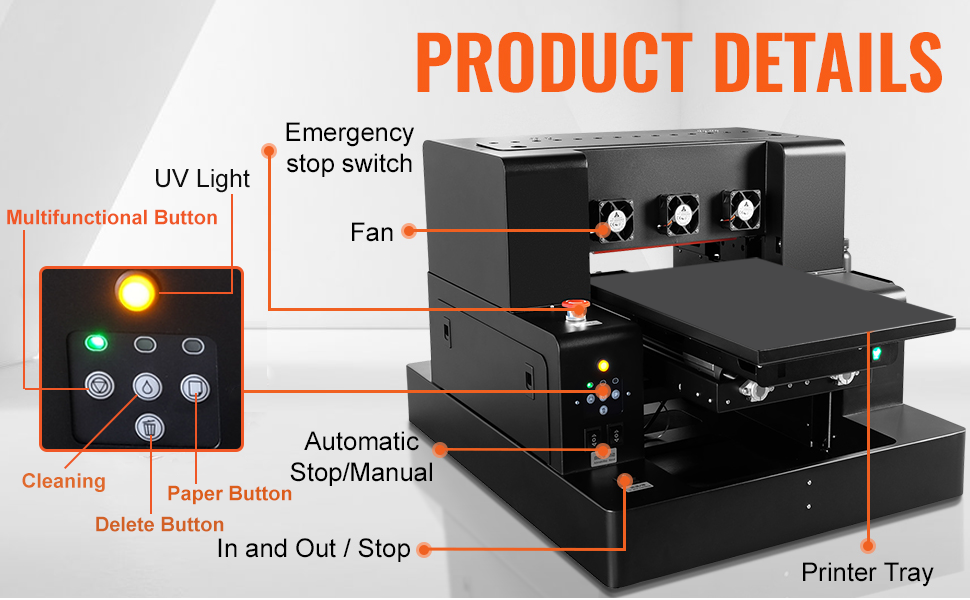
A detailed diagram labeling the key operational components of the Sihao A3 L805 printer, including the emergency stop switch, UV light, fan, multifunctional button, cleaning button, paper button, delete button, and the 'In and Out / Stop' control for the printer tray.
- Emergency Stop Switch: A red button for immediate printer shutdown in emergencies.
- Multifunctional Button: Used for various operations as indicated by the software or printer status.
- Cleaning Button: Initiates the automatic cleaning cycle for the printhead.
- Paper Button: Controls paper feed or tray movement.
- Delete Button: Used to cancel print jobs or clear errors.
- In and Out / Stop: Controls the movement of the printer tray and stops current operations.
5.3. Application Examples

A visual representation of the diverse materials and objects compatible with the Sihao A3 L805 printer, including phone cases, glass, leather, metal, wood, and various plastics, demonstrating its versatility for different applications.

This image showcases various finished products customized using the printer, such as bags, caps, shoes, cushions, T-shirts, wallets, hoodies, and toys, highlighting the broad range of items that can be personalized.
6. Maintenance
Regular maintenance is crucial for the longevity and optimal performance of your Sihao A3 L805 printer.
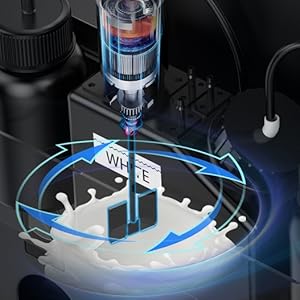
An illustration of the internal white ink mixing mechanism, crucial for preventing pigment settling and maintaining consistent ink quality for reliable printing.
6.1. White Ink Circulation System
The printer is equipped with a white ink mixing and circulation system. This system automatically stirs the white ink to prevent pigment settling, which can lead to clogging and inconsistent print quality. Ensure this system is functioning correctly.
6.2. Automatic Cleaning Function
Utilize the automatic cleaning function regularly, especially before and after extended periods of non-use, or if print quality issues arise. This function helps clear the printhead nozzles and prevents ink from drying and clogging.

A diagram illustrating the printer's white ink circulation system, designed to prevent ink sedimentation and ensure smooth flow, alongside its automatic cleaning function which helps prevent printhead clogging and maintains print quality.
6.3. General Cleaning
- Keep the printer's exterior clean by wiping it with a soft, damp cloth.
- Periodically clean the print tray and surrounding areas to prevent ink buildup or debris from affecting print quality.
- Always use recommended cleaning solutions and follow safety guidelines when handling ink.
7. Troubleshooting
If you encounter issues with your printer, consider the following general troubleshooting steps:
- Print Quality Issues: If prints are faded, streaky, or have missing lines, perform a nozzle check and then a printhead cleaning cycle. Ensure ink levels are sufficient.
- Clogging: If clogging persists, run multiple cleaning cycles. Verify the white ink circulation system is active.
- Printer Not Responding: Check all cable connections (power, USB). Restart both the printer and your computer. Ensure the emergency stop button is not engaged.
- Software Problems: Reinstall the printer software from the USB drive. Ensure your operating system is up to date.
- Error Messages: Consult the software manual or contact customer support with the specific error code for detailed guidance.
For complex issues or problems not resolved by these steps, please contact Sihao customer support.
8. Specifications
| Specification | Detail |
|---|---|
| Model Name | A3 L805 (also referred to as A3 L1805) |
| Printing Technology | Inkjet |
| Printer Ink Type | UV Curable Ink (Textile ink for shirts) |
| Ink Color | CMYK, White |
| Maximum Color Print Resolution | 2880 x 1440 dpi |
| Maximum Black and White Print Resolution | 2880 x 1440 dpi |
| Maximum Media Size | 11.7 x 6.7 inches (29.7 x 17 cm) |
| Sheet Size | A4 |
| Max Input Sheet Capacity | 50 |
| Duplex Printing | Simplex (No dual-sided printing) |
| Hardware Interface | USB |
| Connectivity Technology | Bluetooth |
| Product Dimensions | 26 x 26 x 20 inches |
| Manufacturer | SIHAO |
9. Warranty and Support
9.1. Warranty Information
The Sihao A3 L805 printer comes with a limited warranty. Please refer to the warranty documentation included with your product or contact Sihao customer support for specific terms and conditions.
9.2. Customer Support
For any questions, technical assistance, or warranty claims, please contact Sihao customer support. You can find contact information on the manufacturer's website or through your purchase platform. When contacting support, please have your model number (A3 L805) and purchase details ready.