
1. Introduction
The Newgoal 4-Channel WiFi Smart Switch is a versatile wireless relay module designed for smart home automation. It allows you to remotely control up to four electrical devices using the eWeLink app, a 433 MHz RF remote control, or voice commands via Amazon Alexa and Google Home. This module supports various operating modes, including momentary (inching), self-locking, and interlock, making it suitable for a wide range of applications such as garage door openers, smart lighting, and access control systems.

Image 1.1: Overview of the Newgoal 4-Channel WiFi Smart Switch, highlighting individual control, three working modes, smart timer, share control, and compatibility with Google Assistant, Amazon Alexa, 433 RF, and WiFi control.
2. Safety Information
- Ensure all power is disconnected before installation or wiring to prevent electric shock.
- This device operates with electrical currents. Installation should be performed by qualified personnel if you are unfamiliar with electrical wiring.
- Do not exceed the maximum current rating of 10A per channel. For high-power loads, use an external relay.
- Keep the device away from water and high humidity environments.
- Use only specified power inputs (USB 5V or AC/DC 7-32V).
3. Package Contents
The package includes the following items:
- 1 x WiFi Relay Module
- 1 x 433 MHz RF Remote Control
- 1 x User Manual
4. Product Specifications
| Specification | Value |
|---|---|
| Model Number | EWB4CH-B1 |
| Dimensions (L x W x H) | 7.5 x 7.5 x 2 cm |
| Weight | 95 g |
| Power Input 1 | 5V Micro USB |
| Power Input 2 | AC/DC 7-32V |
| Relay Channels | 4 |
| Relay Load Capacity | AC 0-250V/10A, DC 0-30V/10A (per channel) |
| Wireless Connectivity | WiFi 2.4GHz (IEEE 802.11 b/g/n) |
| RF Frequency | 433 MHz |
| RF Remote Range | Up to 30 meters (98 feet) |
| Operating Modes | Momentary (Inching), Self-locking, Interlock |
| App Support | eWeLink (Android/iOS) |
| Voice Control | Amazon Alexa, Google Home |
| Integration | IFTTT |
Note: While the relays are rated for 10A, it is advisable to exercise caution and consider using external relays for continuous high-current loads to ensure longevity and safety.
5. Installation and Wiring
5.1 Power Supply
The module can be powered by two methods:
- 5V Micro USB: Connect a standard 5V Micro USB power adapter to the Micro USB port (Input 1).
- AC/DC 7-32V: Connect an AC or DC power source within the 7-32V range to the screw terminals labeled 'Input 2'.
5.2 Wiring Diagrams
The module provides 4 relay channels, each with Normally Open (NO), Common (COM), and Normally Closed (NC) contacts. The relay acts as a dry contact switch, meaning it does not provide power output; it only opens or closes a circuit. The power input (AC/DC) is solely for powering the PCBA.

Image 5.1: Detailed diagram of the module's components, power inputs, relay load connections (AC 0-250V/10A, DC 0-30V/10A), RF pairing buttons, manual switch buttons, and LEDs.
Connect your electrical devices to the relay contacts based on the desired operating mode. Ensure correct polarity for DC loads and proper insulation for AC loads.
6. Operating Modes
The module supports three operating modes: Momentary (Inching), Self-locking, and Interlock. The working mode can be changed manually using the mode toggle button on the board or through the eWeLink app.
6.1 Self-locking Mode
In self-locking mode, pressing the button (either physical or in the app) will turn the connected device ON, and it will remain ON until the button is pressed again to turn it OFF. Each channel operates independently.

Image 6.1: Example wiring for Self-locking mode, showing connections for AC and DC loads like lights and appliances.
6.2 Momentary (Inching) Mode
In momentary mode, the switch turns ON when the button is pressed and automatically turns OFF after a short, adjustable duration (default is 1 second). This is ideal for applications like garage door openers or pulse-triggered devices.
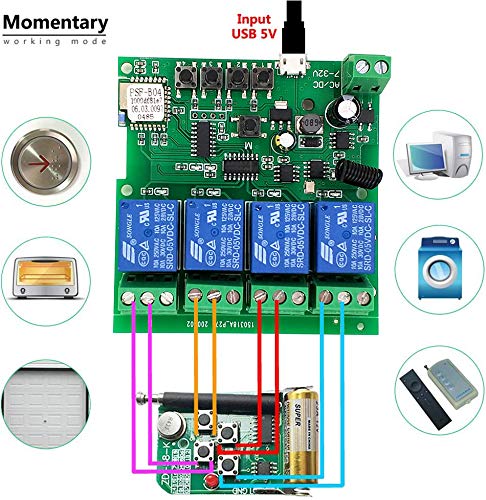
Image 6.2: Example wiring for Momentary mode, suitable for devices requiring a brief activation, such as an elevator button or garage door opener.
6.3 Interlock Mode
In interlock mode (supported for 2 and 4 channels), when one relay is activated (turned ON), all other relays in the group are automatically turned OFF. This mode is commonly used for controlling motors with forward/reverse functionality or other applications where only one output should be active at a time.
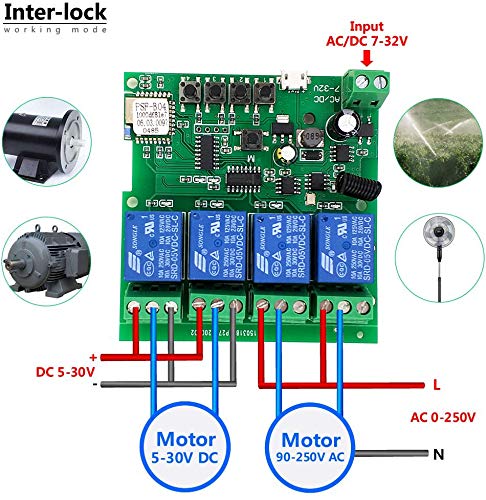
Image 6.3: Example wiring for Interlock mode, demonstrating control of AC/DC motors where only one direction should be active at a time.
7. eWeLink App Setup and Control
7.1 App Download and Installation
Download the eWeLink app from the Google Play Store (for Android) or Apple App Store (for iOS). Register an account if you don't have one.
7.2 WiFi Pairing
To pair the device with the eWeLink app:
- Ensure your smartphone is connected to a 2.4GHz WiFi network. The module does not support 5GHz WiFi or Mesh WiFi networks.
- Power on the Newgoal Smart Switch.
- Open the eWeLink app and tap the '+' icon to add a device.
- Follow the on-screen instructions to put the device into pairing mode (usually by long-pressing a pairing button on the module until the WiFi LED blinks in a specific pattern).
- Enter your 2.4GHz WiFi network name and password in the app.
- The app will search for and connect to the device. Once connected, you can rename the device and assign it to a room.
7.3 App Features
The eWeLink app provides comprehensive control and automation features:
- Remote On/Off: Control connected devices from anywhere.
- Scheduling: Set timers and schedules for automatic device operation.
- Device Sharing: Share control of the device with family members.
- Group Management: Organize multiple devices into groups for simultaneous control.
- Countdown Function: Set a countdown timer for devices to automatically turn off.

Image 7.1: Visual representation of eWeLink app capabilities, including strong compatibility, remote control, scheduling, and countdown functions.
8. RF Remote Control
The module includes a 433 MHz RF remote control for local operation without needing the app or WiFi.
8.1 Pairing the RF Remote
The WiFi + RF version can learn up to 14 different fixed/learning codes (encryption codes and rolling codes are not supported).
- Press and hold the desired manual switch button on the module for 3 seconds. The LED will indicate pairing mode.
- Press a button on the 433 MHz remote control. The module's LED will confirm successful pairing.
- Repeat for other channels if desired.
8.2 Clearing RF Codes
To clear all learned RF codes from the module:
- Press and hold any manual switch button on the module for 15 seconds. The LED will indicate that all RF codes have been cleared.
9. Voice Control Integration
The Newgoal Smart Switch is compatible with popular voice assistants for hands-free control.
9.1 Amazon Alexa
To connect with Amazon Alexa:
- Open the Amazon Alexa app.
- Go to 'Skills & Games' and search for 'eWeLink Smart Home'.
- Enable the skill and link your eWeLink account.
- Discover devices. You can then control your switch using voice commands (e.g., "Alexa, turn on [device name]").
- Note: Currently, voice commands are primarily supported in American/British English and German.
9.2 Google Home
To connect with Google Home:
- Open the Google Home app.
- Tap '+' to 'Set up device' and then 'Works with Google'.
- Search for 'eWeLink Smart Home' and link your eWeLink account.
- Your devices will appear, and you can control them with voice commands (e.g., "Hey Google, turn off [device name]").
9.3 IFTTT Integration
The device also works with IFTTT (If This Then That) for advanced automation routines. Search for "eWeLink Smart Home" in the IFTTT app to create custom applets.

Image 9.1: Illustration of hands-free voice control using Amazon Alexa to operate connected devices.
10. Maintenance
- Keep the device clean and free from dust. Use a dry, soft cloth for cleaning.
- Avoid exposing the device to extreme temperatures or direct sunlight.
- Do not attempt to disassemble or repair the device yourself, as this will void the warranty and may cause damage or injury.
11. Troubleshooting
- Device not connecting to WiFi: Ensure your router is broadcasting a 2.4GHz WiFi signal. The module does not support 5GHz. Move the module closer to the router during pairing.
- RF Remote not pairing: Ensure you are holding the manual switch button for the correct duration (3 seconds for pairing, 15 seconds to clear codes). Check if the remote's battery is functional.
- Device offline in app: Check your WiFi connection. Restart the module and your router.
- Voice control not working: Verify that your eWeLink account is correctly linked in the Alexa or Google Home app and that devices are discovered. Ensure the device name is recognized by the voice assistant.
- Relay not switching: Check power input to the module. Ensure wiring to the load is correct and secure. Verify the operating mode is set as intended.
12. Warranty and Support
Newgoal products are designed for reliability and performance. For warranty information, technical support, or assistance with your Newgoal 4-Channel WiFi Smart Switch, please contact your retailer or visit the official Newgoal support website. Please have your model number (EWB4CH-B1) and purchase details ready when contacting support.
