
1. Product Overview
The BoxWave SlimKeys Bluetooth Keyboard is a portable, backlit wireless keyboard designed for use with various devices, including the Relndoo TAB10 (10.1 in). It features a slim design, seven-color LED backlighting, and specialized function keys for enhanced productivity.

Image 1.1: The BoxWave SlimKeys Bluetooth Keyboard shown alongside a compatible tablet.
2. Package Contents
- BoxWave SlimKeys Bluetooth Keyboard
- USB Charging Cable
- Instruction Manual
3. Setup and Pairing
3.1 Charging the Keyboard
Before initial use, fully charge the keyboard. Connect the provided USB charging cable to the keyboard's charging port and to a standard USB power source (e.g., computer USB port, USB wall adapter). The 'Charge' indicator light will illuminate during charging and turn off when fully charged.
3.2 Powering On/Off
Locate the ON/OFF switch on the top right side of the keyboard. Slide the switch to the 'ON' position to power on the keyboard. Slide it to 'OFF' when not in use to conserve battery life.

Image 3.1: Top right section of the keyboard, highlighting the ON/OFF and Connect switches, along with indicator lights.
3.3 Bluetooth Pairing
- Ensure the keyboard is charged and powered on.
- Press the 'Connect' button on the top right of the keyboard. The 'Connect' indicator light will begin to flash, indicating the keyboard is in pairing mode.
- On your device (e.g., Relndoo TAB10), navigate to the Bluetooth settings.
- Enable Bluetooth and search for available devices.
- Select "BoxWave SlimKeys" or a similar name from the list of found devices.
- Follow any on-screen prompts to complete the pairing process. Once paired, the 'Connect' indicator light on the keyboard will stop flashing.
4. Operating Instructions
4.1 Basic Typing
Once paired, the keyboard functions like a standard QWERTY keyboard. Begin typing in any text input field on your connected device.
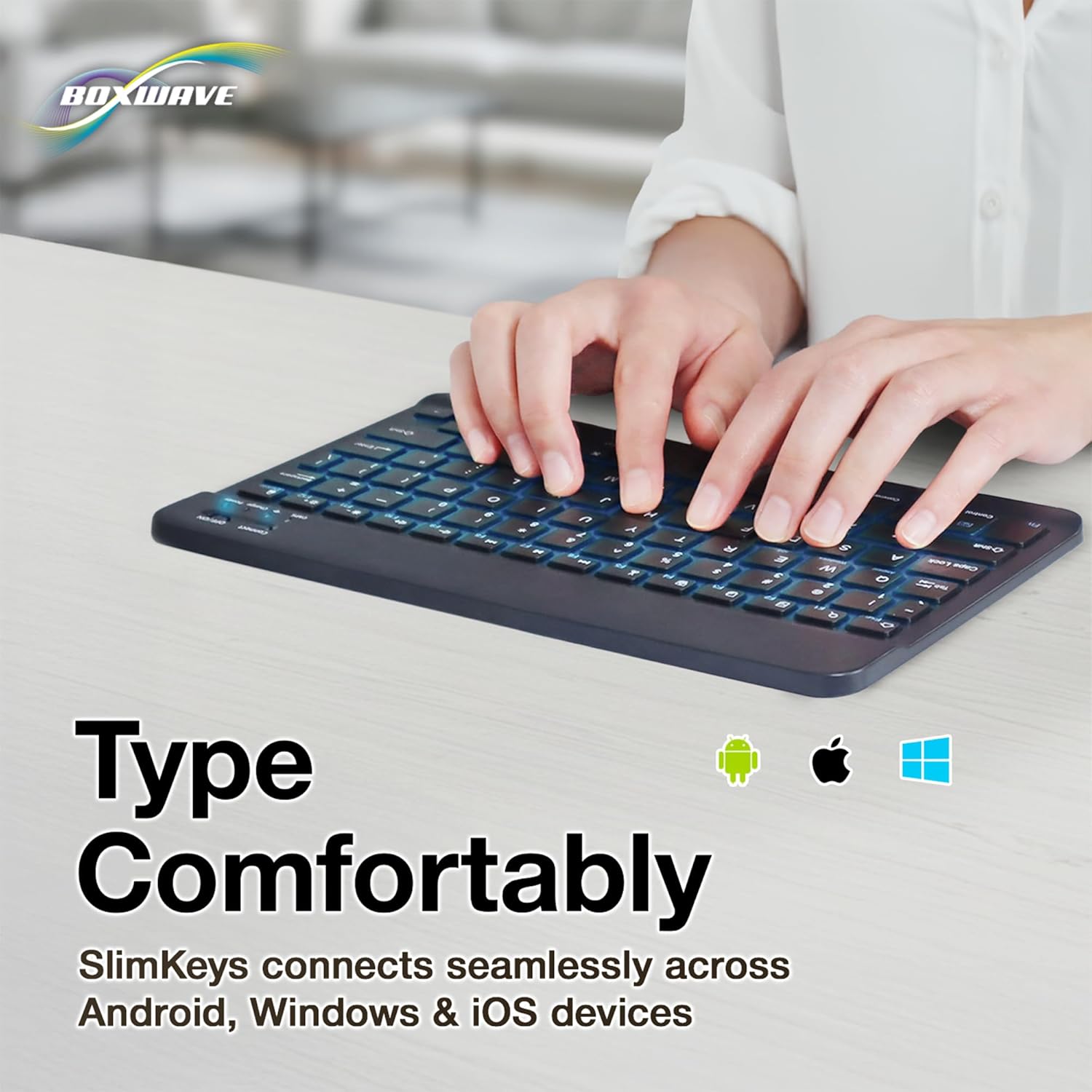
Image 4.1: A user demonstrating typing on the SlimKeys Bluetooth Keyboard.
4.2 Backlight Control
The keyboard features an integrated LED backlight with seven customizable colors.
- To turn the backlight on/off: Press the Light Bulb key (usually near the right Ctrl key).
- To change backlight color: Press the Light Bulb key repeatedly to cycle through the seven available colors.
- To adjust backlight brightness: Press Fn + Light Bulb key.

Image 4.2: The keyboard showcasing its seven distinct backlight color options.
4.3 Specialized Function Keys
The keyboard includes a row of specialized function keys (F1-F12) that provide quick access to common commands. These functions may vary slightly depending on your operating system (Android, iOS, Windows).
| Key | Function |
|---|---|
| Esc / Home | Go to Home screen |
| F1 / Search | Open Search |
| F2 / Select All | Select all text/items |
| F3 / Copy | Copy selected content |
| F4 / Paste | Paste content |
| F5 / Cut | Cut selected content |
| F6 / Skip Back | Skip to previous track |
| F7 / Play/Pause | Play or pause media |
| F8 / Skip Forward | Skip to next track |
| F9 / Volume Down | Decrease volume |
| F10 / Volume Up | Increase volume |
| F11 / Brightness Down | Decrease screen brightness |
| F12 / Brightness Up | Increase screen brightness |
| Delete / Lock | Delete character / Lock device |
To activate the secondary function (e.g., Home, Search, Copy), press the Fn key simultaneously with the desired function key.

Image 4.3: Visual representation of the specialized function keys and their corresponding actions.
5. Maintenance
5.1 Cleaning
To clean the keyboard, power it off. Use a soft, lint-free cloth slightly dampened with water or a mild cleaning solution. Avoid excessive moisture and harsh chemicals. Do not spray cleaners directly onto the keyboard.
5.2 Battery Care
- Recharge the keyboard when the battery indicator light shows low power.
- Avoid fully discharging the battery frequently.
- If storing the keyboard for an extended period, charge it to approximately 50% and power it off. Recharge every few months to prevent deep discharge.
6. Troubleshooting
6.1 Keyboard Not Connecting/Pairing
- Ensure the keyboard is powered on and fully charged.
- Make sure Bluetooth is enabled on your device and the keyboard is in pairing mode (Connect light flashing).
- Move the keyboard closer to your device.
- Forget the keyboard from your device's Bluetooth settings and attempt to re-pair.
- Restart both the keyboard (power off/on) and your device.
6.2 Keys Not Responding
- Check if the keyboard is properly connected via Bluetooth.
- Ensure the battery is not critically low.
- Restart the keyboard and your device.
6.3 Backlight Not Working
- Press the Light Bulb key to toggle the backlight.
- Ensure the keyboard has sufficient battery charge.
7. Specifications
| Feature | Detail |
|---|---|
| Model Name | SlimKeys Bluetooth Keyboard |
| Brand | BoxWave |
| Connectivity | Bluetooth 3.0 |
| Backlight | 7 LED Colors |
| Color | Jet Black |
| Dimensions (L x W x H) | 9.5 in x 5.75 in x 0.2 in (24.1 cm x 14.6 cm x 0.5 cm) |
| Item Weight | 8.6 ounces (244 grams) |
| Battery Life (Approx.) | Up to 30 days (active use), 6 months (standby) |
| ASIN | B0DZ89SK89 |
| Manufacturer | BoxWave |

Image 7.1: The SlimKeys Bluetooth Keyboard with its ultra-slim and lightweight design, including approximate dimensions.
8. Warranty and Support
Specific warranty information for the BoxWave SlimKeys Bluetooth Keyboard is not detailed in the provided product information. For warranty claims or technical support, please refer to the manufacturer's official website or contact BoxWave customer service directly.
Please note that the product description mentions "limited 3rd party tech support for your device (up to 3 inquiries via messaging) - not affiliated with or endorsed by Relndoo." This support refers to the compatible device (Relndoo TAB10) and not directly to the BoxWave keyboard itself.