
Introduction
This manual provides instructions for setting up, operating, maintaining, and troubleshooting your Apple iPad 11-inch (A16, 2025) model. Please read this manual thoroughly to ensure proper use and to maximize your device's capabilities.
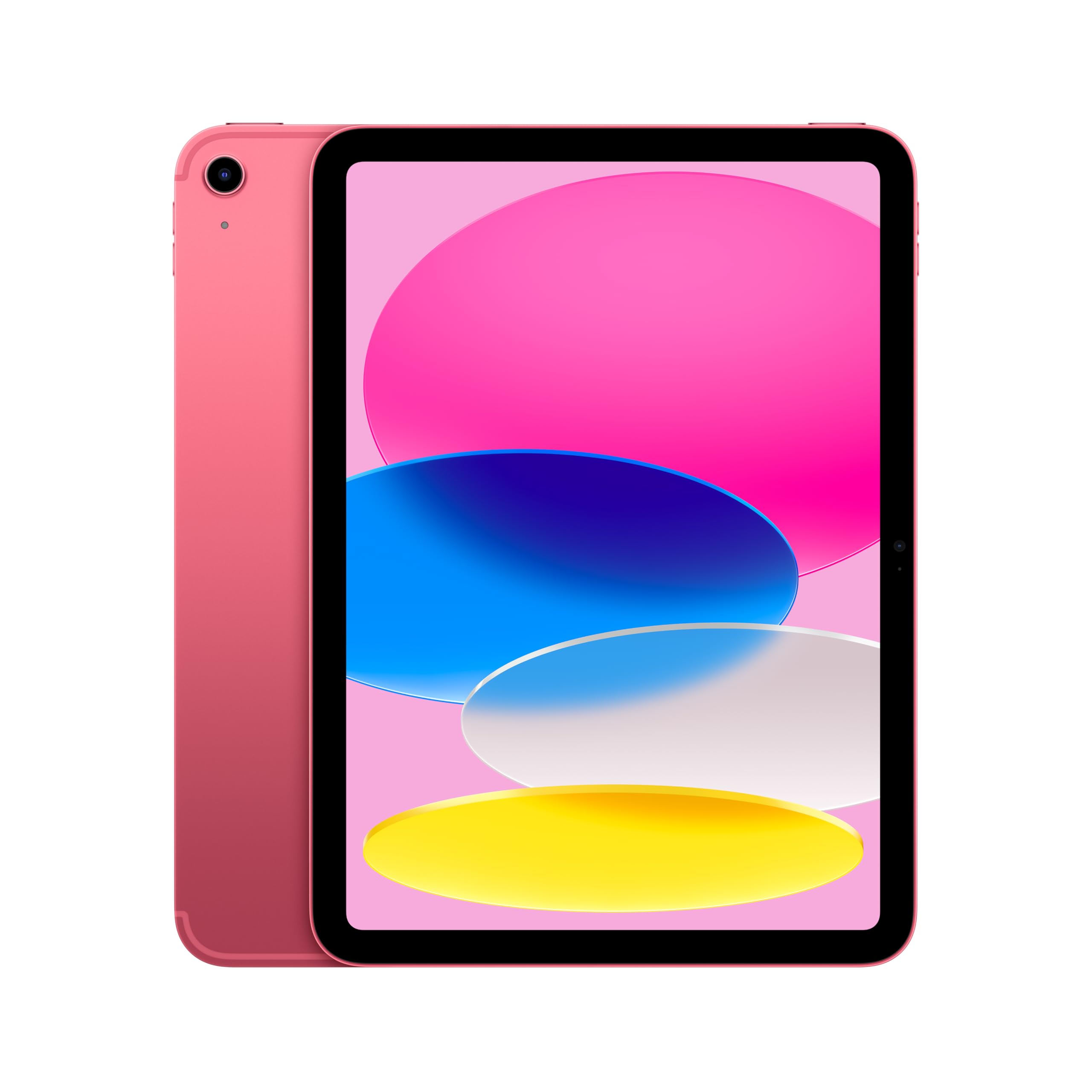
Image: The Apple iPad 11-inch in Pink, showcasing its sleek design.
What's in the Box
Verify that all items are present in the packaging:
- iPad 11-inch (A16, 2025)
- USB-C Charge Cable
- 20W USB-C Power Adapter

Image: The box contents including the iPad, USB-C charge cable, and 20W USB-C power adapter.
Setup
1. Initial Power On and Activation
- Press and hold the top button until the Apple logo appears.
- Follow the on-screen instructions to select your language and region.
- Connect to a Wi-Fi network.
- Set up Touch ID by following the prompts to register your fingerprint.
- Sign in with your Apple ID or create a new one.
- Restore from a backup (iCloud or computer) or set up as a new iPad.
2. Cellular Connectivity (for Wi-Fi + Cellular models)
This iPad model supports 5G cellular connectivity via eSIM. It does not include a physical SIM card slot.
- Contact your cellular carrier to activate an eSIM plan for your iPad.
- Follow the carrier's instructions to download and activate your eSIM profile.
Operating Instructions
1. Basic Navigation (iPadOS)
- Home Screen: Swipe up from the bottom edge to return to the Home Screen.
- Control Center: Swipe down from the top-right corner to access quick settings.
- Notifications: Swipe down from the top-left corner to view notifications.
- Multitasking: Use Split View or Slide Over to run multiple apps simultaneously.

Image: The iPad demonstrating split-screen multitasking with two applications open side-by-side.

Image: The iPad displaying a digital student chronicle, illustrating its use for productivity and learning.
2. Using Cameras
- Front Camera (12MP Center Stage): Ideal for video calls and selfies. Center Stage automatically keeps you in the frame during video calls.
- Back Camera (12MP Wide with True Tone flash): Suitable for capturing photos, 4K videos, and document scanning.
- Open the Camera app and select your desired mode (Photo, Video, Portrait, etc.).
3. Connectivity
- Wi-Fi 6: Connect to high-speed wireless networks for internet access.
- 5G Cellular: When Wi-Fi is unavailable, use your activated eSIM for mobile data access.
- Bluetooth 5.3: Pair with wireless accessories such as headphones and keyboards.
4. Charging the iPad
- Connect the USB-C Charge Cable to the iPad's USB-C port.
- Connect the other end of the cable to the 20W USB-C Power Adapter.
- Plug the power adapter into a wall outlet.
- The battery icon in the status bar indicates charging status.
5. Accessories
- Apple Pencil (USB-C): Connects magnetically to the side of the iPad for charging and pairing. Use for drawing, note-taking, and marking up documents.
- Magic Keyboard Folio: Features a versatile two-piece design with a detachable keyboard and a protective back panel. Attaches magnetically to the iPad.
- Apple Pencil (1st generation): Also compatible with this iPad model.

Image: A person relaxing on a couch while using the Apple iPad, demonstrating its portability and ease of use.
Maintenance
1. Cleaning Your iPad
- Unplug all cables and turn off your iPad.
- Use a soft, slightly damp, lint-free cloth (e.g., microfiber cloth).
- Avoid excessive wiping. Do not use window cleaners, household cleaners, aerosol sprays, solvents, ammonia, abrasives, or cleaners containing hydrogen peroxide to clean your iPad.
2. Battery Care
- For optimal battery longevity, avoid exposing your iPad to extreme temperatures.
- Regularly update iPadOS to the latest version, as software updates often include power-saving technologies.
3. Software Updates
- Ensure your iPad is connected to Wi-Fi and has sufficient battery charge.
- Go to Settings > General > Software Update to check for and install available updates.
Troubleshooting
Common Issues and Solutions:
- iPad not responding: Press and quickly release the Volume Up button. Press and quickly release the Volume Down button. Then, press and hold the Top button until the device restarts.
- Wi-Fi connection issues:
- Ensure Wi-Fi is enabled in Control Center or Settings.
- Restart your Wi-Fi router and iPad.
- Go to Settings > General > Transfer or Reset iPad > Reset > Reset Network Settings.
- Cellular data not working:
- Ensure Cellular Data is enabled in Settings.
- Verify your eSIM plan is active with your carrier.
- Check for carrier settings updates in Settings > General > About.
- Apps crashing or freezing:
- Force quit the app by swiping up from the bottom of the screen, then swiping the app's preview up and off the screen.
- Restart your iPad.
- Ensure the app and iPadOS are up to date.
Factory Reset (Last Resort)
If issues persist, you may need to erase all content and settings. Warning: This will delete all data on your iPad. Back up your device before proceeding.
- Go to Settings > General > Transfer or Reset iPad > Erase All Content and Settings.
- Follow the on-screen instructions.
Specifications

Image: An infographic highlighting key features such as the 11-inch Liquid Retina display, A16 chip, Apple Pencil compatibility, and storage options.
| Feature | Detail |
|---|---|
| Brand | Apple |
| Model Name | iPad (A16, 2025) |
| Memory Storage Capacity | 512 GB |
| Screen Size | 11 Inches (27.69 cm) |
| Display Resolution Maximum | 2360x1640 Pixels |
| Display Type | Liquid Retina display |
| Processor | Apple A16 chip |
| Operating System | iPadOS |
| Front Camera | 12MP Center Stage |
| Back Camera | 12MP Wide with True Tone flash |
| Wireless Technology | Wi-Fi 6 (802.11ax) with 2x2 MIMO, Bluetooth 5.3, 5G Cellular |
| Hardware Interface | USB 3.0 Type C |
| Battery Type | Lithium Ion (28.93 Watt Hours) |
| Dimensions (L x W x Thickness) | 18L x 24.9W x 0.7Th Centimeters |
| Item Weight | 0.48 Kilograms |
| Color | Pink |
| UPC | 195950107166 |
Warranty and Support
Warranty Information
Your Apple iPad 11-inch (A16, 2025) comes with an Apple One (1) Year Limited Warranty. This warranty covers manufacturing defects and issues under normal use conditions. For full terms and conditions, please refer to the warranty documentation included with your product or visit the official Apple support website.
Customer Support
For technical assistance, service, or additional information, please contact Apple Support:
- Online Support: Visit support.apple.com
- Phone Support: Refer to the contact information provided in your region's Apple documentation.
- Service Centers: Locate authorized Apple service providers through the Apple Support website.
When contacting support, please have your iPad's serial number ready. This can be found in Settings > General > About.


