
1. Introduction
Thank you for choosing the KTC H24T27 24-inch QHD 100Hz IPS Monitor. This monitor is designed to provide a superior visual experience for both work and entertainment. Featuring a 2K QHD (2560x1440p) resolution, a smooth 100Hz refresh rate, and an IPS panel, it delivers crisp images and vibrant colors. This manual provides essential information for setting up, operating, maintaining, and troubleshooting your monitor.

Figure 1.1: Front view of the KTC H24T27 24-inch QHD 100Hz IPS Monitor.
2. Safety Information
Please read and follow these safety instructions carefully to ensure safe operation and prolong the life of your monitor:
- Do not expose the monitor to rain, moisture, or extreme temperatures.
- Ensure proper ventilation around the monitor.
- Use only the power adapter supplied with the monitor.
- Avoid placing heavy objects on the power cord.
- Do not attempt to disassemble or repair the monitor yourself. Refer all servicing to qualified personnel.
- Clean the screen with a soft, lint-free cloth. Avoid using harsh chemicals.
3. Setup
3.1 Package Contents
Verify that all items are present in the package:
- KTC H24T27 Monitor
- Monitor Stand (Base and Neck)
- Power Adapter
- HDMI Cable
- User Manual

Figure 3.1: Monitor dimensions and included accessories.
3.2 Assembling the Stand
- Carefully remove the monitor from its packaging, keeping the screen protected.
- Attach the stand neck to the monitor panel.
- Secure the stand base to the stand neck using the provided screws.
- Place the assembled monitor on a stable, flat surface.
3.3 VESA Mounting
The monitor supports VESA mounting (100x100mm) for wall mounts or monitor arms. Remove the stand before attaching a VESA-compatible mount.
3.4 Connecting Your Monitor
Connect your monitor to your computer or other devices using the available ports:
- HDMI 2.0: For high-definition video and audio.
- DisplayPort (DP 1.4): For high-resolution video and audio, supporting 2560x1440@100Hz.
- USB 2.0: For firmware updates only.
- Earphone: For audio output to headphones or external speakers.
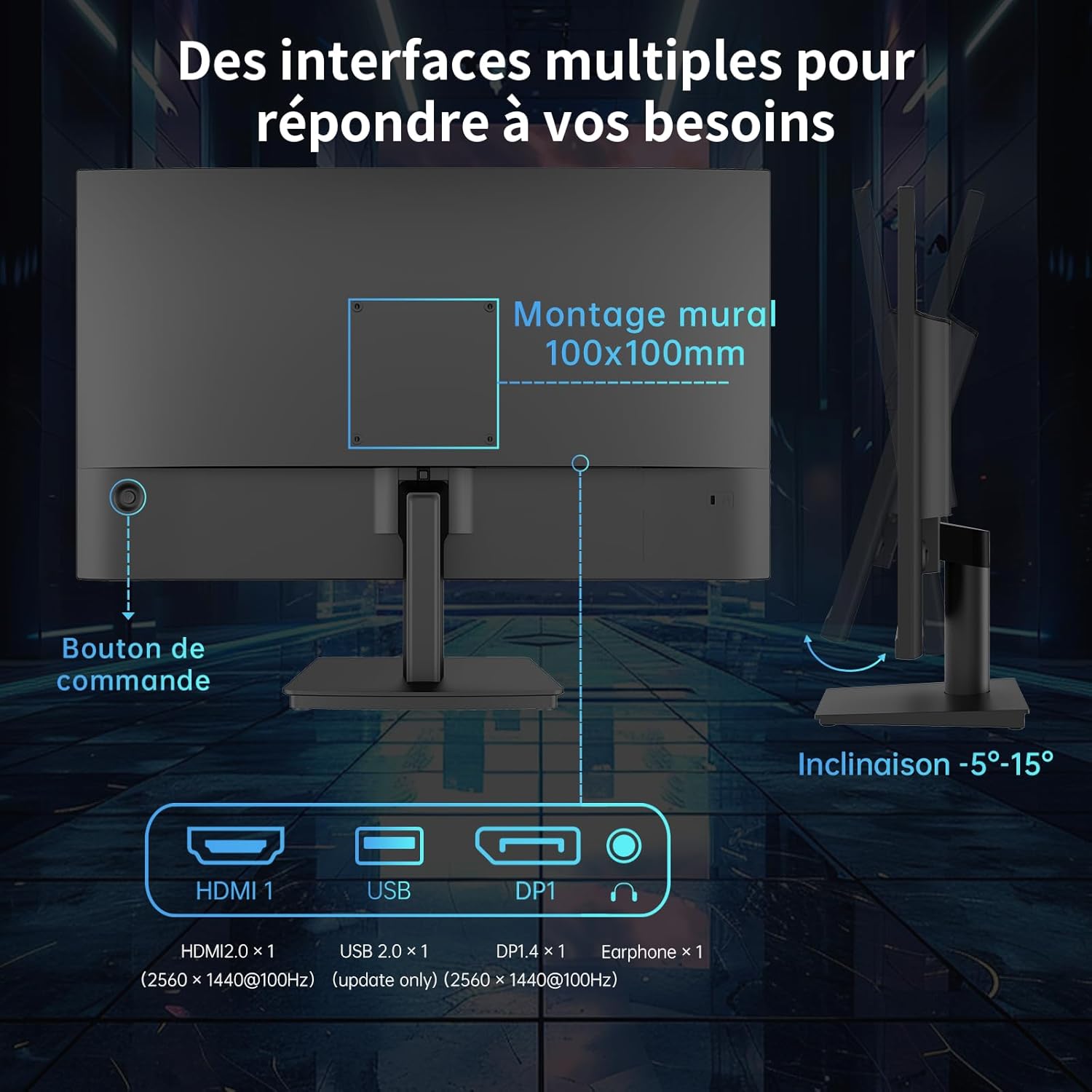
Figure 3.2: Available ports and VESA mounting points on the monitor.
3.5 Power Connection
Connect the power adapter to the monitor's power input, then plug the adapter into a power outlet.
4. Operating Instructions
4.1 Power On/Off
Press the control button located on the rear of the monitor to power it on or off.
4.2 On-Screen Display (OSD) Menu
The OSD menu allows you to adjust various monitor settings. Use the control button to navigate and select options.
- Press the control button: To open the OSD menu.
- Move the control button up/down/left/right: To navigate through menu options.
- Press the control button again: To confirm a selection or enter a sub-menu.
4.3 Display Settings
Adjust image quality and display modes:
- Brightness/Contrast: Adjust the overall luminance and contrast of the display.
- Color Temperature: Select from preset modes (e.g., Warm, Cool, User) or customize RGB values.
- Picture Modes: Optimize display settings for different content types (e.g., Standard, Game, FPS, RTS, Movie, Reading).

Figure 4.1: Example of different picture modes for optimized viewing.
4.4 Refresh Rate and Adaptive Sync
The monitor supports a 100Hz refresh rate for smoother visuals. It also features FreeSync and G-Sync compatibility to eliminate screen tearing and stuttering during gaming.
- Ensure your graphics card supports FreeSync/G-Sync.
- Enable FreeSync/G-Sync in your graphics card control panel and in the monitor's OSD menu.

Figure 4.2: Visual representation of FreeSync and G-Sync in action.
4.5 Eye Care Technology
The monitor incorporates anti-blue light technology to reduce eye strain during prolonged use. This feature can be enabled or disabled via the OSD menu.

Figure 4.3: Comparison of display with and without low blue light technology enabled.
5. Maintenance
5.1 Cleaning the Monitor
To clean your monitor, follow these steps:
- Turn off the monitor and unplug the power cord.
- Gently wipe the screen with a soft, lint-free cloth. For stubborn marks, lightly dampen the cloth with water or a mild, non-abrasive screen cleaner.
- Wipe the monitor casing with a soft, dry cloth.
- Do not spray cleaning liquids directly onto the screen or casing.
6. Troubleshooting
If you encounter issues with your monitor, refer to the following troubleshooting guide:
| Problem | Possible Cause | Solution |
|---|---|---|
| No power | Power cable not connected; Power outlet faulty | Ensure power cable is securely connected; Try a different power outlet. |
| No signal | Video cable not connected; Incorrect input source selected | Check video cable connections (HDMI/DP); Select correct input source in OSD. |
| Image too dark/bright | Brightness/Contrast settings incorrect | Adjust Brightness and Contrast in the OSD menu. |
| Colors are incorrect | Color settings incorrect; Faulty video cable | Adjust Color Temperature or RGB settings in OSD; Try a different video cable. |
| Screen tearing/stuttering | FreeSync/G-Sync not enabled or supported | Ensure FreeSync/G-Sync is enabled on both monitor and graphics card. |
7. Specifications
Detailed technical specifications for the KTC H24T27 monitor:
| Feature | Specification |
|---|---|
| Brand | KTC |
| Model Number | H24T27 (24 IPS QHD 100Hz) |
| Screen Size | 24 Inches |
| Panel Type | IPS |
| Resolution | QHD 2K (2560 x 1440p) |
| Refresh Rate | 100 Hz |
| Response Time | 1 millisecond (MPRT, typical) |
| Contrast Ratio | 1300:1 |
| Color Gamut | 122% sRGB (99% sRGB calibrated) |
| Viewing Angle | 178° (H/V) |
| Special Features | Anti-blue light, FreeSync, G-Sync Compatible, Frameless Design, VESA Mount (100x100mm) |
| Connectivity | 1x HDMI 2.0, 1x DisplayPort 1.4, 1x USB 2.0 (update only), 1x Earphone out |
| Power Consumption | 36 Watt (typical) |
| Energy Efficiency Rating | F |
8. Warranty and Support
KTC monitors come with a standard manufacturer's warranty. Please refer to the warranty card included in your package or visit the official KTC website for detailed warranty terms and conditions.
For technical support, product inquiries, or service requests, please contact KTC customer support through the contact information provided on the official KTC website or your retailer's support channels.


