
Introduction
Welcome to the user manual for your new TABWEE W90 Android 15 Tablet. This guide provides comprehensive instructions on setting up, operating, maintaining, and troubleshooting your device. Please read this manual carefully to ensure optimal performance and longevity of your tablet.

Image: Front and back view of the TABW90 tablet, showcasing its sleek design and camera module.
Setup
1. Initial Charging
Before first use, fully charge your tablet using the provided USB-C cable and power adapter. The charging indicator will show progress.
2. Powering On/Off
- To power on: Press and hold the Power button until the TABWEE logo appears.
- To power off: Press and hold the Power button, then select "Power off" from the options.
3. SIM Card and MicroSD Card Installation
The TABWEE W90 supports 4G SIM cards for cellular connectivity and MicroSD cards (up to 2TB) for expanded storage.
- Locate the SIM/MicroSD card tray on the side of the tablet.
- Insert the SIM ejector tool into the small hole next to the tray to open it.
- Carefully place the Nano-SIM card(s) and/or MicroSD card into the designated slots, ensuring correct orientation.
- Gently push the tray back into the tablet until it clicks into place.
Operating Instructions
1. Display and Navigation
The 11-inch Full HD display (1920x1200 pixels) offers a clear and immersive viewing experience. Navigate using touch gestures: tap, swipe, pinch-to-zoom.

Image: The 11-inch display of the TABWEE W90, highlighting its 1920x1200 resolution, 84.9% screen-to-body ratio, 350 nits brightness, and TÜV Rheinland Low Blue Light certification for eye comfort.
2. Connectivity
- Wi-Fi: Go to Settings > Network & internet > Wi-Fi to connect to available networks. Supports 802.11ac.
- Cellular Data (4G): If a SIM card is installed, enable mobile data in Settings > Network & internet > Mobile network.
- Bluetooth: Pair with Bluetooth devices (headphones, keyboards) via Settings > Connected devices > Bluetooth.
- USB-C: Use the USB-C port for charging and data transfer.
3. Performance and Multitasking
Powered by an Octa-Core Unisoc T615 processor and 24GB RAM (8GB physical + 16GB virtual), the W90 ensures smooth multitasking and app performance.

Image: Diagram illustrating the powerful Octa-Core Unisoc T615 Chipset, featuring 2x A75@2.2GHz and 6x A55@1.8GHz cores, Mali-G57 GPU, and LPDDR4+ UFS memory for smooth multitasking.
Android 15 offers enhanced multitasking features. You can use split-screen mode for two applications simultaneously or utilize floating windows for quick access.
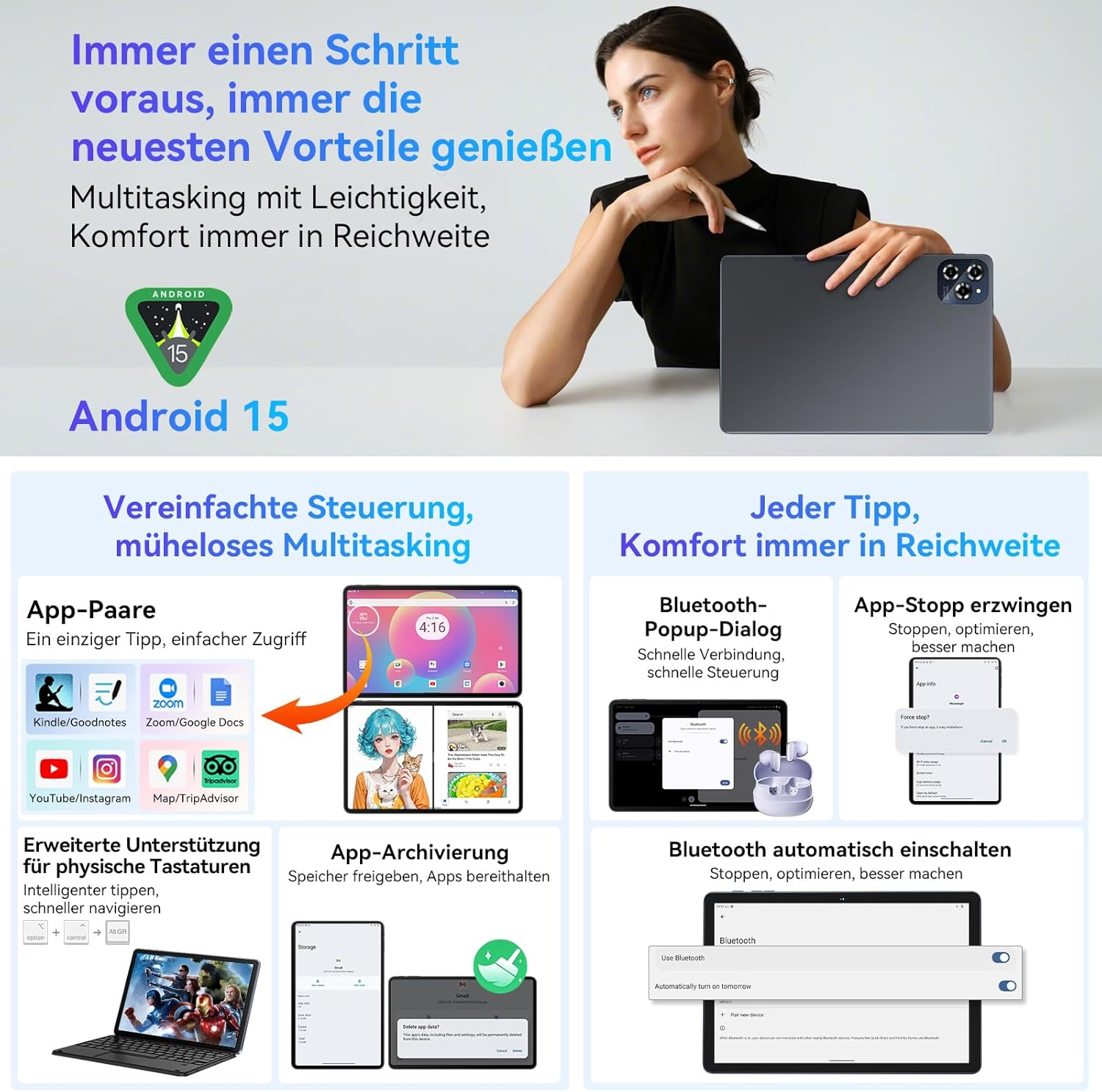
Image: Visual representation of Android 15's multitasking capabilities on the TABWEE W90, including app pairing for split-screen, Bluetooth pop-up dialogs, force-stopping apps, and automatic Bluetooth activation.
4. Storage Management
The tablet comes with 256GB of internal storage, expandable up to 2TB via a MicroSD card. Manage your storage in Settings > Storage.

Image: Infographic detailing the TABWEE W90's memory specifications: up to 24GB RAM (8GB physical + 16GB expansion) and 256GB ROM with 2TB TF expansion. It also shows estimated storage capacity for photos, songs, and short videos.
5. Gemini AI Integration
Leverage the integrated Gemini AI for smart chats, content creation, and enhanced productivity. Access Gemini AI features through dedicated apps or system integrations.

Image: Screenshot demonstrating Gemini AI capabilities on the TABWEE W90, including smart chat interactions, text and image processing, and various sharing and archiving options.
6. Widevine L1 Support
With Widevine L1 support, the TABWEE W90 allows you to stream high-definition content from popular platforms like Netflix, Prime Video, and YouTube in full resolution.
7. Face ID
Set up Face ID for convenient and secure unlocking of your tablet. Go to Settings > Security & privacy > Face unlock to configure.
Maintenance
- Cleaning: Use a soft, lint-free cloth to clean the screen and body. Avoid abrasive cleaners or solvents.
- Battery Care: To prolong battery life, avoid extreme temperatures and do not let the battery fully discharge frequently.
- Software Updates: Keep your tablet's software updated to ensure optimal performance and security. Check for updates in Settings > System > System update.
- Storage Management: Regularly clear unnecessary files and cache to maintain performance.
Troubleshooting
Common Issues and Solutions:
- Tablet not turning on: Ensure the battery is charged. If not, connect the charger and wait a few minutes before attempting to power on again.
- Apps crashing or freezing: Close background apps. Clear app cache (Settings > Apps > [App Name] > Storage & cache > Clear cache). Restart the tablet.
- Wi-Fi connectivity issues: Restart your Wi-Fi router. Forget the network on your tablet and reconnect. Ensure Wi-Fi is enabled.
- Slow performance: Free up storage space. Close unused apps. Restart the tablet.
- Battery draining quickly: Reduce screen brightness. Disable unused features like Bluetooth or GPS. Close background apps.
- SIM card not detected: Ensure the SIM card is correctly inserted. Restart the tablet. Check if the SIM card is active with your carrier.
Specifications
| Feature | Detail |
|---|---|
| Brand | TABWEE |
| Model Name | W90 |
| Operating System | Android 15 |
| Processor | Unisoc T615 Octa-core |
| RAM | 24 GB (8GB physical + 16GB virtual) |
| Internal Storage | 256 GB |
| Expandable Storage | Up to 2 TB (MicroSD) |
| Screen Size | 11 Inches |
| Screen Resolution | 1920 x 1200 pixels |
| Battery Capacity | 8000 mAh |
| Charging Power | 18 W |
| Rear Camera | 16 MP |
| Front Camera | 8 MP |
| Connectivity | 4G SIM, Wi-Fi (802.11ac), Bluetooth, USB-C |
| Special Features | Gemini AI, Widevine L1, Face ID, TÜV Rheinland Certified |
| Dimensions (L x W x H) | 25.65 x 17.02 x 0.76 cm |
| Weight | 534 Grams |
Warranty and Support
Your TABWEE W90 Tablet comes with a 2-year warranty, as indicated in the product title. For warranty claims, technical support, or service inquiries, please contact TABWEE customer service through their official website or the retailer where you purchased the device.
Please retain your proof of purchase for warranty validation.


