
Toladrone TL16
Toladrone TL16 Drone User Manual
Model: TL16 | Brand: Toladrone
1. Introduction
Thank you for choosing the Toladrone TL16 Drone. This user manual provides essential information for operating and maintaining your drone. Please read this manual thoroughly before use to ensure safe and optimal performance. The TL16 is a compact and powerful quadcopter designed for both beginners and experienced pilots, featuring a 4K camera, brushless motors, and intelligent flight modes.
2. Package Contents
Ensure all items listed below are present in your package:
- 1x Toladrone TL16 Drone
- 1x Remote Control
- 1x Modular Battery
- 1x Screwdriver
- 1x Carrying Case
- 1x User Manual
- 1x Charging Cable
- 4x Spare Propellers

Figure 2.1: What You Receive with the Toladrone TL16 Drone.
3. Product Overview
The Toladrone TL16 is engineered for an exceptional flight experience. Key features include:
- 4K HD Camera: Capture high-resolution photos and videos.
- Brushless Motors: Provide powerful, quiet, and stable flight with extended motor life.
- Level 3 Wind Resistance: Ensures stable flight even in moderate wind conditions.
- Optical Flow Positioning: For precise hovering and stable indoor flight.
- Multiple Speed Modes: Adapt to different skill levels and flight environments.
- Headless Mode: Simplifies control by eliminating the need to adjust the drone's orientation.
- 360° Flip: Perform exciting aerial stunts with ease.
- Modular Battery: Easy to install and replace, offering convenient and safe power.
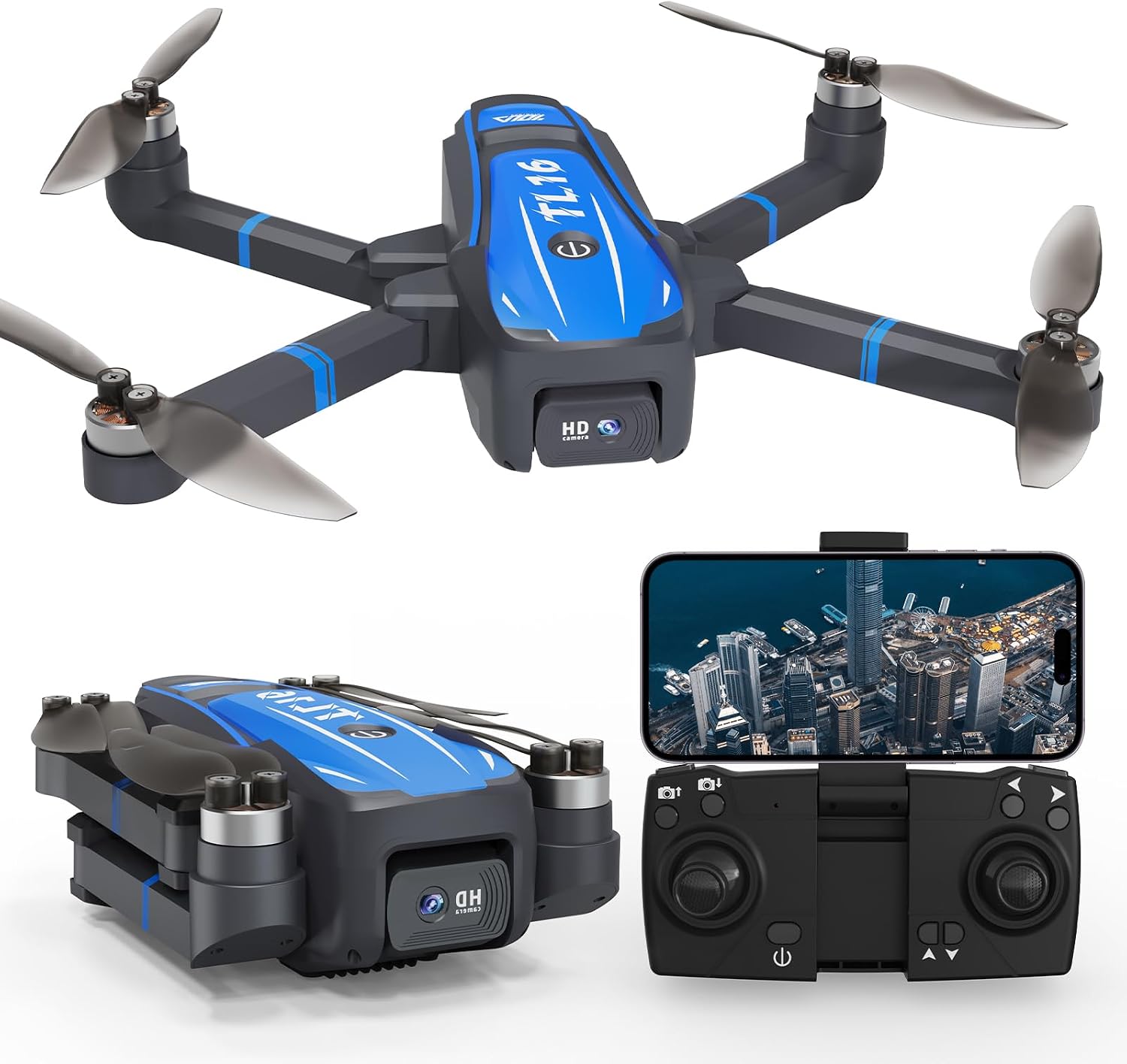
Figure 3.1: Toladrone TL16 Drone and Remote Controller.
3.1. 4K Camera System
The TL16 drone is equipped with a 4K HD camera capable of capturing stunning aerial footage. It also features a dual camera system and motorized adjustment for versatile shooting angles.

Figure 3.2: 4K Camera Capabilities with Dual Camera and Motorized Adjustment.
3.2. Brushless Motors and Wind Resistance
Experience smoother and more stable flights thanks to the drone's brushless motors. These motors are quieter, more efficient, and have a longer lifespan. The drone's Level 3 wind resistance ensures it can maintain stability even in breezy conditions, making it suitable for outdoor use.
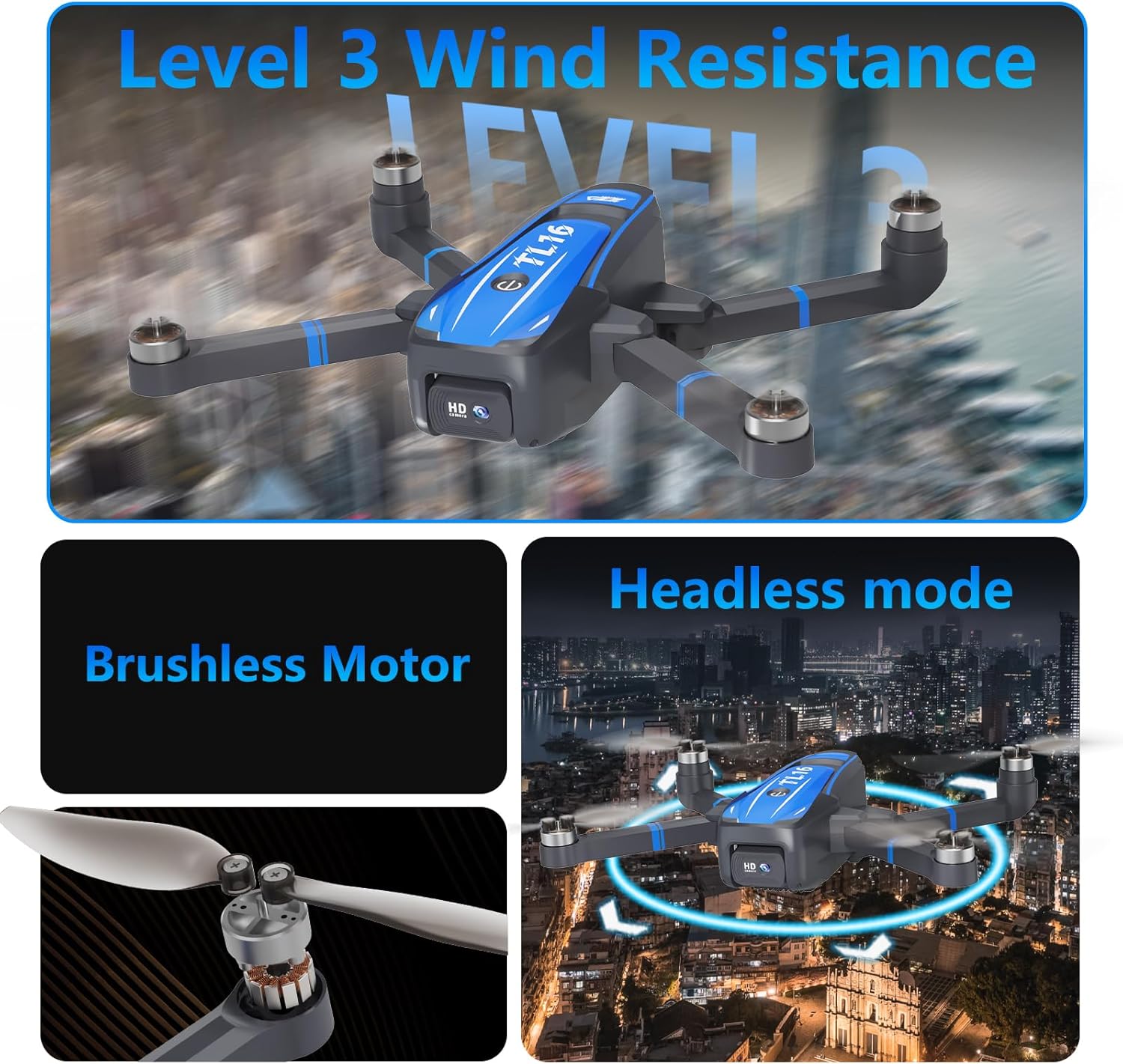
Figure 3.3: Brushless Motor and Wind Resistance Features.
3.3. Modular Battery
The TL16 utilizes a modular battery design for easy installation and enhanced safety. The battery has a capacity of 1600mAh and provides approximately 16 minutes of flight time per charge.

Figure 3.4: Modular Battery Design.
4. Setup Guide
4.1. Charging the Battery
- Connect the charging cable to the drone's modular battery.
- Plug the USB end of the charging cable into a 5V/1A USB power adapter (not included).
- The indicator light on the battery will show charging status (refer to battery specific instructions for light behavior).
- Charging typically takes approximately 90 minutes. Do not overcharge.
4.2. Installing the Battery
- Ensure the drone is powered off.
- Slide the fully charged modular battery into the battery compartment on the rear of the drone until it clicks into place.
- Ensure the battery is securely fastened before flight.
4.3. Remote Controller Setup
- Open the battery compartment on the back of the remote controller.
- Insert 3 x AA batteries (not included) into the compartment, ensuring correct polarity.
- Close the battery compartment.
- Mount your smartphone onto the remote controller's phone holder.
4.4. Propeller Installation (if required)
The drone typically comes with propellers pre-installed. If replacement is needed:
- Identify the correct propeller type (A or B) for each motor arm. Propellers are usually marked.
- Align the propeller with the motor shaft and press down firmly until it locks into place.
- Use the provided screwdriver to secure any screws if applicable.
4.5. App Installation & Connection
- Scan the QR code in the included user manual or search for the 'Toladrone' app in your smartphone's app store (iOS/Android).
- Download and install the app.
- Power on the drone and the remote controller.
- On your smartphone, go to Wi-Fi settings and connect to the drone's Wi-Fi network (usually named 'TL16-XXXXXX').
- Open the Toladrone app. The app should automatically connect to the drone, displaying the live camera feed.
5. Operating Instructions
5.1. Pre-Flight Checklist
- Ensure drone battery is fully charged and securely installed.
- Ensure remote controller batteries are installed.
- Check that propellers are correctly installed and free from damage.
- Choose an open, clear area for flight, away from obstacles, people, and animals.
- Ensure good GPS signal (if applicable) or clear optical flow sensor area.
5.2. Take-off and Landing
- One-Key Take-off: After pairing the drone and remote, press the One-Key Take-off button (usually indicated by an arrow pointing up) on the remote or in the app. The drone will automatically ascend to a safe hovering altitude.
- Manual Take-off: Push both joysticks down and outwards simultaneously to arm the motors. Then, slowly push the left joystick (throttle) upwards to ascend.
- One-Key Landing: Press the One-Key Landing button (usually indicated by an arrow pointing down) on the remote or in the app. The drone will automatically descend and land gently.
- Manual Landing: Slowly pull the left joystick (throttle) downwards until the drone lands. Once landed, push both joysticks down and inwards simultaneously to disarm the motors.
5.3. Basic Flight Controls
- Left Joystick (Throttle/Yaw):
- Up/Down: Ascend/Descend
- Left/Right: Rotate Left/Right (Yaw)
- Right Joystick (Pitch/Roll):
- Up/Down: Fly Forward/Backward (Pitch)
- Left/Right: Fly Left/Right (Roll)
5.4. Advanced Flight Functions
5.4.1. Speed Modes
The TL16 offers 3 adjustable speed modes (low, medium, high) to suit different flying conditions and pilot skill levels. Press the speed switch button on the remote to cycle through the modes.

Figure 5.1: Three Speed Modes.
5.4.2. Headless Mode
In Headless Mode, the drone's orientation is irrelevant. It will fly forward, backward, left, or right relative to the pilot's position when the mode was activated. This simplifies control for beginners.
Figure 5.2: Headless Mode.
5.4.3. 360° Flip
To perform a 360° flip, fly the drone to a sufficient height (at least 3 meters). Press the 360° flip button on the remote, then push the right joystick in the desired direction (forward, backward, left, or right). The drone will perform a quick flip.

Figure 5.3: 360° Flip Function.
5.4.4. Trajectory Flight
In the app, you can draw a custom flight path on your screen. The drone will automatically follow the defined trajectory, allowing for hands-free flight along a predetermined route.

Figure 5.4: Trajectory Flight via App.
5.4.5. Gravity Control
With Gravity Control, you can tilt your smartphone to control the drone's movement. This offers an intuitive and engaging way to pilot the drone.

Figure 5.5: Gravity Control.
5.4.6. Gesture Photography
The drone supports gesture control for taking photos and videos. Refer to the app's instructions for specific gestures (e.g., V-sign for photo, palm for video).

Figure 5.6: Gesture Photography Feature.
5.5. Camera Operation
Once connected to the app, you can control the drone's camera functions:
- Take Photo: Tap the camera icon in the app to capture a still image.
- Record Video: Tap the video icon to start/stop recording.
- Adjust Camera Angle: Use the dedicated buttons on the remote or sliders in the app to adjust the motorized camera angle (if available).
6. Maintenance
Regular maintenance ensures the longevity and optimal performance of your Toladrone TL16.
- Cleaning: Use a soft, dry cloth to clean the drone body and camera lens. Do not use harsh chemicals or solvents.
- Propeller Care: Regularly inspect propellers for cracks, bends, or damage. Replace any damaged propellers immediately using the provided spare parts.
- Motor Care: Keep motors free from dust and debris. Avoid flying in sandy or dusty environments.
- Battery Storage: Store batteries in a cool, dry place, away from direct sunlight and extreme temperatures. For long-term storage, charge batteries to approximately 50-60% capacity.
- Firmware Updates: Check the Toladrone app periodically for any available firmware updates for your drone.
7. Troubleshooting
| Problem | Possible Cause | Solution |
|---|---|---|
| Drone does not power on | Battery not charged or not installed correctly. | Charge the battery fully and ensure it is securely inserted. |
| Remote control does not connect | Remote batteries low or incorrect pairing procedure. | Replace remote batteries. Follow pairing instructions in Section 4.5. |
| Drone unstable during flight | Propellers damaged or unbalanced; strong wind; uncalibrated sensors. | Check and replace damaged propellers. Fly in calm conditions. Perform gyroscope calibration (refer to app/manual for steps). |
| No live video feed in app | Not connected to drone's Wi-Fi; app not open or crashed. | Ensure phone is connected to the drone's Wi-Fi. Restart the app and drone. |
| Short flight time | Battery not fully charged; old battery; aggressive flying. | Ensure battery is fully charged. Consider purchasing a new battery if old. Fly more conservatively. |
8. Specifications
| Feature | Specification |
|---|---|
| Brand | Toladrone |
| Model | TL16 |
| Weight | 710 g |
| Dimensions (L x W x H) | 22 x 18 x 6 cm |
| Battery Type | 1 Lithium-polymer (included) |
| Battery Capacity | 1600 mAh |
| Video Recording Resolution | 4K |
| Video Capture Format | RM |
| Wireless Communication Technology | Wi-Fi |
| Special Feature | 360-degree Capture |
9. Safety Guidelines
Operating a drone requires responsibility. Please adhere to the following safety guidelines:
- Always fly in open areas, away from people, buildings, and obstacles.
- Do not fly near airports or restricted airspace.
- Maintain visual line of sight with the drone at all times.
- Do not fly in strong winds, rain, or other adverse weather conditions.
- Ensure the drone battery is fully charged before each flight.
- Never attempt to catch a spinning drone.
- Keep fingers and loose clothing away from propellers when motors are armed.
- Respect privacy when using the camera.
- Familiarize yourself with local drone regulations and laws.
10. Warranty & Support
Toladrone is committed to providing high-quality products and excellent customer service. For any questions, technical support, or warranty inquiries, please contact us via email:

Figure 10.1: Toladrone Customer Support.
Please have your product model (TL16) and purchase details ready when contacting support to expedite assistance.
Ask a question about this manual
Ask about setup, troubleshooting, compatibility, parts, safety, or missing instructions. Manuals+ will review the question and use this page’s manual context to help answer it.