
FOSCAM PD5
Foscam PD5 3K Security Camera User Manual
Brand: FOSCAM | Model: PD5
1. Introduction
The Foscam PD5 is an advanced 3K 5MP outdoor security camera designed to provide comprehensive surveillance for your home or property. Featuring 2.4G/5G dual-band Wi-Fi connectivity, 20X digital zoom, 360° Pan-Tilt-Zoom (PTZ) capabilities, and AI-powered motion detection, the PD5 offers robust security features. This manual provides detailed instructions for installation, operation, and maintenance to ensure optimal performance of your camera.

Figure 1.1: Foscam PD5 3K Security Camera overview.
2. What's in the Box
Verify that all components are present before proceeding with installation:
- Camera Body
- Instruction Manual
- Mounting Screws
- Power Adapter
3. Setup Guide
3.1 Physical Installation
The Foscam PD5 is designed for outdoor use and can be wall-mounted. Choose a location that provides the desired viewing angle and has access to a power source. Ensure the mounting surface is stable and can support the camera's weight.
- Mark the drilling points using the mounting template (if provided, or by holding the camera base).
- Drill pilot holes at the marked locations.
- Insert wall anchors if mounting on drywall or masonry.
- Secure the camera base to the wall using the provided mounting screws.
- Adjust the camera's physical orientation as needed before final tightening.

Figure 3.1: Example of camera wall mounting and panoramic view capability.
3.2 Power Connection
Connect the provided power adapter to the camera's power input port and then plug it into a standard electrical outlet. Ensure the connection is secure and protected from weather elements if installed outdoors.
3.3 App Installation and Initial Setup
To set up and control your Foscam PD5 camera, download the official Foscam app on your smartphone.
- Download the "Foscam" app from your device's app store (iOS App Store or Google Play Store).
- Open the Foscam app and create an account or log in.
- Tap the "+" icon to add a new device.
- Scan the QR code located on the bottom of your Foscam PD5 camera.
- Follow the on-screen prompts to connect the camera to your Wi-Fi network. The camera supports both 2.4GHz and 5GHz dual-band Wi-Fi for flexible connectivity.
- Once connected, you can name your camera and begin live viewing.

Figure 3.2: The Foscam PD5 supports blazing-fast 2.4GHz and 5GHz dual-band Wi-Fi for reliable streaming.
4. Operating Instructions
4.1 Live View and PTZ Control
Access the live feed of your camera through the Foscam app. You can control the camera's pan (horizontal), tilt (vertical), and digital zoom functions directly from the app.
- Pan/Tilt: Swipe on the live video feed or use the directional controls in the app to rotate the camera 355° horizontally and 90° vertically.
- Digital Zoom: Pinch to zoom in or out on the live video to utilize the 20X digital zoom feature.

Figure 4.1: The camera offers 3K 5MP resolution and up to 20X digital zoom for detailed viewing.
4.2 Auto-Tracking and Smart Motion Detection
The Foscam PD5 features advanced AI-powered detection capabilities to minimize false alarms and enhance security.
- Auto-Tracking: When a human is detected, the camera can automatically pan and tilt to follow their movement, keeping them in the frame.
- AI Detection: Configure the camera to detect humans and vehicles specifically, reducing alerts from pets or environmental factors.
- Custom Detection Zones: Set specific areas within the camera's view where motion detection should be active, ignoring irrelevant areas.
- Alerts: Receive real-time push notifications, emails, or FTP alerts when motion, sound, or light is detected.

Figure 4.2: Automatic human tracking ensures subjects remain in view.

Figure 4.3: Smart security with automatic human, vehicle, and pet detection.
4.3 Night Vision Modes
The Foscam PD5 offers versatile night vision capabilities to ensure clear monitoring in low-light conditions.
- Full-Color Night Vision: With 8 IR LEDs and a 6500K spotlight, the camera can provide vibrant, full-color images up to 66ft even in total darkness. This mode can be set to manual or automatic.
- IR Mode: Standard infrared night vision for clear black and white images in complete darkness.
- Smart Mode: Motion triggers the spotlights to turn on, enabling color night vision when activity is detected.

Figure 4.4: Different night vision modes: Smart, Color, and IR.
4.4 Two-Way Audio and Alarm
Communicate with visitors or deter intruders using the camera's built-in microphone and speaker.
- Two-Way Audio: Speak and listen through the camera using the Foscam app.
- Sound & Light Alarms: Activate the 110dB siren and flashing spotlights to deter unwanted visitors.

Figure 4.5: Instant notifications with sound and light alarms for double protection.
4.5 Storage Options
Your Foscam PD5 camera offers multiple options for storing recorded footage:
- MicroSD Card: Supports up to 256GB microSD cards (not included) for local storage.
- FTP: Configure the camera to upload recordings to an FTP server.
- NVR: Compatible with Foscam Network Video Recorders (NVRs) for continuous recording.
- Foscam Cloud Storage: Secure cloud storage options are available, offering industry-leading privacy protection.
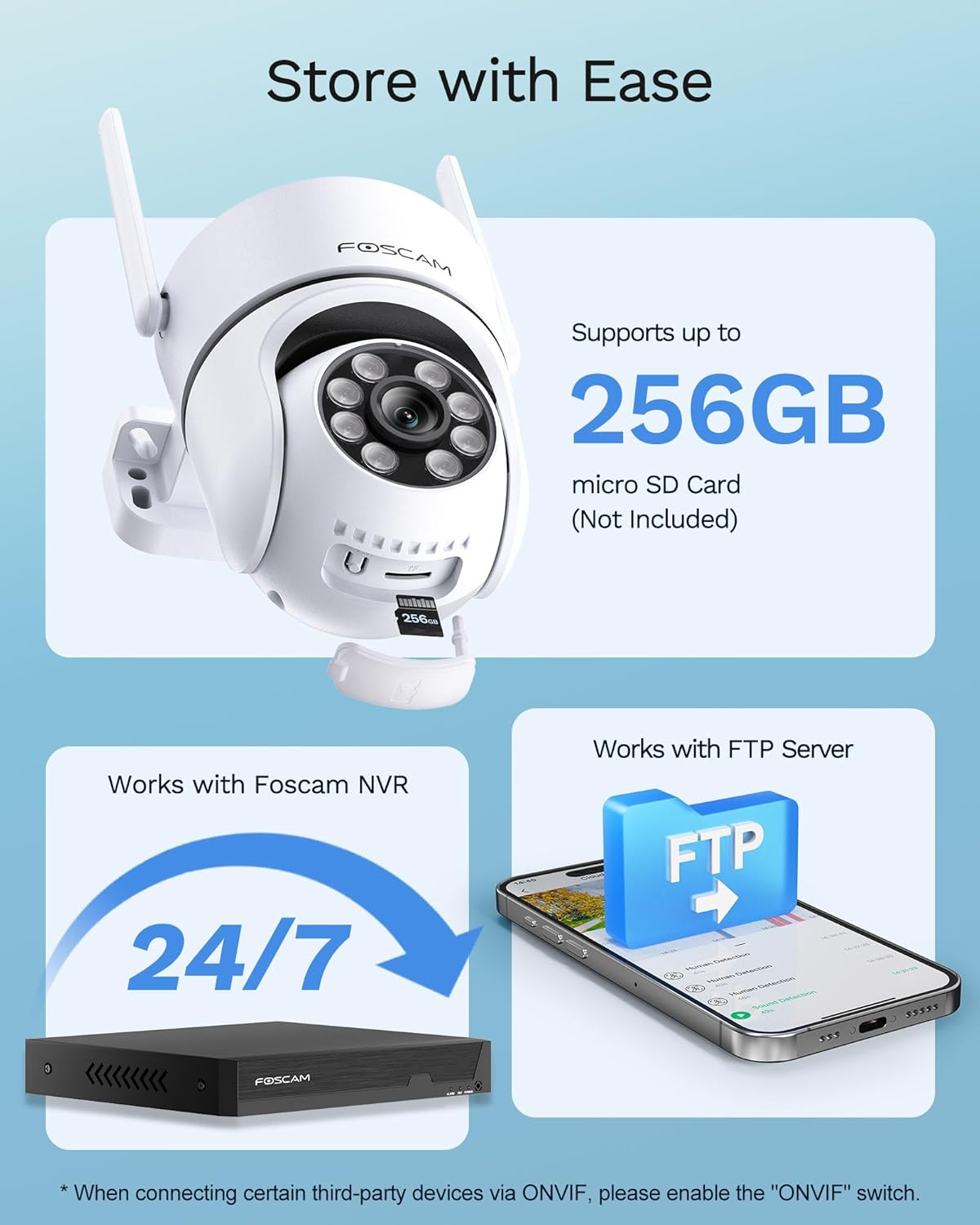
Figure 4.6: Flexible storage options including microSD, NVR, FTP, and cloud.
4.6 Smart Home Integration
The Foscam PD5 seamlessly integrates with popular smart home platforms for convenient control.
- Amazon Alexa: Use voice commands to view your camera feed on compatible Alexa devices.
- Google Home: Integrate with Google Home for voice control and viewing on Google Assistant-enabled displays.

Figure 4.7: The camera is compatible with Amazon Alexa and Google Assistant for hands-free control.
4.7 Multi-User Shared Viewing
Share access to your camera's live feed and recordings with family members or trusted individuals through the Foscam app. This allows multiple users to monitor the property simultaneously.

Figure 4.8: Multi-user shared viewing allows family members to monitor the home.
5. Maintenance
5.1 Cleaning
To maintain optimal image clarity, regularly clean the camera lens and housing. Use a soft, damp cloth to wipe away dust and dirt. Avoid abrasive cleaners or solvents that could damage the camera's surface.
5.2 Firmware Updates
Periodically check for and install firmware updates through the Foscam app. Updates often include performance improvements, new features, and security enhancements.
5.3 Weatherproofing
The Foscam PD5 has an IP65 weatherproof rating, meaning it is protected against dust and low-pressure water jets. While designed for outdoor use, ensure all connections are properly sealed to prevent water ingress, especially the power cable connection.

Figure 5.1: The IP65 waterproof design protects the camera in various weather conditions.
6. Troubleshooting
This section addresses common issues you might encounter with your Foscam PD5 camera.
| Problem | Possible Cause | Solution |
|---|---|---|
| Camera not connecting to Wi-Fi | Incorrect Wi-Fi password, camera too far from router, router settings. |
|
| Frequent false alarms | Environmental factors (e.g., trees, animals), sensitive detection settings. |
|
| Poor image quality at night | Lens obstruction, insufficient lighting, incorrect night vision mode. |
|
| ONVIF compatibility issues | ONVIF protocol not enabled, third-party software configuration. |
|
7. Specifications
Key technical specifications for the Foscam PD5 3K Security Camera:
| Feature | Detail |
|---|---|
| Model Name | PD5 |
| Indoor/Outdoor Usage | Outdoor |
| Video Capture Resolution | 3K (3072x1728) |
| Effective Still Resolution | 5 MP |
| Frame Rate | 25 frames per second |
| Connectivity Technology | Wireless (Wi-Fi 6 Dual-Band: 2.4GHz & 5GHz) |
| PTZ Capabilities | 355° Horizontal, 90° Vertical |
| Zoom Type | Digital Zoom (20X) |
| Night Vision Range | 66 Feet (Color Night Vision available) |
| Audio | 2-Way Audio (Built-in microphone & speaker) |
| Alarm | 110dB Siren, Spotlights |
| Storage Options | MicroSD (up to 256GB), FTP, NVR, Foscam Cloud |
| Weather Resistance | IP65 Waterproof |
| Dimensions (L x W x H) | 3.7 x 5.71 x 5 inches |
| Weight | 1.46 pounds |
| Power Source | Corded Electric (12 Volts, 12 watts) |
| Compatible Devices | Smartphone, Amazon Alexa, Google Assistant |
8. Warranty and Support
FOSCAM is committed to providing excellent customer service and support for your product.
- 24/7 Fast Reply & Lifetime Tech Support: Access technical assistance whenever you need it.
- 180-Day Quality Guarantee: Ensures the quality of your product for 180 days from purchase.
- 30-Day Free Returns: Return the product within 30 days for free if you are not satisfied.
- Free Replacement & Fast Delivery: In case of eligible issues, receive a free replacement with fast delivery.
For further assistance, please visit the official Foscam support website or contact their customer service team.
Related documentsPD5


Ask a question about this manual
Ask about setup, troubleshooting, compatibility, parts, safety, or missing instructions. Manuals+ will review the question and use this page’s manual context to help answer it.