
1. Introduction
The TopDiag T100 is a portable, multifunctional On-Board Diagnostics II (OBD2) scanner designed to assist in diagnosing vehicle issues. It is compatible with most OBD2 compliant vehicles manufactured since 1996. This tool provides various diagnostic functions to help users identify and clear trouble codes, monitor vehicle performance, and check emission system status.

Image 1.1: The TopDiag T100 OBD2 Scanner, showing its compact design and the OBD-II connector.
2. Product Features
The TopDiag T100 offers a range of diagnostic capabilities:
- Read and Clear Codes: Retrieve and erase Diagnostic Trouble Codes (DTCs) from the vehicle's Engine Control Unit (ECU).
- I/M Readiness Test: Check the status of the vehicle's emission-related monitors to determine if the vehicle is ready for an emissions test.
- View Real-Time Data: Display live sensor data from the vehicle, such as engine RPM, vehicle speed, oxygen sensor readings, and more.
- Freeze Frame Data: View a snapshot of vehicle operating conditions recorded at the time a fault code was set.
- ECU Information: Access vehicle information such as Vehicle Identification Number (VIN), Calibration ID, and Calibration Verification Number (CVN).
- O2 Sensor Test: Retrieve O2 sensor monitor test results.
- On-Board Monitor Test (Mode 6): Access results of diagnostic monitoring tests for specific components/systems that are not continuously monitored.
- Component Test (Mode 8): Initiate a leak test for the vehicle's evaporative system.
- DTC Lookup: Built-in library to look up definitions of generic and manufacturer-specific trouble codes.
- Battery Test: Monitor vehicle battery voltage in real-time.
- Data Record and Playback: Store and review diagnostic data.
- Software Upgrade: Supports online software updates via PC.
- Multi-Language Support: Operates in 13+ languages including English, Spanish, French, Italian, Russian, Portuguese, German, Polish, Dutch, Japanese, Turkish, Chinese, and Indonesian.
3. Getting Started
3.1 Package Contents
Verify that your package contains the following items:
- TopDiag T100 Scanner Unit
- User Manual
3.2 Connecting the Device
The T100 scanner is powered directly from the vehicle's OBD-II port. No external power source is required for basic operation.
- Locate the 16-pin Data Link Connector (DLC) in your vehicle. This port is typically located under the dashboard on the driver's side.
- Ensure the vehicle's ignition is in the OFF position.
- Firmly plug the T100 scanner's OBD-II connector into the vehicle's DLC.
- Turn the vehicle's ignition to the ON position (engine off or running, depending on the test). The scanner will automatically power on and establish communication with the vehicle.
4. Basic Operations
4.1 Navigating the Menu
The T100 features an intuitive button layout for navigation:
- ESC Button (Red): Used to exit the current menu or cancel an operation.
- OK Button (Green): Used to confirm a selection or enter a menu.
- Arrow Buttons (Blue): Used to scroll up, down, left, or right through menu options.
- I/M Button (Blue): Shortcut to the I/M Readiness status.
- VIN Button (Blue): Shortcut to display ECU Information (VIN).

Image 4.1: The T100 scanner displaying I/M Status and VIN information, highlighting the shortcut buttons.
4.2 Reading and Clearing DTCs
To read and clear Diagnostic Trouble Codes:
- From the main menu, select "Read DTC" and press OK to view current, pending, or permanent codes.
- To clear codes, select "Clear DTC" from the main menu and press OK.
- Confirm the action when prompted. Clearing codes will turn off the Check Engine Light (MIL) but will not fix the underlying issue.

Image 4.2: The scanner showing a P0120 fault code and the option to clear DTCs, with a visual representation of the Check Engine Light before and after clearing.
5. Advanced Diagnostic Functions
5.1 I/M Readiness Status
This function checks the operational status of the vehicle's emission system monitors. It is crucial for pre-inspection checks.
- Press the dedicated I/M button or navigate to "I/M Status" from the main menu.
- The display will show the status of various monitors (e.g., Misfire, Fuel System, O2 Sensor). A status of "OK" indicates the monitor has completed its test cycle.

Image 5.1: The I/M Status screen showing various emission monitor statuses.
5.2 Live Data and Freeze Frame
Monitor real-time operational parameters of the vehicle.
- Select "Live Data" to view parameters such as engine speed, coolant temperature, fuel system status, and more.
- Select "Freeze Frame" to view data recorded at the moment a DTC was stored, providing context for the fault.

Image 5.2: Real-time data viewing on the T100, showing various engine parameters.
5.3 O2 Sensor Test
This function retrieves oxygen sensor monitor test results for the most recently completed tests.
- Navigate to "O2 Sensor Test" from the main menu.
- The scanner will display test values, minimum/maximum limits, and the status of the O2 sensor.

Image 5.3: O2 Sensor Test results displayed on the T100 screen.
5.4 Mode 6 and Mode 8
These modes provide access to specific diagnostic tests.
- Mode 6 (On-Board Monitor Test): Allows access to the results of on-board diagnostic monitoring tests for specific components/systems.
- Mode 8 (Component Test): Enables the initiation of a leak test for the vehicle's evaporative system.

Image 5.4: Screens showing Mode 6 and Mode 8 functions on the T100.
5.5 ECU Information
Retrieve important vehicle identification data.
- Press the dedicated VIN button or navigate to "ECU Info" from the main menu.
- The screen will display the vehicle's VIN, calibration ID, and calibration verification number.

Image 5.5: ECU Information screen showing the VIN and other vehicle details.
5.6 DTC Lookup
Use the built-in DTC library to understand fault codes.
- Navigate to "DTC Lookup" from the main menu.
- Enter the fault code using the arrow buttons and press OK to view its definition.

Image 5.6: DTC Lookup interface on the T100.
5.7 Battery Test
Monitor the vehicle's battery voltage in real-time.
- Navigate to "Battery Test" from the main menu.
- The scanner will display the current voltage, minimum, and maximum voltage readings, often with a waveform graph.

Image 5.7: Battery waveform detection screen on the T100.
6. Software Update
The T100 scanner supports online software upgrades to ensure compatibility with newer vehicles and to add new features.
- Visit the official TopDiag website to download the latest update software for your PC.
- Install the update software on your computer.
- Connect the T100 scanner to your PC using a Type-C USB cable.
- Follow the on-screen instructions in the update software to complete the upgrade process.
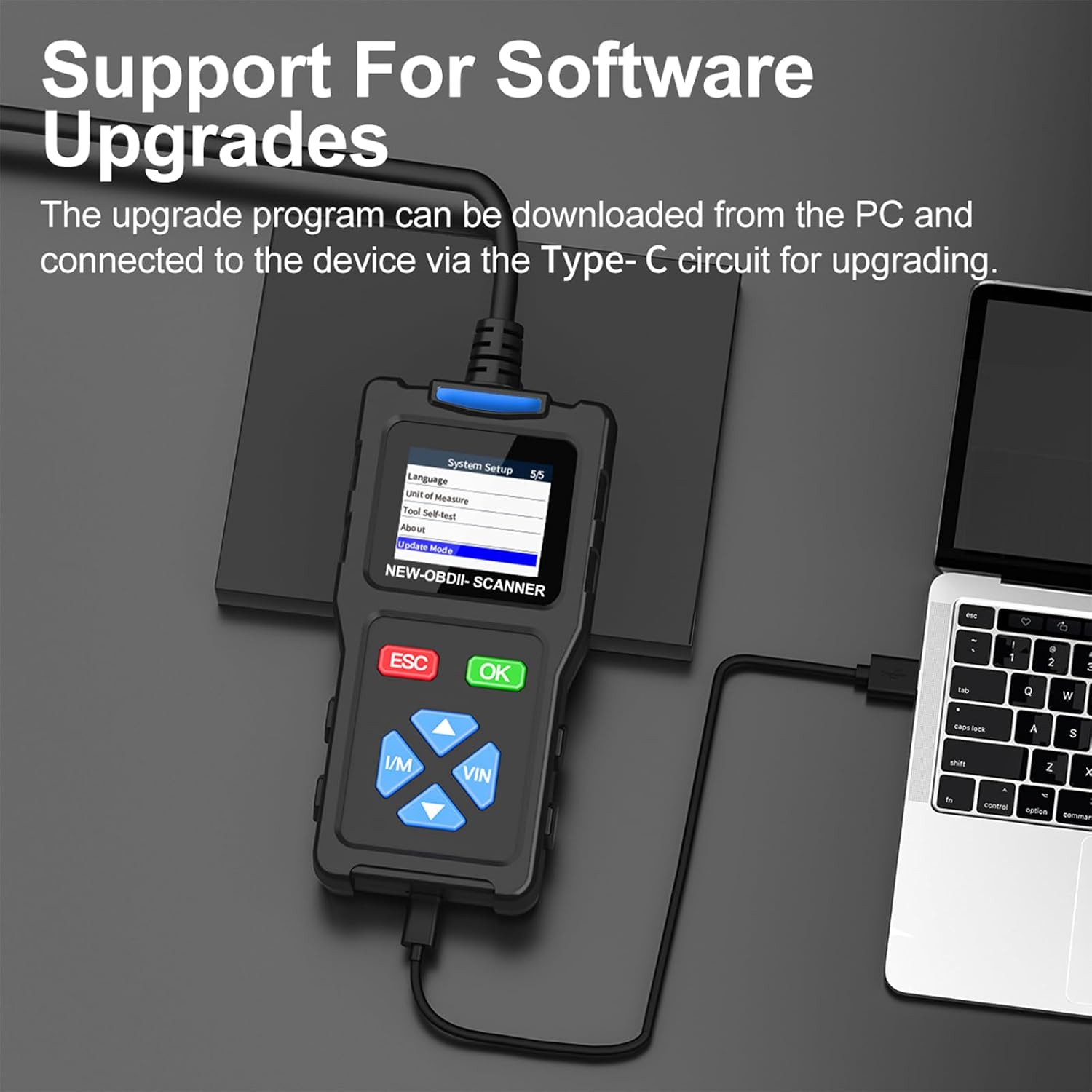
Image 6.1: The T100 connected to a PC for a software update.
7. Specifications
| Feature | Specification |
|---|---|
| Screen Size | 1.7-inch TFT Color Screen |
| External Power | 8V-30V DC (via OBD-II port) |
| Operating Temperature | 0°C to 60°C (32°F to 140°F) |
| Storage Temperature | -20°C to 70°C (-4°F to 158°F) |
| Weight | 0.3 kg |
| Dimensions (approx.) | 130mm (L) x 65mm (W) x 26mm (D) |
| Supported Protocols | SAE J1850 PWM, SAE J1850 VPW, ISO9141-2, ISO14230-4 KWP, ISO15765-4 CAN |

Image 7.1: Diagram illustrating the physical dimensions and key parameters of the T100 scanner.
8. Troubleshooting
If you encounter issues while using the TopDiag T100, refer to the following common troubleshooting steps:
- No Power: Ensure the OBD-II connector is firmly plugged into the vehicle's DLC. Check the vehicle's ignition status. The scanner draws power directly from the vehicle.
- Communication Error: Verify that the vehicle is OBD2 compliant (generally 1996 and newer for US vehicles). Ensure the ignition is ON. Try connecting to a different OBD2 compliant vehicle to rule out a vehicle-specific issue.
- Scanner Freezes: Disconnect the scanner from the vehicle, then reconnect it. If the issue persists, perform a software update if available.
- Incorrect Readings/No Codes Detected (but Check Engine Light is ON): Double-check the connection. Ensure the vehicle's ignition is fully ON. Some vehicles may require the engine to be running for certain data streams. If the issue persists across multiple vehicles, contact customer support.
- Software Update Failure: Ensure a stable internet connection and that the USB cable is securely connected to both the scanner and the PC. Temporarily disable any antivirus software that might interfere with the update process.
9. Maintenance and Care
To ensure the longevity and proper functioning of your TopDiag T100 scanner:
- Keep the device clean by wiping it with a soft, dry cloth. Avoid using abrasive cleaners or solvents.
- Store the scanner in a dry, cool environment, away from direct sunlight and extreme temperatures.
- Avoid dropping the device or subjecting it to strong impacts.
- Do not attempt to disassemble or modify the scanner, as this will void the warranty.
10. Warranty and Support
10.1 Warranty Information
The TopDiag T100 OBD2 Scanner comes with a 1-year manufacturer warranty from the date of purchase. This warranty covers defects in materials and workmanship under normal use. It does not cover damage caused by misuse, accident, unauthorized modification, or improper installation.
10.2 Customer Support
For technical assistance, warranty claims, or any questions regarding your TopDiag T100 scanner, please contact TopDiag customer support. Refer to the product packaging or the official TopDiag website for the most current contact information.


