
1. Product Overview
This manual provides instructions for the Kapbom Wireless 2.4Ghz USB Mouse, model KA-633. This device offers wireless connectivity for convenient computer use.

Image 1: Kapbom Wireless 2.4Ghz USB Mouse and its USB receiver.
2. Package Contents
- 1 x Kapbom Wireless 2.4Ghz USB Mouse
- 1 x USB Nano Receiver
- User Manual (this document)
Note: AAA batteries are required for operation and are not included in the package.
3. Setup Instructions
- Insert Batteries: Open the battery compartment on the underside of the mouse. Insert two (2) AAA batteries, ensuring correct polarity (+/-). Close the battery compartment securely.
- Connect USB Receiver: Plug the USB nano receiver into an available USB port on your computer.
- Power On: The mouse should automatically connect to the receiver. If not, ensure the mouse has fresh batteries and is within range of the receiver.
- Driver Installation: Your operating system (Windows XP/Vista/7/8/10 or Mac OSX V10.4X-10.5X) should automatically detect and install the necessary drivers. No manual driver installation is typically required.
4. Operating the Mouse
Familiarize yourself with the mouse's buttons and functions:
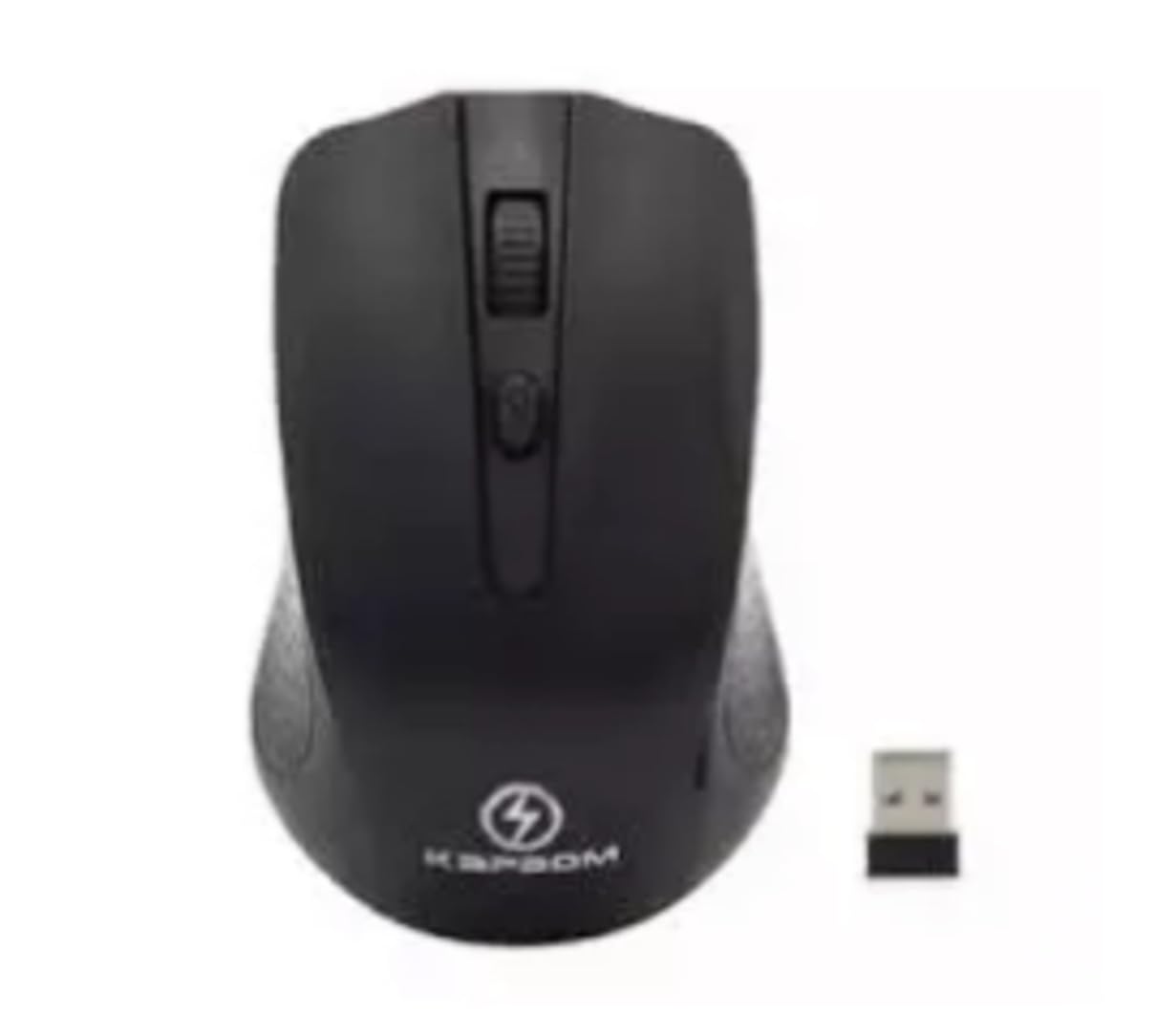
Image 2: Key components of the Kapbom Wireless Mouse.
- Left Click: Primary button for selecting items and interacting with software.
- Right Click: Secondary button for context menus and additional options.
- 3D Scroll Wheel: Used for scrolling through documents and web pages. Can also function as a middle click button.
- DPI Button: Located behind the scroll wheel, this button allows you to adjust the mouse sensitivity (DPI - Dots Per Inch). Press it to cycle through available DPI settings: 800, 1200, and 1600 DPI.
The mouse operates using 2.4Ghz wireless technology, providing a transmission distance of up to 10 meters.
5. Maintenance
- Battery Replacement: When the mouse performance degrades or it stops responding, replace the two AAA batteries with new ones.
- Cleaning: Use a soft, dry cloth to clean the mouse. For stubborn dirt, slightly dampen the cloth with water. Avoid using harsh chemicals or abrasive materials.
- Storage: When not in use for extended periods, remove the batteries to prevent leakage. Store the mouse and USB receiver in a dry, cool place.
6. Troubleshooting
Mouse Not Responding:
- Ensure the batteries are correctly inserted and are not depleted. Replace with new AAA batteries if necessary.
- Verify that the USB receiver is securely plugged into a working USB port on your computer. Try a different USB port.
- Ensure the mouse is within the effective operating range (up to 10 meters) of the USB receiver.
- Restart your computer.
Erratic Cursor Movement:
- Clean the optical sensor on the underside of the mouse.
- Ensure you are using the mouse on a suitable surface. Highly reflective or transparent surfaces may affect performance.
- Check for interference from other wireless devices.
7. Specifications
| Model | KA-633 |
| Connectivity | 2.4Ghz Wireless (USB Receiver) |
| DPI Resolution | 800 / 1200 / 1600 DPI |
| Wireless Range | Up to 10 meters |
| Power Source | 2 x AAA Batteries |
| Number of Buttons | 3 (Left, Right, Scroll Wheel/Middle Click) + DPI Button |
| Compatibility | Windows XP/Vista/7/8/10, Mac OSX V10.4X-10.5X |
| Anatel Homologation | 21386-22-13889 |
8. Warranty and Support
This product is covered by the manufacturer's warranty. For specific warranty terms and conditions, please refer to the documentation provided at the time of purchase or contact your retailer.
For technical support or further assistance, please contact the product retailer or the manufacturer's customer service.