
Insta360 CINSABQB-AI
Insta360 Flow 2 PRO Gimbal Stabilizer User Manual
Model: CINSABQB-AI
1. Introduction
This manual provides comprehensive instructions for the safe and effective use of your Insta360 Flow 2 PRO Gimbal Stabilizer. Please read this manual thoroughly before operating the device to ensure optimal performance and to prevent damage.
The Insta360 Flow 2 Pro is a cutting-edge smartphone gimbal stabilizer designed to enhance your mobile videography and photography. Featuring advanced AI tracking, 3-axis stabilization, and an integrated tripod, it offers a professional-grade experience for content creators.
2. What's in the Box
Verify that all items are present in your package:

Image 2.1: Contents of the Insta360 Flow 2 PRO package. This image displays the main gimbal unit, a spotlight accessory, a carrying pouch, and charging cables, along with a smartphone mounted on the gimbal.
- Insta360 Flow 2 PRO Gimbal Stabilizer
- Spot Light
- Carrying Pouch
- Charging Cable (USB-C)
- Magnetic Phone Clamp
3. Product Overview & Features
The Insta360 Flow 2 PRO is engineered with several key features to enhance your mobile content creation:
- 3-Axis Stabilization: Provides smooth, cinematic footage by compensating for shakes and vibrations.
- Deep Track 4.0 AI Tracking: Advanced subject tracking, including multi-person tracking, Active Zoom Tracking, and Pro Framing grid.
- Apple DockKit Compatibility: Enables AI tracking directly within the iPhone native camera and third-party apps.
- Built-in Tripod & Selfie Stick: Integrated design for versatile shooting options.
- 1-Step Rapid Deploy: Quick setup for immediate use.
- 10-Hour Battery Life: Extended operation for all-day shooting.
- Selfie Mirror: For high-quality self-portraits and vlogging.
- 360° Infinite Pan Tracking: Allows tracking subjects from any angle.
- Free Tilt Mode: Maintains angle while phone moves up and down.
- AI Editing Suite: In-app tools for post-production.
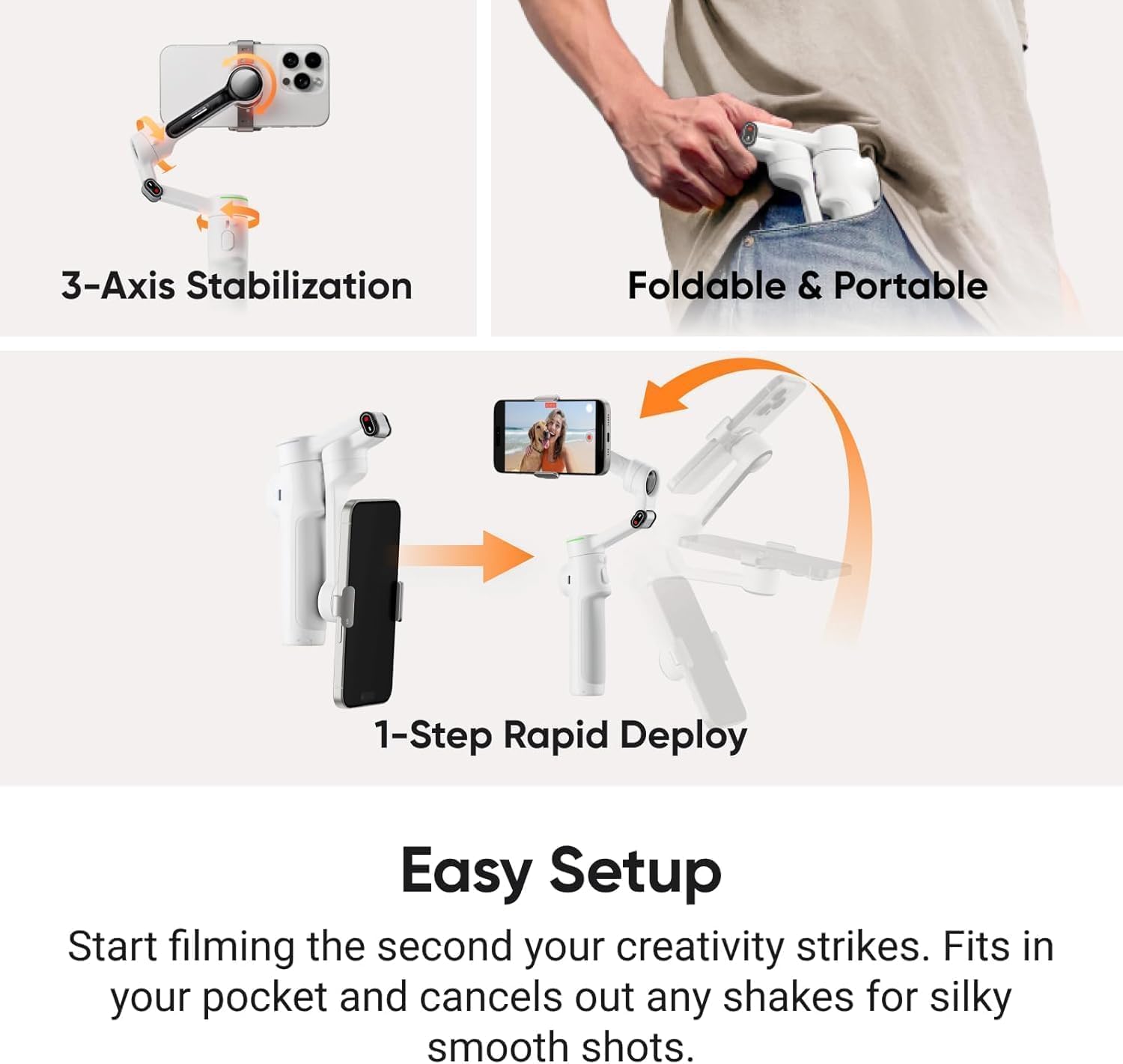
Image 3.1: Visual representation of the gimbal's 3-axis stabilization, its compact foldable design, and the quick 1-step rapid deploy mechanism for easy setup.

Image 3.2: Highlights of the all-in-one design, including a 10-hour battery life, the integrated selfie stick and tripod, and a convenient selfie mirror for high-quality self-portraits.
4. Setup Guide
4.1 Charging the Gimbal
- Connect the provided USB-C cable to the charging port on the gimbal.
- Connect the other end of the cable to a USB power adapter (not included).
- The indicator light will show charging status and turn solid when fully charged.
4.2 Mounting Your Smartphone
- Unfold the gimbal to its operating position.
- Attach the magnetic phone clamp to your smartphone, ensuring it is centered.
- Align the phone clamp with the magnetic mount on the gimbal and securely attach it.
- Ensure your phone is balanced. If necessary, slightly adjust the phone's position within the clamp.
4.3 App Installation and Connection
- Download the official Insta360 app from your smartphone's app store (iOS App Store or Google Play Store).
- Enable Bluetooth on your smartphone.
- Open the Insta360 app and follow the on-screen prompts to connect to your Flow 2 PRO gimbal.
- Perform any firmware updates prompted by the app for optimal performance.
5. Operating Instructions
5.1 Powering On/Off
- Power On: Press and hold the power button for 2 seconds.
- Power Off: Press and hold the power button for 3 seconds.
5.2 Using Deep Track 4.0 AI Tracking
Deep Track 4.0 allows the gimbal to automatically follow a selected subject.
- In the Insta360 app, select the tracking mode.
- Draw a box around the subject on your phone screen, or use hand gestures if enabled.
- The gimbal will automatically adjust to keep the subject in frame.

Image 5.1: Demonstrates the capabilities of Deep Track 4.0, including tracking subjects from a distance, achieving perfect framing for natural aesthetics, and tracking an entire group of people simultaneously.

Image 5.2: Illustrates the "Track with Apple DockKit" feature, showing the gimbal's ability to track subjects within the iPhone's native camera and other third-party applications for video calls, live streams, and meetings.
5.3 Gimbal Modes and Controls
The gimbal offers various modes for different shooting scenarios:
- Follow Mode: The gimbal follows your pan and tilt movements.
- Pan Follow Mode: The gimbal only follows your pan movements, keeping the tilt axis locked.
- FPV Mode: All three axes follow your movements, providing a first-person view.
- Free Tilt Mode: Allows the gimbal to maintain a specific tilt angle while panning, useful for creative shots.

Image 5.3: Depicts the 360° Infinite Pan Tracking feature, illustrating how the gimbal can track a subject continuously around its axis, providing complete freedom of movement.

Image 5.4: Shows the Free Tilt Mode in action, where the gimbal maintains a consistent angle as the phone moves up and down, enabling unique and creative shot compositions.
5.4 Using the AI Editing Suite
The Insta360 app includes an AI-powered editing suite to refine your footage.
- After recording, open your footage in the Insta360 app.
- Navigate to the editing section.
- Utilize AI-powered features for automatic edits, color correction, and effects.

Image 5.5: Features the AI Editing Suite, highlighting its ability to master shots with AI-powered tools available within the Insta360 application, shown with various video thumbnails.
6. Maintenance and Care
- Cleaning: Use a soft, dry cloth to clean the gimbal. Do not use liquid cleaners or solvents.
- Storage: Store the gimbal in a cool, dry place, away from direct sunlight and extreme temperatures. Use the provided carrying pouch for protection.
- Battery Care: For long-term storage, charge the battery to approximately 50-60% every three months to maintain battery health.
- Avoid Impact: Protect the gimbal from drops and impacts, which can damage the motors and internal components.
7. Troubleshooting
| Problem | Possible Cause | Solution |
|---|---|---|
| Gimbal not powering on | Low battery; Power button not held long enough | Charge the gimbal; Press and hold the power button for 2 seconds |
| Unstable footage / Gimbal shaking | Phone not balanced; Gimbal not calibrated; Obstruction | Re-balance phone; Calibrate gimbal via app; Check for obstructions around motors |
| Cannot connect to app | Bluetooth off; App not updated; Gimbal not in pairing mode | Ensure Bluetooth is on; Update app; Restart gimbal and app |
| AI tracking not working | Poor lighting; Subject too far/small; App permissions | Ensure adequate lighting; Keep subject within optimal range; Check app permissions for camera/microphone |
8. Specifications
| Feature | Detail |
|---|---|
| Model Number | CINSABQB-AI |
| Brand | Insta360 |
| Stabilization | 3-Axis |
| AI Tracking | Deep Track 4.0 |
| Battery Life | Up to 10 hours |
| Item Weight | 1.82 pounds |
| Color | White |
| Compatible Devices | Smartphones (refer to compatibility list for specifics) |
8.1 Smartphone Compatibility
For optimal performance, ensure your smartphone is compatible with the Insta360 Flow 2 PRO. Refer to the table below for common models:

Image 8.1: Detailed compatibility list for various smartphone models, including iPhone, Samsung Galaxy, and Google Pixel, showing supported video resolutions, timelapse resolutions, 360° panorama, and Active Zoom Tracking capabilities.
9. Warranty and Support
Insta360 products come with a standard manufacturer's warranty. For detailed warranty information, please refer to the official Insta360 website or contact their customer support.
- Official Website: www.insta360.com
- Customer Support: Refer to the support section on the official website for contact methods (email, live chat, phone).
- Firmware Updates: Regularly check the Insta360 app for the latest firmware updates to ensure optimal performance and access to new features.
Related documentsCINSABQB-AI


Ask a question about this manual
Ask about setup, troubleshooting, compatibility, parts, safety, or missing instructions. Manuals+ will review the question and use this page’s manual context to help answer it.