
1. Introduction
This manual provides detailed instructions for the Taiahiro BK820 Typewriter Mechanical Gaming Keyboard and Mouse Combo. Designed for both gaming and daily computing, this combo offers a unique retro aesthetic combined with modern mechanical performance and customizable RGB lighting. Please read this manual thoroughly to ensure proper setup, operation, and maintenance of your new device.
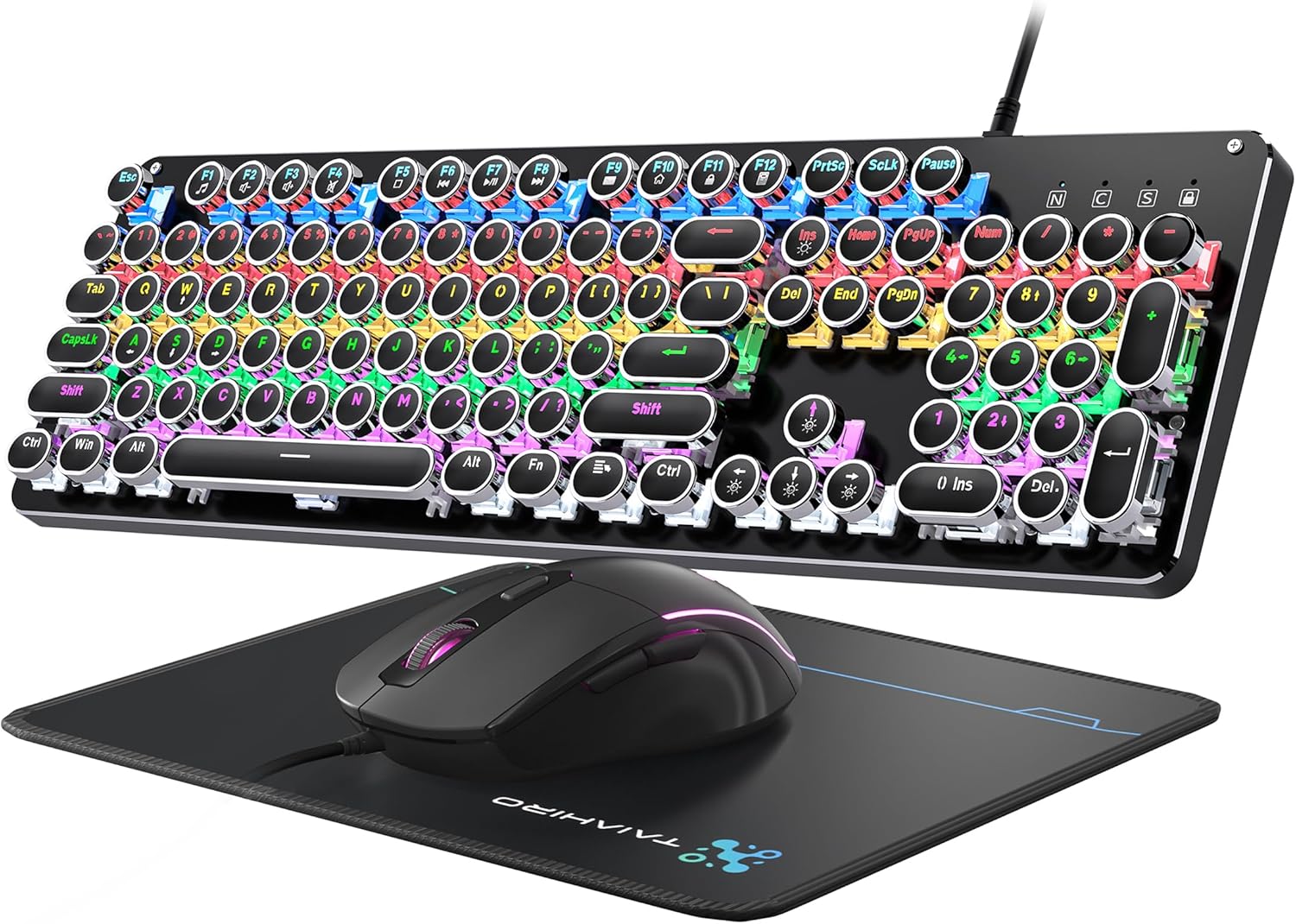
Figure 1: Taiahiro BK820 Typewriter Mechanical Gaming Keyboard and Mouse Combo.
2. Package Contents
The Taiahiro BK820 combo includes the following items:
- Typewriter Mechanical Keyboard
- Wired Gaming Mouse
- Mouse Pad
3. Product Features
The Taiahiro BK820 combo is equipped with several features to enhance your user experience:
- Typewriter Mechanical Keyboard and Mouse Set: Features mechanical blue switches, durable round keycaps, and an adjustable DPI optical mouse. Offers speed, accuracy, and comfort with a crisp click sound and precise tactile feedback.
- Metal Panel & Top Quality: The mechanical gaming keyboard is constructed from top-grade aluminum alloy with a matte finish. Double-shot-molded ABS keycaps are wear-resistant, non-fading, and removable for easy cleaning.
- 7 Colors Breathing RGB Gaming Mouse: Wired gaming mouse with a high-precision optical sensor and super-fast game engine. Features 4 Adjustable DPI Levels (800/1600/2400/3200), RGB backlighting, an anti-skid scroll wheel, and 7-color lighting with breathing and cycling effects.
- 104-Key Anti-Ghost Ergonomic Keyboard: 104 anti-ghosting keys for fast response. Full-size keyboard includes 12 multimedia keys and a number pad. Ergonomically designed with a high-low key layout, suspended round keys, and adjustable double kickstand feet to reduce hand fatigue.
- 11 Modes RGB Backlighting: Keyboard features 4-color RGB backlighting with 11 different lighting modes. Double-shot injection molded keycaps ensure clear backlight and extreme durability. Brightness and breathing speed are adjustable.
- Wide Compatible: USB 2.0 plug-and-play connection. Compatible with PC, laptop, Mac, and other devices, supporting Windows, Linux, and Mac OS systems.
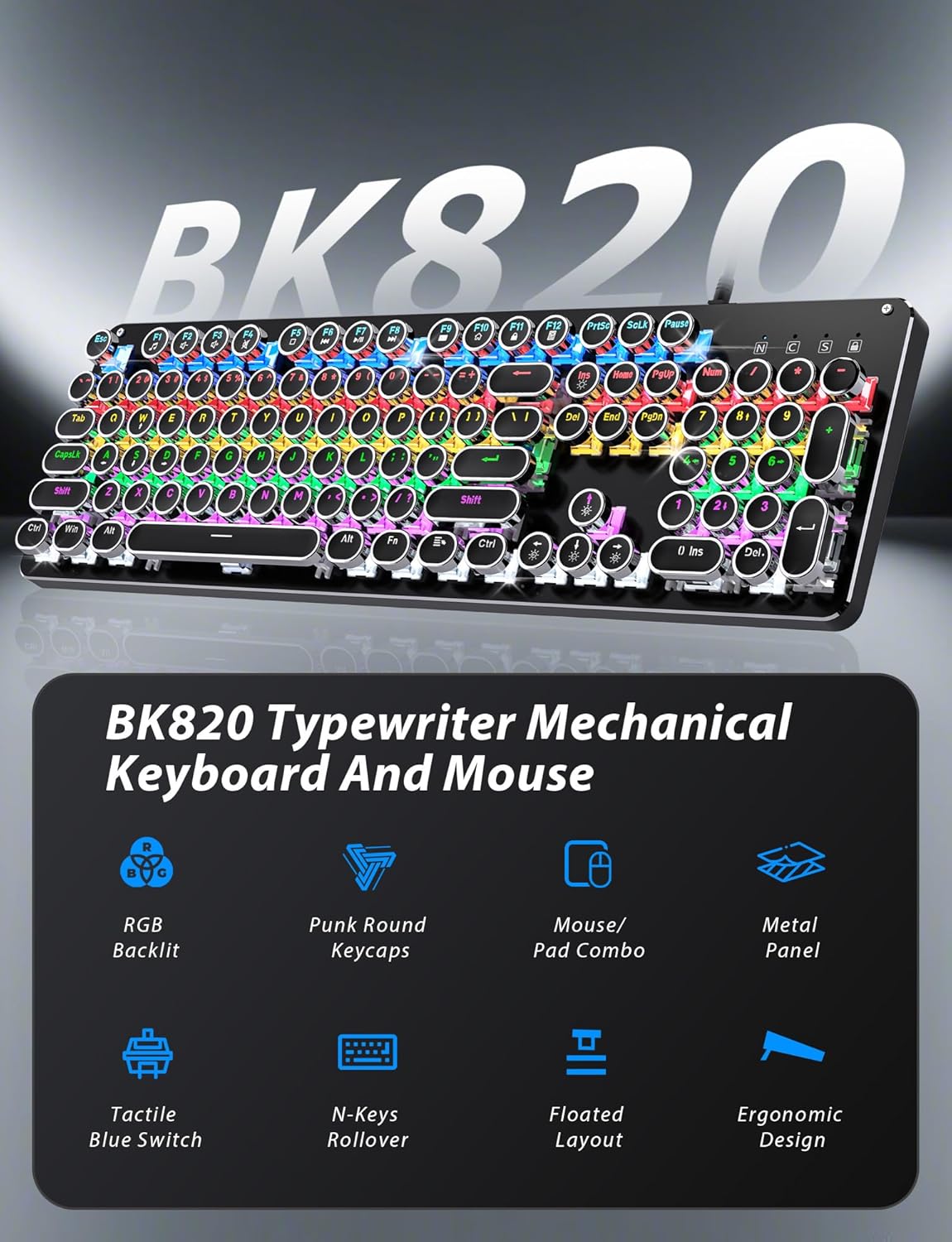
Figure 2: Key features of the Taiahiro BK820 combo.
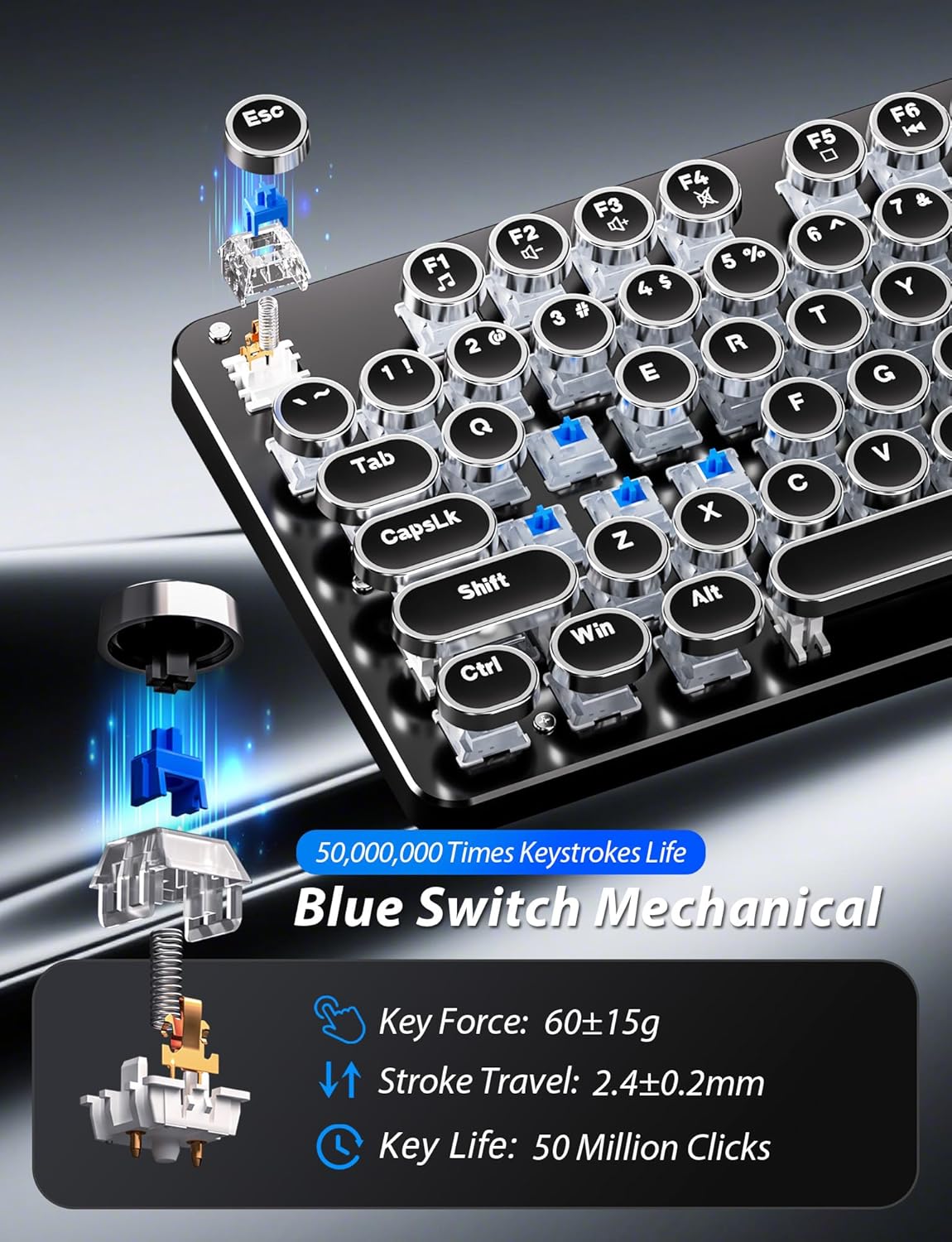
Figure 3: Detailed view of the mechanical blue switches.
4. Setup Instructions
- Connect the Keyboard: Plug the keyboard's USB cable into an available USB 2.0 port on your computer. The keyboard is plug-and-play and should be recognized automatically by your operating system.
- Connect the Mouse: Plug the mouse's USB cable into another available USB 2.0 port on your computer. The mouse is also plug-and-play.
- Adjust Keyboard Angle: Flip the keyboard over. Extend the adjustable double kickstand feet located on the underside of the keyboard to achieve your preferred typing angle.
- Attach Wrist Rest (Optional): The keyboard features a magnetic wrist rest. Align the wrist rest with the front edge of the keyboard until it snaps into place.
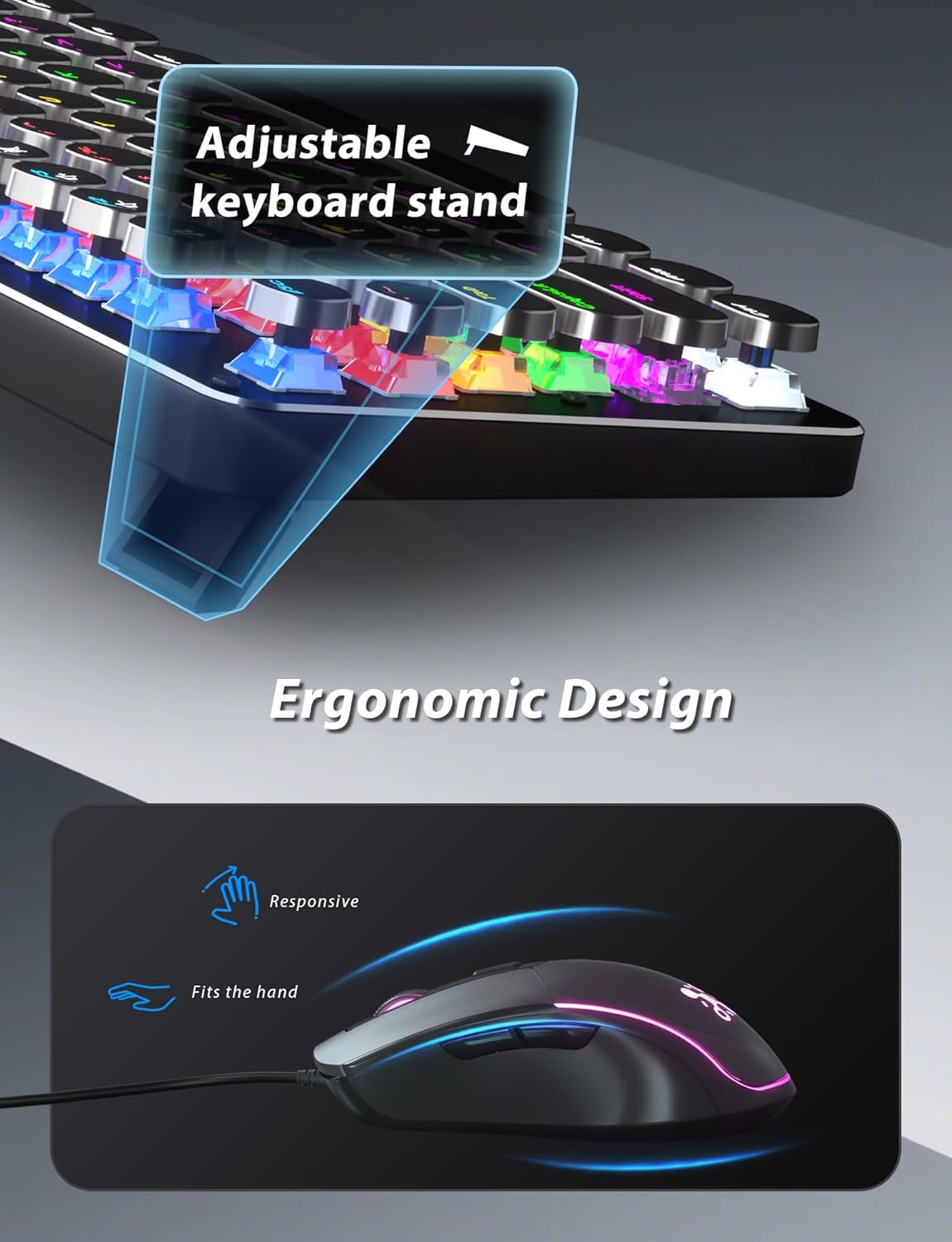
Figure 4: Adjustable keyboard stand for ergonomic comfort.
5. Operating Instructions
5.1 Keyboard Functions
- RGB Backlight Modes: Press Fn + INS to cycle through 11 different RGB backlight modes.
- Adjust Backlight Brightness: Press Fn + ↑ (Up Arrow) to increase brightness or Fn + ↓ (Down Arrow) to decrease brightness.
- Adjust Backlight Speed: Press Fn + ← (Left Arrow) to decrease animation speed or Fn + → (Right Arrow) to increase animation speed for dynamic lighting modes.
- Gaming Modes: The keyboard offers 6 preset gaming modes. Press Fn + F1 through Fn + F6 to activate specific key lighting for different game types.
- Multimedia Keys: Use the Fn key in combination with the F1-F12 keys for various multimedia controls (e.g., volume, play/pause, calculator).
- Windows Key Lock: Press Fn + Win to lock or unlock the Windows key, preventing accidental presses during gaming.

Figure 5: Keyboard RGB backlight controls.
5.2 Mouse Functions
- DPI Adjustment: Press the DPI button located on the top of the mouse to cycle through 4 adjustable DPI levels (800/1600/2400/3200).
- RGB Lighting: The mouse features 7-color breathing and cycling RGB lighting that changes automatically.
- Forward/Backward Buttons: Use the side buttons for quick navigation in web browsers or other applications.

Figure 6: Taiahiro BK820 Gaming Mouse with RGB lighting and DPI button.
5.3 Official Product Videos
Video 1: This video provides an overview of the 104-Key Retro Typewriter Mechanical Gaming Keyboard and Mouse combo, showcasing its design and features.
Video 2: This video demonstrates the unboxing experience of the BK820 Typewriter Mechanical Keyboard and Mouse, showing the contents as they are removed from the packaging.
Video 3: This video introduces the Typewriter Mechanical Keyboard and Mouse Combo, highlighting its design and functionality.
6. Maintenance
To ensure the longevity and optimal performance of your keyboard and mouse:
- Cleaning Keycaps: The double-shot-molded ABS keycaps are removable. Gently pull them off to clean any dust or debris underneath. Use a soft, damp cloth to wipe the keycaps and the keyboard surface. Ensure all parts are dry before reattaching keycaps.
- Mouse Cleaning: Use a soft, dry cloth to clean the mouse surface. Avoid using harsh chemicals or abrasive materials.
7. Troubleshooting
- Keyboard or Mouse Not Responding: Ensure both the keyboard and mouse USB cables are securely plugged into your computer's USB ports. Try plugging them into different USB ports.
- Backlight Not Working/Adjusting: Verify that the keyboard is powered on. Use Fn + INS to cycle through modes. Adjust brightness with Fn + ↑/↓ and speed with Fn + ←/→.
- Windows Key Disabled: If the Windows key is not functioning, it might be locked. Press Fn + Win to toggle its lock status.
- Mouse DPI Not Changing: Press the dedicated DPI button on the mouse to cycle through the available sensitivity settings.
8. Specifications
| Brand | Taiahiro |
| Model Number | BK820 |
| Color | Black |
| Connectivity Technology | USB |
| Special Feature | Backlit |
| Compatible Devices | PC, Laptop, Mac |
| Item Weight | 2.51 pounds |
| Package Dimensions | 17.8 x 6.42 x 3.03 inches |
9. Warranty and Support
For warranty information, technical support, or any inquiries regarding your Taiahiro BK820 Typewriter Mechanical Gaming Keyboard and Mouse Combo, please refer to the manufacturer's official website or contact their customer service directly. Keep your purchase receipt for warranty claims.

