
1. Introduction
This manual provides detailed instructions for the installation, configuration, and operation of your CP PLUS EZ-P23 2MP Smart Wi-Fi CCTV Camera. Please read this manual thoroughly before using the product to ensure proper functionality and safety. Keep this manual for future reference.
The CP PLUS EZ-P23 is a Full HD 2MP Smart Wi-Fi CCTV Camera designed for home security. It features 360° Pan & Tilt capabilities, advanced night vision, two-way audio communication, and AI-based human detection with motion tracking. It supports local storage via an SD card up to 256GB.
2. Product Overview
2.1 Key Features
- 2MP Full HD Resolution: Delivers sharp and clear images for detailed surveillance.
- 360° Pan & Tilt Coverage: Allows comprehensive monitoring of large areas, eliminating blind spots.
- 2-Way Audio: Built-in microphone and speaker enable real-time communication.
- Intelligent Surveillance: AI-based human detection and motion tracking provide real-time alerts.
- Advanced Night Vision: Infrared LEDs ensure clear footage up to 15 meters in complete darkness.
- Expandable Storage: Supports micro SD cards up to 256GB for video recordings.
2.2 Camera Components
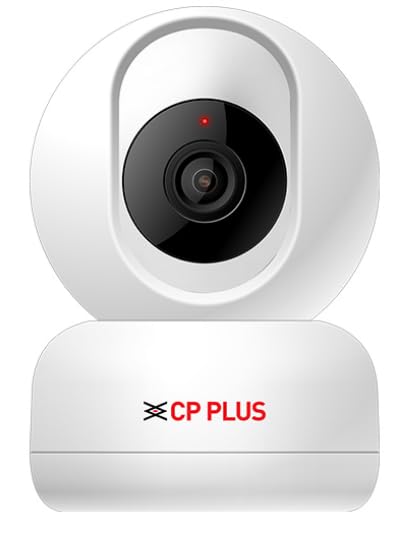
Figure 1: Front view of the CP PLUS EZ-P23 Smart Wi-Fi CCTV Camera. The image shows the white camera unit with a black lens module and the CP PLUS logo on the base. A small red indicator light is visible above the lens.
- Camera Lens: Captures video footage.
- Infrared LEDs: Provide illumination for night vision.
- Microphone: Captures audio for two-way communication.
- Speaker: Outputs audio for two-way communication.
- Status Indicator Light: Displays the camera's current operational status (e.g., power on, Wi-Fi connection).
- Micro SD Card Slot: For local video storage (supports up to 256GB).
- Power Port: Connects to the power adapter.
- Reset Button: Used to reset the camera to factory settings.
3. Setup Guide
3.1 Unboxing and Initial Inspection
- Carefully remove all components from the packaging.
- Verify that all items are present: camera unit, power adapter, mounting accessories (if included), and this user manual.
- Inspect the camera for any signs of damage. If damaged, contact customer support.
3.2 Powering On the Camera
- Connect the power adapter to the camera's power port.
- Plug the power adapter into a standard electrical outlet.
- The camera's status indicator light will illuminate, typically blinking, indicating it is powering on and ready for setup.
3.3 App Download and Account Creation
- Download the official CP PLUS mobile application from your smartphone's app store (Google Play Store for Android or Apple App Store for iOS).
- Open the app and create a new user account. Follow the on-screen instructions to complete registration.
3.4 Connecting to Wi-Fi
- Ensure your smartphone is connected to a 2.4GHz Wi-Fi network. The camera supports 2.4GHz Wi-Fi only.
- In the CP PLUS app, tap "Add Device" or the "+" icon.
- Select your camera model (EZ-P23) from the list of devices.
- Follow the in-app prompts to connect the camera to your Wi-Fi network. This usually involves scanning a QR code generated by the app with the camera's lens or entering Wi-Fi credentials manually.
- Once connected, the camera's status indicator light will typically turn solid blue or green, indicating a successful connection.
3.5 Micro SD Card Installation (Optional)
- Locate the micro SD card slot on the camera (refer to the product diagram if needed).
- Gently insert a formatted micro SD card (up to 256GB) into the slot until it clicks into place.
- In the app, navigate to the camera settings and format the SD card if prompted. This ensures compatibility and optimal performance.
3.6 Mounting the Camera
The CP PLUS EZ-P23 can be mounted on a wall or ceiling. Choose a location that provides the desired viewing angle and is within range of your Wi-Fi signal and a power outlet.
- Wall Mount: Use the provided mounting bracket and screws to secure the camera to a wall. Ensure the camera is positioned securely.
- Ceiling Mount: Attach the mounting bracket to the ceiling using screws. Then, secure the camera to the bracket. Ensure the camera is oriented correctly for ceiling installation (check app settings for image rotation if necessary).
4. Operating Instructions
4.1 Live View
Open the CP PLUS app and select your camera from the device list to access the live video feed. You can view real-time footage from your camera anytime, anywhere.
4.2 Pan & Tilt Control
On the live view screen, use the directional controls within the app to remotely pan (horizontal movement) and tilt (vertical movement) the camera lens to adjust the viewing angle and cover a 360° area.
4.3 Two-Way Audio
To use the two-way audio feature, tap the microphone icon in the live view interface. Hold the button to speak, and release it to listen. This allows for real-time communication with individuals near the camera.
4.4 Motion Detection and Alerts
- Navigate to the camera settings in the app.
- Enable "Motion Detection" and "Human Detection" (if available).
- Adjust sensitivity levels as needed.
- Configure alert notifications to receive instant alerts on your smartphone when motion or human presence is detected.
4.5 Night Vision
The camera automatically switches to night vision mode in low-light conditions, utilizing its infrared LEDs to provide clear black-and-white footage up to 15 meters. This feature ensures continuous surveillance even in complete darkness.
4.6 Video Recording and Playback
If an SD card is installed, the camera will record footage based on your settings (e.g., continuous recording, motion-triggered recording). To view recorded footage:
- In the app, select your camera and go to the "Playback" or "History" section.
- Choose the date and time to review recorded events.
5. Maintenance
5.1 Cleaning the Camera
To maintain optimal image quality, periodically clean the camera lens with a soft, dry, lint-free cloth. Do not use harsh chemicals or abrasive cleaners.
5.2 Firmware Updates
Regularly check for firmware updates through the CP PLUS app. Keeping your camera's firmware updated ensures access to the latest features, security enhancements, and bug fixes. Follow the in-app instructions for updating firmware.
5.3 SD Card Management
If using an SD card for storage, it is recommended to periodically format the card through the app to maintain performance and prevent data corruption. Back up any important footage before formatting.
6. Troubleshooting
| Problem | Possible Cause | Solution |
|---|---|---|
| Camera not powering on. | Power adapter not connected or faulty; power outlet not working. | Check power connections. Try a different power outlet. Ensure the power adapter is functioning correctly. |
| Unable to connect to Wi-Fi. | Incorrect Wi-Fi password; camera too far from router; 5GHz Wi-Fi network used. | Verify Wi-Fi password. Move camera closer to the router. Ensure you are connecting to a 2.4GHz Wi-Fi network. Reset the camera and try again. |
| Poor image quality. | Dirty lens; insufficient lighting; network bandwidth issues. | Clean the camera lens. Ensure adequate lighting or check night vision settings. Verify stable Wi-Fi connection and sufficient bandwidth. |
| Motion alerts not received. | Motion detection disabled; app notifications turned off; incorrect sensitivity settings. | Enable motion detection and human detection in the app. Check app notification settings on your phone. Adjust motion sensitivity. |
| SD card not recording. | SD card not inserted correctly; card not formatted; card full or faulty. | Reinsert the SD card. Format the SD card via the app. Replace the SD card if it's faulty. Check recording settings in the app. |
7. Specifications
| Feature | Detail |
|---|---|
| Model Number | CP PLUS EZ-P23 |
| Video Capture Resolution | 2MP Full HD |
| Pan & Tilt | 360° Pan, Vertical Tilt |
| Night Vision Distance | Up to 15 meters (Infrared) |
| Audio | 2-Way Audio (Built-in Mic & Speaker) |
| Storage | Micro SD Card (up to 256GB) |
| Connectivity | Wi-Fi (2.4GHz only) |
| Human Detection | AI-based |
| Motion Tracking | Yes |
| Form Factor | Wall Mount |
| Mounting Type | Ceiling Mount |
| Item Dimensions (LxWxH) | 18 x 8 x 8 Centimeters |
| Item Weight | 200 Grams |
| Color | WHITE |
| Indoor/Outdoor Usage | Indoor |
8. Warranty and Support
For warranty information, please refer to the warranty card included with your product or visit the official CP PLUS website. For technical support, troubleshooting assistance, or any product-related inquiries, please contact CP PLUS customer service through their official channels.
CP PLUS Official Website: www.cpplusworld.com
Note: Product specifications and features are subject to change without prior notice.


