Product Overview
The Tera Mini 1D Wireless Barcode Scanner (Model 1100L-Pink-US02) is a compact, portable, and versatile device designed for efficient barcode scanning. It offers multiple connectivity options and robust features for various environments, making it ideal for retail, warehousing, and inventory management.

Image: The Tera Mini 1D Wireless Barcode Scanner, shown held in a hand, highlighting its compact size and ergonomic design. The scanner is black with a pink button and a blue indicator light.
Key Features
- IP66 Waterproof & Dustproof: Features a newly designed silicone port plug, providing superior protection against water and dust. This ensures reliable performance in demanding work conditions. The integrated silicone button offers a soft, smooth, and responsive scanning experience.
- Mini Pocket 1D Scanner: Compact and lightweight, weighing just 39g (1.4oz), making it highly portable. Easily connect to your device via Bluetooth or use storage mode for seamless data collection anytime, anywhere. Perfect for various applications including bookstores, online shops, retail stores, and warehouses.
- 3-in-1 Connectivity Options: The Tera 1100L scanner offers versatile connection methods: Bluetooth 5.0, 2.4 GHz wireless (with a 2.4G USB dongle), and USB 2.0 wired modes. The 2.4G wireless mode achieves a transmission range of up to 656 ft in open spaces and 98 ft in obstructed environments.
- Multiple Configuration Options: Supports two versatile use modes: instant upload and storage mode. Customize your experience by enabling or disabling sound and vibration, adding or hiding custom prefixes/suffixes, and more. Tailor the scanner to your specific needs for maximum flexibility and efficiency.
- 1D Barcode Reader: Supports a wide range of printed 1D barcode symbologies, including Codabar, Code 11, Code 93, MSI, Code 128, UCC/EAN-128, Code 39, EAN-8, EAN-13, UPC-A, ISBN, Industrial 25, Interleaved 25, Standard 25, and 2/5 Matrix.
Package Contents
Please verify all items are present upon unboxing:
- Barcode Scanner x1
- USB Cable x1
- Dongle x1 (2.4G USB wireless receiver)
- User Manual x1
Setup
Charging the Scanner
Before first use, fully charge the scanner to ensure optimal performance.
- Connect the provided USB cable to the scanner's charging port.
- Connect the other end of the USB cable to a 5V/1A power adapter (recommended) or a computer's USB port.
- The charging indicator light will illuminate.
- A full charge typically takes approximately 3.5 hours.

Image: Diagram showing recommended charging voltage/current (5V/1A) and maximum charging voltage/current (5V/1.2A) for the scanner. It also advises against using USB PD power adapters and cables for charging.
Initial Connection
The scanner supports three connection modes: Bluetooth, 2.4G Wireless, and USB Wired.
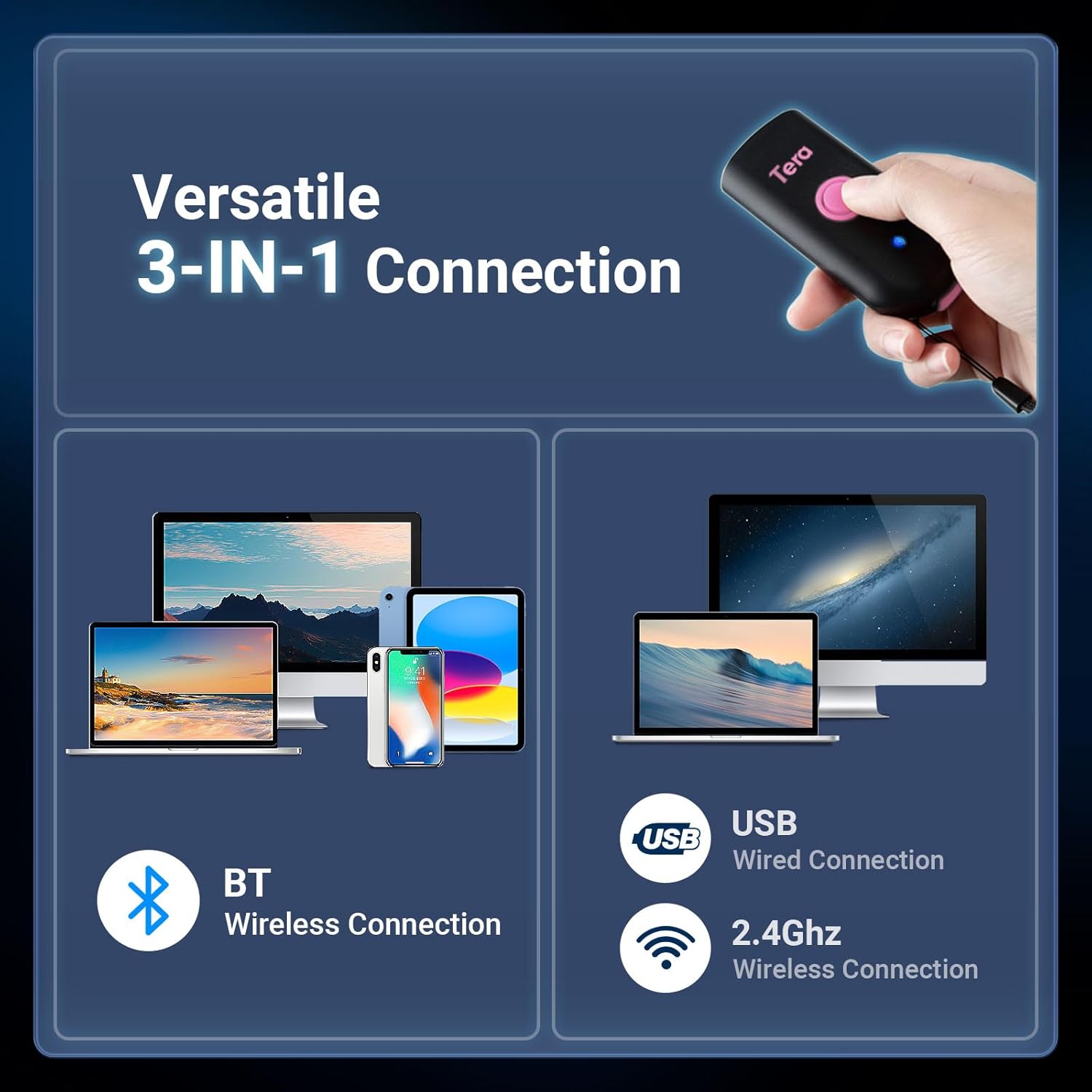
Image: Visual representation of the scanner's versatile 3-in-1 connection options: Bluetooth wireless, 2.4GHz wireless (with dongle), and USB wired connection, compatible with various devices like laptops, tablets, and smartphones.
Bluetooth Connection
- Turn on the scanner.
- Scan the "Bluetooth Pairing" barcode from the physical user manual provided with the product.
- On your device (smartphone, tablet, computer), enable Bluetooth and search for "Tera Barcode Scanner".
- Select the scanner to pair. A successful connection will be indicated by a specific sound or light pattern on the scanner.
2.4G Wireless Connection
- Insert the 2.4G USB dongle into an available USB port on your computer.
- Turn on the scanner. It will automatically attempt to connect to the dongle.
- If connection is not automatic, scan the "2.4G Pairing" barcode from the physical user manual.
USB Wired Connection
- Connect the scanner to your computer using the provided USB cable.
- The scanner will function as a standard USB HID keyboard device, and no additional drivers are typically required.
Operating the Scanner
Scanning Modes
The scanner supports two primary scanning modes:
- Key Trigger Mode: Press the scan button to activate the laser and scan a barcode. Release the button to stop scanning. This is the default mode.
- Continuous Mode: The scanner continuously emits the laser, scanning any barcode that passes through its beam without needing to press the button for each scan. This mode is useful for high-volume scanning.

Image: Illustration depicting the two scanning modes: Key Trigger Mode, where a single barcode is scanned per button press, and Continuous Mode, where the scanner continuously reads barcodes.
Data Upload Modes
- Instant Upload Mode: Scanned data is immediately transmitted to the connected device. This is suitable for real-time data entry.
- Storage Mode: Scanned data is stored in the scanner's internal memory. This is useful when operating out of range of the connected device. Data can be uploaded later by scanning a specific "Upload Data" barcode (refer to the physical manual).
Customization Options
The scanner can be configured using special barcodes found in the full user manual. These options allow you to tailor the scanner's behavior to your specific needs:
- Enabling/Disabling sound and vibration feedback.
- Adjusting sound volume (Low, Medium, High).
- Adding custom prefixes or suffixes to scanned data.
- Setting sleep time to conserve battery.
- Configuring keyboard layouts for different languages.

Image: Graphic illustrating the sound and vibration settings, showing options for Off, Low, Medium, and High sound levels, along with a vibration function indicator.

Image: A keyboard layout with various national flags (US, UK, Germany, France, Spain, Italy, Japan) indicating multi-language support for input, allowing the scanner to be used with different regional keyboard settings.
Supported Barcode Symbologies
The Tera 1100L scanner supports a wide range of 1D barcode types, ensuring compatibility with most standard applications:
- Codabar
- Code 11
- Code 93
- MSI
- Code 128
- UCC/EAN-128
- Code 39
- EAN-8
- EAN-13
- UPC-A
- ISBN
- Industrial 25
- Interleaved 25
- Standard 25
- 2/5 Matrix
Maintenance
Proper maintenance will extend the life and performance of your scanner:
- Cleaning: Use a soft, dry cloth to clean the scanner's exterior. Do not use abrasive cleaners, solvents, or harsh chemicals. For the scanning window, use a lens cleaning cloth to avoid scratches.
- Storage: Store the scanner in a cool, dry place away from direct sunlight, extreme temperatures, and corrosive materials.
- Battery Care: To prolong battery life, avoid fully discharging the battery frequently. If storing for extended periods, charge the battery to about 50% every few months.
- Water and Dust Protection: Always ensure the silicone port plug is securely closed when operating in wet or dusty environments to maintain the IP66 rating and prevent internal damage.

Image: The Tera barcode scanner being splashed with water, illustrating its IP66 waterproof and dustproof capabilities. A close-up shows the silicone port plug designed for enhanced protection against environmental elements.
Troubleshooting
If you encounter issues with your scanner, refer to the table below for common problems and solutions:
| Problem | Possible Cause | Solution |
|---|---|---|
| Scanner not turning on | Low battery; Power button not pressed correctly | Charge the scanner fully. Ensure the power button is pressed and held until the indicator light appears. |
| No data transmission to device | Not paired/connected; Out of range; Incorrect mode (storage vs. instant upload) | Ensure proper pairing/connection (Bluetooth/2.4G). Move closer to the receiver. Switch to instant upload mode if data is stored internally. |
| Cannot scan certain barcodes | Barcode type not supported; Damaged or poorly printed barcode; Poor lighting conditions; Scanner lens dirty | Verify barcode symbology is listed as supported. Ensure barcode is clear, undamaged, and well-lit. Clean the scanner lens. |
| Scanned data is garbled or incorrect | Data transfer speed too fast for receiving device; Keyboard layout mismatch; Incorrect prefix/suffix settings | Refer to the full user manual to adjust data transfer speed or keyboard layout settings. Check and reset prefix/suffix configurations if necessary. |
Specifications
| Feature | Detail |
|---|---|
| Model | 1100L-Pink-US02 |
| Connectivity | Bluetooth 5.0, 2.4 GHz Wireless, USB 2.0 Wired |
| Barcode Symbologies | 1D (Codabar, Code 11, Code 93, MSI, Code 128, UCC/EAN-128, Code 39, EAN-8, EAN-13, UPC-A, ISBN, Industrial 25, Interleaved 25, Standard 25, 2/5 Matrix) |
| Weight | 39g / 1.4oz (scanner only) |
| Dimensions | Approx. 3.4 x 1.57 inches (87 x 40 mm) |
| Battery Capacity | 650mAh |
| Charging Time | Approx. 3.5 hours |
| Scanning Time | Up to 12 hours continuous scanning |
| Standby Time | Up to 4 weeks |
| IP Rating | IP66 (Waterproof & Dustproof) |
Official Product Video
Video: An official product video from Tera-US demonstrating the rugged, waterproof, and dustproof features of the barcode scanner, along with its various connectivity options and portable design. This video highlights the scanner's durability and versatility in different environments.
Warranty and Support
For warranty information, technical support, or any inquiries regarding your Tera Mini 1D Wireless Barcode Scanner, please refer to the official Tera website or contact their customer service directly. It is recommended to keep your purchase receipt as proof of purchase for warranty claims.
Manufacturer: Tera
Model Number: 1100L-Pink-US02
Date First Available: March 3, 2025


