
AGM Pad T2
AGM Pad T2 Android Tablet User Manual
Model: Pad T2
Brand: AGM
Introduction
This user manual provides comprehensive instructions for the operation and maintenance of your AGM Pad T2 Android Tablet. Please read this manual thoroughly before using your device to ensure proper functionality and to maximize its lifespan.

Figure 1: AGM Pad T2 Android Tablet and Included Accessories
What's in the Box
- AGM Pad T2 Android Tablet
- Protective Screen (pre-applied or separate)
- Power Adapter
- Charging Cable (Type-C)
- SIM Ejector Tool
Setup Guide
1. Initial Charge
Before first use, fully charge the tablet using the provided power adapter and charging cable. The battery indicator on the screen will show charging progress.
2. Power On/Off
- To power on: Press and hold the Power ON/OFF button located on the side of the tablet until the AGM logo appears.
- To power off: Press and hold the Power ON/OFF button, then select "Power off" from the options on the screen.

Figure 2: Tablet Ports and Buttons (Power ON/OFF, Volume, Type-C Port, Micro SD/SIM Card Slot, Speaker)
3. SIM/SD Card Installation
Locate the Micro SD/SIM Card Slot on the side of the tablet. Use the provided SIM ejector tool to open the tray. Carefully insert your SIM card (if applicable) and/or Micro SD card into the designated slots, ensuring correct orientation. Close the tray securely.
4. Initial Setup (Android 14)
Upon first power-on, the tablet will guide you through the initial setup process. This includes selecting your language, connecting to a Wi-Fi network, setting up your Google account, and configuring basic device settings. Follow the on-screen prompts.
Video 1: AGM Android 14 Tablet Showcase. This video demonstrates the tablet's features, including its slim design, vast FHD+ display, Widevine L1 certification, large storage, MTK G91 Octa-Core processor, multitasking capabilities, stunning visuals with 500 Nits brightness, stereo speakers, Android 14 OS, dual-camera design, expandable storage, and 8000mAh battery.
Key Features and Specifications
The AGM Pad T2 is designed for powerful performance and an immersive user experience. Below are its core features:
Display
- Size: 11-inch FHD+ IPS In-cell Display
- Resolution: 1920 x 1200 pixels
- Brightness: 500 Nits
- Features: Widevine L1 certified for UHD streaming, low blue light for eye comfort.

Figure 3: Premium FHD In-cell Display with Widevine L1 Support
Performance and Storage
- Processor: MTK G91 Octa-Core CPU (up to 2.0GHz)
- RAM: 8GB (4GB physical + 4GB virtual) LPDDR4X
- Internal Storage: 256GB ROM
- Expandable Storage: Up to 512GB via TF (Micro SD) Card

Figure 4: MTK G91 Octa-Core Processor with 8GB RAM and 256GB ROM
Camera System
- Rear Camera: 13MP (Main) with Auto Focus
- Front Camera: 8MP for video calls and selfies
- Macro Camera: 2MP for close-up shots
- Flash: LED Flash for low light capture

Figure 5: Triple Camera System Details
Battery and Charging
- Capacity: 8000mAh
- Charging: Fast-charge via Type-C port (approx. 2 hours for full charge)
- Usage: Up to 4 days standby, 8 hours active use.
Connectivity and Navigation
- Wi-Fi: Dual-band (2.4G/5G) 802.11a/b/g/n/ac
- Bluetooth: Bluetooth 5.0
- Navigation: Built-in GPS, GLONASS, Beidou, and Galileo support for precise location.
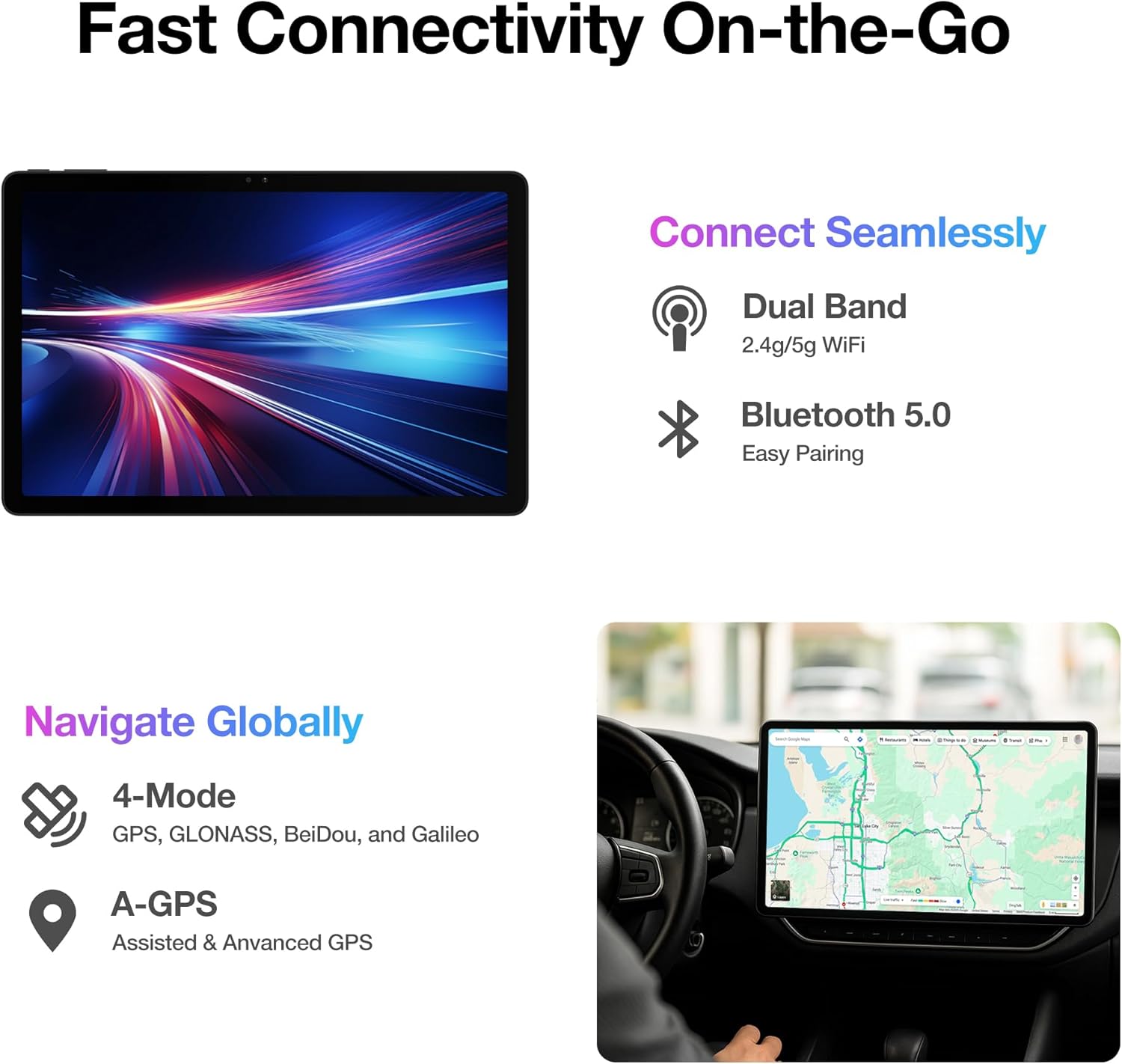
Figure 6: Fast Connectivity and Global Navigation
Operating System
- OS: Android 14
- Features: Enhanced personalization, improved privacy & security, smart features, advanced photography, accessibility enhancements, built-in Google Assistant, Gemini support.
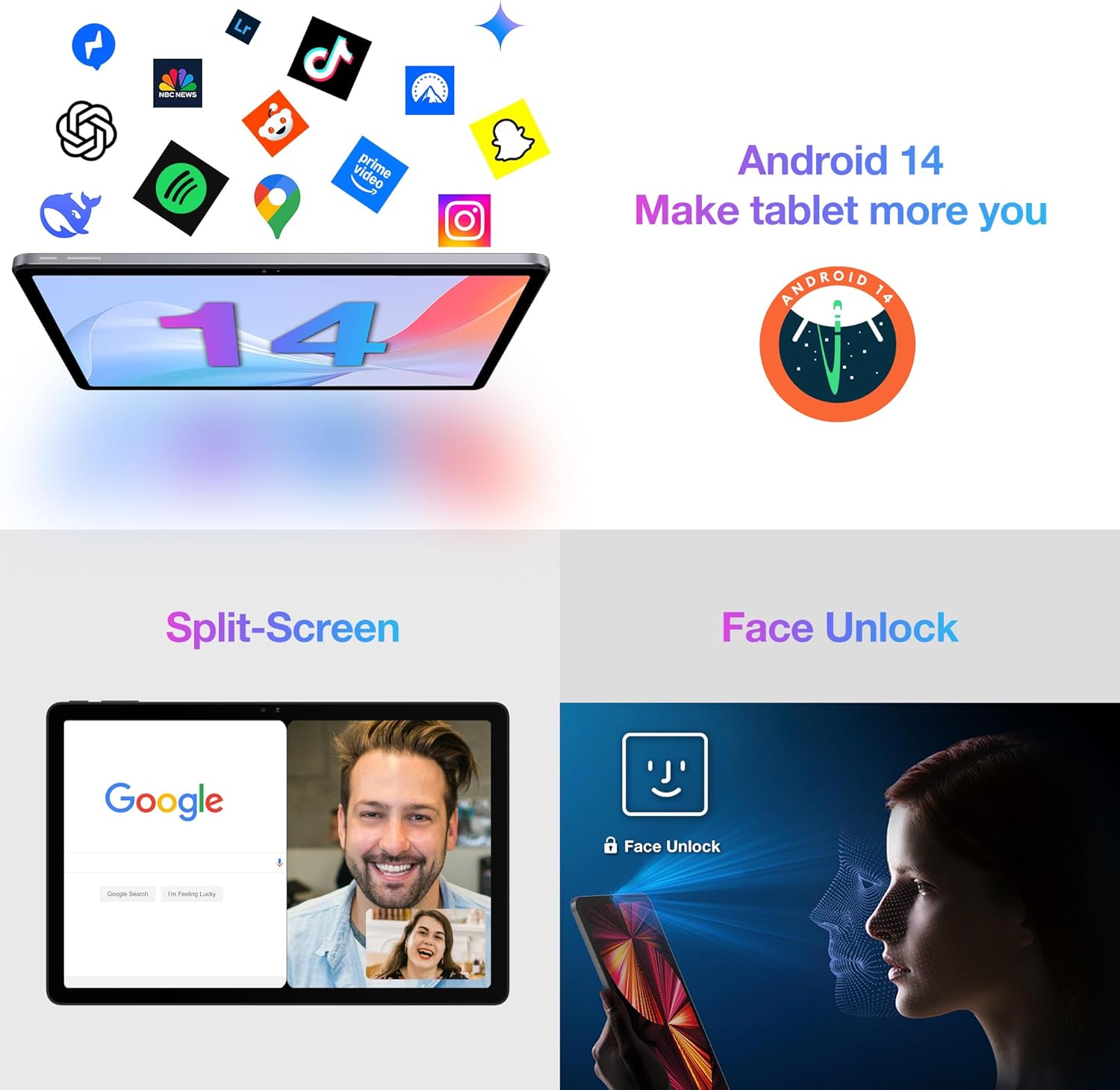
Figure 7: Android 14 Interface with Split-Screen and Face Unlock
Audio
- Speakers: Dual Stereo Speakers for rich, clear sound.

Figure 8: Immersive Sound Experience with Dual Stereo Speakers
Operating Instructions
1. Basic Navigation
The AGM Pad T2 uses a touch-sensitive screen for navigation. Common gestures include:
- Tap: To select an item or open an app.
- Swipe: To scroll through pages or lists.
- Pinch: To zoom in or out on images and web pages.
- Long Press: To access contextual menus or move icons.
2. Connecting to Wi-Fi
- Go to Settings.
- Tap Network & internet.
- Select Internet and turn on Wi-Fi.
- Choose your desired Wi-Fi network from the list and enter the password if prompted.
3. Bluetooth Pairing
- Go to Settings.
- Tap Connected devices.
- Select Pair new device.
- Ensure your Bluetooth accessory is in pairing mode, then select it from the list to connect.
4. Using the Camera
Open the Camera app. You can switch between the rear (13MP main, 2MP macro) and front (8MP) cameras. Tap the screen to focus and press the shutter button to capture photos or record videos.
5. Split-Screen Functionality
Android 14 allows for split-screen multitasking. To activate:
- Open the first app you want to use.
- Swipe up from the bottom of the screen to reveal the recent apps.
- Long-press the icon of the first app at the top of its card, then select Split top.
- Choose the second app from your recent apps or app drawer to fill the other half of the screen.
6. Face Unlock Setup
- Go to Settings.
- Tap Security & privacy.
- Select Device unlock and then Face unlock.
- Follow the on-screen instructions to register your face. Ensure you are in a well-lit area.
Maintenance and Care
- Cleaning: Use a soft, lint-free cloth to clean the screen and body. Avoid abrasive cleaners or solvents.
- Battery Care: To prolong battery life, avoid extreme temperatures. Do not let the battery fully drain frequently.
- Software Updates: Regularly check for and install system updates to ensure optimal performance and security. Go to Settings > System > System update.
- Storage Management: Periodically clear unnecessary files and apps to maintain smooth operation.
Troubleshooting
| Problem | Possible Solution |
|---|---|
| Tablet won't turn on | Ensure the battery is charged. Press and hold the Power button for 10-15 seconds to force a restart. |
| Wi-Fi connection issues | Restart the tablet and your Wi-Fi router. Forget the network in settings and reconnect. |
| Apps are slow or crashing | Close background apps. Clear app cache (Settings > Apps > [App Name] > Storage & cache > Clear cache). Restart the tablet. |
| Battery drains quickly | Reduce screen brightness. Close unused apps. Disable Wi-Fi/Bluetooth when not in use. Check battery usage in settings to identify power-hungry apps. |
| Touchscreen unresponsive | Restart the tablet. Ensure the screen is clean and dry. |
Warranty and Support
Your AGM Pad T2 tablet comes with a standard manufacturer's warranty. For detailed warranty information, technical support, or service inquiries, please refer to the warranty card included with your product or visit the official AGM website. AGM offers dedicated, round-the-clock expert assistance.
Official AGM Website: www.agmmobile.com
Related documentsPad T2

Ask a question about this manual
Ask about setup, troubleshooting, compatibility, parts, safety, or missing instructions. Manuals+ will review the question and use this page’s manual context to help answer it.