
1. Introduction
Thank you for choosing the RAPIQUE R110 Bluetooth Wireless Mouse. This manual provides detailed instructions for setting up, operating, and maintaining your new mouse. The R110 features Bluetooth 5.1 and 2.4G dual connectivity, a rechargeable USB-C battery, silent click buttons, and an ergonomic 6-button design for enhanced productivity and comfort across various operating systems.
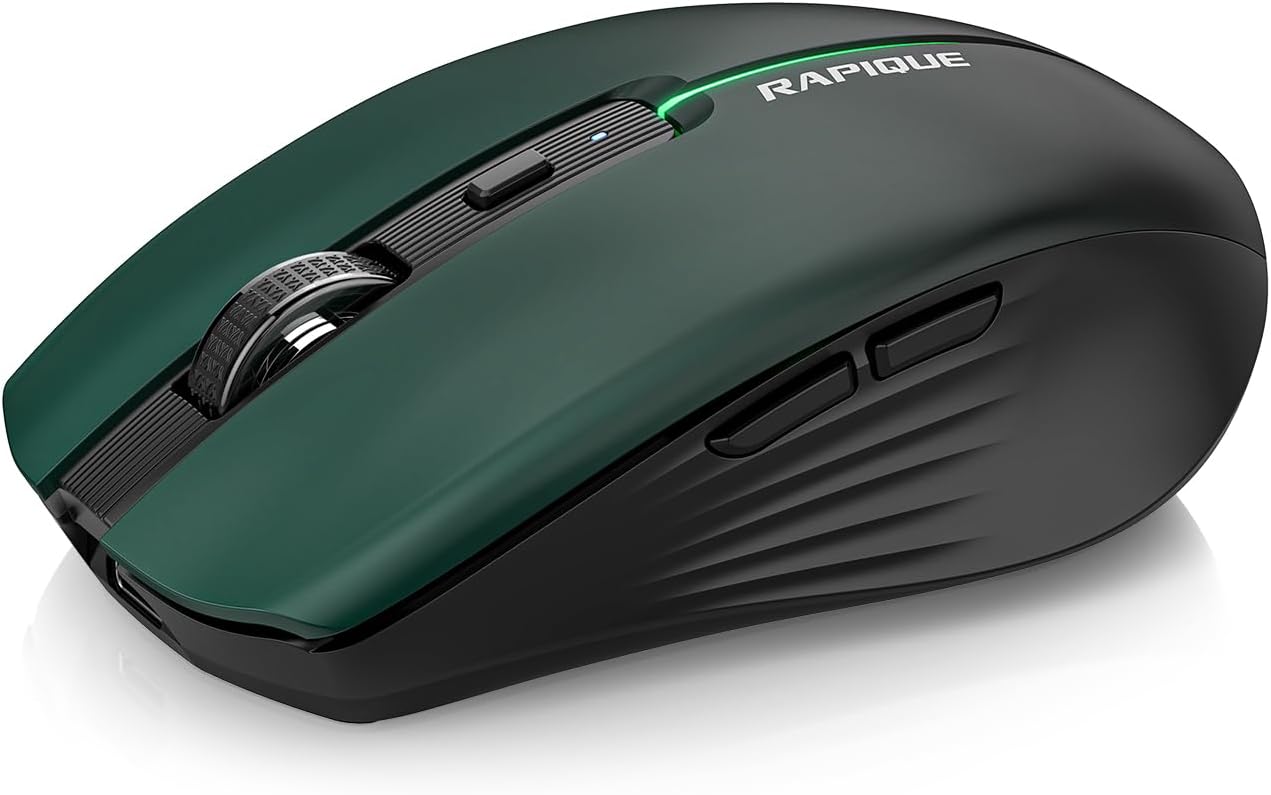
Image 1.1: The RAPIQUE R110 Bluetooth Wireless Mouse, showcasing its green gradient design.
2. What's in the Box
Please verify that all items are present in your package:
- Bluetooth Wireless Mouse (R110) x 1
- USB-C Charge Cable x 1
- User Manual x 1
3. Product Overview
3.1 Key Features
- Premium Deep Green-to-Black Design: Features a gradient finish with a sleek black middle and bottom shell.
- Triple-Mode Wireless Connectivity: Supports Bluetooth 5.1 (BT1 & BT2) and 2.4GHz USB receiver for seamless switching between up to three devices.
- Fast USB-C Charging & Auto Sleep: Equipped with a 650mAh rechargeable battery, charges via USB-C, and enters auto-sleep after 90 seconds of inactivity to conserve power.
- Silent Clicks & Adjustable DPI: Reduces clicking and scrolling noise by up to 90% and offers adjustable DPI settings (800/1200/1600) for precise control.
- Ergonomic & Durable Build: Contoured shape with six responsive buttons, including forward/back side keys, designed for comfort and tested for over 5 million clicks.
- Wide Compatibility: Compatible with Windows 8/10/11, Android, and macOS via Bluetooth 5.1, and non-Bluetooth devices via 2.4G USB receiver. Supports iOS 14 or later for iPhones and iPads.
3.2 Component Identification

Image 3.1: Exploded view illustrating the gradient coating, primers, and ABS material of the mouse shell.
The R110 mouse features a gradient coating and UV coating for enhanced comfort. Its construction includes durable ABS material.

Image 3.2: Detailed view of the mouse highlighting anti-slip texture, colorful breathing light, DPI adjustment button, and the mode indicator on the underside.
- Left/Right Click Buttons: Silent click design.
- Scroll Wheel: For vertical scrolling.
- DPI Button: Adjusts mouse sensitivity (800/1200/1600 DPI). Long-press to toggle decorative LED light.
- Forward/Back Buttons: Located on the side for navigation.
- USB-C Charging Port: Located at the front of the mouse.
- Mode Switch Button: Located on the bottom, cycles between 2.4G, BT1, and BT2 modes.
- Mode Indicators (LEDs): Lights on the bottom indicate current connection mode (Red for 2.4G, Green for BT1, Blue for BT2).
- USB Receiver Storage: Compartment on the bottom for the 2.4G USB receiver.
4. Setup
4.1 Charging the Mouse
Before first use, fully charge the mouse. Connect the supplied USB-C cable to the mouse's charging port and the other end to a USB power source (e.g., computer USB port, USB wall adapter). The charging indicator light will illuminate during charging and automatically extinguish when fully charged.

Image 4.1: The USB-C charging port and the charging indicator light on the RAPIQUE R110 mouse.
4.2 Connecting the Mouse
The R110 mouse offers three connection modes: 2.4G USB and two Bluetooth 5.1 channels (BT1, BT2). You can connect to up to three different devices simultaneously and switch between them.

Image 4.2: Visual guide for connecting the mouse in 2.4G, BT1, and BT2 modes.
4.2.1 2.4G USB Connection (Plug & Play)
- Locate the USB receiver stored in the compartment on the bottom of the mouse.
- Insert the USB receiver into an available USB port on your computer or device.
- Slide the mode switch on the bottom of the mouse to the "2.4G" position (indicated by a red LED).
- The mouse will automatically connect to your device.
4.2.2 Bluetooth Connection (BT1 / BT2)
- Slide the mode switch on the bottom of the mouse to either the "BT1" (green LED) or "BT2" (blue LED) position.
- Press and hold the mode button on the bottom of the mouse for 3-5 seconds until the corresponding LED (green for BT1, blue for BT2) flashes rapidly. This indicates the mouse is in pairing mode.
- On your device (computer, tablet, phone), open Bluetooth settings.
- Search for new devices and select "RAPIQUE R110" (or similar name) from the list.
- Once paired, the LED will stop flashing and remain solid, indicating a successful connection.
Note: For iOS devices, Bluetooth 5.1 support requires iOS 14 or later.
5. Operating Instructions
5.1 Switching Between Connected Devices
To switch between devices connected via 2.4G, BT1, or BT2, simply slide the mode switch on the bottom of the mouse to the desired connection mode. The corresponding LED will light up.
5.2 Adjusting DPI Sensitivity
The mouse has three adjustable DPI settings: 800, 1200, and 1600. Press the DPI button located behind the scroll wheel to cycle through these settings. Each press will change the sensitivity, allowing you to find your preferred cursor speed.

Image 5.1: Illustration of DPI adjustment and the silent click mechanism.
5.3 LED Light Control
The R110 mouse features a decorative LED light. To toggle this light on or off, long-press the DPI button.
5.4 Auto Sleep Function
To conserve battery life, the mouse will automatically enter sleep mode after 90 seconds of inactivity. To wake the mouse, simply click any button or move the mouse.
6. Maintenance
- Cleaning: Use a soft, dry cloth to clean the mouse. For stubborn dirt, slightly dampen the cloth with water. Avoid using harsh chemicals or abrasive materials.
- Storage: When not in use for extended periods, store the mouse in a cool, dry place. Ensure the mouse is turned off to preserve battery life.
- Battery Care: Recharge the mouse when the battery is low. Avoid fully discharging the battery frequently to prolong its lifespan.
- USB Receiver: When transporting the mouse, store the 2.4G USB receiver in its dedicated compartment on the bottom of the mouse to prevent loss.
7. Troubleshooting
| Problem | Possible Cause | Solution |
|---|---|---|
| Mouse not responding. | Low battery; Incorrect connection mode; USB receiver not properly inserted (2.4G mode); Bluetooth not paired. | Charge the mouse. Ensure the mode switch is set correctly (2.4G, BT1, or BT2). For 2.4G, re-insert the USB receiver. For Bluetooth, re-pair the mouse with your device. |
| Cursor movement is erratic or slow. | Low DPI setting; Dirty optical sensor; Uneven surface. | Press the DPI button to increase sensitivity. Clean the optical sensor on the bottom of the mouse. Use the mouse on a clean, flat surface or mouse pad. |
| Cannot connect via Bluetooth. | Mouse not in pairing mode; Device Bluetooth off; Interference. | Ensure the mouse is in BT1 or BT2 mode and the LED is flashing rapidly (pairing mode). Turn on Bluetooth on your device. Move closer to the device or away from other wireless devices. |
| Mouse frequently disconnects. | Low battery; Too far from receiver/device; Interference. | Charge the mouse. Ensure the mouse is within the effective range (up to 10m/33ft). Reduce interference from other wireless devices. |
8. Specifications
| Feature | Detail |
|---|---|
| Model Number | R110 |
| Connectivity | Bluetooth 5.1 (BT1, BT2), 2.4G Wireless (USB Receiver) |
| DPI Settings | 800 / 1200 / 1600 DPI |
| Battery Type | Rechargeable Lithium Polymer (650mAh) |
| Charging Port | USB-C |
| Click Lifespan | Over 5 million clicks |
| Silent Click | Yes (90% noise reduction) |
| Auto Sleep | After 90 seconds of inactivity |
| Compatibility | Windows 8/10/11, Android, macOS, iOS 14+ (for iPhones/iPads) |
| Dimensions | 102mm (4.17in) x 64mm (2.51in) x 35mm (1.37in) |
| Item Weight | 3.84 ounces |

Image 8.1: Dimensions of the RAPIQUE R110 mouse and its compact size when held in hand.
9. Warranty and Support
RAPIQUE products are designed for reliability and performance. For warranty information and technical support, please refer to the official RAPIQUE website or contact their customer service directly. Keep your purchase receipt as proof of purchase for warranty claims.
For further assistance, you may visit the RAPIQUE Store on Amazon.