
1. Introduction
Thank you for choosing the Dexnor Ultra-Light Magnetic Detachable Folio Keyboard Cover for your iPad. This manual provides detailed instructions on how to set up, operate, maintain, and troubleshoot your new keyboard case, ensuring you get the most out of its features. Designed for enhanced productivity and portability, this keyboard case transforms your iPad into a versatile laptop-like device.

Figure 1.1: Dexnor Keyboard Case with iPad in typing position.
2. Product Features
- Precision Fit: Exclusively designed for iPad 10th Generation (10.9", 2022) (Models: A2696/A2757/A2777) and iPad (A16) 11th Generation (Models A3354, A3355, A3356).
- Ultra-light & Portable Design: Weighs just 1.12 pounds (510g) for on-the-go productivity.
- Ultra-strong Magnetic Attachment: Securely attaches your iPad, providing rock-solid support with an ergonomic 120-degree viewing angle.
- Multi-touch Trackpad: Supports multi-finger gestures for smooth and precise navigation, offering laptop-like controls.
- Rechargeable and Long-lasting Battery: 650mAh lithium polymer battery provides up to 1200 hours of standby time, 200 hours of use without backlight, and 8 hours with brightest backlight.
- Backlit Keys: Single-color backlight with 3 brightness levels for effortless typing in low-light conditions.
- Laptop-like Typing: Features perfectly spaced, responsive scissor-switch keys and a full row of shortcut keys.
- All-around Protection: Protects your iPad from scratches and smudges, with a built-in pencil holder and magnetic clasp.
- Upgraded Power-saving Design: Automatic power on/off and wake/sleep functions when opening/closing the case.
Product Overview Video
Video 2.1: An overview of the Dexnor Ultra-light Magnetic Keyboard Case with Trackpad, demonstrating its features and portability.
Visual Features
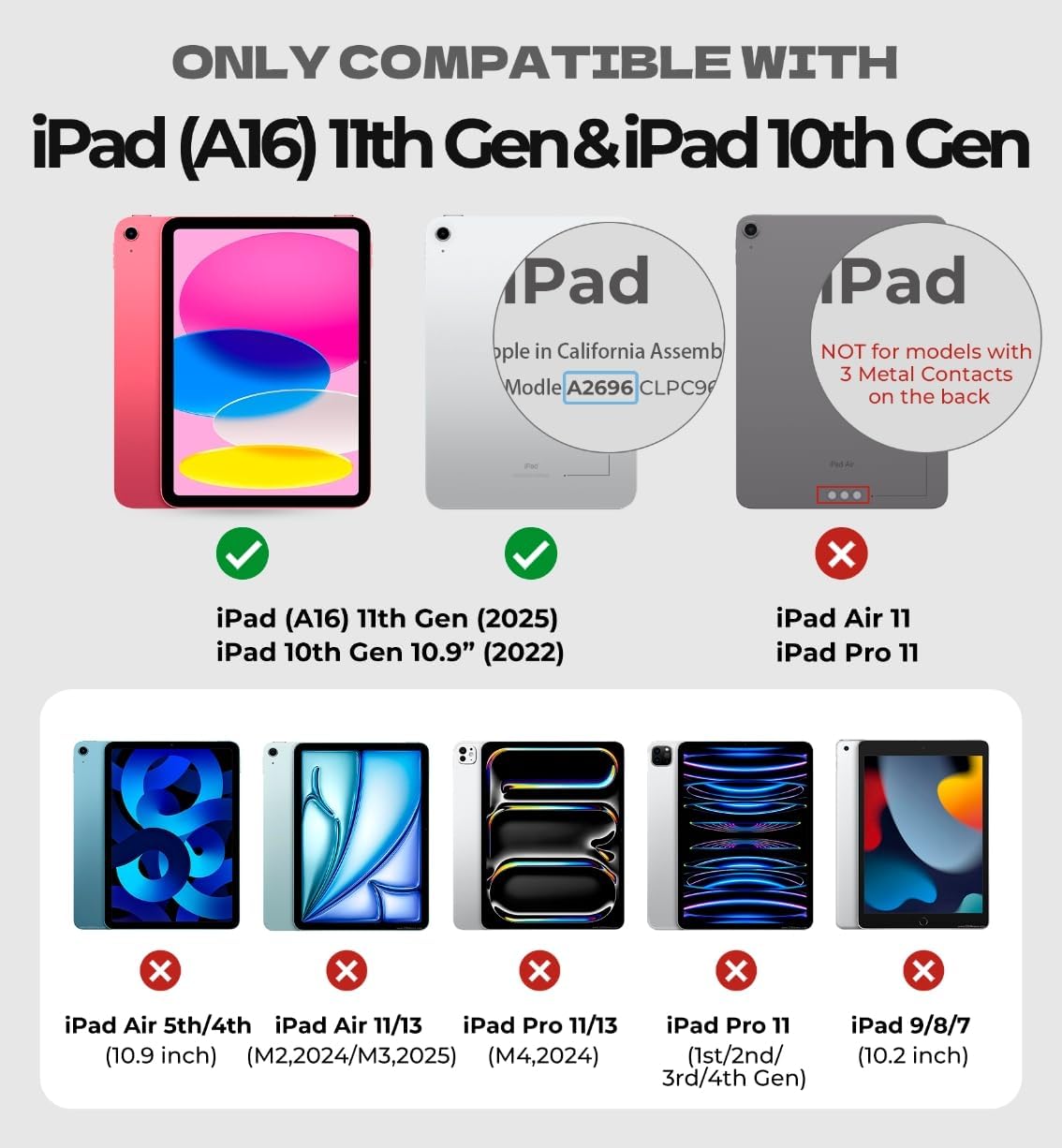
Figure 2.2: Compatibility chart showing supported iPad models (iPad A16 11th Gen and iPad 10th Gen 10.9" 2022) and incompatible models.

Figure 2.3: Illustration of the ultra-stable magnetic design, allowing for use on both lap and desk with a 120-degree viewing angle.

Figure 2.4: Image highlighting the ultra-light and ultra-portable design, with a weight of 1.12 lbs (510g).
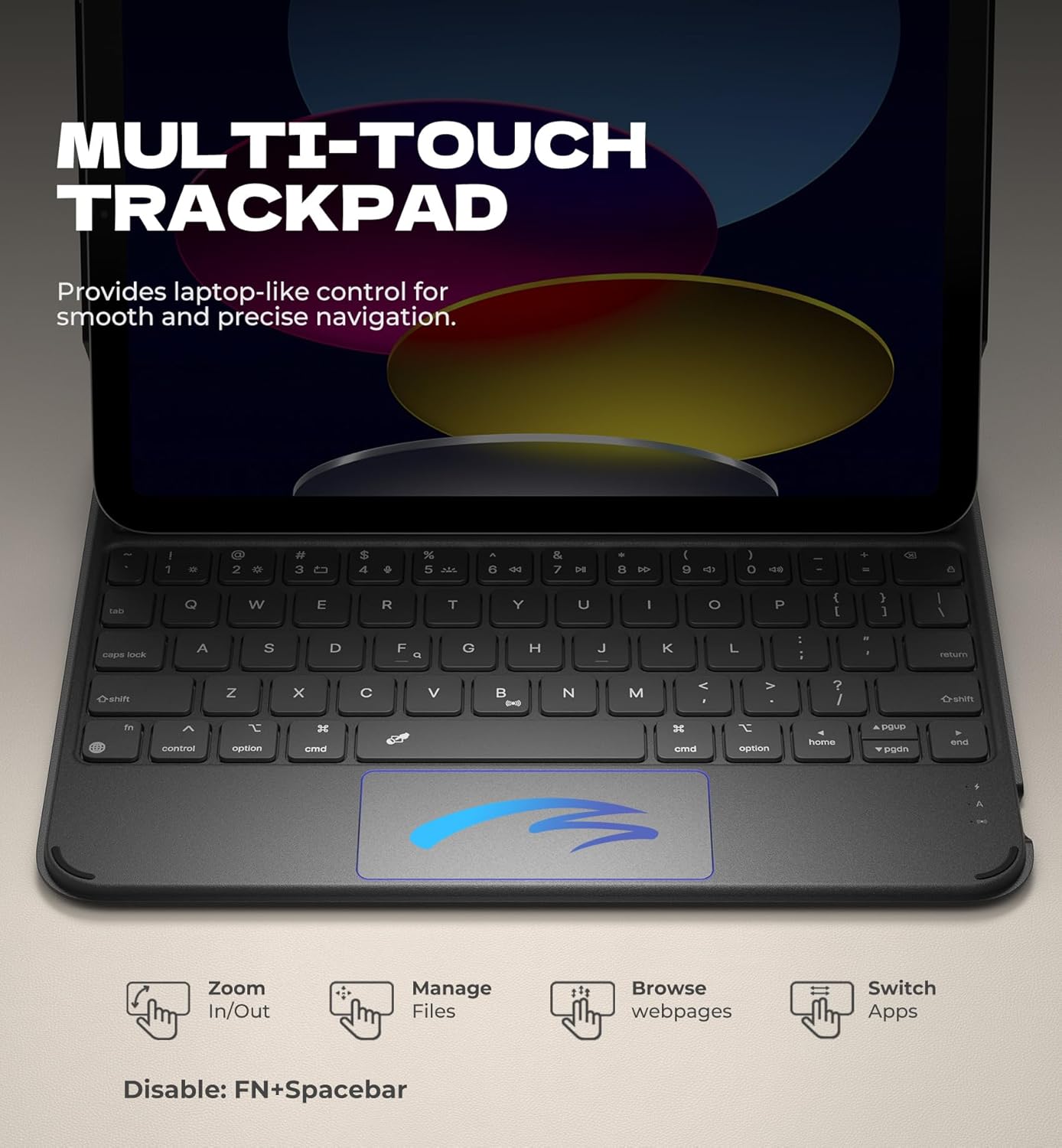
Figure 2.5: Close-up of the multi-touch trackpad, detailing its functions like zoom in/out, file management, web browsing, and app switching. Instructions for disabling the trackpad (FN+Spacebar) are also shown.
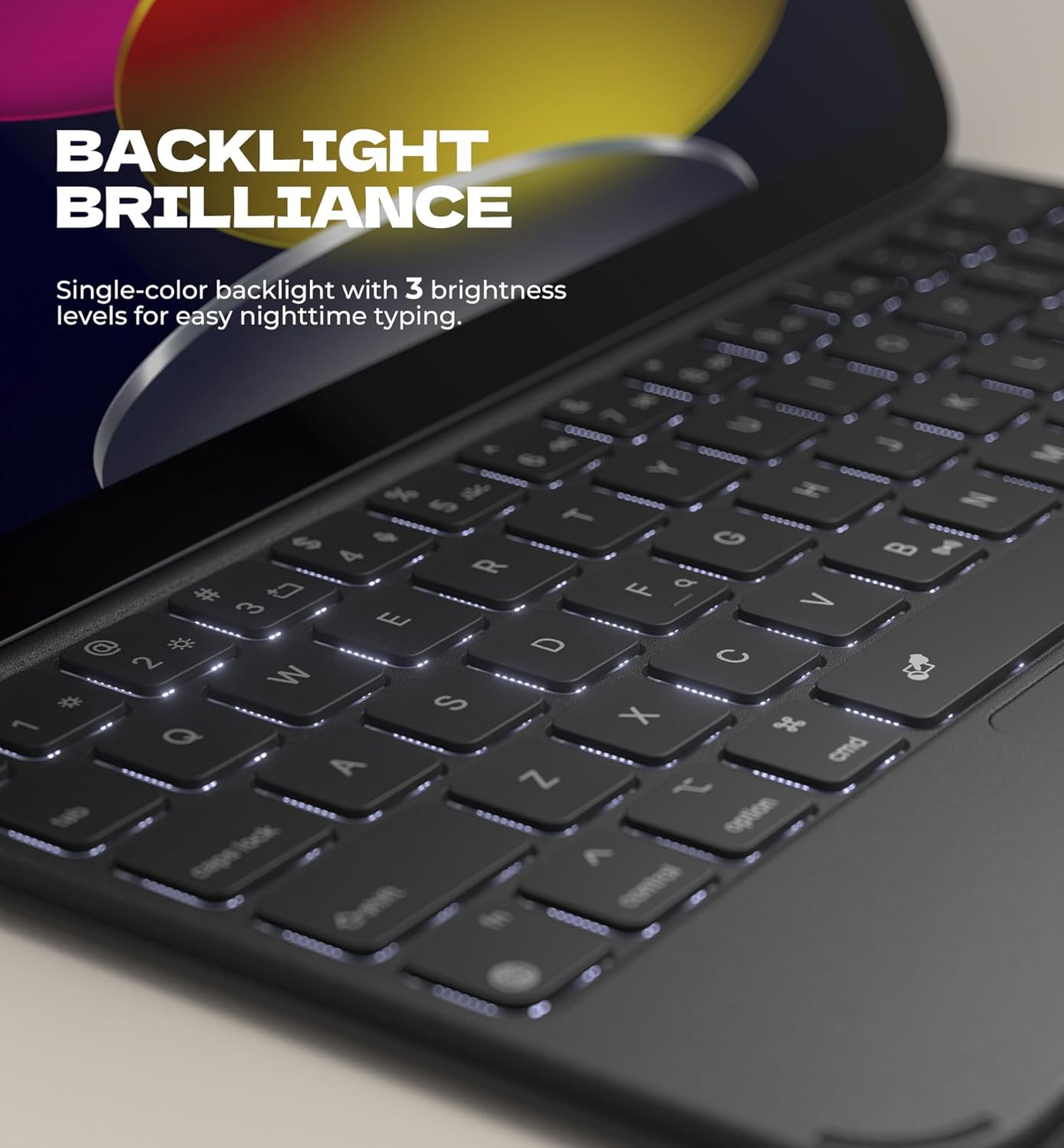
Figure 2.6: Image demonstrating the single-color backlit keys with 3 brightness levels for improved visibility in low-light conditions.
3. Setup Guide
3.1 Compatibility Check
Before proceeding, ensure your iPad model is compatible with this keyboard case. This case is designed for:
- iPad 10th Generation (10.9", 2022) - Models: A2696, A2757, A2777
- iPad (A16) 11th Generation (2025) - Models: A3354, A3355, A3356
To verify your iPad model, check the "A" code on the back of your device. This case DOES NOT fit iPad Air 11, iPad Pro 11, iPad Air 5/4th, or iPad 9th/8th/7th generation models.
3.2 Attaching Your iPad
- Gently align your iPad with the magnetic back cover of the keyboard case.
- The strong magnets will securely snap your iPad into place. Ensure it is firmly attached before use.
- Adjust the iPad to your desired viewing angle (up to 120 degrees) by tilting it.
3.3 Bluetooth Pairing
To connect the keyboard to your iPad:
- Ensure the keyboard is charged (see 3.4 Charging).
- Open the keyboard case. The keyboard will automatically power on.
- On your iPad, go to Settings > Bluetooth.
- Turn on Bluetooth.
- The iPad will search for nearby devices. Look for "Dexnor Keyboard" or a similar name in the "Other Devices" list.
- Tap on the keyboard name to pair. A pairing request might appear; confirm it on both devices if prompted.
- Once paired, the keyboard status light will indicate a successful connection, and the keyboard will appear as "Connected" in your iPad's Bluetooth settings.
3.4 Charging the Keyboard
The keyboard is equipped with a 650mAh lithium polymer battery. To charge:
- Locate the USB-C charging port on the keyboard.
- Connect the provided USB-C cable to the keyboard's charging port.
- Connect the other end of the USB-C cable to a USB power adapter (not included) or a computer's USB port.
- The charging indicator light will illuminate. It will change color or turn off when fully charged.
A full charge takes approximately 3.5 hours. The keyboard offers up to 1200 hours of standby time, 200 hours of use without backlight, and 8 hours of continuous working time with the brightest backlight on.
4. Operating Instructions
4.1 Keyboard Functions
The keyboard features responsive scissor-switch keys and a full row of shortcut keys for enhanced efficiency.
- Backlight Control: Press the Light Bulb key (usually F5 or F6) to cycle through 3 brightness levels or turn the backlight off.
- Shortcut Keys: The top row of keys provides quick access to various iPad functions, including:
- Home screen
- Search
- Screen brightness adjustment
- Media playback controls (play/pause, next/previous track)
- Volume control (mute, volume up/down)
- Lock screen
4.2 Multi-touch Trackpad Gestures
The integrated multi-touch trackpad allows for precise navigation and supports various gestures:
- Single Finger Tap: Click/select.
- Two Finger Scroll: Scroll up/down or left/right.
- Pinch to Zoom: Use two fingers to zoom in or out on content.
- Three Finger Swipe Up: Go to the Home screen.
- Three Finger Swipe Left/Right: Switch between open applications.
- Three Finger Swipe Down: Access the App Switcher.
- Disable Trackpad: Press FN + Spacebar to disable the trackpad and prevent accidental touches during typing. Press again to re-enable.
4.3 Power-Saving Features
The keyboard case is designed with smart power management:
- Auto On/Off: Simply open the case to power on the keyboard and wake up your iPad. Close the case to turn everything off and put your iPad to sleep.
- Keyboard Sleep Mode: The keyboard will enter sleep mode after 30 minutes of inactivity to conserve battery. Press any key to wake it up.
- Backlight Sleep Mode: The backlight will turn off after 45 seconds of inactivity.
5. Maintenance
Proper care will extend the life of your Dexnor Keyboard Case:
- Cleaning: Use a soft, damp cloth to wipe the exterior of the case. For the keyboard keys, use a dry, lint-free cloth. Avoid harsh chemicals or abrasive cleaners.
- Storage: When not in use, keep the case closed to protect both the iPad and the keyboard. Store in a cool, dry place away from direct sunlight and extreme temperatures.
- Avoid Liquids: Do not expose the keyboard case to excessive moisture or submerge it in water.
- Handle with Care: While durable, avoid dropping the case or applying excessive force to the keyboard or trackpad.
6. Troubleshooting
| Problem | Possible Cause | Solution |
|---|---|---|
| Keyboard not connecting via Bluetooth. | Low battery; Bluetooth off on iPad; keyboard not in pairing mode; interference. |
|
| Keyboard not typing. | Not connected; sleep mode; app issue. |
|
| Trackpad not responding. | Trackpad disabled; software glitch. |
|
| Backlight not working. | Backlight off; low battery; sleep mode. |
|
| iPad not waking/sleeping automatically. | Case not properly closed/opened; magnetic sensor issue. |
|
7. Specifications
| Feature | Detail |
|---|---|
| Model Number | DK010 |
| Compatible Devices | iPad (A16) 11th Generation 11" 2025, iPad 10th Generation 10.9" 2022 |
| Connectivity Technology | Bluetooth |
| Battery Capacity | 650mAh Lithium Polymer |
| Standby Time | Up to 1200 hours |
| Working Time (without backlight) | Up to 200 hours |
| Working Time (with brightest backlight) | Up to 8 hours |
| Charging Time | Approx. 3.5 hours |
| Item Weight | 1.12 pounds (510g) |
| Package Dimensions | 10.55 x 8.98 x 1.14 inches |
| Number of Keys | 64 |
| Backlight Color Support | Single Color (3 brightness levels) |
| Special Features | Magnetic detachable, Magnetic clasp, Pencil Holder, Backlit keys, Long-lasting rechargeable battery, Auto-wake/sleep, Ultra-thin slim lightweight portable compact, Smart Magnetic Keyboard Folio with Rock-solid stability, High precision click-anywhere trackpad. |
8. Warranty and Support
Your Dexnor Keyboard Case comes with a standard manufacturer's warranty. Please refer to the warranty card included in your product packaging for specific terms and conditions, including warranty period and coverage details.
For technical support, troubleshooting assistance, or warranty claims, please contact Dexnor customer service through the following channels:
- Website: Visit the official Dexnor website for FAQs and support resources.
- Email: Refer to your product packaging or the Dexnor website for customer support email address.
- Online Retailer Support: If purchased from an online retailer, you may also contact their customer service for assistance.
Please have your product model number (DK010) and purchase information ready when contacting support.


