
1. Introduction
The EPOMAKER TH40 is an ultra-compact 40% layout mechanical keyboard designed for efficiency and portability. It features a minimalist 44-key layout, eliminating the number pad, arrow keys, and traditional number row to optimize typing speed and reduce finger travel. This keyboard is lightweight and highly portable, making it an ideal companion for users on the go.
The TH40 incorporates an advanced gasket mount design, which significantly reduces keystroke noise and minimizes hollow sounds, providing a comfortable and satisfying typing experience. It includes Poron plate foam, an IXPE black switch pad, and bottom Poron foam to enhance acoustic performance. The flex-cut PC plate and finely tuned plate-mounted stabilizers further contribute to the keyboard's premium feel.
Equipped with full N-Key Rollover (NKRO), the TH40 ensures that all simultaneous key presses are registered accurately without conflict, making it suitable for fast typists and gamers alike.

Image: EPOMAKER TH40 keyboard showcasing its compact design and key features like hot-swappable switches, VIA programming, and tri-mode wireless connectivity.

Image: The EPOMAKER TH40 highlighting its portable 40% layout and light weight of 0.44kg, emphasizing its suitability for travel.
2. Setup & Connectivity
2.1 Unboxing & Components
Upon unboxing your EPOMAKER TH40, you will find the keyboard itself, a USB cable for wired connection and charging, and a user manual. The keyboard is designed for ease of use and quick setup.

Image: The EPOMAKER TH40 keyboard, its packaging, USB cable, and tools for customization, illustrating the compact size and included accessories.
2.2 Tri-Mode Connectivity
The TH40 offers versatile tri-mode connectivity, allowing you to connect to various devices via Bluetooth (BT), 2.4GHz wireless, or USB-C wired connection. This flexibility makes it suitable for gaming, professional work, or mobile use with laptops, PCs, smartphones, and tablets.
- Bluetooth (BT): Ideal for connecting to multiple devices wirelessly.
- 2.4GHz Wireless: Provides a stable and low-latency wireless connection using the included dongle.
- USB-C Wired: Offers the lowest latency connection, perfect for competitive gaming and ensures the keyboard is always charged.

Image: The EPOMAKER TH40 keyboard demonstrating its tri-mode wireless capabilities, showing connections to a laptop, tablet, and smartphone via USB-C, Bluetooth, and 2.4GHz.
2.3 Connecting Wirelessly
To connect wirelessly, use the switch located on the keyboard to select between Bluetooth or 2.4GHz mode. For Bluetooth, pair the keyboard with your device. For 2.4GHz, insert the USB dongle into your device's USB port.

Image: A visual guide on how to connect the EPOMAKER TH40 wirelessly using FN+F for 2.4GHz and FN+A/S/D for Bluetooth, alongside a wired USB-C option.
2.4 Battery Status
The keyboard is equipped with a 3000mAh Lithium Ion battery. To check the battery status, press FN + L_Spacebar. The keyboard will indicate the current charge level.

Image: The EPOMAKER TH40 keyboard illustrating its 3000mAh battery capacity and the key combination (FN+L_Spacebar) to check the battery status.
3. Operating Instructions
3.1 Key Functions & Layers
The TH40 features a 40% layout, which means some keys have multiple functions accessed via the Function (FN) key. The keyboard supports four switchable layers, three of which are programmable, allowing for extensive customization without needing to open software each time. The split space bar includes an FN key between the 2.25u and 2.75u spacebars for convenient access.

Image: A detailed view of the EPOMAKER TH40 keyboard layout, emphasizing the placement of the FN key within the split spacebar for ergonomic access to secondary functions.
3.2 Dynamic RGB Lighting
Enhance your typing or gaming experience with the TH40's dynamic RGB lighting. The customizable backlighting effects allow you to create a visually stunning setup that matches your style and mood. The vibrant colors add an extra element of immersion.

Image: The EPOMAKER TH40 keyboard displaying various dynamic RGB lighting effects, showcasing the customizable backlighting.
Video: EPOMAKER HE68 RGB Effect Video. This video demonstrates various RGB lighting patterns and colors available on an EPOMAKER keyboard, similar to the TH40's capabilities.
4. Customization & Maintenance
4.1 QMK/VIA Programmability
The TH40 is fully programmable via VIA software, allowing you to remap keys, create macros, and customize lighting effects across its three programmable layers. This feature provides unparalleled flexibility to tailor the keyboard to your specific workflow or gaming needs.

Image: The EPOMAKER TH40 keyboard positioned in front of a laptop displaying the QMK/VIA software interface, illustrating its programmability.

Image: A screenshot of the QMK/VIA software interface, demonstrating the layout and customization options for the EPOMAKER TH40 keyboard.
4.2 Hot-Swappable Switches
The TH40 features hot-swappable switch sockets, allowing you to easily change out the mechanical switches without soldering. This means you can experiment with different switch types (e.g., linear, tactile, clicky) to find your preferred typing feel and sound.
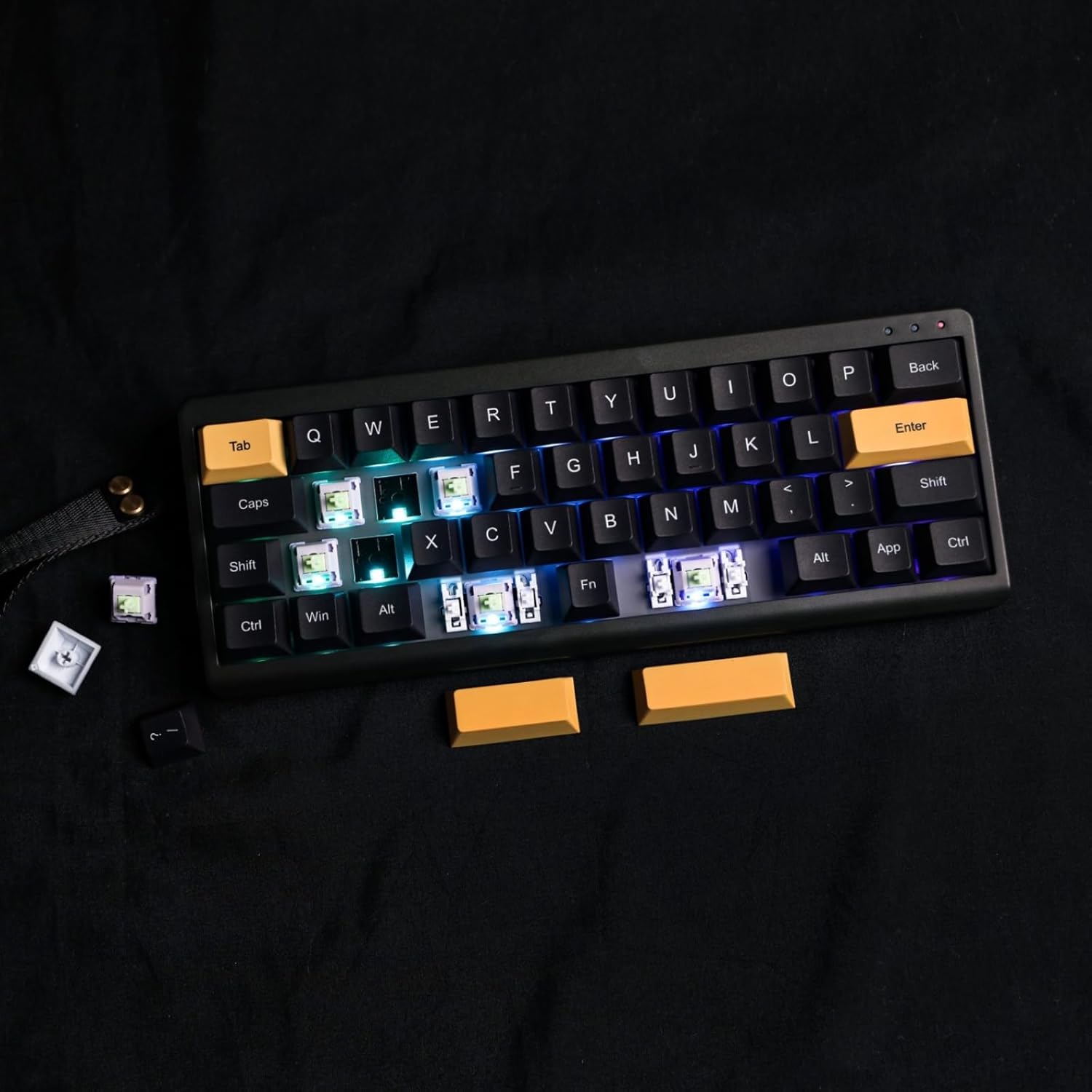
Image: The EPOMAKER TH40 keyboard with several keycaps and switches removed, illustrating its hot-swappable feature and RGB backlighting.
Video: EPOMAKER TH40 Typing & ASMR Video. This video provides an auditory and visual demonstration of the keyboard's typing experience, including the sound of the Flamingo switches.
5. Specifications
| Feature | Detail |
|---|---|
| Model Number | TH40 |
| Layout | 40% (44 Keys) |
| Connectivity | Tri-Mode (Bluetooth, 2.4GHz Wireless, USB-C Wired) |
| Programmability | QMK/VIA |
| Switch Type | Hot-Swappable Mechanical (Flamingo Switch variant) |
| Backlighting | Dynamic RGB |
| N-Key Rollover | Full NKRO |
| Gasket Design | Yes (with Poron foam, IXPE switch pad) |
| Battery Capacity | 3000mAh |
| Product Dimensions | 10.1 x 3.8 x 1.4 inches |
| Item Weight | 1.79 pounds |
| Material | Plastic |
| Compatible Devices | Laptop, PC, Smart TV, Smartphone, Tablet |
6. Troubleshooting
6.1 VIA Software Connectivity Issues
Some users may experience difficulties with VIA software recognizing the TH40 keyboard. If you encounter this, ensure you have the correct JSON file for the TH40 model loaded into the VIA software. Refer to the official EPOMAKER website or community forums for the latest JSON files and detailed instructions. Firmware updates may also be necessary to ensure full compatibility.
6.2 General Connectivity Problems
- Bluetooth: Ensure the keyboard is in Bluetooth pairing mode and your device's Bluetooth is enabled and discoverable. Try forgetting the device on your computer and re-pairing.
- 2.4GHz Wireless: Verify the 2.4GHz dongle is securely inserted into a USB port. Ensure the keyboard is switched to 2.4GHz mode.
- USB-C Wired: Check that the USB-C cable is properly connected to both the keyboard and your device. Try a different USB port or cable if issues persist.
7. Warranty & Support
EPOMAKER's Warranty covers any factory defects that might affect the proper functionality of your purchase. If you believe your product has a manufacturing defect, please contact EPOMAKER customer support directly.
For technical assistance or warranty claims, please reach out to EPOMAKER customer support. If you purchased your keyboard from a distributor or not from any official EPOMAKER store, please contact them directly for any additional help. EPOMAKER aims to respond to inquiries within 24 hours.
For further assistance, you may also visit the EPOMAKER store on Amazon: EPOMAKER Store


