
1. Product Overview
The Meetion BTM005 is a versatile wireless mouse designed for office and portable use. It offers dual connectivity options: 2.4G wireless via a USB dongle and dual Bluetooth for connecting to multiple devices. Key features include silent clicks and adjustable DPI settings for precise control.
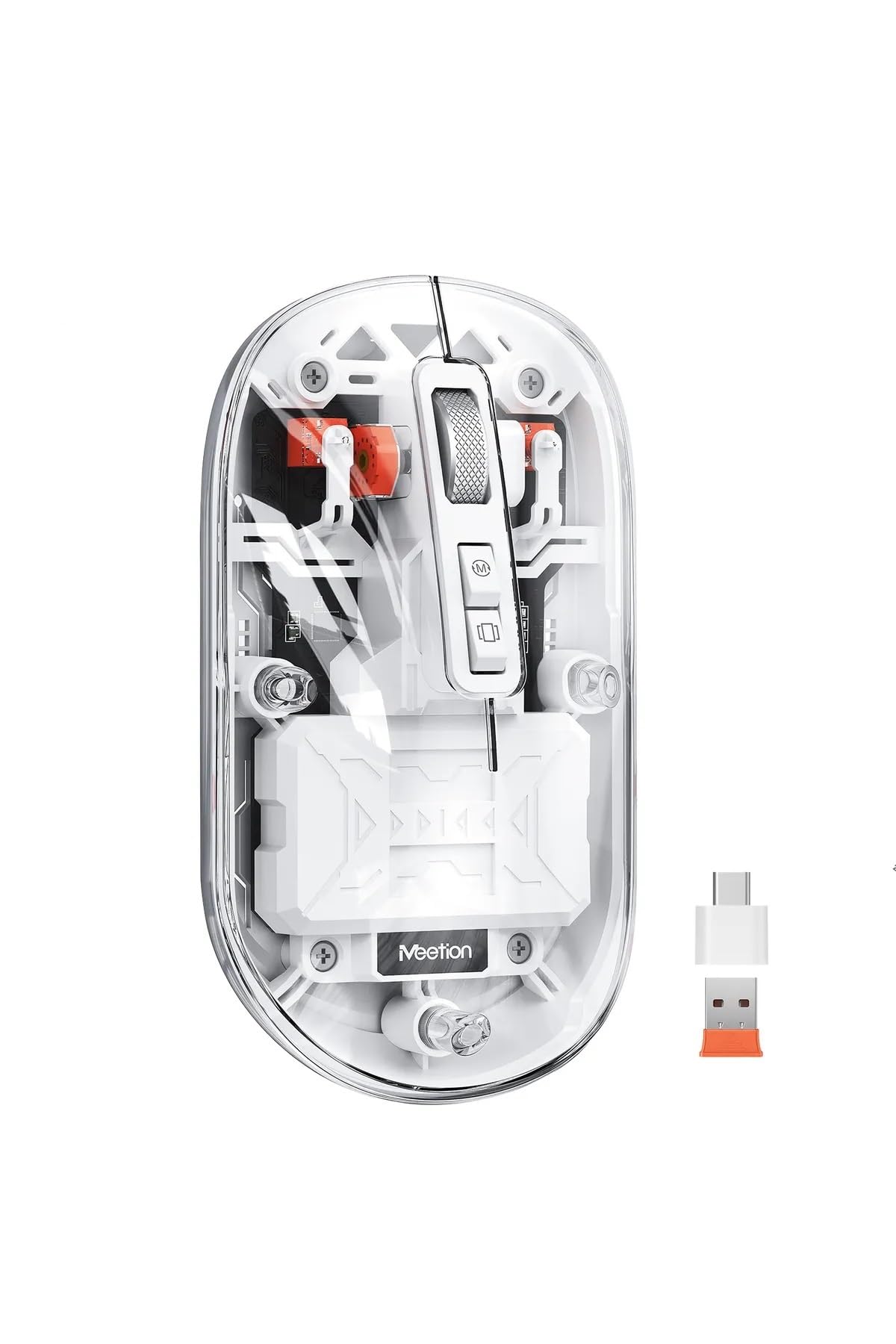
Figure 1: Meetion BTM005 Wireless Mouse (White)
2. Package Contents
Please check the package for the following items:
- Meetion BTM005 Wireless Mouse
- USB-C to USB Charging Cable
- USB 2.4G Wireless Receiver (dongle) - located inside the mouse
- User Manual (this document)

Figure 2: Mouse with top cover removed, showing internal components and USB receiver storage.
3. Setup
3.1 Charging the Mouse
The Meetion BTM005 mouse features a built-in rechargeable battery. Before first use, or when the battery is low, connect the mouse to a USB power source using the provided USB-C charging cable.
- Locate the USB-C port on the front of the mouse.
- Connect the USB-C end of the cable to the mouse and the USB-A end to a computer's USB port or a USB wall adapter.
- The indicator light will show charging status and turn off when fully charged.

Figure 3: Mouse connected for charging via USB-C cable.
3.2 Connecting via 2.4G Wireless
- Gently remove the magnetic top cover of the mouse.
- Take out the USB 2.4G wireless receiver (dongle) stored inside the mouse.
- Insert the USB receiver into an available USB port on your computer.
- Replace the magnetic top cover.
- Turn on the mouse using the ON/OFF switch located on the bottom of the mouse.
- Press the mode switch button (located behind the scroll wheel) until the indicator light shows 2.4G mode (usually a specific color or pattern).
- Your computer should automatically detect and connect to the mouse.

Figure 4: USB 2.4G receiver stored inside the mouse.
3.3 Connecting via Bluetooth
The mouse supports dual Bluetooth connections (BT1 and BT2).
- Turn on the mouse using the ON/OFF switch on the bottom.
- Press the mode switch button (behind the scroll wheel) to select either BT1 or BT2 mode. The indicator light will flash, indicating pairing mode.
- On your device (computer, tablet, etc.), go to Bluetooth settings and search for new devices.
- Select "Meetion BTM005" from the list of available devices to pair.
- Once paired, the indicator light will stop flashing and remain solid.
- Repeat steps 2-5 to connect to a second device using the other Bluetooth channel (BT2).
4. Operating Instructions
4.1 Power On/Off
Use the physical ON/OFF switch located on the bottom of the mouse to conserve battery when not in use.
4.2 Switching Connection Modes
The button located directly behind the scroll wheel allows you to switch between 2.4G wireless, Bluetooth 1 (BT1), and Bluetooth 2 (BT2) modes. Press the button once to cycle through the modes. The indicator light will change to reflect the active mode.
4.3 Adjusting DPI Sensitivity
The mouse offers adjustable DPI (Dots Per Inch) settings to control cursor speed. The DPI button is located on the bottom of the mouse, next to the optical sensor.
- Press the DPI button to cycle through the available sensitivities: 1200, 1600, and 2400 DPI.
- Each press will change the DPI level, allowing you to find the most comfortable speed for your tasks.

Figure 5: Bottom of the mouse with ON/OFF switch and DPI button.
4.4 Silent Click Feature
The left and right mouse buttons are designed for silent operation, reducing click noise in quiet environments.
5. Maintenance
5.1 Cleaning
To clean the mouse, gently wipe the exterior with a soft, damp cloth. Avoid using harsh chemicals or abrasive materials. The magnetic top cover can be removed for easier cleaning of the internal transparent surfaces if necessary.

Figure 6: Mouse with top cover open, illustrating easy access for cleaning.
5.2 Battery Care
To prolong battery life, avoid fully discharging the mouse frequently. Charge the mouse when the low battery indicator appears. Store the mouse in a cool, dry place when not in use for extended periods.
6. Troubleshooting
- Mouse not responding:
- Ensure the mouse is turned ON.
- Check battery level and charge if necessary.
- Verify the correct connection mode (2.4G, BT1, or BT2) is selected.
- For 2.4G mode, ensure the USB receiver is securely plugged into the computer. Try a different USB port.
- For Bluetooth mode, ensure Bluetooth is enabled on your device and re-pair if necessary.
- Cursor erratic or not moving smoothly:
- Clean the optical sensor on the bottom of the mouse.
- Ensure you are using the mouse on a suitable surface (non-reflective, opaque).
- Adjust the DPI setting to a lower value if the cursor is too fast, or a higher value if too slow.
- Buttons making squeaking noises:
- This can sometimes occur due to manufacturing tolerances. If the noise is persistent and bothersome, contact customer support.
- Difficulty switching between devices:
- Ensure you are pressing the mode switch button firmly and briefly to cycle through modes.
- If a device is not connecting, try unpairing and re-pairing the mouse in your device's Bluetooth settings.
7. Specifications
| Brand | MEETION |
| Model Name | BTM005 |
| Connectivity Technology | 2.4G Wireless, Dual Bluetooth |
| Movement Detection Technology | Optical |
| Maximum DPI | 2400 (Adjustable: 1200, 1600, 2400) |
| Number of Buttons | 5 |
| Special Feature | Rechargeable, Silent Click |
| Power Source | Battery Powered (Built-in Rechargeable) |
| Product Weight | 150 Grams |
| Compatible Devices | Computer |
8. Warranty and Support
For warranty information, please refer to the documentation provided with your purchase or contact your retailer. For technical support or further assistance, please reach out to the manufacturer, Meetion, or the seller from whom you purchased the product.


