
1. Introduction
This manual provides comprehensive instructions for the operation and maintenance of the FOXWELL NT909 Wireless Bidirectional All System Scan Tool and the FOXWELL VS300 Car Endoscope. It is designed to assist users in effectively utilizing the diagnostic capabilities of the NT909 and the inspection features of the VS300 for automotive applications.
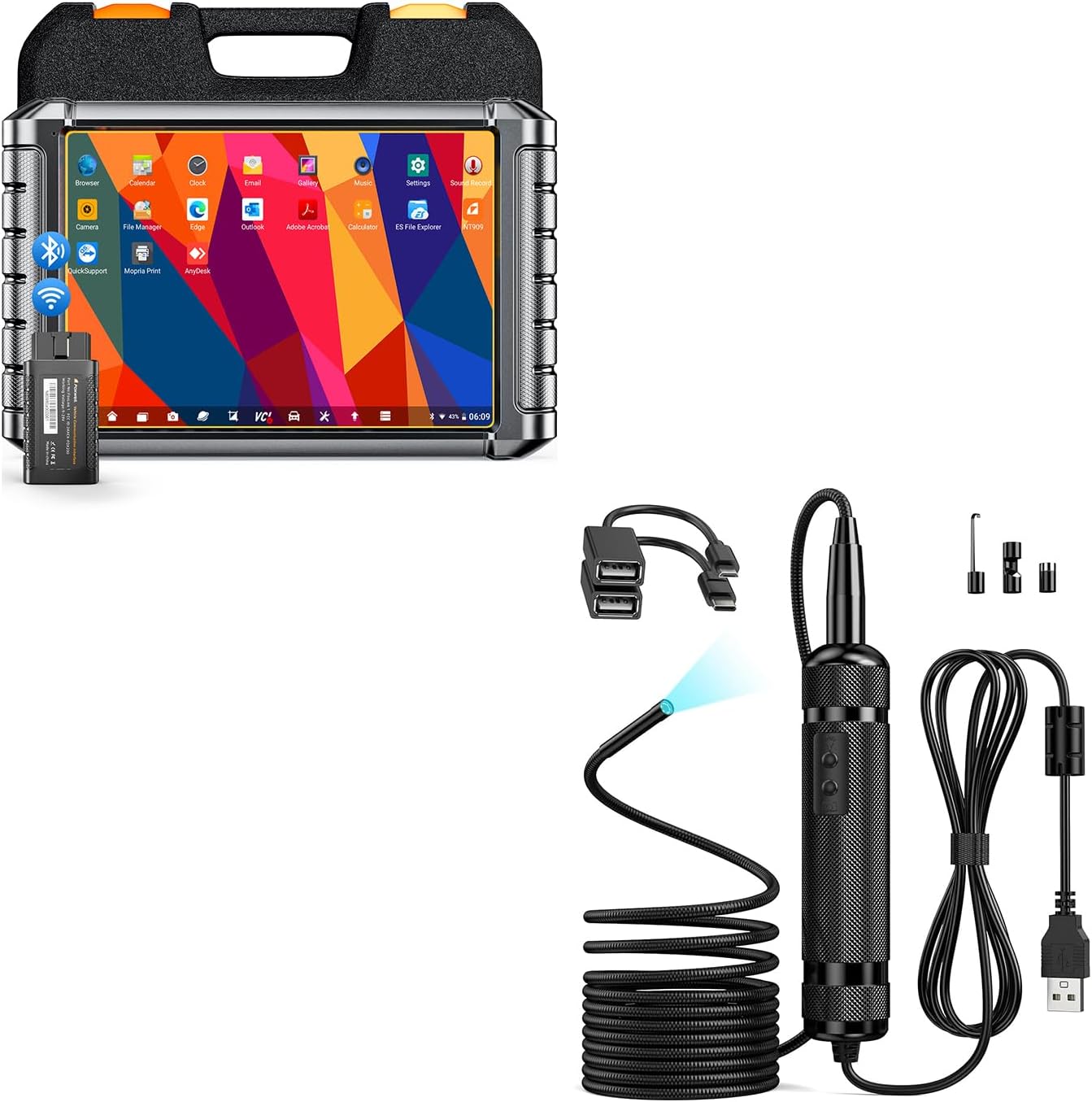
Figure 1.1: FOXWELL NT909 Scan Tool and VS300 Car Endoscope Kit.
2. Safety Information
Always observe the following safety precautions when operating the NT909 Scan Tool and VS300 Endoscope:
- Ensure the vehicle is in a safe, well-ventilated area with the parking brake engaged before performing any diagnostic procedures.
- Wear appropriate personal protective equipment, such as safety glasses and gloves.
- Do not operate the diagnostic tool or endoscope if they appear damaged.
- Avoid contact with hot engine components or moving parts.
- Keep the tools dry and away from liquids to prevent electrical shock or damage.
- Refer to the vehicle's service manual for specific procedures and safety warnings.
3. Package Contents
Verify that all items are present in your package:
- FOXWELL NT909 Diagnostic Tablet
- Wireless VCI Dongle
- FOXWELL VS300 Car Endoscope
- USB Cable for NT909
- Micro-USB to USB Adapter (for VS300)
- Type-C to USB Adapter (for VS300)
- Power Adapter
- User Manual (this document)
- Carrying Case

Figure 3.1: FOXWELL NT909 Diagnostic Tablet and Wireless VCI Dongle.
4. Setup
4.1. FOXWELL NT909 Scan Tool Setup
- Initial Power On: Press and hold the power button on the NT909 tablet to turn it on.
- Wi-Fi Connection: Navigate to 'Settings' on the tablet, select 'Wi-Fi', and connect to an available network. This is essential for software updates and online functions.
- Software Updates: After connecting to Wi-Fi, access the 'Update' application on the main screen. Download and install all available software updates to ensure optimal performance and the latest vehicle coverage.
- VCI Dongle Connection: Plug the Wireless VCI Dongle into the vehicle's OBD-II port. The dongle will establish a Bluetooth connection with the NT909 tablet automatically.
4.2. FOXWELL VS300 Car Endoscope Setup
- The VS300 endoscope is a plug-and-play device. No application download or separate charging is required.
- Connect the VS300 endoscope to the NT909 tablet using the built-in USB port or the provided Micro-USB or Type-C converter connectors.
- Once connected, the NT909 tablet will automatically detect the endoscope, and its video feed will be accessible through the appropriate application on the tablet.

Figure 4.1: Connecting the VS300 Endoscope via USB.
5. Operating Instructions
5.1. NT909 Scan Tool Operation
The NT909 offers a range of diagnostic functions:
- Vehicle Connection: Ensure the VCI dongle is securely plugged into the vehicle's OBD-II port and the NT909 tablet is connected via Bluetooth.
- System Diagnosis: Select 'Diagnosis' from the main menu. Choose the vehicle make, model, and year. The tool will perform an automatic scan of all available systems (Engine, ABS, SRS, Transmission, etc.).
- Bidirectional Control (Active Tests): This function allows the user to send commands to vehicle components to test their functionality (e.g., turn on/off fuel pump, cycle ABS pump, test window motors). Access this via the 'Active Test' menu within a specific system diagnosis.
- ECU Coding: For supported BMW E&F Chassis vehicles, this function allows for relearning, recoding, matching, and personalizing ECU components.
- VAG Guided Functions: Provides step-by-step guided procedures for Audi, VW, Toyota, and Skoda vehicles.
- Special Functions / Resets: Access over 30 service functions, including Oil Reset, EPB Reset, SAS Calibration, ABS Bleeding, Injector Coding, BMS Reset, Throttle Adaptation, Gear Learning, Transmission Adaptation, EGR Reset, Fuel Pressure Test, G Sensor Learn, ODS Initialization, and OPDS Initialization.
- Live Data: View real-time sensor data in text or graph format.
- Freeze Frame: Capture a snapshot of sensor data at the moment a Diagnostic Trouble Code (DTC) was set.

Figure 5.1: NT909 Interface showing Bidirectional Control and All Systems Diagnosis capabilities.

Figure 5.2: Overview of 30+ Reset and Hot Service Functions available on the NT909.
5.2. VS300 Car Endoscope Operation
- Camera Insertion: Carefully insert the 5.5mm serpentine camera into the desired inspection area (e.g., engine cylinders, tight crevices).
- Lighting Adjustment: Use the controls on the endoscope handle to adjust the brightness of the six LED lights for optimal visibility in dark environments.
- Viewing and Focusing: The 1280P HD picture will be displayed on the connected NT909 tablet. The endoscope has a quick focus for close-up inspections with a focal length of 1.18-3.15 inches (3-8 cm).
- Image/Video Capture: Utilize the NT909 tablet's interface to save pictures or record videos of the inspection.

Figure 5.3: VS300 Endoscope camera diameter, focal length, and lighting modes.

Figure 5.4: Technician performing an engine inspection using the NT909 and VS300 Endoscope.
6. Maintenance
- Software Updates: Regularly check for and install software updates via Wi-Fi to ensure the tool has the latest vehicle coverage and functions.
- Cleaning: Clean the NT909 tablet screen and body with a soft, damp cloth. Do not use abrasive cleaners. For the VS300 endoscope camera, gently wipe the lens with a lens cleaning cloth.
- Storage: Store the NT909 and VS300 in their protective carrying case in a dry, cool environment when not in use.
- Battery Care: For the NT909, avoid fully discharging the battery frequently. Charge the device regularly to maintain battery health.
7. Troubleshooting
- Tool Does Not Power On: Ensure the NT909 battery is charged. Connect the power adapter and try again.
- VCI Dongle Not Connecting: Verify the dongle is securely plugged into the vehicle's OBD-II port. Check Bluetooth settings on the NT909 tablet to ensure it's enabled and paired.
- No Communication with Vehicle: Confirm the vehicle's ignition is on. Check the VCI dongle connection. Ensure the vehicle model and year are correctly selected in the diagnostic software.
- VS300 Endoscope Not Displaying Image: Ensure the endoscope is securely connected to the NT909 tablet's USB port. Check the endoscope application on the tablet.
- Software Update Failure: Verify a stable Wi-Fi connection. Ensure sufficient storage space on the NT909 tablet. Try restarting the update process.
8. Specifications
| Component | Specification |
|---|---|
| Operating System | Android 9.0 |
| Screen | 8-inch Touchscreen, 1280x800 Resolution |
| Processor | MT8168 |
| Battery | 8000mAh |
| Endoscope Camera Diameter | 5.5mm |
| Endoscope Focal Length | 1.18-3.15 inches (3-8 cm) |
| Endoscope Lighting | 6 Adjustable LED Lights |
9. Warranty and Support
The FOXWELL NT909 Scan Tool includes 3 years of free software updates from the date of activation. These updates provide expanded vehicle coverage and new functionalities. For technical support, warranty claims, or further assistance, please refer to the contact information provided on the official FOXWELL website or your purchase documentation.


