1. Introduction
This manual provides detailed instructions for the IROK MG68PRO 68-key wired magnetic switch gaming keyboard. Please read this manual thoroughly before using the product to ensure proper operation and to maximize your user experience.
The IROK MG68PRO is a compact 65% layout keyboard featuring magnetic switches, an aluminum body, 8K polling rate, and customizable ARGB backlighting. It is designed for gaming and offers advanced customization options through its web driver.
2. Package Contents
Verify that all items are present in the package:
- IROK MG68PRO Keyboard
- USB Cable (USB-C to USB-A)
- User Manual (this document)
3. Key Features
- 68-Key Compact Layout: A 65% TKL layout that integrates essential keys in a smaller footprint.
- Advanced Magnetic Switches: Equipped with high-performance magnetic switches for durability and precise input.
- Customizable Keystroke Travel: Adjust keystroke actuation from 0.01mm to 3.5mm for personalized response.
- Ultra-Low Latency: Achieves a response delay as low as 0.125ms.
- 8K Polling Rate: Provides an 8000Hz polling rate for faster response times.
- Full Aluminum Body: CNC aluminum shell for enhanced durability and a premium feel.
- Hot-Swappable Design: Allows for easy replacement of magnetic switches and keycaps without soldering.
- Customizable ARGB Backlighting: Features 16 million colors with a 500Hz high refresh rate for dynamic lighting effects.
- Web Driver Support: Easy-to-use web-based driver for configuration and customization.
4. Setup Guide
4.1 Connecting the Keyboard
- Locate the USB-C port on the back of the IROK MG68PRO keyboard.
- Connect the provided USB-C cable to the keyboard's USB-C port.
- Connect the USB-A end of the cable to an available USB port on your computer.
- The keyboard will automatically be recognized by your operating system.

Image: The IROK MG68PRO keyboard showing its detachable USB-C cable connection point.
4.2 Driver Installation (Optional for Advanced Customization)
For advanced customization of key functions, keystroke travel, and ARGB lighting, download the proprietary web driver:
- Visit the official IROK website: www.irok.cc
- Navigate to the support or downloads section and locate the driver for the MG68PRO model.
- Follow the on-screen instructions to install and configure the driver.

Image: A visual representation of the IROK MG68PRO web driver interface, showing customization options.
5. Operating Instructions
5.1 Basic Keyboard Functions
The IROK MG68PRO functions as a standard 68-key keyboard upon connection. All keys perform their labeled functions by default.
5.2 ARGB Backlighting Control
The keyboard features customizable ARGB backlighting. Specific key combinations or the web driver can be used to adjust lighting effects.
- Changing Lighting Modes: Refer to the driver software for a full list of lighting modes and their activation.
- Adjusting Brightness/Speed: These settings are typically controlled via the driver or specific Fn key combinations (refer to the driver for exact key mappings).
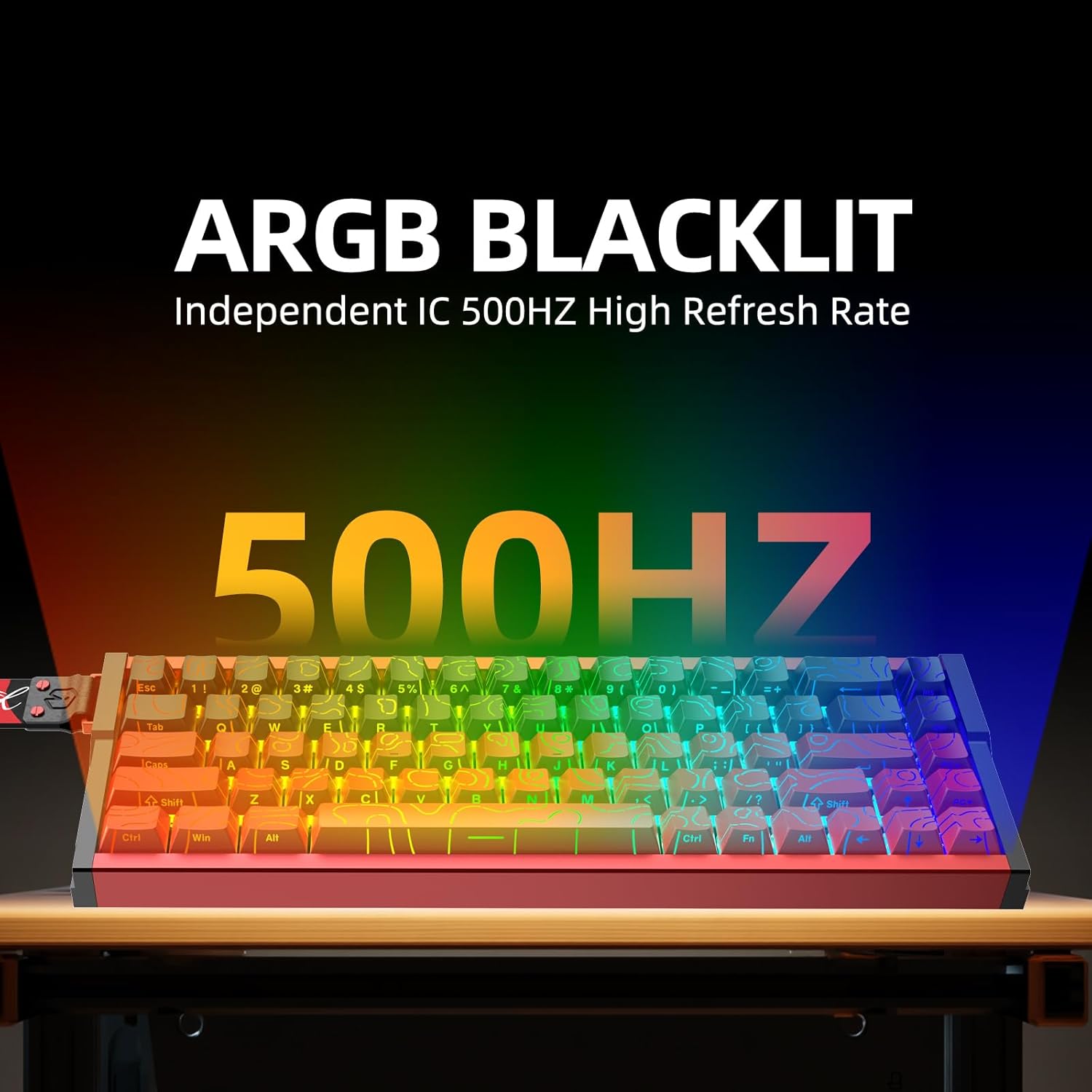
Image: The IROK MG68PRO keyboard displaying its multi-color ARGB backlighting.
5.3 Customizing Keystroke Travel and Actuation
The magnetic switches allow for precise adjustment of keystroke travel and actuation points. This is managed through the web driver software.
- Open the IROK MG68PRO web driver application.
- Navigate to the "Keystroke Travel" or "Actuation" settings.
- Adjust the actuation point for individual keys or groups of keys from 0.01mm to 3.5mm.
- Save your changes to apply them to the keyboard.

Image: A close-up view of the IROK MG68PRO's magnetic switches, highlighting their hot-swappable nature.
5.4 Hot-Swappable Switches and Keycaps
The MG68PRO supports hot-swappable magnetic switches and keycaps, allowing for easy customization without soldering.
- To remove a keycap, gently pull it upwards.
- To remove a switch, use a switch puller (not included) to carefully grip and pull the switch upwards.
- To install a new switch, align the pins with the sockets on the PCB and press down firmly until it clicks into place.
- To install a new keycap, align it with the switch stem and press down.
6. Maintenance
6.1 Cleaning the Keyboard
- Disconnect the keyboard from your computer before cleaning.
- Use a soft, lint-free cloth dampened with a small amount of water or a mild cleaning solution to wipe the surface of the keyboard.
- For cleaning between keycaps, use compressed air to remove dust and debris.
- Avoid using harsh chemicals, abrasives, or solvents, as these can damage the keyboard's finish.
6.2 Storage
When not in use for extended periods, store the keyboard in a dry, cool place away from direct sunlight and extreme temperatures.
7. Troubleshooting
| Problem | Possible Cause | Solution |
|---|---|---|
| Keyboard not responding | Loose cable connection, faulty USB port, driver issue. |
|
| Keys not registering or double-typing | Dust/debris under keycap, switch malfunction, incorrect actuation setting. |
|
| Backlighting not working or incorrect colors | Software glitch, incorrect lighting settings. |
|
8. Specifications
| Feature | Detail |
|---|---|
| Model | MG68PRO |
| Layout | 68 Keys (65% Compact) |
| Switch Type | Magnetic Switches (Hot-Swappable) |
| Actuation Travel | 0.01mm to 3.5mm (Customizable) |
| Polling Rate | 8000Hz |
| Latency | As low as 0.125ms |
| Body Material | CNC Aluminum Alloy |
| Backlighting | ARGB (16 Million Colors, 500Hz Refresh Rate) |
| Connectivity | Wired (USB-C) |
| Compatible Devices | Laptop, PC |
| Product Dimensions | 12.99"L x 4.92"W x 1.97"H (33 x 12.5 x 5 cm) |
| Item Weight | 2.2 pounds (1 kg) |
| Manufacturer | IROK |
9. Warranty and Support
9.1 Warranty Information
Please refer to the warranty card included with your product or visit the official IROK website for detailed warranty terms and conditions. Warranty coverage typically includes manufacturing defects for a specified period from the date of purchase.
9.2 Customer Support
For technical assistance, troubleshooting, or general inquiries, please contact IROK customer support through their official channels:
- Official Website: www.irok.cc
- Brand Store: Visit the IROK store on Amazon for product information and support resources: IROK Amazon Store
When contacting support, please have your product model (MG68PRO) and purchase information ready.
