
1. Introduction
This manual provides detailed instructions for the installation, operation, and maintenance of your Mount Plus MED10 Medical Monitor Wall Mount. The MED10 is a heavy-duty, height-adjustable wall-mounted workstation designed for medical environments, supporting single flat or curved VESA monitors from 17" to 49" and weighing up to 44 lbs. It features a folding keyboard tray, an integrated sliding mouse pad, and a scanner holder to optimize workspace and provide ergonomic flexibility.

Image 1: The Mount Plus MED10 Medical Monitor Wall Mount in a clinical setting, showing a medical professional using the workstation.
2. Safety Information
Please read all safety instructions carefully before installation and use. Failure to follow these instructions may result in property damage, serious injury, or death.
- Weight Capacity: Do not exceed the maximum weight capacity of 44 lbs (20 kg). Ensure your monitor's weight is within this limit.
- Monitor Size: This mount is designed for monitors between 17" and 49".
- Wall Structure: Ensure the mounting surface (wall) can safely support the combined weight of the mount and the equipment. Consult a professional if unsure.
- Installation: Follow all installation steps precisely. Improper installation can lead to instability and potential hazards.
- Moving Parts: Be aware of pinch points when adjusting the arms and trays. Keep hands clear during adjustments.
- Cleaning: Use medical-grade cleaning solutions appropriate for the materials (metal) and follow proper disinfection protocols for clinical environments.
- Children: Keep children away from the mount during installation and operation.
3. Setup and Installation
Careful installation is crucial for the stability and safety of the Mount Plus MED10. Ensure all components are present before beginning.
3.1. Package Contents
Verify that all parts listed in the product packaging are included. If any parts are missing or damaged, contact Mount Plus customer support.
3.2. Tools Required
- Drill
- Stud Finder (for wood stud walls)
- Level
- Pencil
- Measuring Tape
- Screwdriver (Phillips head recommended)
3.3. Mounting the Wall Track
- Select Location: Choose a suitable wall location, ensuring it is structurally sound and free from electrical wires or plumbing.
- Mark Drill Holes: Hold the wall track against the wall at the desired height. Use a level to ensure it is straight and mark the drill hole positions with a pencil.
- Drill Holes: Drill pilot holes according to the marked positions and the recommended drill bit size for your wall type (e.g., wood stud, concrete, brick).
- Secure Track: Attach the wall track to the wall using the provided screws and anchors. Ensure it is firmly secured.
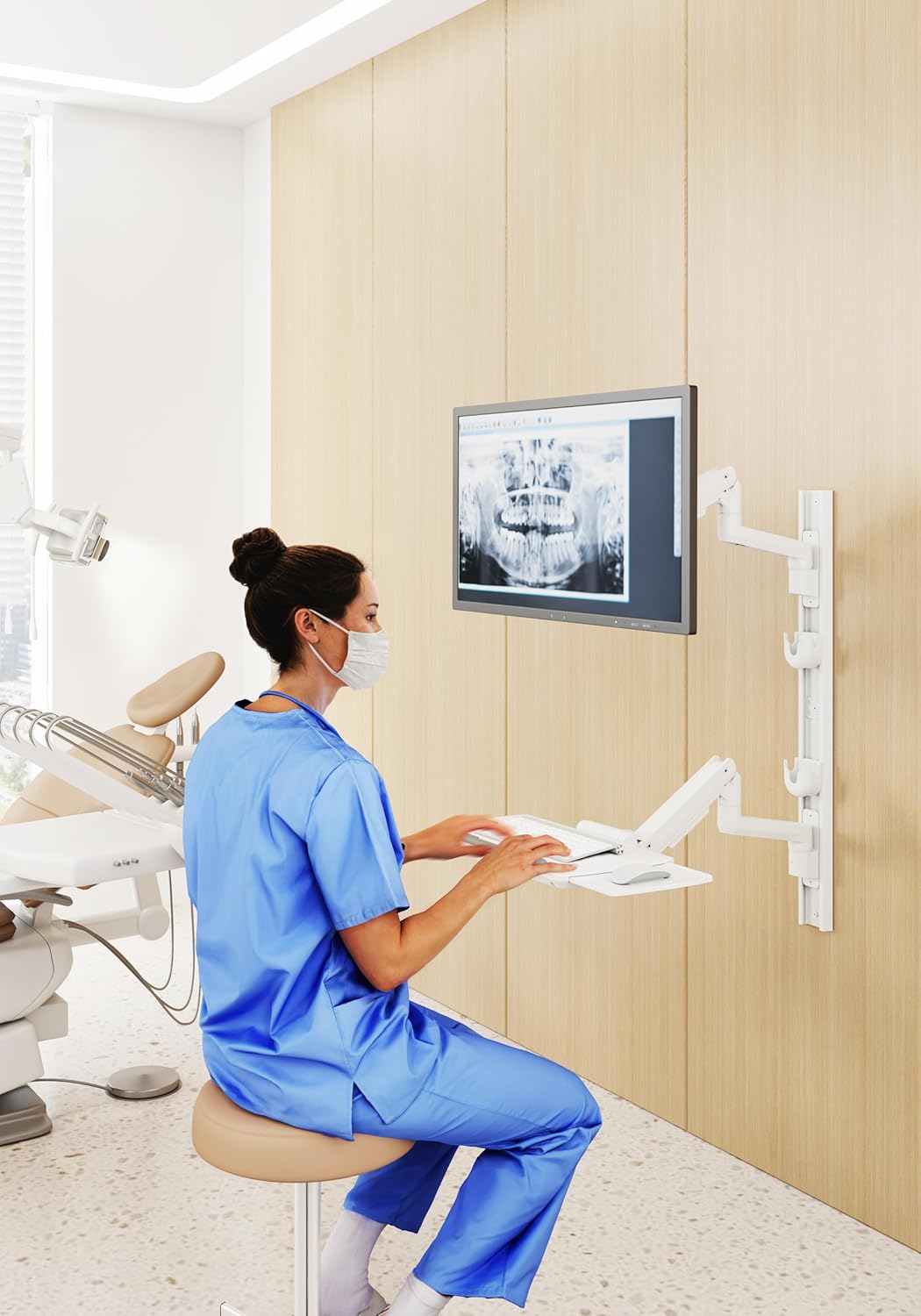
Image 2: Overview of the Mount Plus MED10, highlighting features like screen size compatibility (17"-49"), weight capacity (44 lbs), cable management, convenient holders, integrated sliding mouse pad, and large tray surface with stopper.
3.4. Attaching Monitor and Keyboard Tray Arms
- Prepare Arms: Ensure the screws on the wall plates of the arm assemblies are slightly loosened (about 4mm) before inserting them in the sliding rail to prevent scratching.
- Slide Arms onto Track: Carefully slide the monitor arm and keyboard tray arm assemblies onto the wall track.
- Secure Arms: Tighten the screws on the wall plates to secure the arms in place on the track.
- Attach Monitor: Mount your VESA-compatible monitor (75x75mm or 100x100mm VESA pattern) to the monitor arm using the provided screws. Ensure it is securely fastened.
- Attach Keyboard Tray: The keyboard tray is pre-assembled with its arm.
- Install Scanner Holder: Attach the scanner holder to the designated position on the wall track.
Video 1: Installation guide for the Medical Monitor Wall Mount. This video demonstrates the steps for mounting the workstation to the wall and attaching the monitor and other components.
3.5. Cable Management
Route all cables (power, video, keyboard, mouse, scanner) through the integrated cable management channels on the arms and wall track to maintain a tidy and safe workspace.
4. Operating Instructions
The Mount Plus MED10 offers extensive adjustability for optimal ergonomic positioning.
4.1. Monitor Adjustments
- Height Adjustment: The dual gas spring arms allow for quick and effortless vertical adjustment of the monitor. Gently push or pull the monitor to the desired height.
- Tilt: The monitor can be tilted +50° to -20° to reduce glare and optimize viewing angles.
- Swivel: Swivel the monitor +90° to -90° for collaborative viewing or to adjust your position.
- Rotation: Rotate the screen +180° to -180° to switch between landscape and portrait orientations.

Image 3: Demonstrates the tilt range for both the monitor (+50° to -20°) and the keyboard tray (+90° to -0°).
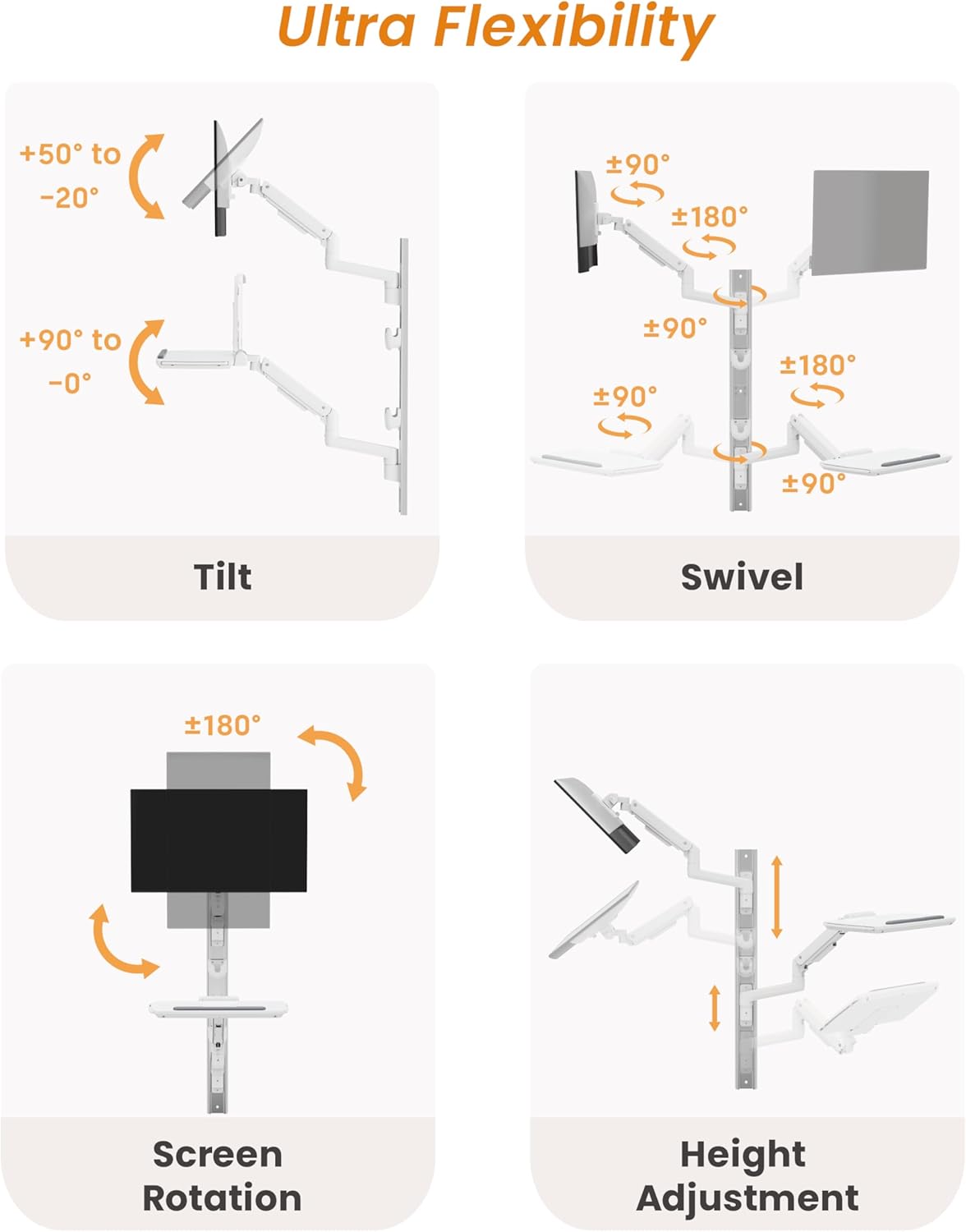
Image 4: Illustrates the swivel capabilities of the monitor (+90° to -90°) and the keyboard tray (+90° to -90°), along with the monitor's 180° rotation.
4.2. Keyboard Tray and Mouse Pad
- Folding Tray: The keyboard tray can be folded up when not in use to save space. Gently lift the tray to fold it.
- Sliding Mouse Pad: Extend the integrated mouse pad from the side of the keyboard tray to provide additional space for mouse movements.
- Tray Tilt: The keyboard tray can be tilted from +90° to 0° for comfortable typing angles.
Video 2: Demonstrates the features of the Medical Monitor Wall Mount with Folding Keyboard Tray, including its adjustability and space-saving design.
4.3. Scanner Holder
Utilize the dedicated scanner holder for convenient access and storage of medical scanners, promoting serviceability and efficiency.
5. Maintenance
Regular maintenance ensures the longevity and hygienic operation of your Mount Plus MED10.
- Cleaning: Wipe down all surfaces with a soft cloth and a mild, medical-grade disinfectant. Avoid abrasive cleaners or solvents that could damage the finish.
- Inspection: Periodically check all screws and connections to ensure they are tight. Re-tighten if necessary.
- Moving Parts: Ensure the gas spring arms move smoothly. If resistance is felt, check for obstructions or contact support.
- Cable Management: Verify that cables are securely routed and not pinched or frayed.
6. Troubleshooting
Refer to the following common issues and solutions. If the problem persists, contact Mount Plus customer support.
| Problem | Possible Cause | Solution |
|---|---|---|
| Monitor arm does not hold position or sags. | Gas spring tension is too low for monitor weight. | Adjust the gas spring tension screw (refer to installation guide for specific location). |
| Keyboard tray is not level. | Uneven installation or manufacturing defect. | Check wall track installation for levelness. If the tray itself is uneven, contact customer support for assistance. |
| Difficulty adjusting monitor or keyboard tray. | Joints are too tight or obstructed. | Loosen relevant joint screws slightly. Ensure no cables are obstructing movement. |
| Cables are messy or getting caught. | Improper cable routing. | Re-route cables through the integrated cable management channels. Use cable ties if necessary. |
7. Specifications
| Feature | Detail |
|---|---|
| Model | MED10 |
| Mounting Type | Wall Mount |
| Movement Type | Articulating |
| Brand | Mount Plus |
| Material | Metal |
| Compatible Devices | Monitor |
| Minimum Supported Screen Size | 17 Inches |
| Maximum Supported Screen Size | 49 Inches |
| Weight Capacity | Up to 44 lbs (20 kg) |
| VESA Compatibility | 75x75mm, 100x100mm |
| Monitor Tilt Range | +50° to -20° |
| Monitor Swivel Range | +90° to -90° |
| Monitor Rotation Range | +180° to -180° |
| Keyboard Tray Tilt Range | +90° to 0° |
| Wall Profile | 5.2" to 23.8" |
| GTIN | 00850059780251 |

Image 5: Detailed technical drawing showing dimensions and various adjustment ranges for the monitor and keyboard tray.
8. Warranty and Support
8.1. Warranty Information
The Mount Plus MED10 Medical Monitor Wall Mount comes with a 1-year warranty from the date of purchase. This warranty covers manufacturing defects and material flaws under normal use. It does not cover damage caused by improper installation, misuse, accidents, or unauthorized modifications.
8.2. Customer Support
For technical assistance, warranty claims, or any questions regarding your Mount Plus MED10, please contact Mount Plus customer support. Refer to the product packaging or the official Mount Plus website for current contact information.
