
JOMAA B0DYZWN57L
JOMAA Foldable Bluetooth Keyboard with Trackpad
User Manual
Introduction
The JOMAA Foldable Bluetooth Keyboard with Trackpad is designed for portability and multi-device compatibility. This full-size, silent, and rechargeable keyboard offers a convenient solution for users on the go, compatible with iPad, iPhone, smartphones, tablets, PCs, and laptops. Its integrated trackpad eliminates the need for an external mouse, enhancing productivity across various operating systems.

Image: The JOMAA foldable Bluetooth keyboard in its open, ready-to-use configuration, showcasing the full keyboard layout and integrated trackpad.
Product Features
- Foldable Design: Compact and easy to carry, ideal for travel and mobile work.
- Multi-Functional Shortcut Keys: Dedicated keys for Windows, macOS, iOS, and Android enhance productivity.
- Bluetooth Connectivity: Connects via Bluetooth 3.0 to up to 3 devices simultaneously.
- Built-In Touchpad: Integrated touchpad supports multi-gesture operations, removing the need for an external mouse.
- Long-Lasting Battery: Integrated 150mAh battery provides extended use with low-power reminders.
- Slim & Silent Design: Lightweight at 238g with quiet keys for discreet use in various environments.
- Multi-Language Support: Easily switch between different language input methods.

Image: Overview of the JOMAA Triple Fold Wireless Keyboard highlighting quick switching among three devices, portable folding, multi-system compatibility, and gesture support.

Image: Visual representation of key features: support for three Bluetooth devices, multi-system compatibility, multi-functional gestures, and portable folding design.
Setup
Charging the Keyboard
Before first use, ensure the keyboard is fully charged. Connect the provided charging cable to the keyboard's charging port and to a USB power source. The charging indicator light will show the charging status and turn off when fully charged.
Powering On/Off
To power on the keyboard, simply unfold it. The keyboard will automatically power on. To power off, fold the keyboard. It will automatically enter sleep mode and power off.
Bluetooth Pairing
- Turn on the foldable keyboard power by unfolding it.
- Select a Bluetooth channel by pressing FN + BT1, FN + BT2, or FN + BT3. The corresponding Bluetooth channel light will flash, indicating it's ready for pairing.
- Press FN + C to activate pairing mode. This step is crucial and should not be skipped.
- On your device (iPad, iPhone, smartphone, tablet, PC, or laptop), turn on Bluetooth and search for available devices.
- Select "JOMAA Keyboard" or a similar name from the list of found devices to connect. Once connected, the channel light will stop flashing.

Image: Close-up view of the keyboard's folding mechanism and the BT1, BT2, BT3 connection buttons, illustrating the smooth pivot and durable design.
Operating Instructions
Using the Keyboard
The JOMAA keyboard features a standard QWERTY layout with additional function keys. Type as you would on a regular keyboard. The silent keys ensure a quiet typing experience.
Multi-Functional Shortcut Keys
The keyboard includes shortcut keys compatible with Windows, macOS, iOS, and Android. Use the FN key in combination with the designated function keys (F1-F12) to access various system functions such as media control, volume adjustment, and screen brightness.
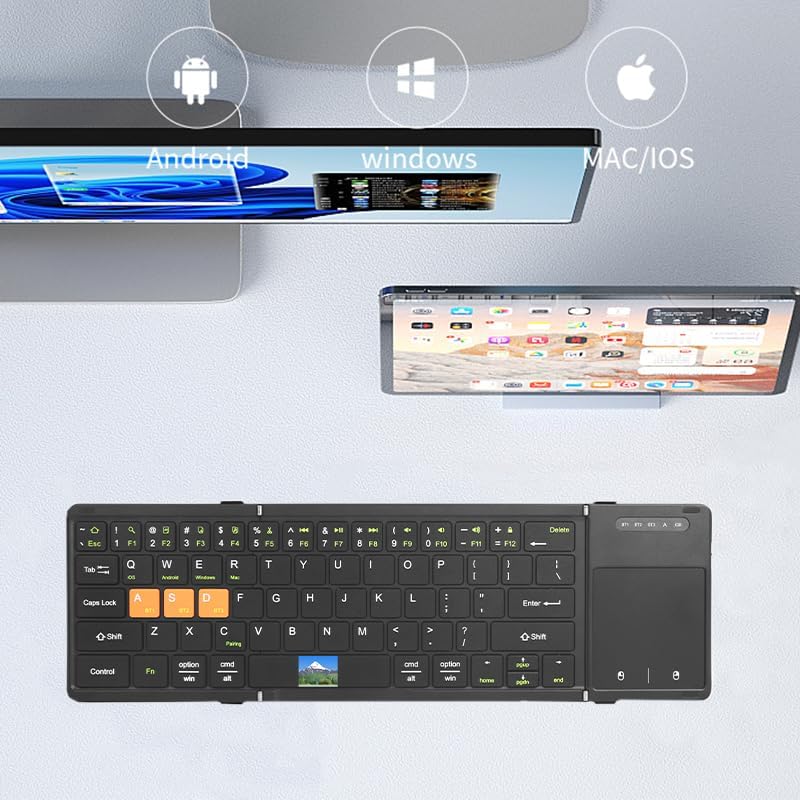
Image: The keyboard displayed with icons for Android, Windows, and Mac/iOS, demonstrating its broad compatibility across different operating systems.
Using the Built-In Trackpad
The integrated trackpad supports multi-gesture operations, allowing for intuitive navigation without an external mouse. Common gestures include:
- Single Finger Tap: Left-click.
- Two Finger Tap: Right-click.
- Two Finger Scroll: Scroll up or down.
- Refer to your device's operating system for specific multi-gesture support and settings.

Image: A hand demonstrating the use of the integrated trackpad on the JOMAA keyboard, highlighting its functionality for office and entertainment control.
Switching Between Connected Devices
To switch between the three paired devices, simply press FN + BT1, FN + BT2, or FN + BT3. The keyboard will quickly switch its connection to the selected device.
Maintenance
Cleaning
To clean the keyboard, gently wipe the surface with a soft, dry, lint-free cloth. For stubborn dirt, slightly dampen the cloth with water or a mild, non-abrasive cleaner. Avoid excessive moisture and do not spray cleaners directly onto the keyboard.
Battery Care
The keyboard is equipped with a rechargeable battery. To prolong battery life:
- Charge the keyboard regularly, especially when the low-power reminder activates.
- Avoid fully discharging the battery frequently.
- If storing the keyboard for an extended period, charge it to about 50% and store in a cool, dry place.

Image: Illustration of the keyboard's intelligent sleep power-saving battery, indicating approximately 30 hours of continuous work and 150 days of standby time, suitable for both work-from-home and business travel scenarios.
Troubleshooting
- Keyboard not connecting via Bluetooth:
- Ensure the keyboard is powered on and fully charged.
- Verify that Bluetooth is enabled on your device.
- Make sure you have pressed FN + C to enter pairing mode after selecting a channel (FN + BT1/BT2/BT3).
- Forget the device on your host device's Bluetooth settings and attempt to re-pair.
- Try connecting to a different Bluetooth channel (BT1, BT2, or BT3).
- Keys not responding:
- Check battery level and charge the keyboard if necessary.
- Ensure the keyboard is properly connected to your device.
- Restart both the keyboard (by folding and unfolding) and your connected device.
- Trackpad not working:
- Ensure the keyboard is fully connected.
- Check if the trackpad is enabled in your device's settings (if applicable).
- Clean the trackpad surface to remove any debris.
- Keyboard frequently disconnects:
- Ensure the keyboard is within the effective Bluetooth range of your device.
- Minimize interference from other wireless devices.
- Charge the keyboard fully.
Specifications
| Brand | JOMAA |
| Model | Foldable Bluetooth Keyboard with Trackpad (Black) |
| Connectivity Technology | Bluetooth 3.0 |
| Compatible Devices | Laptop, Gaming Console, Tablet, Smartphone (Windows, macOS, iOS, Android) |
| Battery Capacity | 150mAh (1 9V battery included) |
| Continuous Work Time | Approx. 30 hours |
| Standby Time | Approx. 150 days |
| Item Weight | 8.8 ounces (238g) |
| Package Dimensions | 9 x 5 x 1 inches |
| Number of Keys | 64 |
| Special Feature | Foldable, Built-in Trackpad, Silent Keys |

Image: The JOMAA keyboard shown in both its folded, compact state and its fully unfolded, operational state, emphasizing its portability and innovative design.

Image: An angled view of the JOMAA keyboard in its folded, compact form, highlighting its slim profile and textured finish.
Warranty and Support
For information regarding product warranty, please refer to the warranty card included with your product packaging or visit the official JOMAA website. For technical support or further assistance, please contact JOMAA customer service through the contact information provided on the product packaging or their official website.
Manufacturer: JOMAA
Ask a question about this manual
Ask about setup, troubleshooting, compatibility, parts, safety, or missing instructions. Manuals+ will review the question and use this page’s manual context to help answer it.