
1. Introduction
The Elitech LogEt5 USB Temperature Data Logger is a highly reliable recording device designed for professional environments requiring precise temperature management. It is ideal for applications in research institutions, the food industry, and medical facilities. Featuring a USB connection, it allows for easy data transfer and power supply. The LogEt5 supports large-capacity recording of up to 32,000 data points and monitors temperatures from -30°C to 70°C with high accuracy of ±0.1°C. Its unique shadow data function ensures data integrity even if power is interrupted during measurement. After measurement completion, it can automatically generate reports in PDF/CSV format without complex software operations. For more detailed data analysis and graphing, the dedicated Elitechlog software can be used. This solution is optimal for temperature monitoring in various environments such as refrigerators, freezers, greenhouses, and warehouses.
2. Product Overview
The Elitech LogEt5 is a compact and robust temperature data logger. Below is an illustration of its main components:

Figure 1: Elitech LogEt5 Data Logger with labeled components.
- Internal Sensor: Measures ambient temperature.
- LCD Screen: Displays current temperature, logging status, battery level, and other operational information.
- Buttons: Used for starting/stopping logging, viewing data, and navigating menus.
- USB Port: For connecting to a computer for data transfer and configuration.
- External Sensor (Optional): For models with an external probe, allowing temperature measurement in specific locations. (Note: This specific model is for temperature only, but the image shows an external sensor option).
The device features IP65 protection, making it waterproof and dust-proof, suitable for various demanding environments.
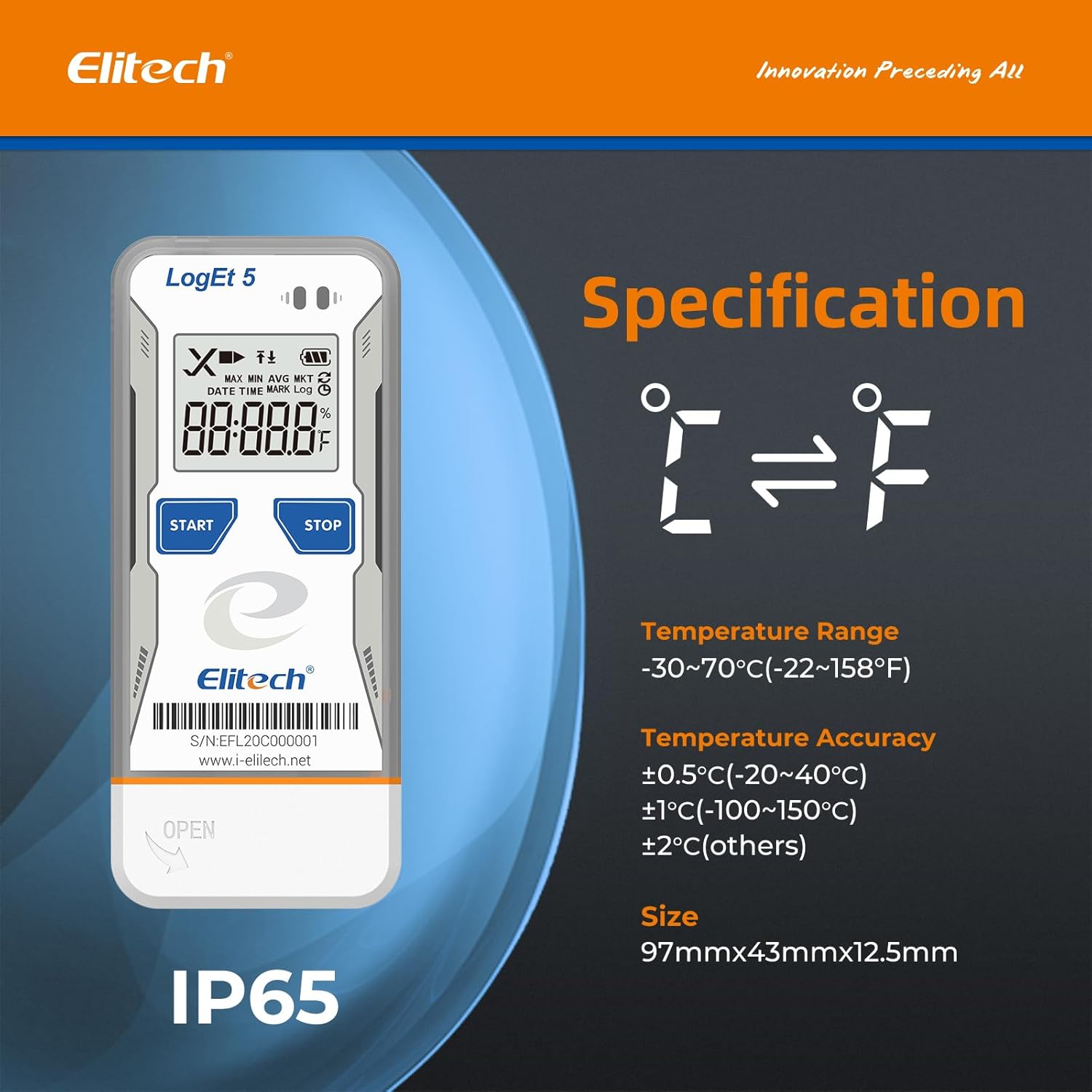
Figure 2: Elitech LogEt5 highlighting IP65 protection and temperature range.
3. Specifications
| Feature | Detail |
|---|---|
| Manufacturer | Elitech |
| Model Number | LogEt5 |
| Product Weight | 80 g |
| Package Dimensions | 13.4 x 7.9 x 2.7 cm |
| Battery | 1 CR2 battery (included), Alkaline type |
| Color | Temperature: -30~70℃ |
| Style | Temperature |
| Power Type | Battery powered |
| Measurement Accuracy | +/-0.5℃ |
| Display Style | Digital |
| Chlorine Removal Rate | FDA |
| Features | Data visualization, data storage, data tracking, high precision. |
| Included Components | Data logger |
| Connectivity Technology | USB |
| Unit Count | 1.0 Count |
4. Setup
4.1. Battery Installation
Before initial use, install the CR2 battery into the data logger. Ensure correct polarity.
Video 1: Demonstrates battery installation for a similar Elitech data logger (RC-5). The process involves opening the battery compartment, inserting the battery with the positive pole facing up, and securing the cover.
- Locate the battery compartment cover on the back of the device.
- Use a coin or a similar tool to gently twist and open the cover.
- Insert the CR2 battery, ensuring the positive (+) pole is facing upwards, under the small metal clip.
- Replace the battery compartment cover and twist to secure it.
4.2. Software Installation and Parameter Configuration
The Elitech LogEt5 can be configured using the dedicated Elitechlog software. This software allows you to set logging intervals, alarm limits, and other parameters.

Figure 3: Elitech LogEt5 connected via USB for data export and software interaction.
- Connect the LogEt5 data logger to your computer's USB port.
- Download and install the Elitechlog software from the official Elitech website (www.i-elitech.net).
- Open the Elitechlog software. The device should be automatically recognized.
- Navigate to the "Parameter" tab within the software.
- Adjust settings such as:
- Log Interval: The frequency at which data is recorded (e.g., 10 seconds, 1 minute).
- Start Delay: Time before logging begins after activation.
- Temperature Unit: Choose between Celsius (°C) or Fahrenheit (°F).
- High/Low Limit (Temperature): Set alarm thresholds for temperature.
- Click "Save Parameter" to apply the new settings to the data logger.
Video 2: Illustrates connecting the logger to a computer and configuring parameters using the Elitechlog software. This includes changing the log interval and saving settings.
5. Operation
5.1. Starting and Stopping Logging
Once configured, the LogEt5 is ready to begin recording data.
- Press the "Start" button (triangle icon) on the logger once to light up the screen.
- Press and hold the "Start" button for more than 4 seconds to initiate logging. A triangle icon will firmly light up on the LCD screen, indicating that logging has started.
- To stop logging, press and hold the "Stop" button (pause icon) for more than 4 seconds.
Video 3: Shows how to start logging by pressing and holding the start button, and how to verify logging status on the screen.
5.2. Viewing Data on the Device
You can view summary data directly on the LogEt5's LCD screen.
- Press the "Start" button once to cycle through various data points on the LCD screen.
- Information displayed includes: total logged points, current time, current date, maximum temperature, minimum temperature, upper temperature limit, and lower temperature limit.
Video 4: Demonstrates how to view logged data points, time, date, and temperature limits directly on the device's screen.

Figure 4: Detailed view of the LogEt5 LCD screen and its functions.
5.3. Data Export and Analysis
The LogEt5 offers convenient data export options.
- Connect the data logger to your computer via USB.
- The device will automatically generate PDF and CSV reports. These reports can be accessed directly from the device as a mass storage device, without requiring additional software.
- For advanced data analysis, graphing, and customization, use the Elitechlog software. This software provides detailed insights into the recorded temperature data.

Figure 5: Example of a data report generated by the LogEt5, showcasing the shadow data feature for data integrity.
The LogEt5 has a large capacity, capable of storing up to 32,000 data points. Data can be cleared and reused once the capacity is full.
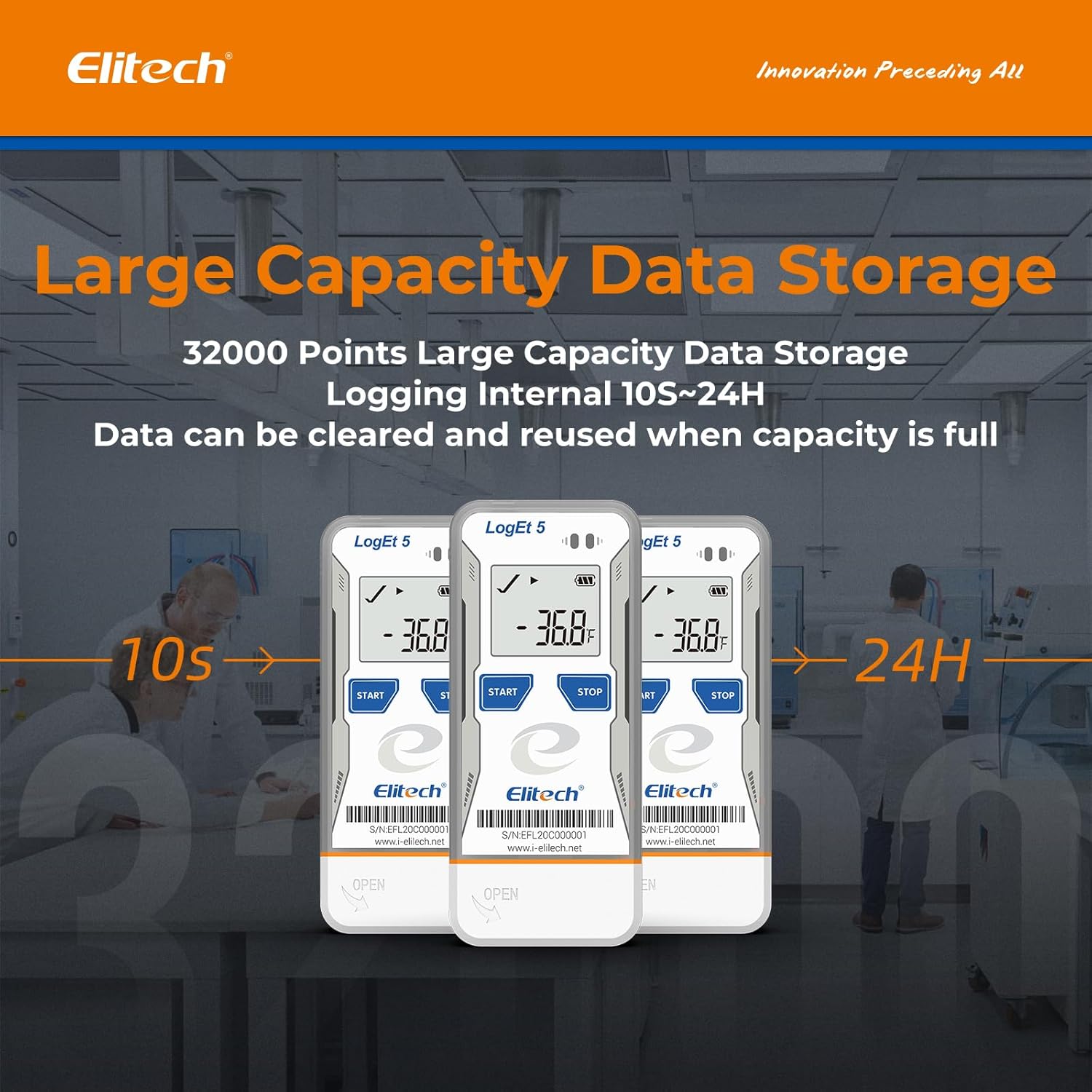
Figure 6: Illustration of the LogEt5's large data storage capacity.
6. Maintenance
6.1. Cleaning
Wipe the device with a soft, damp cloth. Do not use abrasive cleaners or solvents. Ensure the USB port is dry before connecting to a computer.
6.2. Battery Replacement
When the battery indicator on the LCD screen shows low power, replace the CR2 battery following the installation steps in Section 4.1.
6.3. Storage
Store the data logger in a cool, dry place away from direct sunlight and extreme temperatures when not in use for extended periods.
7. Troubleshooting
| Problem | Possible Cause | Solution |
|---|---|---|
| Device not turning on. | Low or dead battery; incorrect battery installation. | Replace the battery; ensure correct polarity during installation. |
| Logging not starting. | "Start" button not held long enough; device not configured. | Hold the "Start" button for 4 seconds; configure parameters using Elitechlog software. |
| Cannot connect to computer/transfer data. | Faulty USB port; driver issues; device not recognized. | Try a different USB port; reinstall Elitechlog software and drivers; ensure the device is not actively logging when connecting. |
| Inaccurate temperature readings. | Sensor obstruction; device placed in an unsuitable environment. | Ensure the sensor is clear; place the device in a location representative of the temperature to be measured. |
8. Warranty & Support
Specific warranty information is not provided in the product details. Please refer to the product packaging or the official Elitech website for detailed warranty terms and conditions. For technical support, product inquiries, or service, please visit the Elitech official website at www.i-elitech.net or contact their customer service.