
1. Introduction
Thank you for choosing the EvoFox Deathray V2 Gaming Keyboard and Mouse Combo. This manual will guide you through the setup, operation, and maintenance of your new gaming peripherals. Designed for precision and comfort, this combo enhances your gaming and productivity experience.

Image: The EvoFox Deathray V2 Gaming Keyboard and Mouse Combo, showcasing both devices connected via their braided cables.
2. Package Contents
- EvoFox Deathray V2 Gaming Keyboard
- EvoFox Deathray V2 Gaming Mouse
- User Manual (this document)
3. Setup Instructions
- Connect the Keyboard: Plug the USB connector of the EvoFox Deathray V2 Keyboard into an available USB port on your computer.
- Connect the Mouse: Plug the USB connector of the EvoFox Deathray V2 Mouse into another available USB port on your computer.
- Driver Installation: Your operating system should automatically detect and install the necessary drivers. No additional software installation is typically required for basic functionality.
- Placement: Place the keyboard and mouse on a flat, stable surface for optimal performance.
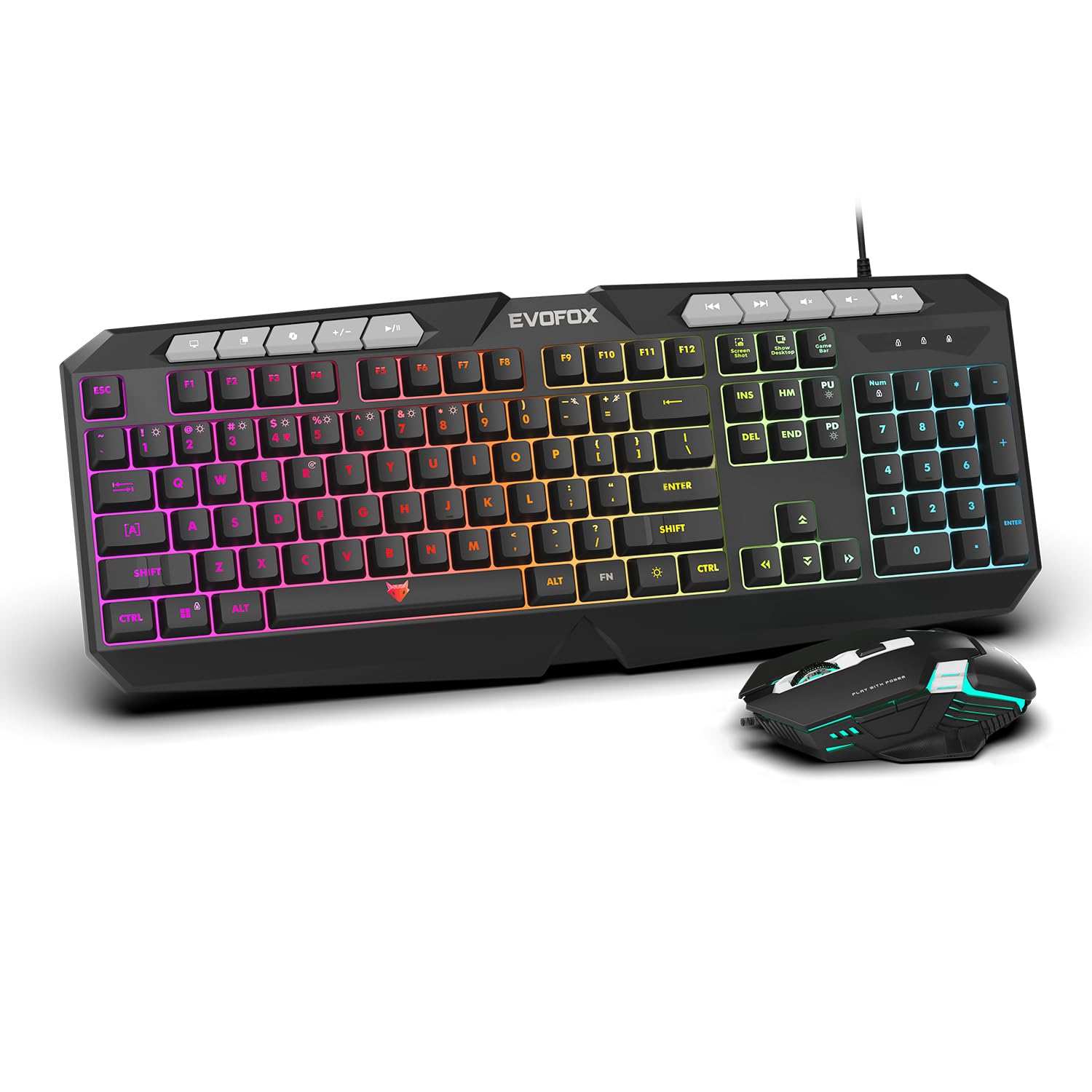
Image: A close-up view of the EvoFox Deathray V2 Keyboard and Mouse, illustrating their wired connection readiness.
4. Operating the Keyboard
4.1. Basic Functions
The EvoFox Deathray V2 Keyboard features a full-size layout with standard QWERTY keys, a numeric keypad, and function keys (F1-F12).
4.2. Multimedia Keys
Dedicated multimedia keys are located above the function keys for quick access to media controls:
- Volume Up/Down/Mute: Control audio levels.
- Play/Pause, Previous/Next Track: Manage media playback.
4.3. Special Function Keys
The keyboard includes special shortcut keys for enhanced productivity and gaming:
- Screenshot: Captures a screenshot of your display.
- Show Desktop: Minimizes all open windows to show the desktop.
- Xbox Game Bar: Opens the Xbox Game Bar for gaming features.
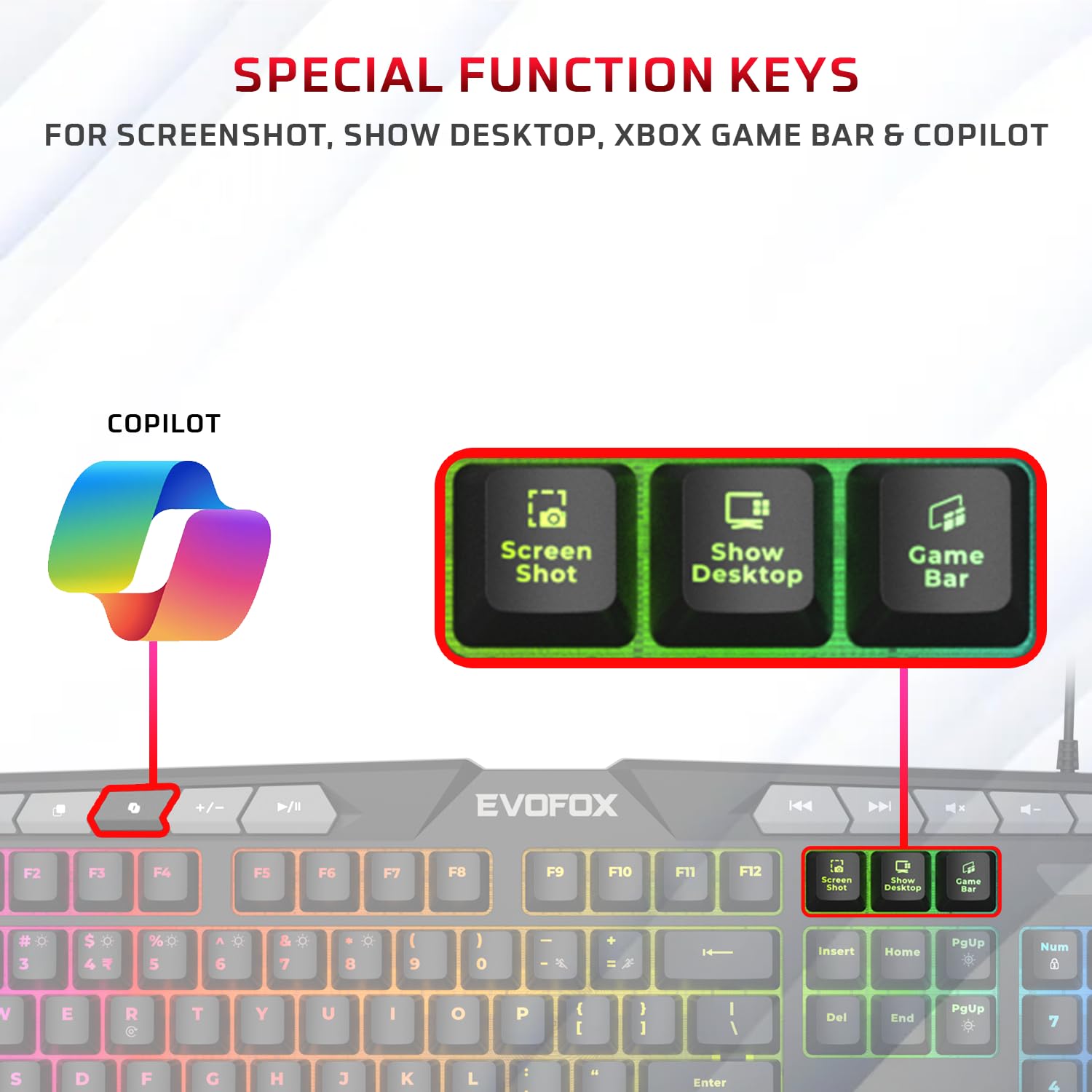
Image: A detailed view of the EvoFox Deathray V2 Keyboard highlighting the dedicated Screenshot, Show Desktop, and Game Bar keys.
4.4. Anti-Ghosting Keys
The keyboard features 19 anti-ghosting keys, ensuring that multiple simultaneous key presses are registered accurately, which is crucial for gaming.

Image: The EvoFox Deathray V2 Keyboard, visually indicating the 19 anti-ghosting key zones for precise input.
5. Operating the Mouse
5.1. Buttons and Functions
The EvoFox Deathray V2 Mouse features 6 buttons for versatile control:
- Left Click
- Right Click
- Scroll Wheel (Clickable)
- DPI Adjustment Button
- Forward Button
- Backward Button
5.2. DPI Adjustment
The mouse offers adjustable DPI (Dots Per Inch) settings to change cursor sensitivity. Press the DPI button located behind the scroll wheel to cycle through the available DPI levels:
- 1200 DPI
- 1800 DPI
- 2400 DPI
- 3600 DPI
Each DPI level may be indicated by a specific LED light pattern or color change on the mouse.

Image: The EvoFox Deathray V2 Mouse, illustrating its ergonomic design and the DPI adjustment button.

Image: A close-up of the EvoFox Deathray V2 Mouse, highlighting its 6-button design, rugged braided cable, and magnetic ring for data transmission.
6. Lighting Customization
6.1. Keyboard RGB Backlighting
The EvoFox Deathray V2 Keyboard features 6-zone RGB backlighting with multiple lighting modes. Use the dedicated lighting control keys (often marked with a light bulb icon or specific function key combinations) to cycle through different effects and adjust brightness.
- 8 Lighting Modes: Cycle through various preset lighting effects.
- Custom Lighting: Some modes may allow for custom color assignments or patterns.

Image: The EvoFox Deathray V2 Keyboard displaying its vibrant 6-zone customizable RGB backlighting.
6.2. Mouse LED Lighting
The EvoFox Deathray V2 Mouse features 7-color LED lighting, often with a breathing effect, which changes automatically. There are typically no user-adjustable settings for the mouse lighting beyond its default cycling pattern.

Image: The EvoFox Deathray V2 Mouse illuminated with its 7-color rainbow LED lighting, featuring a breathing effect.
7. Maintenance
Proper maintenance ensures the longevity and optimal performance of your EvoFox Deathray V2 combo.
- Cleaning: Use a soft, dry cloth to wipe down the keyboard and mouse. For stubborn dirt, a slightly damp cloth can be used, ensuring no liquid enters the devices. Avoid harsh chemicals or abrasive materials.
- Dust Removal: Use compressed air to remove dust and debris from between the keyboard keys and around the mouse sensor.
- Cable Care: Avoid sharp bends or excessive pulling on the braided cables to prevent damage.
- Storage: When not in use for extended periods, store the devices in a clean, dry environment away from direct sunlight and extreme temperatures.

Image: A close-up of the EvoFox Deathray V2 Keyboard, highlighting its durable design with a 1.8m braided cable and soft membrane keys.
8. Troubleshooting
| Problem | Possible Cause | Solution |
|---|---|---|
| Keyboard/Mouse not responding | Loose USB connection, faulty USB port, driver issue. |
|
| Keys not registering or ghosting | Software conflict, physical obstruction, hardware issue. |
|
| Mouse cursor erratic or not moving | Dirty sensor, unsuitable surface, faulty sensor. |
|
| RGB lighting not working | Lighting mode off, brightness too low, software issue. |
|
9. Specifications
| Feature | Detail |
|---|---|
| Product Model | V2 - 2 in 1 |
| Connectivity | Wired USB |
| Keyboard Type | Membrane, Full-Size |
| Keyboard Backlighting | 6-Zone RGB with 8 modes |
| Anti-Ghosting | 19 Keys |
| Mouse Buttons | 6 Buttons (Left, Right, Scroll Click, DPI, Forward, Backward) |
| Mouse DPI Settings | 1200 / 1800 / 2400 / 3600 DPI |
| Mouse Lighting | 7-Color LED Lighting (Breathing Effect) |
| Cable Type | Braided Cable (1.8m for keyboard) |
| Mouse Switches | Huano switches, rated for 10 million clicks |
| Product Dimensions (Keyboard) | 50 x 18 x 4 cm |
| Item Weight | 800 g |
| Country of Origin | China |
10. Warranty and Support
EvoFox products are designed for durability and performance. For warranty information, technical support, or service inquiries, please refer to the official EvoFox website or contact their customer support directly.
Manufacturer: Allied Electronics & Magnetics Private Limited
Address: C-64/4, Okhla Phase - 2, New Delhi - 110020, India
Please retain your proof of purchase for warranty claims.
11. Safety Information
- Do not expose the devices to liquid or excessive moisture.
- Avoid extreme temperatures.
- Do not attempt to disassemble or repair the devices yourself. This will void the warranty.
- Keep out of reach of children.


