
Introduction
Welcome to the ShiftCam SnapStudio Light user manual. This guide provides essential information for setting up, operating, and maintaining your magnetic LED ring light. Please read this manual thoroughly before using the product to ensure optimal performance and safety.
What's in the Box
- ShiftCam SnapStudio Light
- Mini Tripod/Handle
- USB-C Charging Cable (Note: Power adapter not included)
Key Features
- Compact Design: Approximately 38% smaller than traditional circular ring lights, enhancing portability.
- Powerful Illumination: Features 106 built-in LEDs, offering an adjustable output of 440-600 lumens for consistent lighting.
- Customizable Lighting: 10-step brightness control and adjustable color temperature from 2500K (warm) to 6000K (cool).
- Versatile Angle Adjustment: A 180° rotatable magnetic puck allows seamless switching between front and rear camera illumination.
- Integrated Power: Built-in battery provides up to 40 minutes of full brightness, rechargeable via USB-C.
- Flexible Mounting: Includes a dual-purpose handle that functions as both a handgrip and a compact tripod stand.
- MagSafe Compatibility: Effortless magnetic attachment compatible with MagSafe-enabled devices and cases.
Setup
- Charging: Before first use, fully charge the SnapStudio Light using the provided USB-C cable. The charging port is located on the side of the device.
- Attaching the Tripod/Handle: Screw the mini tripod/handle into one of the four available mounting points on the SnapStudio Light. This allows for various orientations (portrait or landscape).

Image: The ShiftCam SnapStudio Light with its dual-purpose handle, which can be used as a handgrip or a compact tripod, demonstrating flexible mounting options.
- Mounting Your Device:
- Ensure your device is MagSafe compatible or has a MagSafe-enabled case.
- Align your smartphone with the magnetic puck in the center of the SnapStudio Light until it securely snaps into place.
- The magnetic puck can be rotated 180 degrees to direct light towards either the front or rear camera.

Image: Illustration of MagSafe compatibility, showing how the SnapStudio Light attaches to an iPhone 12 or newer, and how to use it with other phones via a MagSafe sticker or case.
Operating Instructions
- Power On/Off: Press and hold the power button (indicated by a circle with a vertical line) on the side of the light to turn it on or off.
- Adjusting Color Temperature: Use the 'K-' and 'K+' buttons to cycle through 10 steps of color temperature, from warm (2500K) to cool (6000K).
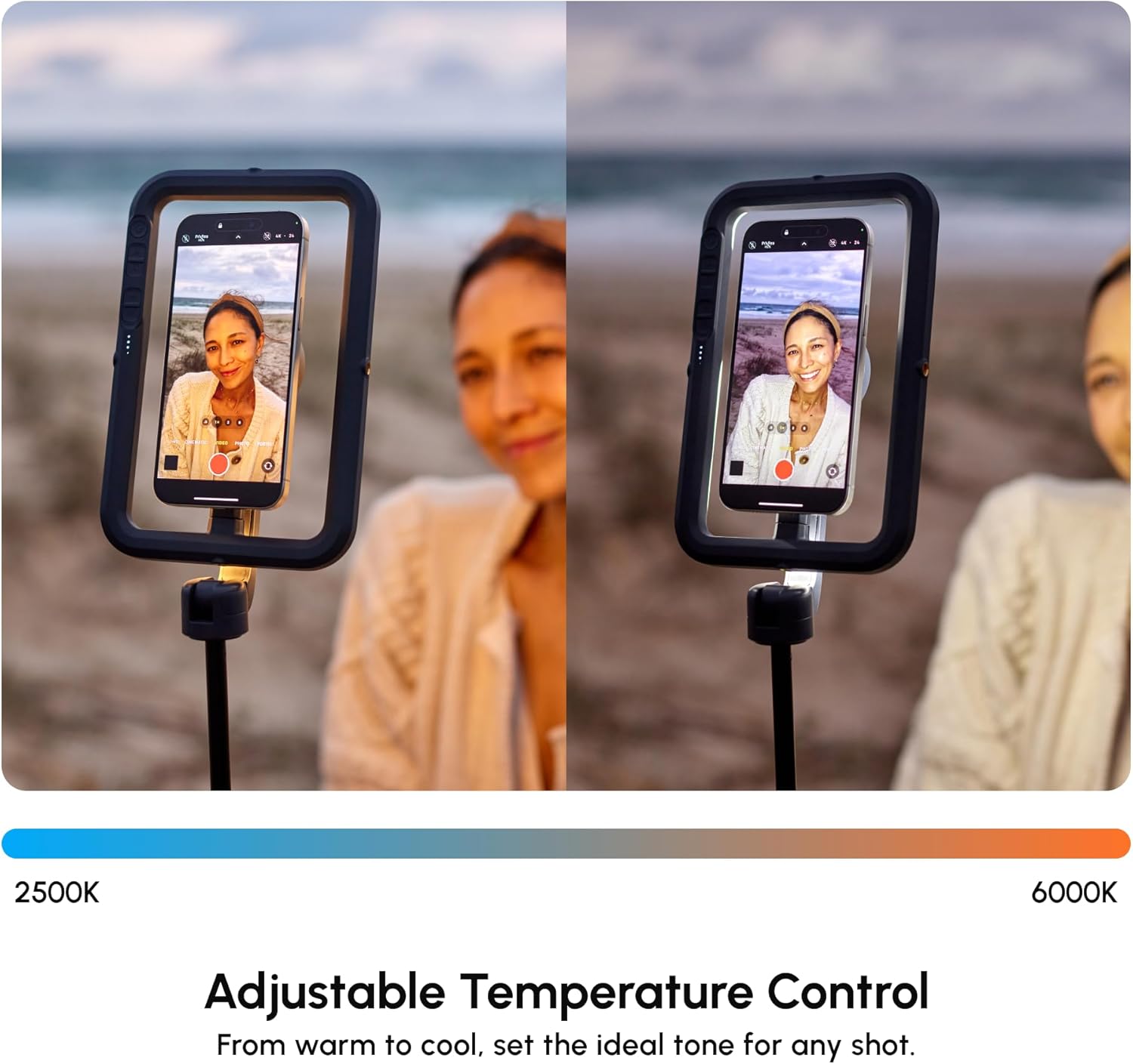
Image: The SnapStudio Light's adjustable temperature control, illustrating the range from warm 2500K to cool 6000K for setting the ideal tone.
- Adjusting Brightness: Use the '+' and '-' buttons (often indicated by sun/snowflake icons) to adjust the light intensity across 10 brightness levels.

Image: The SnapStudio Light's adjustable brightness control, demonstrating how to dim or brighten the light to match creative vision.
- Rotating the Light Source: The central magnetic puck can be manually rotated 180 degrees to switch between illuminating the front-facing camera or the rear-facing camera.

Image: The 180° rotatable magnetic puck of the SnapStudio Light, allowing easy switching of lighting direction between selfie and subject.

Image: A detailed view of the SnapStudio Light's control panel, showing buttons for power, color temperature adjustment (K-/K+), and brightness adjustment (+/-).
Maintenance
- Cleaning: Wipe the device with a soft, dry cloth. Avoid abrasive cleaners or solvents.
- Charging: Recharge the battery regularly to maintain optimal performance. Avoid prolonged storage with a completely depleted battery.
- Storage: Store the SnapStudio Light in a cool, dry place away from direct sunlight and extreme temperatures.
- Water Resistance: This device is not water-resistant. Avoid exposure to liquids.
Troubleshooting
- Light Not Turning On:
- Check battery level. Recharge if necessary.
- Ensure the power button is pressed and held sufficiently.
- Light Not Charging:
- Verify the USB-C cable is securely connected to both the light and a power source.
- Try a different USB-C cable or power adapter.
- Device Not Attaching Securely:
- Ensure your smartphone is MagSafe compatible or using a MagSafe-enabled case.
- Check for any obstructions between the phone and the magnetic puck.
- Inconsistent Light Output:
- Check battery level. Low battery can affect brightness.
- Ensure no physical damage to the LED array.
Specifications
| Brand | ShiftCam |
| Model Name | SnapStudio Light |
| Model Number | S-AC03-ST |
| LEDs | 106 built-in LEDs |
| Lumen Output | 440-600 lumens (adjustable) |
| Color Temperature | 2500K - 6000K (10-step adjustable) |
| Brightness Levels | 10-step adjustable |
| Battery Life | Up to 40 minutes at full brightness |
| Charging Interface | USB Type-C |
| Magnetic Compatibility | MagSafe compatible |
| Rotatable Puck | 180° rotation |
| Included Accessories | Mini Tripod/Handle |
| Water Resistance | Not Water Resistant |
| UPC | 799793506935 |
Warranty and Support
Warranty: The ShiftCam SnapStudio Light comes with a 1-year manufacturer's warranty. Please retain your proof of purchase for warranty claims.
Support: For further assistance, product registration, or to view additional accessories, please visit the official ShiftCam website or contact their customer support.