
Introduction
This manual provides essential information for setting up, operating, maintaining, and troubleshooting your MSI Stealth A16 AI+ 16-inch QHD+ OLED Gaming Laptop. Designed for high-performance gaming and productivity, this laptop features an AMD Ryzen AI 9 HX 370 processor, NVIDIA GeForce RTX 5070Ti graphics, 32GB DDR5 RAM, a 2TB NVMe SSD, Wi-Fi 7 connectivity, and runs on Windows 11 Home. Its sleek design combines elegance with durability, making it suitable for both gaming enthusiasts and professionals.
Key features include:
- AI Built-in: The AMD Ryzen AI 9 HX 370 processor delivers AI experiences with over 50 NPU TOPS, enhancing computing applications and assistants like Copilot.
- Operating System: Intuitive navigation and faster performance with Windows 11 Home.
- Graphics: Powered by the NVIDIA GeForce RTX 5070Ti Laptop GPU for exceptional visual performance.
- Display: A 16-inch 240Hz QHD+ OLED display provides a fast refresh rate and immersive visual experience.
- Connectivity: Equipped with the latest Wi-Fi 7 for high-quality video streaming and fast file downloads.
Setup
1. Unboxing and Initial Inspection
Carefully remove the laptop and all accessories from the packaging. Ensure the following items are present:
- MSI Stealth A16 AI+ Laptop
- Power Adapter and Cable
- Documentation (this manual, warranty card)
- Integrated Webcam
- RGB Lighting (integrated)
Inspect the laptop for any physical damage. If any damage is found, contact your retailer immediately.
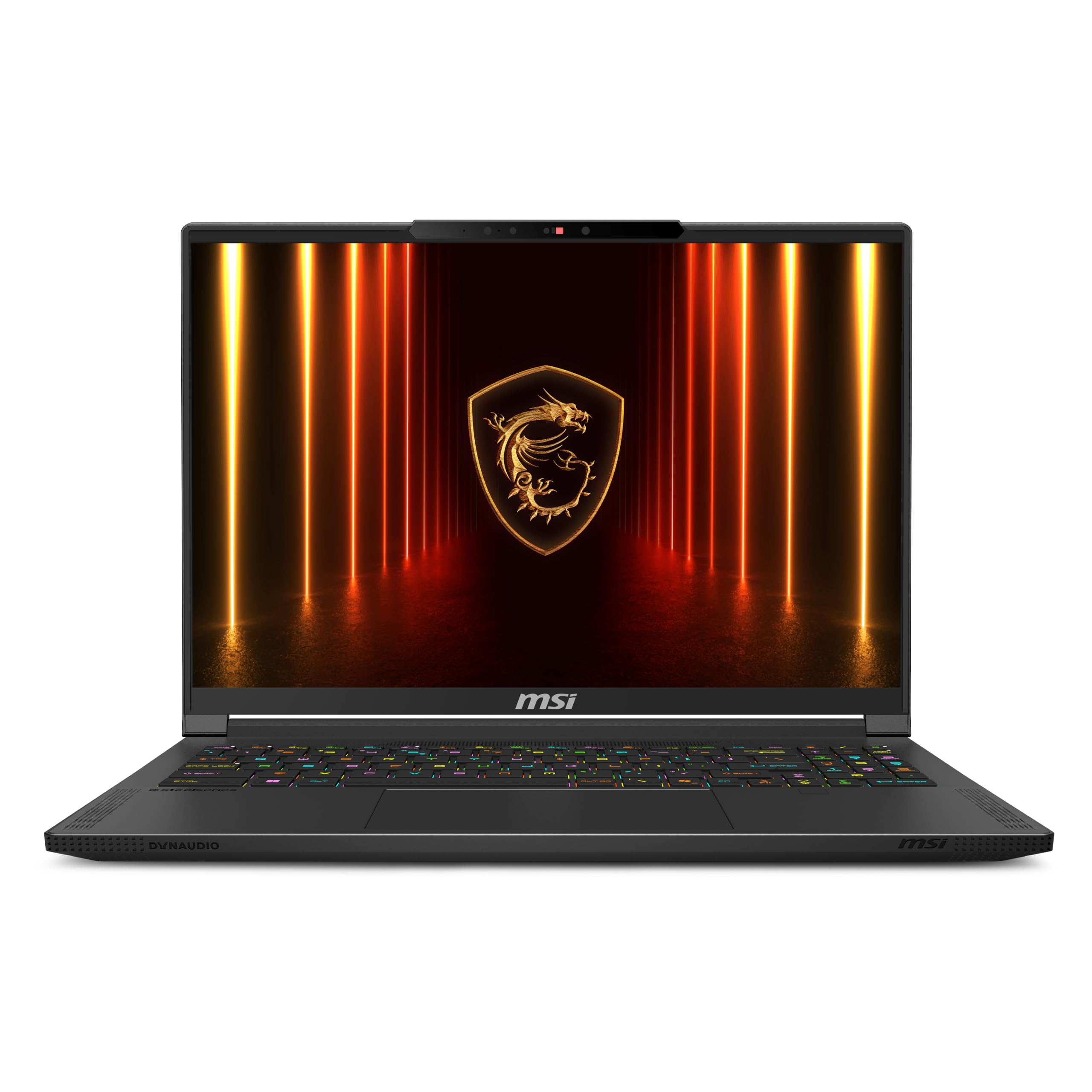
Figure 1: MSI Stealth A16 AI+ Laptop (Open View)
This image shows the MSI Stealth A16 AI+ laptop in an open position, highlighting its sleek design and vibrant display. The keyboard and touchpad are visible, along with the MSI logo below the screen.
2. Connecting the Power Adapter
Connect the power adapter to the laptop's power input port and then plug it into a wall outlet. The laptop may have some charge, but it is recommended to fully charge it before first use.
3. Initial Power-On and Windows Setup
Press the power button to turn on the laptop. Follow the on-screen instructions to complete the Windows 11 Home setup process. This includes selecting your region, connecting to a Wi-Fi network, and creating a user account.
4. Connecting Peripherals
Utilize the available ports to connect external devices such as a mouse, external display, or other accessories. The laptop features multiple USB ports (Type-C and Type-A), an HDMI port, and an Ethernet port.

Figure 2: Side View with Ports
This image displays the side of the MSI Stealth A16 AI+ laptop, showcasing its various connectivity options including USB ports, an HDMI port, and ventilation grilles.
Operating Instructions
1. Keyboard and Touchpad Usage
The laptop features a responsive and comfortable keyboard, designed for extended use. The touchpad supports multi-touch gestures for intuitive navigation. Refer to Windows settings for customizing touchpad gestures.

Figure 3: Keyboard and Touchpad
A close-up, top-down view of the MSI Stealth A16 AI+ laptop's keyboard and large touchpad, highlighting the layout and backlighting.
Video: Keyboard and Trackpad Overview
This video provides a detailed look at the MSI laptop's keyboard and trackpad, demonstrating their responsiveness and feel during use.
This video offers an up-close review of the trackpad and keyboard, highlighting their features and user experience.
2. Display Features
The 16-inch QHD+ OLED display offers vibrant colors and deep blacks with a 240Hz refresh rate, ideal for fast-paced gaming and smooth content viewing. Adjust display settings through Windows Display Settings for optimal visual experience.
3. Performance Modes
The MSI Stealth A16 AI+ is equipped with powerful components for demanding tasks. Utilize MSI's pre-installed software (e.g., MSI Center) to switch between performance modes (e.g., Silent, Balanced, Extreme Performance) to optimize for battery life or maximum power, depending on your current activity.
Video: Hands-On Review and Usage
This video provides a hands-on review of the MSI Stealth 16 AI+, showcasing its features and performance for gaming and productivity.
This video demonstrates the MSI Stealth 16 in use, highlighting its capabilities for various tasks.
Maintenance
1. Cleaning Your Laptop
Regularly clean the laptop to ensure optimal performance and longevity. Use a soft, lint-free cloth to wipe the screen and chassis. For stubborn smudges, dampen the cloth with a small amount of water or a screen-safe cleaner. Use compressed air to clear dust from the keyboard and ventilation grilles.

Figure 4: Laptop Bottom with Ventilation
This image shows the underside of the MSI Stealth A16 AI+ laptop, detailing the extensive ventilation system designed for efficient thermal management.
2. Software Updates
Keep your operating system, drivers, and MSI software updated. Windows Update will handle OS updates, while MSI Center or the official MSI website can provide the latest drivers and utility software for your laptop's components.
3. Battery Care
To maximize battery lifespan, avoid fully discharging the battery frequently. If you primarily use the laptop while plugged in, consider using MSI's battery health management features (if available) to limit the charge level to around 80%.
Troubleshooting
Common Issues and Solutions:
- Laptop not powering on: Ensure the power adapter is securely connected to both the laptop and a working power outlet. Try a different outlet if necessary.
- Display issues (no image, flickering): Restart the laptop. If connected to an external monitor, try disconnecting it. Check display cable connections if using an external monitor.
- Slow performance: Close unnecessary applications. Check for background processes consuming high resources (Task Manager). Ensure drivers and OS are up to date. Verify sufficient free storage space.
- Wi-Fi connectivity problems: Restart your router and modem. Reconnect to the Wi-Fi network. Ensure Wi-Fi drivers are updated.
- Overheating: Ensure ventilation grilles are clear of obstructions. Use the laptop on a hard, flat surface. Consider adjusting performance modes in MSI Center.
For more detailed troubleshooting or issues not listed here, please refer to the official MSI support website or contact customer service.
Specifications
| Feature | Detail |
|---|---|
| Brand | msi |
| Model Name | Stealth A16 AI+ A3XWHG-079US |
| Model Number | StealthA16A3079 |
| Screen Size | 16 Inches |
| Display Type | OLED |
| Resolution | 2560 x 1600 (QHD+) |
| Refresh Rate | 240 Hz |
| CPU Model | AMD Ryzen AI 9 HX 370 |
| Graphics Card | NVIDIA GeForce RTX 5070Ti |
| RAM Memory Installed Size | 32 GB DDR5 |
| Hard Disk Size | 2 TB NVMe SSD |
| Operating System | Windows 11 Home |
| Wireless Technology | Wi-Fi 7, Bluetooth 5.4 |
| Total USB Ports | 3 |
| Total Thunderbolt Ports | 1 |
| Total HDMI Ports | 1 |
| Ethernet Ports | 1 |
| Special Features | Backlit Keyboard, Fingerprint Reader, Numeric Keypad, Webcam, RGB Lighting |
| Item Weight | 4.6 Pounds |
| Battery Cell Type | Lithium Polymer (99.99 Watt Hours) |
Warranty Information
The MSI Stealth A16 AI+ laptop comes with a 1-year Limited Manufacturer Warranty. Please retain your proof of purchase for warranty claims. For full terms and conditions, refer to the warranty card included in your product packaging or visit the official MSI website.
Support
For technical assistance, driver downloads, FAQs, and further product information, please visit the official MSI support website:
You can also find additional resources and community forums on the MSI brand store:


