
MSI AeZS2C9NVP1449
MSI Aegis Z2 Gaming Desktop User Manual
Model: MSI Aegis Z2 C7NVP-1449US (AeZS2C9NVP1449)
Introduction
This manual provides essential information for setting up, operating, maintaining, and troubleshooting your MSI Aegis Z2 Gaming Desktop. Please read this manual thoroughly before using the product to ensure optimal performance and longevity.
Product Overview
The MSI Aegis Z2 Gaming Desktop is a high-performance system designed for serious gamers and content creators. It features an AMD Ryzen 7 7700 CPU, NVIDIA GeForce RTX 5070 graphics, 32GB DDR5 RAM, and a 2TB M.2 NVMe SSD, all housed in a sleek black chassis with efficient air cooling.
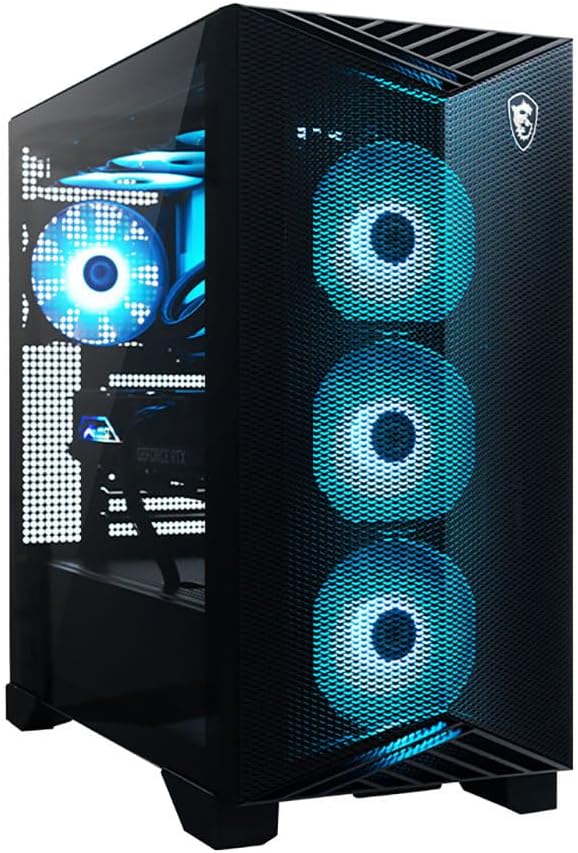
This image displays the MSI Aegis Z2 Gaming Desktop from a front-left angle, highlighting its transparent side panel and the vibrant blue RGB lighting from the internal components and front-mounted fans. The chassis features a mesh front panel for optimal airflow.

This image shows the MSI Aegis Z2 Gaming Desktop from a front-right perspective, emphasizing the solid right side panel and the overall compact design of the tower. The front mesh panel and illuminated fans are still visible.
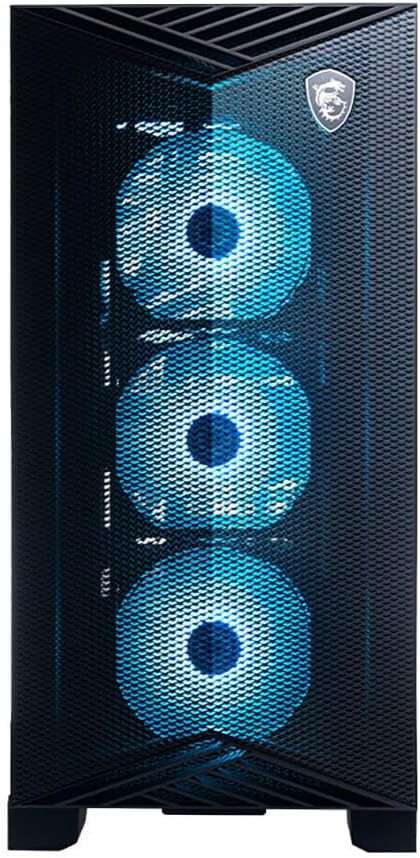
A direct front view of the MSI Aegis Z2 Gaming Desktop, clearly showing the three large, illuminated RGB fans behind the mesh front panel. The MSI dragon logo is visible at the top of the front panel.

This image provides a rear-left view of the desktop, showing the various input/output ports on the motherboard and graphics card, as well as the rear exhaust fan with purple RGB lighting. The power supply unit is located at the bottom.
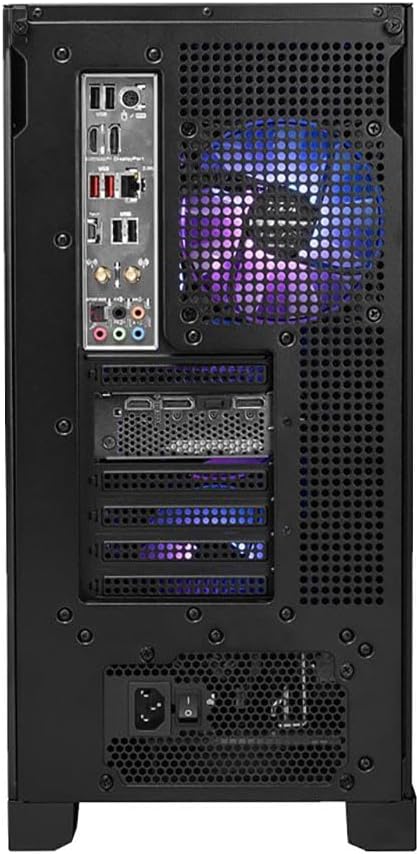
A direct rear view of the desktop, detailing the full array of ports including USB, audio, Ethernet, and video outputs from the graphics card. The rear exhaust fan and power supply input are clearly visible.

This image shows the top panel of the desktop, which features a large mesh area for ventilation and the front I/O ports located towards the front edge.

A detailed close-up of the top-mounted input/output ports, including USB-A, USB-C, headphone and microphone jacks, and the power button. This provides easy access for peripherals.
Setup Guide
1. Unpacking
Carefully remove the desktop from its packaging. Ensure all accessories, such as the power cable, documentation, and any included peripherals, are present.
2. Connecting Peripherals
- Monitor: Connect your monitor to the graphics card's display outputs (HDMI, DisplayPort) located at the rear of the desktop.
- Keyboard and Mouse: Connect your keyboard and mouse to the available USB ports. The desktop features both USB 2.0 and USB 3.0 ports.
- Audio: Connect speakers or headphones to the audio jacks on the rear or top panel.
- Network: For a wired connection, connect an Ethernet cable to the LAN port. For wireless, ensure Wi-Fi antennas are attached if provided.
3. Power Connection
Connect the power cable to the power supply unit at the rear of the desktop, then plug the other end into a grounded electrical outlet.
4. Initial Boot-up
Press the power button located on the top panel of the desktop. The system will initiate the boot process. Follow the on-screen instructions for Windows 11 Home setup.
Operating Instructions
Power On/Off
- To Power On: Press the power button once.
- To Shut Down: Click the Start button in Windows, then select Power > Shut down.
- To Restart: Click the Start button in Windows, then select Power > Restart.
- To Sleep: Click the Start button in Windows, then select Power > Sleep.
System Performance
The MSI Aegis Z2 is equipped with an AMD Ryzen 7 7700 processor and NVIDIA GeForce RTX 5070 graphics card, providing excellent performance for gaming, content creation, and everyday tasks. Ensure drivers are up-to-date for optimal performance.
Cooling System
The desktop features an RGB CPU Air Cooler and four system cooling fans (three front, one rear) to maintain optimal temperatures during intensive use. Ensure proper ventilation around the desktop to facilitate airflow.
Maintenance
Cleaning
- Exterior: Use a soft, damp cloth to clean the exterior surfaces. Avoid abrasive cleaners.
- Dust Filters: Periodically clean the dust filters (if accessible) to maintain optimal airflow and cooling efficiency.
- Internal Components: For advanced users, carefully use compressed air to remove dust from internal components, ensuring the system is powered off and unplugged.
Software Updates
Regularly update your operating system (Windows 11 Home), graphics drivers (NVIDIA), and other component drivers (AMD, MSI) to ensure system stability, security, and performance.
Storage Management
The 2TB M.2 NVMe SSD provides fast storage. Regularly manage your disk space by deleting unnecessary files and uninstalling unused programs to maintain performance.
Troubleshooting
No Power
- Ensure the power cable is securely connected to both the desktop and the wall outlet.
- Verify the power switch on the power supply unit (at the rear) is in the 'On' position.
- Try a different power outlet.
No Display
- Check that the monitor is powered on and correctly connected to the graphics card's output ports.
- Ensure the correct input source is selected on your monitor.
- Try connecting to a different display output port on the graphics card.
System Freezes or Crashes
- Ensure all drivers (graphics, chipset, etc.) are up-to-date.
- Monitor system temperatures to ensure it's not overheating.
- Run a memory diagnostic tool to check for RAM issues.
- Perform a clean installation of graphics drivers.
Poor Performance in Games
- Ensure your graphics drivers are the latest version.
- Check in-game settings and reduce graphics quality if necessary.
- Close background applications that consume system resources.
- Monitor CPU and GPU temperatures.
Specifications
| Component | Detail |
|---|---|
| Brand | MSI |
| Series | Aegis Z2 C7NVP-1449US |
| Model Number | AeZS2C9NVP1449 |
| Operating System | Windows 11 Home |
| Processor | AMD Ryzen 7 7700 (3.8 GHz, 8 Cores, 16 Threads) |
| Graphics Card | NVIDIA GeForce RTX 5070 (Dedicated, 12 GB GDDR6) |
| RAM | 32GB DDR5 |
| Storage | 2TB M.2 NVMe SSD |
| Wireless Connectivity | Wi-Fi 6E (802.11ax), Bluetooth |
| USB 2.0 Ports | 4 |
| USB 3.0 Ports | 6 |
| Max Screen Resolution | 3840x2160 |
| Item Weight | 26.9 pounds |
| Product Dimensions (LxWxH) | 9.1 x 19 x 19.4 inches |
| Color | Black |
Warranty and Support
MSI products typically come with a limited warranty. Please refer to the warranty card included with your product or visit the official MSI website for detailed warranty terms and conditions specific to your region and model.
For technical support, driver downloads, and further assistance, please visit the official MSI support website:
You can also find FAQs and community forums on the MSI website.
Related documentsAeZS2C9NVP1449


Ask a question about this manual
Ask about setup, troubleshooting, compatibility, parts, safety, or missing instructions. Manuals+ will review the question and use this page’s manual context to help answer it.