Introduction
The Hisense A4NF Series Smart Fire TV is designed to provide a high-definition viewing experience with integrated smart features. This manual will guide you through the process of setting up your television, understanding its various functions, and maintaining its performance. With Full HD picture quality, DTS Virtual:X surround sound, and the intuitive Fire TV operating system, this model offers a comprehensive entertainment solution.
Setup
Unpacking Your TV
Carefully remove all components from the packaging. Ensure all items listed below are present:
- TV Unit
- Power Cable
- Remote Control
- TV Stand (2 pieces)
- Quick Setup Guide

Image: Front view of the Hisense 32-Inch Class A4 Series FHD 1080p Smart Fire TV.
Attaching the Stand
Place the TV screen-down on a soft, flat surface to prevent damage. Align the stand pieces with the corresponding slots on the bottom of the TV and secure them with the provided screws. Ensure the stand is firmly attached before placing the TV upright.

Image: Diagram showing the dimensions of the 32-inch Hisense TV and how the stand attaches, including VESA wall mount size (100x100 mm).
Wall Mounting (Optional)
If you choose to wall mount your TV, use a VESA compatible wall mount (100x100 mm, M6 screws). Refer to your wall mount's instructions for proper installation. Ensure the wall can support the weight of the TV.
Connecting Peripherals
Your Hisense TV offers various ports for connecting external devices:
- HDMI Ports: Connect Blu-ray players, game consoles, cable boxes, and other HDMI-enabled devices.
- USB Port: For connecting USB storage devices to play media.
- Antenna/Cable Input: Connect an antenna for over-the-air broadcasts or a cable connection.
- Audio Out: For connecting external audio systems.

Image: Close-up view of the Hisense TV's back panel, showing various input and output ports including HDMI, USB, and antenna input.
Initial Power On and Setup
After connecting all desired devices and the power cable, press the power button on the remote control. Follow the on-screen instructions to complete the initial setup, including network connection (Wi-Fi), channel scanning, and Fire TV account setup.
Operation
Fire TV Interface
The Fire TV interface provides a centralized hub for all your entertainment. Your favorite apps, streaming services, and live TV channels are easily accessible from the home screen. Navigate using the remote control's directional pad.

Image: A Hisense TV displaying the Fire TV home screen with various streaming app icons and content recommendations.
Voice Control with Alexa
The included remote control features a dedicated Alexa button. Press and hold this button to use voice commands for searching content, launching apps, checking weather, setting timers, and more.

Image: Close-up of the Fire TV remote control, highlighting the blue Alexa voice command button.
Picture and Sound Settings
Optimize your viewing and listening experience through the TV's settings menu. Key features include:
- Full HD Resolution: Enjoy crisp and clear visuals with 1080p high-definition picture quality.
- DTS Virtual:X: Enhances audio to deliver crystal clarity, clear dialogue, and realistic surround sound.
- Natural Color Enhancer: Optimizes color reproduction for more vibrant and lifelike images.
- Noise Reduction: Scans and filters frames to reduce visual noise, improving clarity in both high-speed and low-light scenes.
- Depth Enhancer: Enhances the perception of depth in scenes for a more immersive viewing experience.

Image: An abstract image illustrating the clarity and detail provided by FHD Resolution on the Hisense TV.

Image: A drummer playing, illustrating the immersive audio experience provided by DTS Virtual:X.
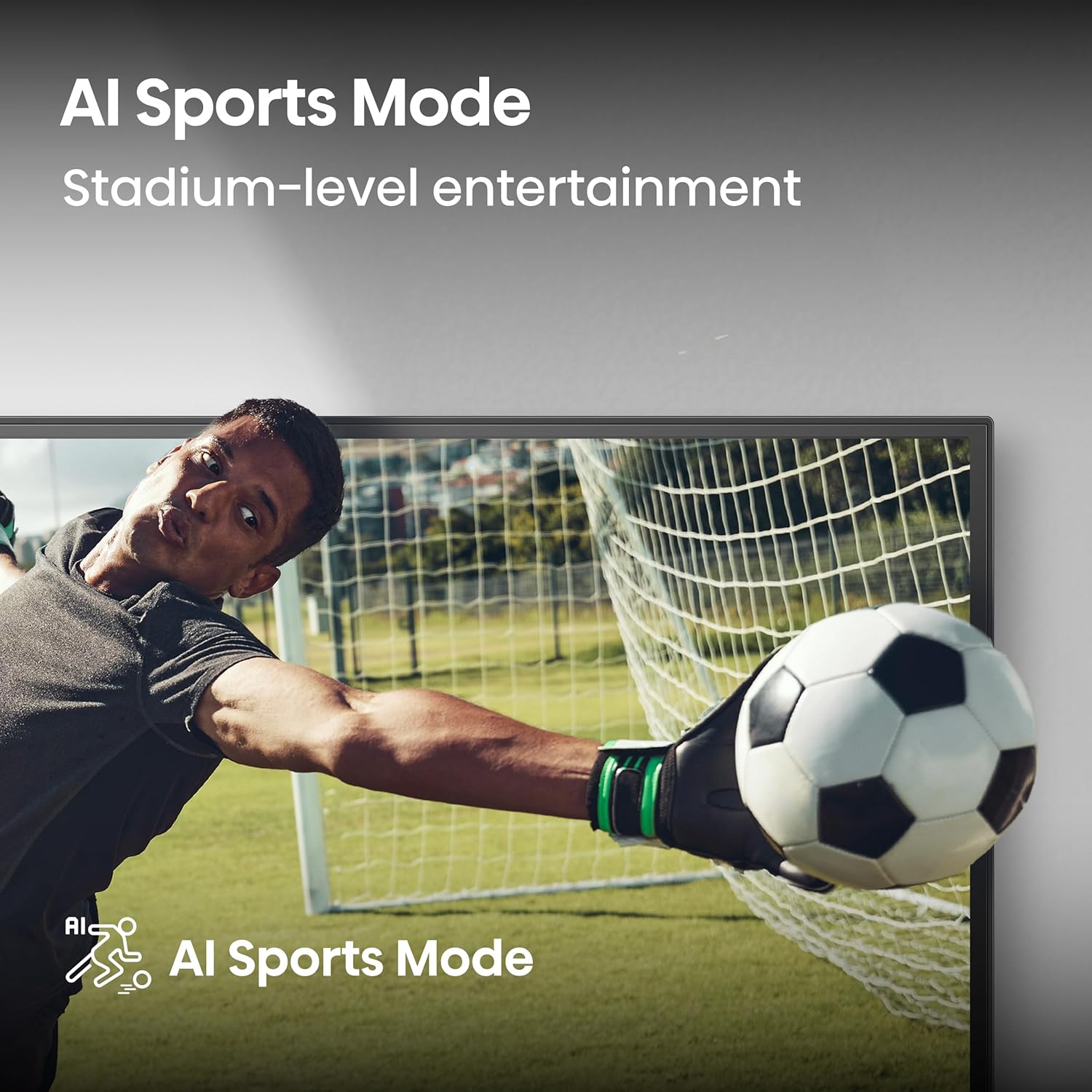
Image: A row of colorful houses, demonstrating the enhanced vibrancy from Natural Color Enhancer.

Image: A building with a blue dome, showing a split view with and without noise reduction applied.

Image: A lighthouse at sunset, illustrating the enhanced depth perception provided by the Depth Enhancer feature.
Gaming Features
- Game Mode: Reduces input lag to 16ms, providing a more responsive gaming experience.

Image: A person riding a motorcycle in a video game, representing the Game Mode feature for reduced lag.
AI Sports Mode
This tailored mode enhances sports scenes by making every detail crystal-clear and improving sound effects for a stadium-like experience.

Image: A soccer goalie in action, illustrating the AI Sports Mode for enhanced sports viewing.
Bluetooth Connectivity
Wirelessly connect soundbars, headphones, or other Bluetooth-enabled audio components to your TV for a clean, cord-free audio setup.
Maintenance
Proper maintenance ensures the longevity and optimal performance of your Hisense TV.
- Screen Cleaning: Gently wipe the screen with a soft, lint-free cloth. For stubborn marks, use a screen-specific cleaning solution applied to the cloth, not directly to the screen.
- General Cleaning: Dust the TV cabinet and stand regularly with a dry, soft cloth. Avoid using abrasive cleaners or solvents.
- Ventilation: Ensure adequate airflow around the TV. Do not block ventilation openings.
- Power Care: Unplug the TV from the power outlet during lightning storms or when it will be unused for extended periods.
Troubleshooting
This section addresses common issues you might encounter with your Hisense TV. If the problem persists, contact customer support.
| Problem | Possible Cause | Solution |
|---|---|---|
| No Power | Power cable disconnected; outlet issue. | Ensure power cable is securely plugged into TV and outlet. Test outlet with another device. |
| No Picture, But Sound | Incorrect input source; backlight issue. | Press the 'Input' or 'Source' button on the remote to select the correct input. |
| No Sound, But Picture | Volume muted or too low; external audio system issue. | Check volume level and ensure TV is not muted. If using external audio, check its connections and power. |
| Remote Not Working | Dead batteries; obstruction; pairing issue. | Replace batteries. Remove any obstructions between remote and TV. Re-pair remote if necessary (refer to Fire TV instructions). |
| Wi-Fi Connection Issues | Incorrect password; router issue; signal interference. | Verify Wi-Fi password. Restart your router and modem. Move TV closer to router or reduce interference. |
Specifications
| Feature | Detail |
|---|---|
| Model Number | 32A4NF |
| Screen Size | 31.5 Inches (Standing screen display size) |
| Display Technology | FHD 1080p, LED, LCD |
| Resolution | 1080p |
| Refresh Rate | 60 Hz |
| Aspect Ratio | 16:9 |
| Connectivity Technology | Bluetooth, Wi-Fi, USB, HDMI |
| Special Features | Slim Bezel Design, Works with Apple HomeKit / Airplay, DTS Virtual: X, Bluetooth 5.0, Alexa Built-in |
| Product Dimensions (D x W x H) | 3.1" x 28.4" x 16.8" |
| Item Weight | 7.5 Pounds |
| Power Consumption (On-mode) | 50 watts |
| Voltage | 120 Volts |
| Batteries Required | 2 AAA (included) |
| Country of Origin | Mexico |
Warranty and Support
Hisense products are manufactured to high-quality standards and are backed by a limited warranty. For specific warranty terms and conditions, please refer to the warranty card included with your product or visit the official Hisense website.
For technical support, troubleshooting assistance, or service inquiries, please contact Hisense Customer Service. Contact information can typically be found on the Hisense website or in your product documentation.


