
MSI MAG 255F E20
MSI MAG 255F E20 Gaming Monitor User Manual
Model: MAG 255F E20
Brand: MSI
Introduction
This user manual provides comprehensive instructions for the setup, operation, maintenance, and troubleshooting of your MSI MAG 255F E20 25-inch 1920 x 1080 (FHD) Gaming Monitor. Please read this manual thoroughly before using the product to ensure proper functionality and to prevent damage.
The MSI MAG 255F E20 is designed to deliver an immersive gaming experience with its high refresh rate, fast response time, and advanced display technologies.

Image: Front view of the MSI MAG 255F E20 Gaming Monitor, showcasing its sleek design and the MSI MAG logo on the screen.
Setup Guide
1. Package Contents
Before proceeding with the setup, please verify that all items are present in the package:
- MSI MAG 255F E20 Gaming Monitor
- Monitor Stand (Base and Neck)
- Power Cable
- HDMI Cable
- DisplayPort Cable
- User Manual and Documentation
2. Assembling the Monitor Stand
- Carefully place the monitor screen face down on a soft, clean surface to prevent scratches.
- Attach the stand neck to the back of the monitor, ensuring it clicks securely into place.
- Connect the stand base to the stand neck and tighten the captive screw at the bottom of the base.
Alternatively, the monitor supports VESA mounting (100x100mm) for wall or arm installation. Ensure to remove the stand before mounting.

Image: Rear view of the MSI MAG 255F E20 Gaming Monitor, showing the stand assembly and VESA mounting points.
3. Connecting the Monitor
Connect the monitor to your computer or other devices using the appropriate cables.
- Power Connection: Connect the power cable to the AC-in port on the monitor and then to a power outlet.
- Video Connection:
- For optimal performance, use the provided DisplayPort cable to connect the monitor to your graphics card's DisplayPort output.
- Alternatively, use an HDMI cable to connect to an HDMI port on your device.
- Audio Connection: If desired, connect headphones or external speakers to the headphone-out port on the monitor.

Image: Detailed view of the monitor's rear ports, including Headphone-out, DisplayPort 1.2a, HDMI 2.0b, and AC-in.
Operating Instructions
1. Powering On/Off
Press the power button, typically located on the bottom or rear of the monitor, to turn the monitor on or off. The power indicator light will illuminate when the monitor is active.
2. On-Screen Display (OSD) Menu Navigation
The OSD menu allows you to adjust various monitor settings. Navigate the menu using the joystick or buttons located on the rear or bottom of the monitor.
- Press the joystick/button to open the OSD menu.
- Move the joystick (or use directional buttons) to navigate through menu options.
- Press the joystick/button again to select an option or confirm a setting.
- Move the joystick left (or use a dedicated back button) to exit a submenu or the OSD.
3. Key Features and Adjustments
The MSI MAG 255F E20 monitor offers several features to enhance your viewing and gaming experience:
- Rapid IPS Panel: Experience vibrant colors and wide viewing angles with a rapid 0.5ms (GtG, Min.) response time, minimizing motion blur for fast-paced gaming.

Image: Visual representation of the monitor's 200Hz refresh rate and 0.5ms GtG response time, highlighting the Rapid IPS panel technology.
- 200Hz Refresh Rate: Enjoy incredibly smooth gameplay with a high refresh rate, allowing for faster reaction times and a more fluid visual experience.
- Adaptive-Sync Technology: Synchronizes the monitor's refresh rate with your GPU's frame rate to eliminate screen tearing and stuttering, providing seamless gameplay.

Image: A visual demonstrating how Adaptive-Sync (AMD FreeSync Premium) technology prevents screen tearing during fast-paced scenes.
- HDR Ready: Enhances visual details by adjusting contrast and shadows, providing a more dynamic and lifelike image.
- AI Vision: This technology intelligently reveals details in dark areas and enhances overall brightness and color saturation, improving visibility in dimly lit game environments.

Image: Side-by-side comparison showing the effect of AI Vision, with the "ON" side revealing more detail and enhanced brightness in a dark scene.
- Less Blue Light: A software solution designed to reduce the emission of blue-violet light, helping to minimize eye strain during prolonged use.
- Anti-Flicker: Reduces screen flickering, providing a more comfortable viewing experience and reducing eye fatigue.

Image: A visual comparison demonstrating the difference between a screen with Anti-Flicker technology enabled and one without, showing reduced flickering.
- Wide Color Gamut: Supports 1.07 billion colors (8-bit + FRC) with 100% sRGB coverage, delivering rich and accurate color reproduction.

Image: A graphic illustrating the monitor's wide color gamut capabilities, including DCI-P3, Adobe RGB, and sRGB percentages.
- Console Mode: Optimized settings for console gaming, ensuring compatibility and enhanced visual performance when connected to gaming consoles.

Image: A user holding a game controller, with the MSI monitor displaying a game, illustrating the Console Mode feature.
4. Physical Adjustments
- Tilt: Gently tilt the monitor screen forward or backward to achieve your desired viewing angle.
- Height Adjustment: Adjust the monitor's height by sliding the screen up or down along the stand column.
Maintenance
1. Cleaning the Monitor
- Always power off the monitor and unplug the power cable before cleaning.
- Use a soft, lint-free cloth lightly dampened with water or a non-abrasive screen cleaner.
- Gently wipe the screen and exterior surfaces. Avoid spraying liquid directly onto the screen or into any openings.
- Do not use benzene, thinner, ammonia-based cleaners, or abrasive cleaning agents, as these can damage the monitor's surface.
2. General Care
- Avoid placing the monitor in direct sunlight or near heat sources.
- Ensure adequate ventilation around the monitor to prevent overheating.
- Do not place heavy objects on the monitor or its cables.
- Protect the monitor from excessive dust and moisture.
Troubleshooting
If you encounter issues with your MSI MAG 255F E20 monitor, refer to the following common problems and solutions:
| Problem | Possible Cause / Solution |
|---|---|
| No image on screen |
|
| Image is blurry or distorted |
|
| Screen flickering |
|
| No audio from headphone-out |
|
If the problem persists after trying these solutions, please contact MSI customer support for further assistance.
Specifications
Below are the key technical specifications for the MSI MAG 255F E20 Gaming Monitor:
| Feature | Detail |
|---|---|
| Model Name | MSI MAG 255F E20 |
| Screen Size | 25 inches |
| Panel Type | Rapid IPS |
| Resolution | 1920 x 1080 (FHD) |
| Aspect Ratio | 16:9 |
| Refresh Rate | 200Hz |
| Response Time | 0.5ms (GtG, Min.) |
| Display Colors | 1.07 Billion (8-bit + FRC) |
| Color Gamut | 100% sRGB |
| HDR Support | HDR Ready |
| Adaptive Sync | Yes |
| Connectivity | 2x HDMI 2.0b, 1x DisplayPort 1.2a, 1x Headphone-out |
| VESA Mounting | 100 x 100 mm |
| Adjustments | Tilt, Height Adjustable |
| Dimensions (LxWxH) | 8.66 x 21.94 x 16.47 inches |
| Weight | 10.98 pounds |
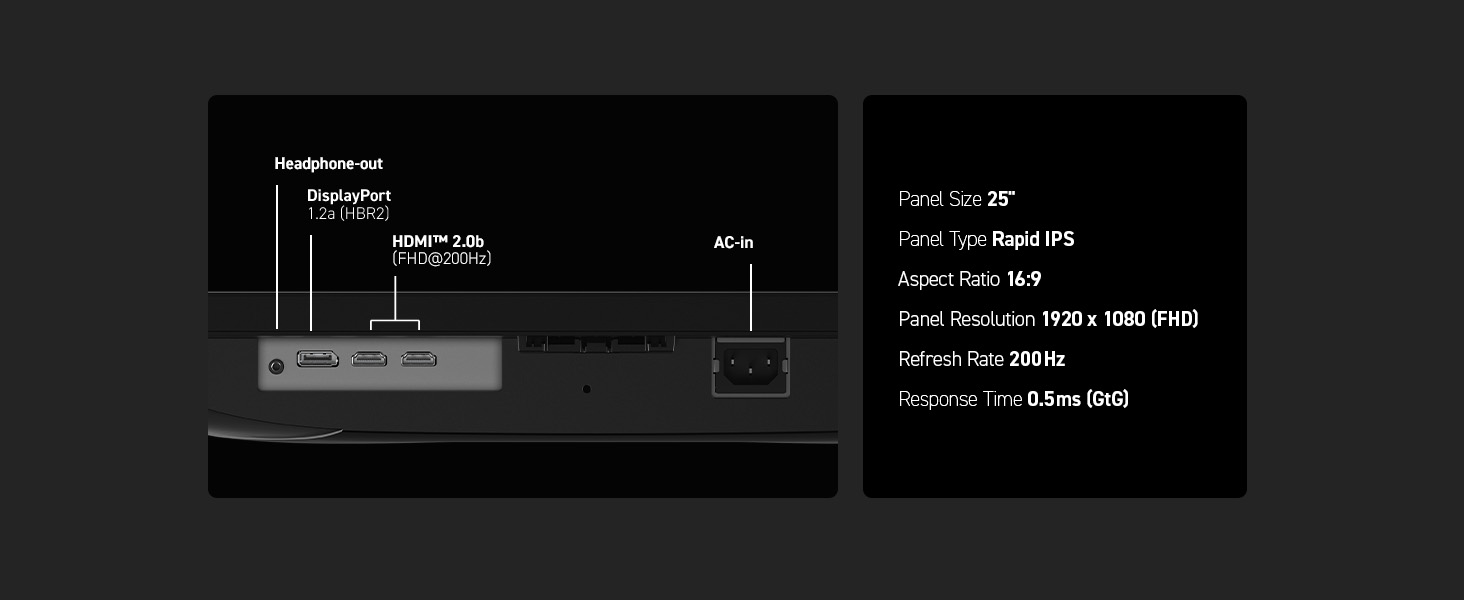
Image: A summary graphic detailing the monitor's panel size, type, aspect ratio, resolution, refresh rate, response time, and port configuration.
Warranty Information
MSI products are manufactured with the highest quality standards. For detailed warranty terms and conditions, please refer to the warranty card included with your product or visit the official MSI website. Keep your proof of purchase for warranty claims.
Customer Support
For technical support, driver downloads, FAQs, or service inquiries, please visit the official MSI support website:
You may also find helpful resources and community forums on the MSI website.
Related documentsMAG 255F E20


Ask a question about this manual
Ask about setup, troubleshooting, compatibility, parts, safety, or missing instructions. Manuals+ will review the question and use this page’s manual context to help answer it.