
PNY VCG507012TFXPB1-O
PNY NVIDIA GeForce RTX™ 5070 12GB Overclocked Triple Fan Graphics Card User Manual
Model: VCG507012TFXPB1-O
1. Product Overview
The PNY NVIDIA GeForce RTX™ 5070 is a high-performance graphics card designed for gaming, content creation, and AI-accelerated workflows. Powered by the NVIDIA Blackwell architecture, it features advanced technologies such as DLSS 4 for boosted frame rates and improved image quality, Fifth-Gen Tensor Cores, New Streaming Multiprocessors, and Fourth-Gen Ray Tracing Cores for realistic graphics.
This card is engineered to provide ultimate responsiveness with NVIDIA Reflex technologies, ensuring faster target acquisition and quicker reaction times in competitive gaming. It also enhances creative applications and productivity through AI-assisted workflows and world-class NVIDIA Studio drivers.

Figure 1.1: PNY NVIDIA GeForce RTX 5070 Graphics Card and its packaging.
This image displays the PNY NVIDIA GeForce RTX 5070 graphics card alongside its retail packaging, highlighting the triple-fan design and the "GEFORCE RTX 5070" branding.
2. What's in the Box
Upon opening the package, please ensure all components are present and in good condition:
- PNY GeForce RTX™ 5070 OC Graphics Card
- One 16-pin to Two 8-pin Power Cable
3. Setup and Installation
Proper installation is crucial for optimal performance and system stability. Please follow these steps carefully.
3.1 System Requirements
- PCIe® 5.0 x16 slot on motherboard
- Sufficient power supply unit (PSU) with appropriate 8-pin PCIe power connectors.
- Compatible operating system (Windows 10/11 recommended).
- Adequate case clearance for a 2.4-slot graphics card (Item Weight: 2.2 pounds).
3.2 Physical Installation
- Prepare Your System: Power off your computer and unplug all cables. Open your computer case.
- Locate PCIe Slot: Identify an available PCIe 5.0 x16 slot on your motherboard. Remove any expansion slot covers that obstruct the installation.
- Install the Graphics Card: Carefully align the graphics card with the PCIe slot and press down firmly until it is securely seated. Ensure the retention clip on the motherboard clicks into place. Secure the card to the case with screws.
- Connect Power Cables: Connect the provided 16-pin to two 8-pin power cable adapter to the graphics card. Important: Use two separate 8-pin PCIe power cables directly from your power supply unit to the adapter for stable power delivery. Do not use a single daisy-chained cable.
- Close Case: Once the card is securely installed and powered, close your computer case.

Figure 3.1: Top view of the graphics card, highlighting the power connector area.
This image shows the top of the PNY GeForce RTX 5070, where the 16-pin power connector is located. Proper connection of the power cables is essential for the card's operation.

Figure 3.2: Display output ports on the graphics card.
This image displays the rear I/O panel of the graphics card, featuring multiple DisplayPort and HDMI outputs for connecting to monitors.
3.3 Driver Installation
- Power On: Connect your monitor to one of the graphics card's display outputs (HDMI or DisplayPort) and power on your computer.
- Initial Boot: Your system may boot into a basic display mode.
- Download Drivers: Visit the official NVIDIA website (www.nvidia.com/drivers) to download the latest drivers for your GeForce RTX 5070. It is recommended to perform a clean installation of drivers, especially if upgrading from a different GPU.
- Install Drivers: Run the downloaded driver installer and follow the on-screen prompts. Your screen may flicker or go black temporarily during installation.
- Restart: Restart your computer once the driver installation is complete.
4. Operating Instructions
The PNY GeForce RTX 5070 is designed for high-performance computing. Here's how to maximize its capabilities:
4.1 Gaming Performance
- DLSS 4: Utilize NVIDIA DLSS 4 (Deep Learning Super Sampling) in supported games to boost frame rates and generate sharper images using AI. Enable this feature in the game's graphics settings or through the NVIDIA Control Panel.
- Ray Tracing: Experience realistic lighting, shadows, and reflections with hardware-accelerated ray tracing in compatible titles.
- NVIDIA Reflex: For competitive gaming, enable NVIDIA Reflex to reduce system latency, providing a more responsive gaming experience.
4.2 Creative and AI Applications
- NVIDIA Studio Drivers: Install NVIDIA Studio Drivers for enhanced stability and performance in creative applications like video editing, 3D rendering, and graphic design. These drivers are optimized for AI-assisted workflows.
- AI Acceleration: Leverage the built-in AI processors (Tensor Cores) for accelerated performance in AI-driven tasks and applications.
4.3 PNY VelocityX™ Software
PNY's VelocityX™ software allows you to monitor and customize your graphics card's performance. You can control overclocking settings, LED lighting displays, and fan speed settings, as well as monitor performance metrics in real-time.
- Download: Obtain the VelocityX™ software from the official PNY website.
- Features:
- GPU Clock and Memory Clock adjustment
- Fan speed control
- Temperature monitoring
- LED lighting customization (if applicable to your model)
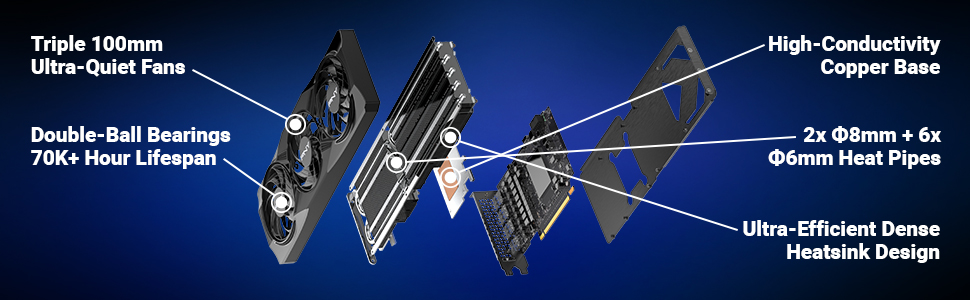
Figure 4.1: Screenshot of the PNY VelocityX™ software interface.
This image illustrates the user interface of the PNY VelocityX™ software, showing options for performance monitoring, overclocking, and fan speed control.
5. Maintenance
Regular maintenance helps ensure the longevity and optimal performance of your graphics card.
- Dust Removal: Periodically clean dust from the fans and heatsink using compressed air. Ensure the system is powered off and unplugged before cleaning. Dust buildup can impede airflow and lead to higher temperatures.
- Fan Longevity: The card features triple 100mm ultra-quiet fans with double-ball bearings, designed for a 70,000+ hour lifespan. While durable, keeping them free of obstructions is important.
- Temperature Monitoring: Use PNY VelocityX™ or other monitoring software to keep an eye on GPU temperatures. The card is designed with a high-conductivity copper base and an ultra-efficient dense heatsink for effective cooling.
- Driver Updates: Keep your graphics drivers updated to ensure compatibility and performance improvements.

Figure 5.1: Exploded view of the graphics card's cooling components.
This image provides an exploded view of the PNY GeForce RTX 5070, detailing its cooling system components, including the triple fans, heat pipes, copper base, and heatsink design.
6. Troubleshooting
If you encounter issues with your graphics card, refer to the following common problems and solutions:
6.1 No Display or Black Screen
- Check Connections: Ensure the graphics card is fully seated in the PCIe slot and secured. Verify that all power cables (16-pin to 8-pin adapter) are firmly connected to both the card and the PSU.
- Monitor Cable: Confirm your monitor cable is securely connected to the graphics card's output and the monitor's input. Try a different display output port on the card or a different cable.
- PSU Adequacy: Ensure your power supply unit meets the minimum wattage requirements for your system, including the RTX 5070.
- BIOS/UEFI Settings: Check your motherboard's BIOS/UEFI settings to ensure the correct primary display adapter is selected (usually PCIe/PEG).
6.2 Driver Issues or Crashes
- Clean Driver Installation: If you experience crashes or instability, perform a clean installation of the latest NVIDIA drivers. Use a utility like Display Driver Uninstaller (DDU) in Safe Mode to completely remove old drivers before installing new ones.
- Software Conflicts: Ensure no other graphics-related software (e.g., other GPU monitoring tools) is conflicting with NVIDIA drivers or PNY VelocityX™.
- Operating System Updates: Keep your operating system updated to ensure compatibility with the latest drivers.
6.3 Overheating
- Airflow: Ensure your computer case has adequate airflow. Check that case fans are properly installed and functioning.
- Dust: Clean any dust buildup on the graphics card's fans and heatsink (refer to Maintenance section).
- Fan Speed: Use PNY VelocityX™ software to monitor fan speeds and adjust them if necessary to maintain optimal temperatures.
6.4 Compatibility Issues
- Motherboard BIOS: Ensure your motherboard's BIOS/UEFI is updated to the latest version, as this can resolve compatibility issues with new hardware.
- System Components: Verify that your CPU, RAM, and motherboard are compatible and functioning correctly.
7. Specifications
| Feature | Specification |
|---|---|
| Brand | PNY |
| Model Number | VCG507012TFXPB1-O |
| Graphics Coprocessor | NVIDIA GeForce RTX 5070 |
| Graphics Card Ram Size | 12 GB |
| Memory Speed | 2325 MHz |
| Max Screen Resolution | 7680x4320 |
| Video Output Interface | DisplayPort, HDMI |
| Item Weight | 2.2 pounds |
| Color | Black |
| Date First Available | March 5, 2025 |
8. Warranty and Support
For warranty information and technical support, please refer to the official PNY website or contact PNY customer service directly. Keep your proof of purchase for warranty claims.
- PNY Official Website: www.pny.com
- Support Resources: Look for support sections, FAQs, and driver downloads on the PNY website.
Related documentsVCG507012TFXPB1-O


Ask a question about this manual
Ask about setup, troubleshooting, compatibility, parts, safety, or missing instructions. Manuals+ will review the question and use this page’s manual context to help answer it.