
1. Introduction
Thank you for choosing the ZZB NV10S 10-inch Android 14 Tablet. This device is designed to provide a versatile computing experience, suitable for various tasks from entertainment to productivity. This manual will guide you through the setup, operation, maintenance, and troubleshooting of your new tablet and its accompanying accessories.
Please read this manual thoroughly before using the product to ensure proper operation and to maximize its lifespan.
2. Safety Information
- Do not expose the tablet to extreme temperatures, direct sunlight, or high humidity.
- Avoid dropping or subjecting the tablet to strong impacts.
- Use only the provided charger and accessories. Using unauthorized accessories may damage the device and void the warranty.
- Keep the tablet away from water and other liquids.
- Do not attempt to disassemble or repair the tablet yourself. Refer to qualified service personnel for any repairs.
- Dispose of the tablet and its battery responsibly, following local regulations.
3. Package Contents
Verify that all items listed below are included in your package:
- 1 x ZZB NV10S 10-inch Tablet (8GB RAM + 64GB ROM)
- 1 x Wireless Keyboard
- 1 x Wireless Mouse
- 1 x Vertical Protective Case
- 1 x Flexible Stylus
- 1 x USB-C Cable
- 1 x User Manual (this document)

Image: The ZZB NV10S tablet shown with its complete set of accessories, including the keyboard, mouse, stylus, protective case, and charging cable.
4. Product Overview
4.1 Physical Components
The ZZB NV10S tablet features a sleek design with essential ports and buttons for ease of use.

Image: A person holding the ZZB NV10S tablet, showcasing its rear camera module and navy blue finish.
4.2 Display Features
The tablet is equipped with a 10-inch IPS touchscreen display, offering vivid colors and wide viewing angles for an enhanced visual experience.
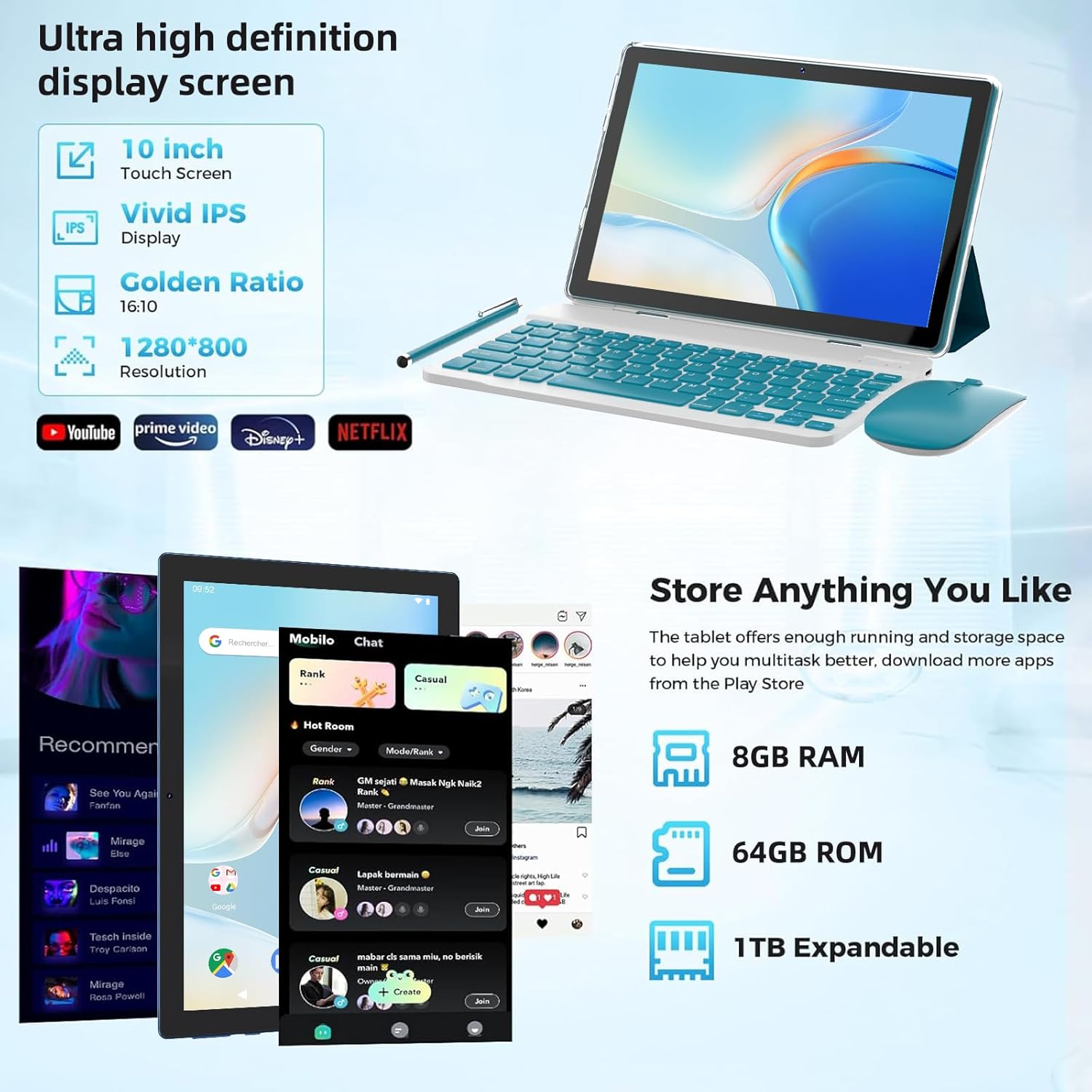
Image: A graphic illustrating the 10-inch touch screen, IPS display technology, 16:10 aspect ratio, and 1280x800 resolution of the tablet's screen.
5. Setup
5.1 Initial Charging
Before first use, fully charge your tablet using the provided USB-C cable and a compatible power adapter. The charging indicator will typically show progress on the screen.
5.2 Powering On/Off
- To Power On: Press and hold the Power button until the screen lights up.
- To Power Off: Press and hold the Power button, then select 'Power off' from the options on the screen.
- To Restart: Press and hold the Power button, then select 'Restart' from the options.
5.3 Initial Android Setup
Upon first power-on, follow the on-screen prompts to complete the initial setup. This includes selecting your language, connecting to a Wi-Fi network, and signing in with your Google account.
5.4 Connecting Accessories
The ZZB NV10S tablet comes with a wireless keyboard, mouse, and stylus for enhanced functionality. These accessories typically connect via Bluetooth.
- Bluetooth Keyboard/Mouse: Turn on the keyboard/mouse and put it into pairing mode (refer to the accessory's specific instructions). On your tablet, go to Settings > Connected devices > Pair new device and select the accessory from the list.
- Stylus: The flexible stylus typically does not require Bluetooth pairing and can be used directly on the touchscreen.
- Protective Case: Insert the tablet into the protective case for protection and to utilize its stand function.
6. Operating Instructions
6.1 Basic Navigation
The tablet uses a capacitive touchscreen. Common gestures include:
- Tap: To select an item or open an app.
- Tap and Hold: To access contextual menus or move icons.
- Swipe: To scroll through pages or lists.
- Pinch-to-Zoom: To zoom in or out on images and web pages.

Image: A woman using the ZZB NV10S tablet with its keyboard and protective case, demonstrating its use for daily tasks.
6.2 Android 14 System Features
Your tablet runs on the Android 14 operating system, offering an optimized user experience with enhanced features:
- Improved Security & Privacy: Enhanced controls over app permissions and data access.
- Faster Data Transfer: Optimized system for quicker file transfers and network performance.
- Easier System Operation: Streamlined interface and intuitive navigation.
- Low Power Consumption: Efficient battery management for extended usage.
- Smart Media Sharing: Simplified sharing of content across devices.
- Millions of Apps: Access to a vast library of applications via the Google Play Store.
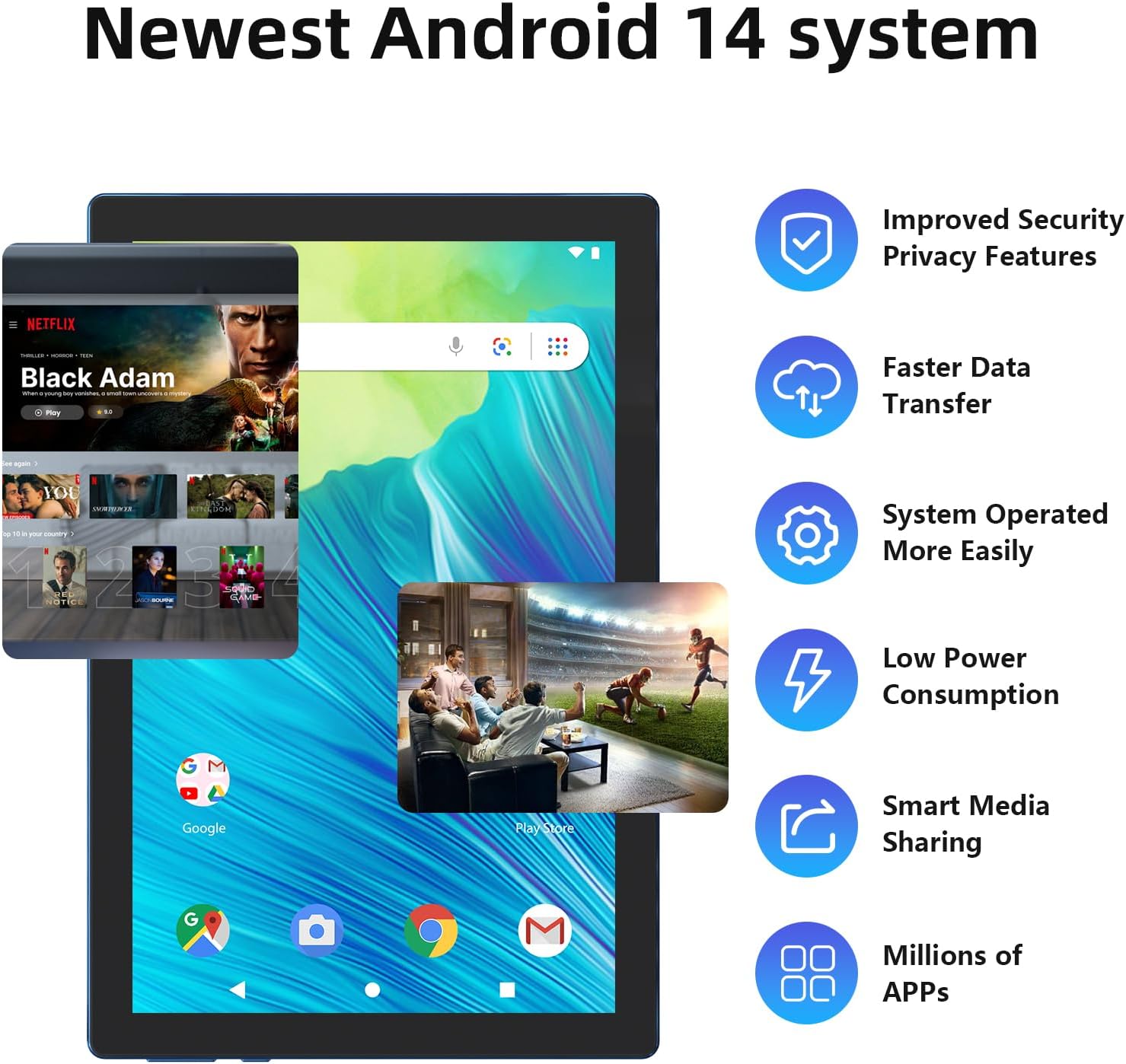
Image: The ZZB NV10S tablet screen showing various Android 14 features, including improved security, faster data transfer, and access to numerous applications.
6.3 Connectivity (Wi-Fi & Bluetooth)
- Wi-Fi: Go to Settings > Network & internet > Wi-Fi. Turn Wi-Fi on and select your desired network. Enter the password if prompted.
- Bluetooth: Go to Settings > Connected devices > Connection preferences > Bluetooth. Turn Bluetooth on to pair with compatible devices like headphones, speakers, or the included keyboard and mouse.
6.4 Camera Usage
The tablet features an 8MP rear camera and a 2MP front camera.
- Open the Camera app from the home screen or app drawer.
- Tap the shutter button to take photos.
- Switch between front and rear cameras using the camera icon.
- The 8MP rear camera includes autofocus and flash for clear images. The 2MP front camera is suitable for video calls.
6.5 Storage Management
Your tablet comes with 64GB of internal storage and supports up to 1TB of expandable storage via a microSD card (not included).
- To check storage: Go to Settings > Storage.
- To expand storage: Insert a microSD card into the designated slot.
6.6 Display Settings
Adjust display settings for optimal viewing and comfort:
- Go to Settings > Display.
- Adjust brightness, font size, and screen timeout.
- Enable 'Eye protected mode' to reduce eye strain during prolonged use.
6.7 App Installation
Access millions of applications through the Google Play Store:
- Ensure you are connected to Wi-Fi.
- Open the 'Play Store' app.
- Search for desired apps and follow the on-screen instructions to install them.

Image: The ZZB NV10S tablet set up with its keyboard and mouse, displaying a game on its screen, illustrating its entertainment capabilities.
7. Maintenance
7.1 Cleaning the Device
Use a soft, lint-free cloth to clean the tablet screen and body. Avoid using harsh chemicals or abrasive materials.
7.2 Software Updates
Regularly check for and install system updates to ensure optimal performance and security. Go to Settings > System > System update.
7.3 Storage Optimization
To maintain performance, periodically clear unnecessary files and uninstall unused apps. Go to Settings > Storage to manage your storage.
7.4 Battery Care
- Avoid fully discharging the battery frequently.
- Do not leave the tablet charging for extended periods after it's full.
- Store the tablet in a cool, dry place when not in use for long periods.
8. Troubleshooting
If you encounter issues with your tablet, refer to the following common solutions:
- Tablet not powering on: Ensure the battery is charged. Connect the charger and wait a few minutes before attempting to power on again.
- Screen unresponsive: Try restarting the tablet by holding the power button. If unresponsive, force a restart by holding the power button for a longer duration (e.g., 10-15 seconds).
- Wi-Fi connection issues: Check if Wi-Fi is enabled in settings. Restart your router and the tablet. Ensure you have the correct Wi-Fi password.
- Bluetooth accessory not connecting: Ensure the accessory is in pairing mode and Bluetooth is enabled on the tablet. Try unpairing and re-pairing the device.
- Apps crashing or freezing: Close and reopen the app. Clear the app's cache (Settings > Apps > [App Name] > Storage & cache > Clear cache). If the issue persists, uninstall and reinstall the app.
- Slow performance: Close background apps, clear cache, or free up storage space. Consider a factory reset as a last resort (backup your data first).
9. Specifications
Detailed technical specifications for the ZZB NV10S tablet:
| Feature | Specification |
|---|---|
| Brand | ZZB |
| Model Name | NV10S |
| Operating System | Android 14 |
| Screen Size | 10 Inches |
| Screen Resolution | 1280 x 800 pixels (IPS) |
| RAM | 8GB (includes 6GB of expandable memory) |
| Internal Storage (ROM) | 64GB |
| Expandable Storage | Up to 1TB via microSD card (not included) |
| Rear Camera | 8MP (with autofocus and flash) |
| Front Camera | 2MP |
| Battery Capacity | 6000mAh |
| Average Battery Life | Approximately 10 hours |
| Wireless Type | 802.11n (Wi-Fi), Bluetooth |
| Product Dimensions (LxWxH) | 9.7 x 6.8 x 0.35 inches |
| Item Weight | 2.68 pounds |
| Color | Navy |
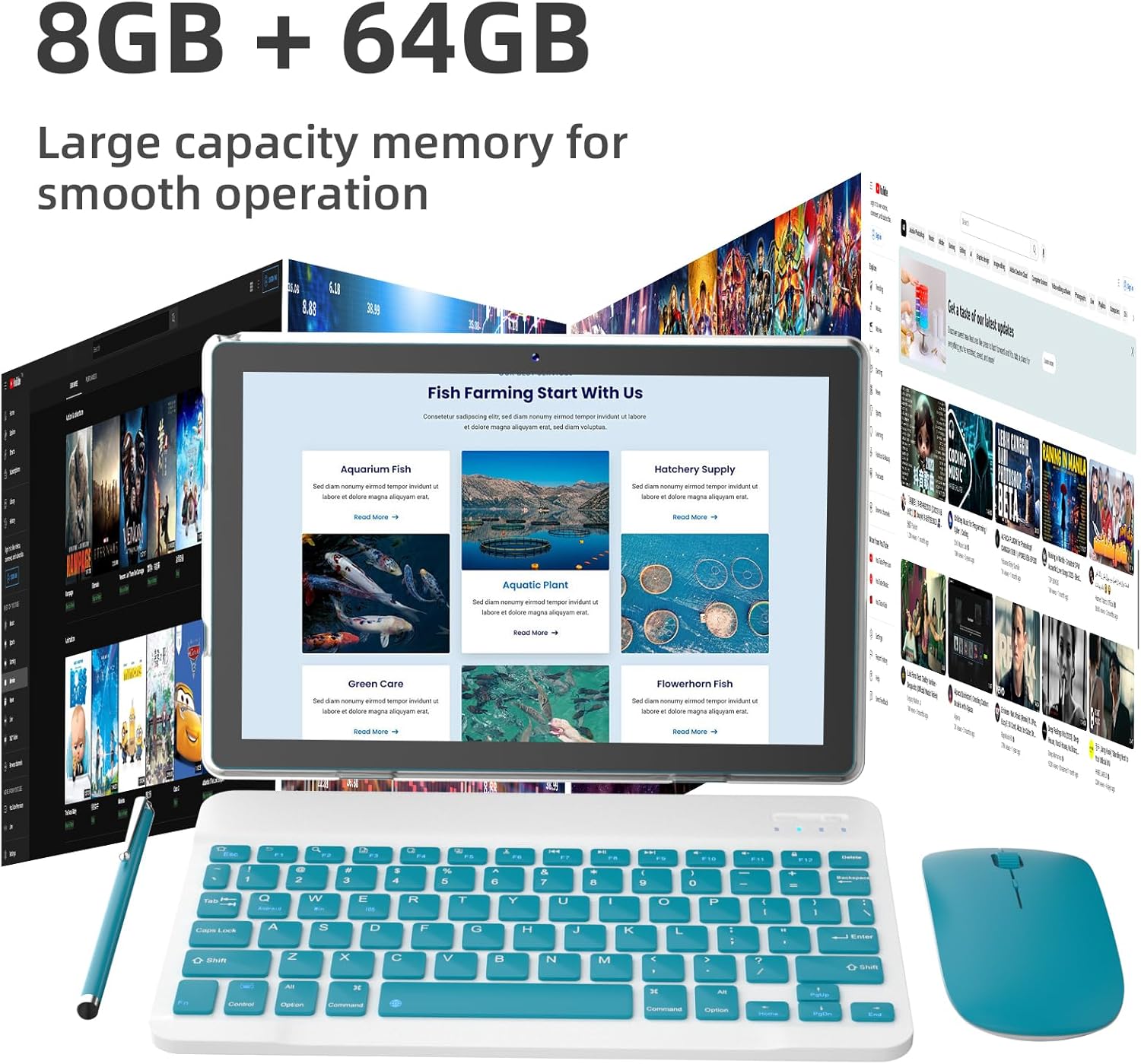
Image: A visual representation of the tablet's memory capacity, showing 8GB RAM, 64GB ROM, and 1TB expandability.
10. Warranty and Support
For warranty information and customer support, please refer to the documentation included with your purchase or contact the manufacturer directly. Keep your proof of purchase for warranty claims.
For further assistance, please visit the official ZZB support website or contact their customer service department.


