
Introduction
This manual provides detailed instructions for the installation, operation, and maintenance of your Roinvou 9-inch IPS Touch Screen Car Stereo. This unit is designed to enhance your driving experience with features such as Wireless CarPlay, Android Auto, GPS Navigation, Bluetooth 5.0, FM RDS radio, and WiFi connectivity.
Applicable Models: This car stereo is compatible with Suzuki SX4 models manufactured between 2006 and 2013. It is designed for seamless integration with the original dash panel without requiring wiring modifications.

Image: Comparison of the Suzuki SX4 dashboard before and after the Roinvou car radio installation.
Setup and Installation
Package Contents
Before beginning installation, please verify that all components are present in the package:
- Roinvou Car Stereo for Suzuki SX4
- Power Cable
- USB Adapter Cable
- RCA Harness
- GPS Antenna
- AHD Backup Camera
- External Microphone
- Rear Camera Input Cable
- Dual USB Cable
- Installation Tool

Image: Detailed view of the package contents, including the 9-inch head unit, various cables, GPS antenna, and backup camera.
Wiring Port Overview
Familiarize yourself with the main wiring ports on the back of the car stereo unit:
- Power Cable: Connects to the vehicle's power supply.
- RCA Cable: For audio/video input and output connections.
- USB Cable: For connecting USB devices.
- Camera Input: Dedicated port for the backup camera.
- GPS Antenna: Connects the GPS antenna for navigation.

Image: Diagram showing the rear wiring ports of the car stereo and their corresponding cable connections.
Backup Camera Connection
To connect the AHD backup camera, follow these steps:
- The Red Cable (labeled ① in the diagram) connects to the positive terminal of your car's reverse light cable.
- The Black Cable (labeled ② in the diagram) connects to the negative terminal of your car's reverse light cable.
- The other two red extension cables (③ and ④) do not need to be connected.
Important: The reverse input cable must be plugged in even if the reverse camera is not being used. Otherwise, it may affect Bluetooth and WiFi signal reception.

Image: Step-by-step diagram for connecting the AHD backup camera to the car stereo system.
CANBUS Decoder Information
Depending on your vehicle's configuration, you may or may not have a CANBUS decoder:
Without CANBUS Decoder:
Connect the plugs or the steering wheel control wires (Key1/Key2) in the power cable to the corresponding port or wire of your original car. Then, navigate to Settings > Car Settings > General (Enter SWC setting interface) and manually match to activate the button functions.
With CANBUS Decoder:
Connect the CANBUS before powering on the machine. Then, navigate to Settings > Car Settings > Factory (000000) > CarType Setting to ensure SWC works properly. First, select the brand of the CANBUS decoder, then select the matching model and year according to your specific vehicle.
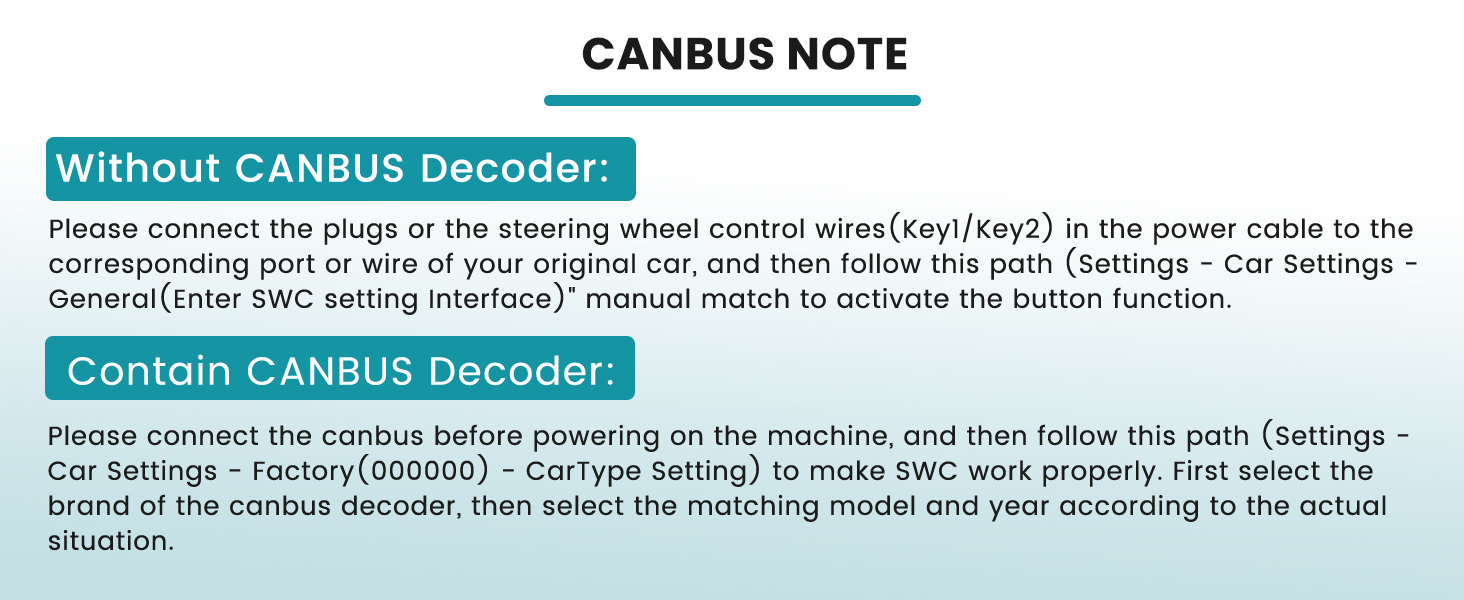
Image: Instructions for connecting and configuring the CANBUS decoder for steering wheel controls.
Operating Instructions
Wireless CarPlay & Android Auto
The unit supports both wired and wireless CarPlay and Android Auto. It prioritizes wireless connection and uses wired as a backup, automatically switching if the wireless signal is weak. CarPlay/Android Auto activates automatically when you start your car, allowing access to navigation, music, and calls. Siri and Google Assistant are supported for hands-free operation.
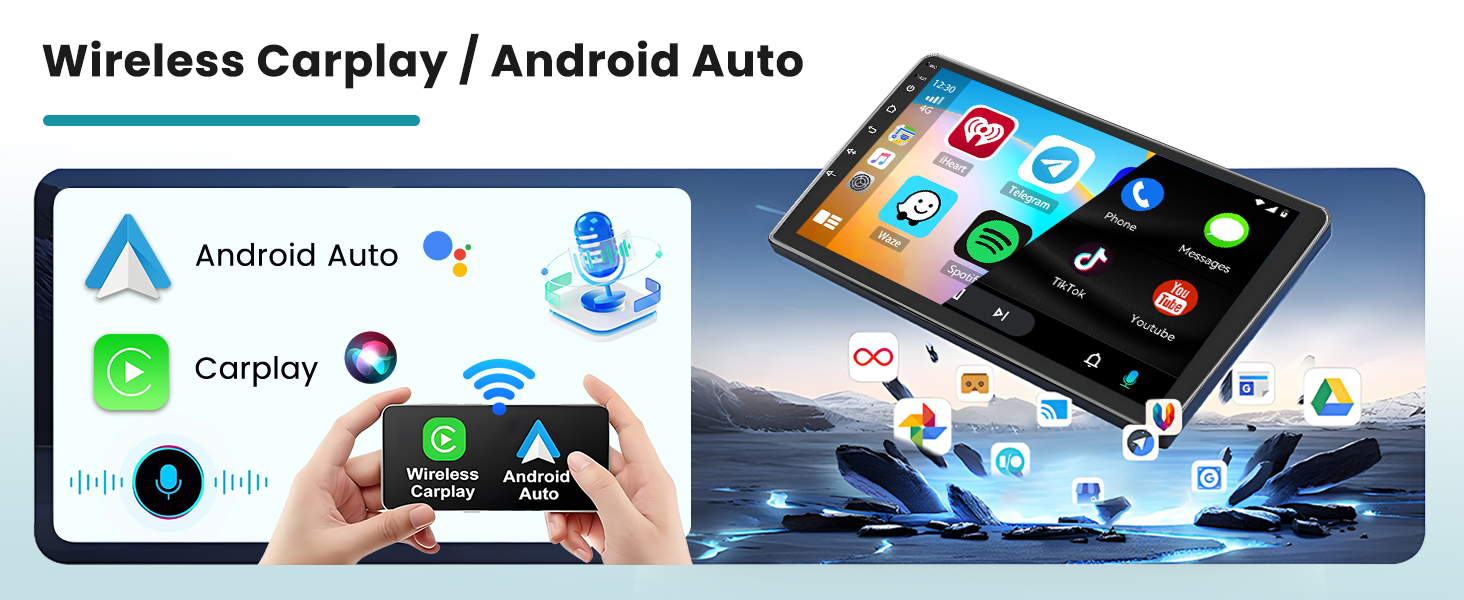
Image: Visual representation of CarPlay and Android Auto functionality on the car stereo.
GPS Navigation & WiFi Connectivity
The system supports online maps and includes pre-loaded offline North American maps. Connect to WiFi for fast, stable internet access, enabling you to download apps from the app store and stream online videos from platforms like YouTube or TikTok.

Image: The car stereo screen showing GPS navigation in action, with a car icon on a map.
FM/RDS Radio & Bluetooth Handsfree
The integrated FM/RDS radio provides automatic reception of radio station names, traffic conditions, and news. It features intelligent channel memory for frequently listened-to stations. Bluetooth 5.0 supports hands-free calling, music playback, and automatic phone book loading. The wireless headset allows for multi-device switching, balancing music and phone calls simultaneously.

Image: The car stereo showing the FM radio interface and a smartphone connected via Bluetooth for calls.
Mirror Link Functionality
Seamless screen mirroring projects your mobile phone's interface to the car screen in real-time. This feature supports touch reverse operation, allowing synchronized display of navigation, music, and apps with one click.
Steering Wheel Control
The unit supports learning original steering wheel control buttons, providing convenient control over the car radio. This allows you to manage functions like volume, track changes, and calls directly from your steering wheel.

Image: The car stereo displaying the steering wheel control learning interface, alongside a steering wheel.
DSP & EQ Settings and UI Themes
The Digital Sound Processor (DSP) technology restores the true quality of sound. The Equalizer (EQ) offers multi-mode one-key switching and supports manual adjustment of high, medium, and low-frequency bands. Additionally, the system supports 26 desktop themes, allowing you to customize the user interface style.

Image: Various user interface themes and sound equalizer settings displayed on the car stereo screen.
Maintenance
To ensure the longevity and optimal performance of your Roinvou car stereo, follow these maintenance guidelines:
- Screen Cleaning: Use a soft, lint-free cloth slightly dampened with water or a screen cleaner specifically designed for electronics. Avoid harsh chemicals or abrasive materials.
- Software Updates: Periodically check for available software updates through the system settings or the manufacturer's website to ensure you have the latest features and bug fixes.
- Cable Connections: Ensure all cables are securely connected. Loose connections can lead to intermittent functionality or signal loss.
- Environmental Conditions: Avoid exposing the unit to extreme temperatures, direct sunlight for prolonged periods, or excessive moisture.
- Ventilation: Ensure the unit's ventilation areas are not blocked to prevent overheating.
Troubleshooting
If you encounter issues with your car stereo, refer to the following common troubleshooting steps:
- No Power:
- Check all power cable connections to ensure they are secure.
- Verify the vehicle's fuse for the stereo system.
- No Sound:
- Check speaker wire connections.
- Ensure the volume is not muted or set too low.
- Verify audio output settings in the system menu.
- GPS Signal Loss:
- Ensure the GPS antenna is properly connected and has a clear view of the sky.
- Check GPS settings in the system menu.
- Bluetooth Connection Issues:
- Ensure Bluetooth is enabled on both the car stereo and your mobile device.
- Delete previous pairings and attempt to re-pair the devices.
- Move your mobile device closer to the stereo.
- CarPlay/Android Auto Not Connecting:
- Ensure your phone's operating system is up to date.
- Try connecting with a different USB cable if using a wired connection.
- Restart both the car stereo and your mobile device.
- Steering Wheel Controls Not Working:
- Refer to the "CANBUS Decoder Information" section for proper setup and configuration.
- Ensure the steering wheel control wires are correctly connected.
If problems persist after attempting these steps, please contact customer support.
Specifications
| Brand | Roinvou |
| Model Number | B0DYN4NP4D |
| Screen Size | 9 Inches |
| Resolution | 1024 x 600 |
| Operating System | Android |
| Memory Storage Capacity | 64 GB |
| Connectivity Technology | Bluetooth, USB, Wi-Fi |
| Bluetooth Version | 5.0 |
| Supported Navigation System | GPS (North America maps included) |
| Special Features | CarPlay, Android Auto, Touchscreen, FM RDS Radio, Mirror Link, DSP, EQ, SWC, 26 Desktop Themes |
| Compatible Devices | iPhone, Android |
| Item Weight | 1.38 Kilograms |
Warranty and Support
Warranty Information
This Roinvou car stereo comes with a 1 Year Warranty from the date of purchase. This warranty covers manufacturing defects and malfunctions under normal use. Please retain your proof of purchase for warranty claims.
For detailed warranty terms and conditions, please refer to the documentation included with your product or contact Roinvou customer service.
Customer Support
If you require technical assistance, have questions about installation, or need to report a product issue, please contact Roinvou customer support. You can typically find contact information on the manufacturer's official website or through the retailer where you purchased the product.
When contacting support, please have your product model number (B0DYN4NP4D) and purchase details readily available to expedite assistance.


