
1. Introduction
This manual provides detailed instructions for the Alacrity 2.4GHz Wireless Laser Barcode Scanner, Model NA-4590-LA. This device is designed for efficient and accurate scanning of all standard 1D barcodes, offering both wireless (2.4GHz) and wired (USB) connectivity options. It features an ergonomic design, a long-lasting rechargeable battery, and broad compatibility with various operating systems.

Image 1.1: Alacrity 4590 1D Wireless & Wired Laser Barcode Scanner. This image showcases the scanner's key features including its battery level indicator, ergonomic design, 1800 mAh battery, and compatibility with iOS, Android, Windows, macOS, and Linux.
2. Safety Information
- Do not expose the scanner to extreme temperatures or humidity.
- Avoid direct eye exposure to the laser beam.
- Do not attempt to disassemble or modify the scanner.
- Use only the provided charging cable and adapter.
- Keep the device away from water and other liquids.
3. Package Contents
- Alacrity 2.4GHz Wireless Laser Barcode Scanner
- 2.4GHz USB Dongle Receiver
- USB Charging Cable
- User Manual (this document)
4. Product Overview
The Alacrity barcode scanner features a comfortable grip and intuitive controls. Key components include the scanning window, trigger button, and LED indicators for status and battery level.
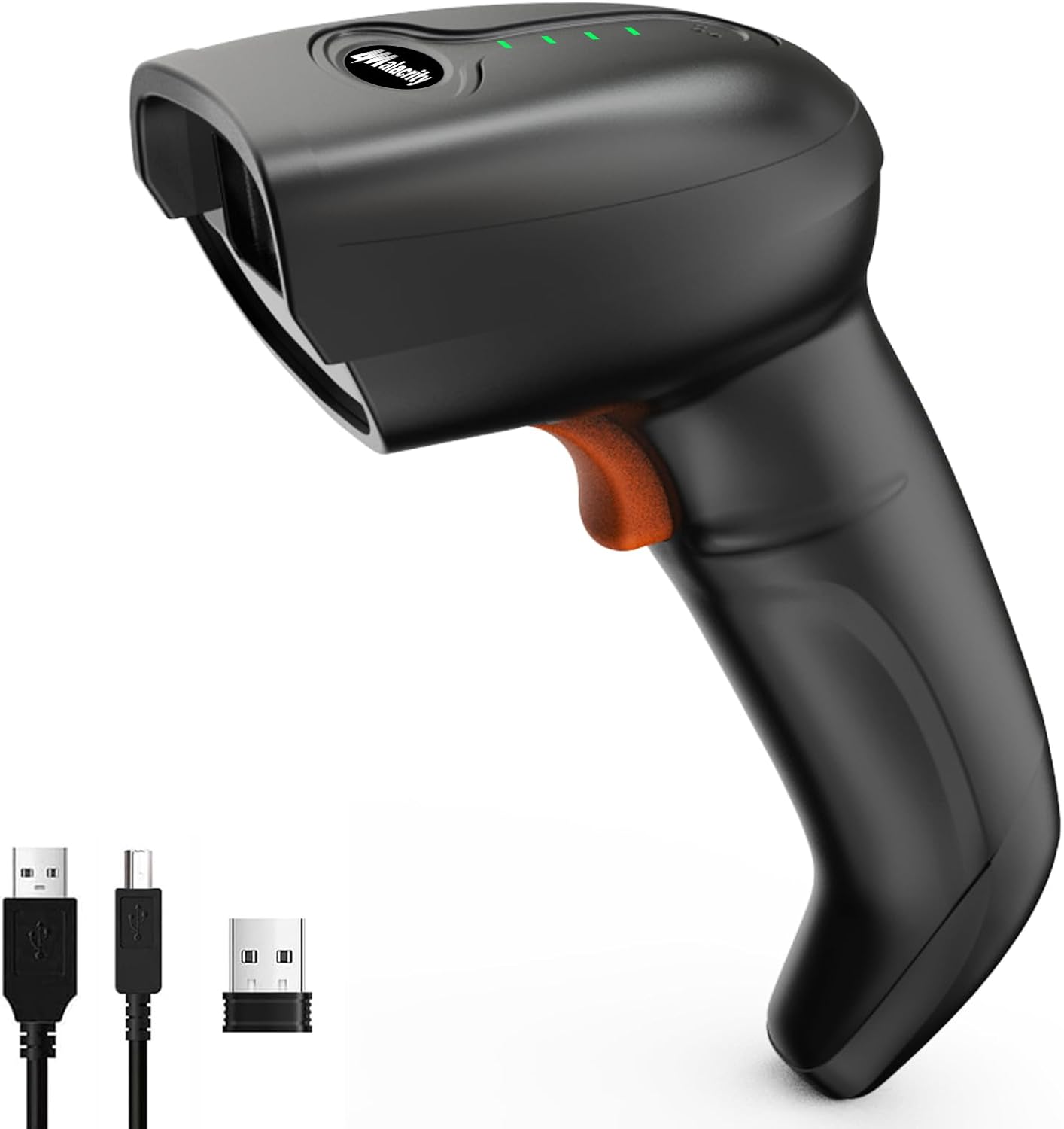
Image 4.1: Front view of the Alacrity 2.4GHz Wireless Laser Barcode Scanner, showing the scanner unit, USB charging cable, and 2.4GHz USB dongle.
5. Setup
5.1 Charging the Battery
Before first use, fully charge the scanner. Connect the USB charging cable to the scanner's charging port and a power source (e.g., computer USB port or USB wall adapter). The 1800mAh rechargeable battery provides extended usage.

Image 5.1: Diagram illustrating the Alacrity barcode scanner's 1800mAh battery, indicating a 5-hour charging time, 12-13 hours of scanning time, and 30 days of standby time.
5.2 Connectivity Options
The scanner supports both 2.4GHz wireless and USB wired connections. Choose the method that best suits your needs.
- 2.4GHz Wireless Mode: Insert the 2.4GHz USB dongle into an available USB port on your computer or device. The scanner will automatically connect.
- USB Wired Mode: Connect the scanner directly to your computer using the provided USB cable. The scanner will function as a wired device and charge simultaneously.

Image 5.2: This image demonstrates the scanner's plug-and-play functionality, showing both USB wired connection and wireless connection via the USB dongle.
5.3 Pairing Methods
The scanner offers flexible pairing options:
- One Scanner to One Receiver: Standard pairing where one scanner connects to a single USB dongle.
- Multiple Scanners to One Receiver: Allows multiple Alacrity scanners to connect to a single USB dongle, useful for environments with several scanning stations. Refer to the included quick setup guide for specific barcode scans to enable this mode.
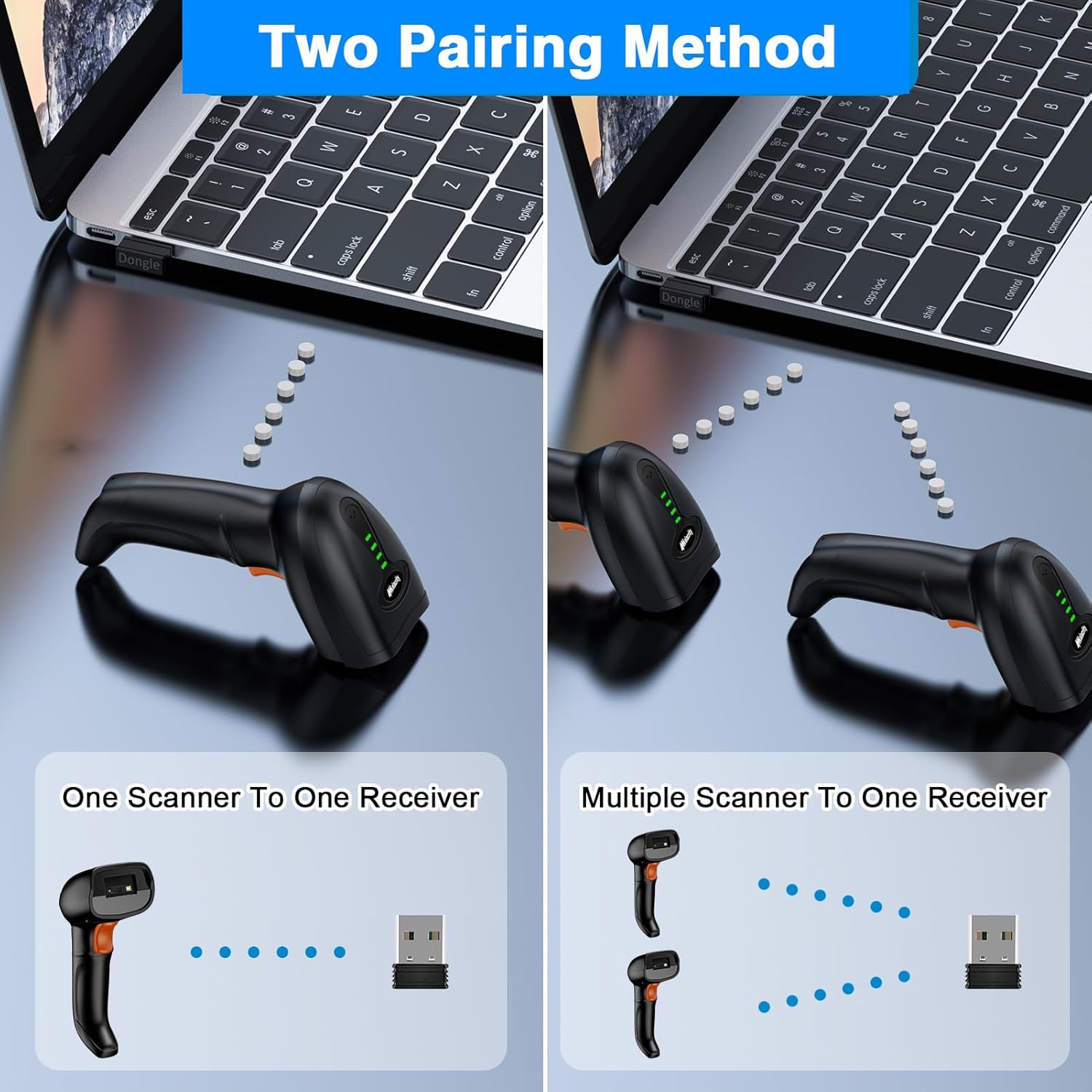
Image 5.3: Illustration of the two pairing methods: one scanner to one receiver, and multiple scanners to one receiver.
5.4 System Compatibility
The Alacrity barcode scanner is compatible with a wide range of operating systems, ensuring seamless integration into most existing setups.
- Windows
- macOS
- Android
- Linux

Image 5.4: The scanner is shown in use, with icons confirming its compatibility across Android, Windows, macOS, and Linux platforms.
6. Operating Instructions
6.1 Scanning Barcodes
To scan a barcode, point the scanner's laser at the 1D barcode and press the trigger button. The scanner will emit a laser line and a successful scan will typically be indicated by a beep (if enabled) and/or a vibration.

Image 6.1: The scanner is depicted accurately and quickly decoding a 1D barcode on a package.
6.2 Battery Level Indicator
The scanner features LED indicators on its top surface to display the current battery charge level. These LEDs provide a quick visual reference for remaining battery life.

Image 6.2: This diagram explains the four-segment LED battery indicator, showing corresponding charge percentages.
6.3 Upload Modes
The scanner supports two data upload modes:
- Instant Upload Mode: Barcodes are transmitted to the connected device immediately after scanning.
- Storage Mode: Scanned barcodes are stored in the scanner's internal flash memory (up to 5000+ barcodes) and can be uploaded to the connected device at a later time. This mode is useful for batch processing or when out of range.

Image 6.3: This image illustrates the Instant Upload Mode for immediate data transfer and the Storage Mode for deferred data transfer, capable of holding over 5000 barcodes.
6.4 Transmission Distance
The wireless range varies depending on the environment:
- Barrier Environment: Up to 30 meters (98 feet)
- Barrier-Free Environment: Up to 150 meters (492 feet)

Image 6.4: This diagram visually represents the scanner's wireless transmission distances in both barrier and barrier-free environments.
6.5 Advanced Configuration
The scanner's behavior can be customized by scanning specific configuration barcodes found in the supplementary quick setup guide. These settings include, but are not limited to, disabling the beep sound, changing keyboard layouts (e.g., for Mac compatibility), and setting the language. It is crucial to retain the physical manual or a digital copy of these configuration barcodes for future adjustments.
7. Maintenance
- Clean the scanning window regularly with a soft, lint-free cloth to ensure optimal scanning performance.
- Do not use abrasive cleaners or solvents.
- Store the scanner in a cool, dry place when not in use.
- Ensure the battery is charged periodically if stored for long durations to maintain battery health.
8. Troubleshooting
- Scanner not connecting: Ensure the USB dongle is properly inserted or the USB cable is securely connected. Check if the scanner's battery is charged.
- No data input after scanning: Verify that the scanner is paired correctly. For Mac users, ensure the correct keyboard layout is configured by scanning the appropriate barcode from the setup guide.
- Poor scanning performance: Clean the scanning window. Ensure the barcode is not damaged or poorly printed.
- Scanner not charging: Check the USB cable and power source. Ensure the charging port is free of debris.
9. Specifications
| Feature | Detail |
|---|---|
| Model Number | NA-4590-LA |
| Connectivity Technology | 2.4GHz Wireless, USB Wired |
| Scan Speed | 100 scans/sec (Laser) |
| Barcode Compatibility | All 1D Barcodes |
| Battery Capacity | 1800mAh Lithium Polymer |
| Battery Life | Approx. 12-13 hours scanning, 30 days standby |
| Charging Time | Approx. 5 hours |
| Wireless Range (Barrier-Free) | Up to 150 meters (492 feet) |
| Wireless Range (Barrier Environment) | Up to 30 meters (98 feet) |
| Compatible Operating Systems | Windows, macOS, Android, Linux |
| Item Weight | 11.7 ounces |
| Package Dimensions | 8.27 x 4.49 x 3.23 inches |
10. Warranty and Support
Alacrity provides a standard warranty for this product. For detailed warranty information, technical support, or service inquiries, please refer to the contact information provided on the product packaging or visit the official Alacrity website. You may also find additional resources and FAQs at this product support page.
11. Applicable Scenarios
The Alacrity barcode scanner is versatile and suitable for a variety of applications where 1D barcode scanning is required.

Image 11.1: This image displays common environments where the scanner can be effectively used, such as libraries, logistics centers, retail stores, warehouses, hospitals, and supermarkets.
