1. Introduction
This manual provides essential information for the setup, operation, maintenance, and troubleshooting of your Lenovo ThinkCentre Neo 50T Tower Computer. Please read these instructions carefully to ensure proper use and longevity of your device.
The package includes the Lenovo ThinkCentre Neo 50T Tower Computer, a USB keyboard, a USB mouse, a USB Wi-Fi adapter, and a power cable.
2. Product Overview
The Lenovo ThinkCentre Neo 50T is a compact tower desktop designed for various computing tasks. Below are diagrams illustrating the front and rear panel components.

Figure 2.1: Overall view of the Lenovo ThinkCentre Neo 50T Tower Computer.
2.1 Front Panel
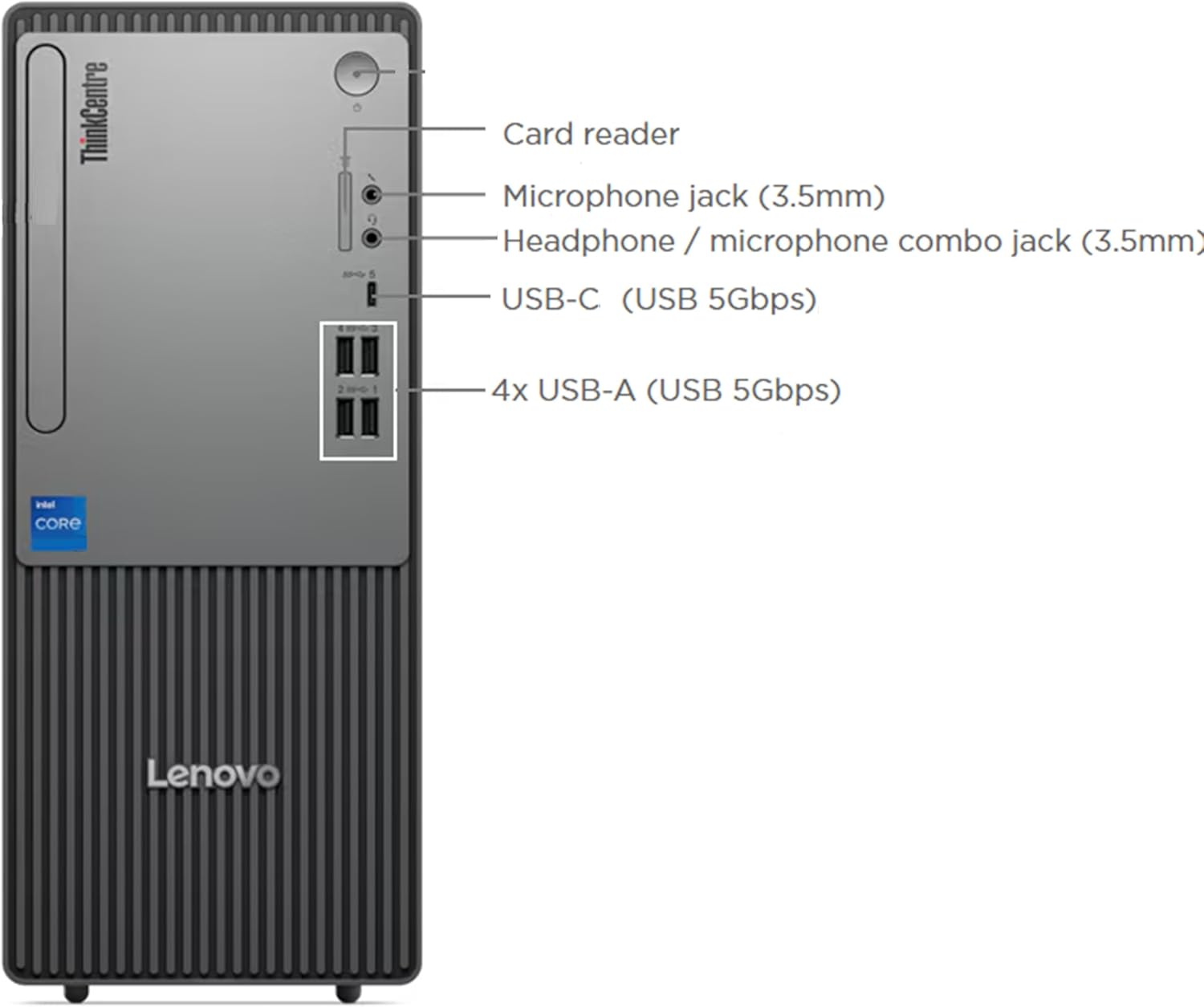
Figure 2.2: Front panel ports and features.
- Card Reader: For SD, SDHC, and SDXC memory cards.
- Microphone Jack (3.5mm): For connecting an external microphone.
- Headphone / Microphone Combo Jack (3.5mm): For connecting headsets.
- USB-C (5Gbps): One USB 3.2 Gen 1 Type-C port, supporting data transfer and 5V 3A charging.
- USB-A (5Gbps): Four USB 3.2 ports for connecting peripherals.
2.2 Rear Panel

Figure 2.3: Rear panel ports and features.
- Audio Out: For connecting external speakers or headphones.
- DisplayPort 1.4a (HBR2): For connecting a display.
- HDMI 2.1 TMDS: For connecting a display.
- VGA: For connecting a display.
- USB 2.0: Four USB 2.0 ports for connecting peripherals.
- Ethernet (RJ45): For wired network connection.
- Power Connector: For connecting the power cable.
3. Setup
3.1 Unpacking and Placement
- Carefully remove the computer and all accessories from the packaging.
- Place the computer on a stable, flat surface with adequate ventilation around all sides. Avoid placing it in enclosed spaces or near heat sources.
3.2 Connecting Peripherals
- Monitor: Connect your monitor to one of the available video output ports on the rear panel (DisplayPort, HDMI, or VGA).
- Keyboard and Mouse: Connect the USB keyboard and mouse to any available USB-A ports on the front or rear panel.
- Network Connection:
- Wired: Connect an Ethernet cable from your router or modem to the RJ45 Ethernet port on the rear panel.
- Wireless: Insert the included USB Wi-Fi adapter into an available USB-A port. Drivers for the adapter will typically install automatically.
- Power: Connect the power cable to the power connector on the rear panel of the computer, then plug the other end into a grounded electrical outlet.
3.3 Initial Power On
- Press the power button located on the front panel of the computer.
- Follow the on-screen instructions to complete the initial setup of Windows 11 Pro. This may include setting up user accounts, network connections, and privacy settings.
4. Operating Your Computer
4.1 Power On/Off
- To Power On: Press the power button on the front panel.
- To Shut Down: Click the Start button in Windows, then select Power > Shut down.
- To Restart: Click the Start button in Windows, then select Power > Restart.
- To Sleep: Click the Start button in Windows, then select Power > Sleep.
4.2 Windows 11 Pro Operating System
Your computer comes pre-installed with Windows 11 Pro. For detailed instructions on using Windows 11 Pro features, refer to the official Microsoft documentation or support resources.
4.3 Using the USB Wi-Fi Adapter
After inserting the USB Wi-Fi adapter, Windows 11 Pro should automatically detect and install the necessary drivers. To connect to a wireless network:
- Click the Network icon (Wi-Fi or Ethernet) in the taskbar.
- Select the desired Wi-Fi network from the list.
- Click 'Connect' and enter the network security key (password) if prompted.
4.4 Using the Card Reader
The integrated 3-in-1 card reader supports SD, SDHC, and SDXC memory cards. Insert your memory card into the appropriate slot on the front panel. The card will appear as a removable drive in 'This PC' (File Explorer).
5. Maintenance and Care
5.1 Cleaning
- Always power off the computer and disconnect it from the power outlet before cleaning.
- Use a soft, lint-free cloth lightly dampened with water or a mild cleaning solution to wipe exterior surfaces.
- Use compressed air to gently clear dust from ventilation openings and ports. Do not spray liquid directly onto the computer.
5.2 Environmental Guidelines
- Operate the computer within a temperature range of 10°C to 35°C (50°F to 95°F).
- Maintain relative humidity between 20% and 80% (non-condensing).
- Avoid direct sunlight and extreme temperature fluctuations.
5.3 Software Updates
Regularly update your Windows operating system and drivers to ensure optimal performance and security. Windows Update can be accessed via Settings > Windows Update.
6. Troubleshooting
This section addresses common issues you might encounter. For more complex problems, refer to Lenovo's official support resources.
- No Power:
- Ensure the power cable is securely connected to both the computer and a working electrical outlet.
- Verify the power outlet is functional by plugging in another device.
- No Display on Monitor:
- Check that the monitor is powered on and its video cable is securely connected to the computer's video output port (HDMI, DisplayPort, or VGA).
- Ensure the correct input source is selected on your monitor.
- No Internet Connection:
- Wired: Verify the Ethernet cable is properly connected to both the computer and the router/modem. Check router status.
- Wireless: Ensure the USB Wi-Fi adapter is correctly inserted. Check Wi-Fi settings in Windows to confirm connection to the correct network and that Wi-Fi is enabled.
- Slow Performance:
- Close unnecessary applications running in the background.
- Ensure Windows and drivers are up to date.
- Check for malware or viruses using reputable security software.
7. Specifications
Key technical specifications for the Lenovo ThinkCentre Neo 50T Tower Computer:
| Feature | Specification |
|---|---|
| Processor | Intel Core i9-12900K (16-Core, 3.20 GHz - 5.20 GHz) |
| Operating System | Windows 11 Pro |
| RAM | 32GB DDR5 4800MHz (Max 64GB) |
| Storage | 1TB NVMe SSD (1x 3.5" HDD additional slot available) |
| Graphics | Intel UHD Graphics 770 |
| Video Ports | 1x DisplayPort 1.4a, 1x HDMI 2.1 TMDS, 1x VGA |
| Front USB Ports | 4x USB 3.2 (5 Gbps), 1x USB-C 3.2 Gen 1 (data transfer & 5V 3A charging) |
| Rear USB Ports | 4x USB 2.0 |
| Network | Gigabit Ethernet (RJ45), USB Wi-Fi 802.11ax Adapter (included), Bluetooth 5.3 (via adapter) |
| Card Reader | 3-in-1 (SD, SDHC, SDXC) |
| Audio | Universal Audio/Headset Jack, Microphone Jack, Audio Out |
| Power Supply | 180 Watts |
| Dimensions (LxWxH) | 11.57 x 5.7 x 13.39 inches |
| Weight | 13.32 pounds |
8. Warranty and Support
Your Lenovo ThinkCentre Neo 50T Tower Computer is covered by a standard manufacturer's warranty. For specific warranty terms and conditions, please refer to the warranty documentation included with your product or visit the official Lenovo support website.
For technical assistance, driver downloads, or further support, please visit the official Lenovo Support website: support.lenovo.com.


