
Introduction
The VINEGO R36Max Handheld Game Console offers a vast library of classic games in a portable design. This manual provides essential information to help you get started, operate, and maintain your device for optimal gaming experience.
Unboxing and Package Contents
Upon opening your R36Max package, please verify that all items listed below are present:
- R36MAX Retro Handheld Game Console * 1
- TYPE-C Charging Cable * 1
- Storage Box * 1
- Screen Film * 1
- Manual * 1

For a visual guide to the unboxing experience and initial setup, please refer to the official seller video below:
Setup
1. Initial Charging
Before first use, fully charge the R36Max console. Connect the provided TYPE-C charging cable to the console's charging port and a compatible USB power adapter (not included). The 4000mAh battery provides up to 6 hours of gameplay on a full charge.

2. Power On/Off
- To power on: Press and hold the Power button located on the top left side of the console until the screen illuminates.
- To power off: Press and hold the Power button until a shutdown menu appears, then select "Shutdown" or continue holding until the device powers down.
3. TF Card Insertion
The console comes with internal storage and supports additional games via a TF (microSD) card. Locate the TF-game slot on the top of the console. Gently insert the TF card until it clicks into place.
Operating Instructions
1. Controls Overview
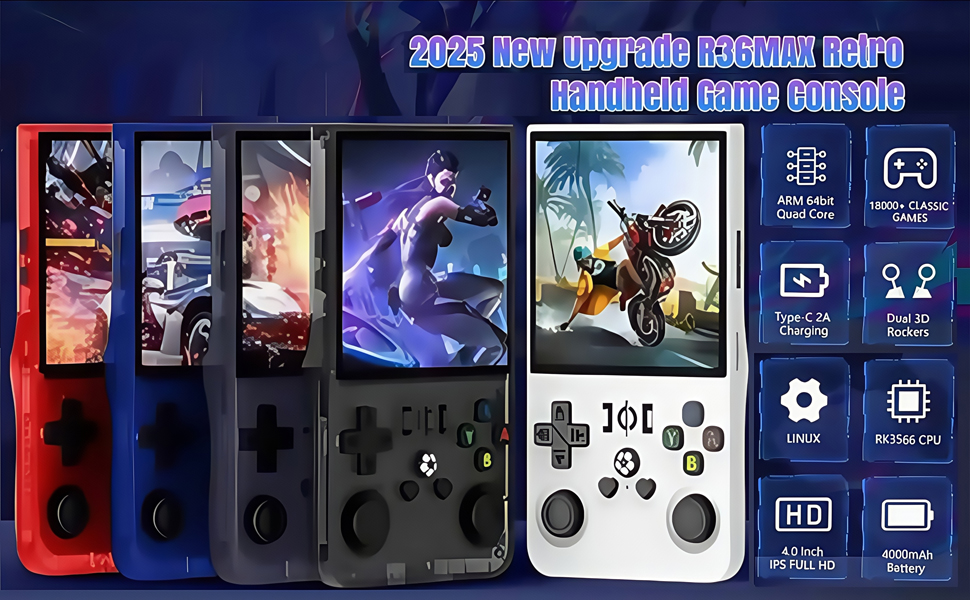
The R36Max features an ergonomic design with a strategically optimized key layout for responsive gameplay. Familiarize yourself with the buttons and ports:

- Directional Pad (D-Pad): For directional movement in games and menu navigation.
- A, B, X, Y Buttons: Action buttons for gameplay.
- Select / Start Buttons: For in-game actions and menu selections.
- Left/Right Rockers (Analog Sticks): For precise movement in supported games.
- L1, L2, R1, R2 Buttons: Shoulder buttons for additional in-game controls.
- Volume Keys (+/-): Adjust audio output.
- Charging Port (Type-C): For charging the device.
- OTC Headset (3.5mm Jack): For private audio experience.
2. Navigating Menus and Game Selection
The R36Max operates on a Linux system, providing a stable and efficient interface. Use the D-Pad and A/B/X/Y buttons to navigate through the system menus and select games.
- Use the D-Pad to scroll through game lists and system options.
- Press the A button to confirm a selection or launch a game.
- Press the B button to go back to the previous menu.
- The system organizes games by emulator. Select an emulator to view its game library.
3. Playing Games
Once a game is selected, it will load automatically. The console supports a wide range of classic game emulators, ensuring smooth performance for 2D and some 3D titles.
4. Game Library and Storage
The R36Max comes with 64GB of internal storage, preloaded with a vast collection of games. You can expand your game library by adding a TF card. The console supports a wide array of emulators including MAME, N64, PS1, NEOGEO, GBA, FC, SFC, MD, CPS1, CPS2, CPS3, and PSP.
Maintenance
1. Cleaning
To clean the console, use a soft, dry cloth. For the screen, use a microfiber cloth specifically designed for electronics. Avoid using harsh chemicals or abrasive materials that could damage the screen or casing.
2. Battery Care
To prolong battery life, avoid fully discharging the battery frequently. Charge the device regularly, especially if it will be stored for an extended period. Use only the provided TYPE-C charging cable or a compatible high-quality cable.
3. Storage
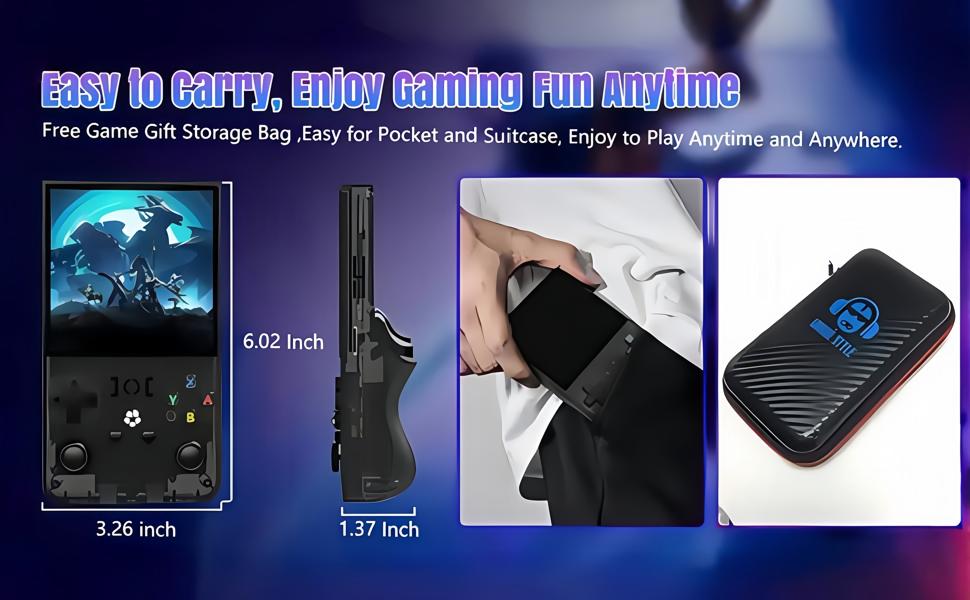
Store the console in a cool, dry place away from direct sunlight and extreme temperatures. Use the included storage box to protect the device from dust and scratches when not in use.
Troubleshooting
1. Console Not Turning On
- Ensure the battery is charged. Connect the console to a power source and allow it to charge for at least 30 minutes before attempting to power on again.
- Press and hold the Power button for 5-10 seconds to perform a hard reset.
2. Games Not Loading or Crashing
- Verify that the TF-game card is properly inserted.
- Some games may require specific emulator settings. Consult online communities or the manufacturer's support for advanced configurations.
- Ensure the game files are not corrupted.
3. Screen Issues
- If the screen is unresponsive or displays artifacts, try restarting the console.
- Ensure the screen film is applied correctly and not interfering with the display.
Specifications
| Feature | Detail |
|---|---|
| Product Dimensions | 3"L x 1"W x 5"H |
| Controller Type | Button Control |
| Item Weight | 0.39 Kilograms (13.7 ounces) |
| Screen Size | 4 Inches |
| Power Source | Battery Powered |
| Number of Batteries | 1 Nonstandard Battery (included) |
| Age Range (Description) | Adult (Manufacturer recommended age: 3 years and up) |
| Battery Life | 6 Hours |
| Battery Description | Lithium-Ion |
| Display Type | LCD |
| Material | Plastic |
| Memory Storage Capacity | 64 GB (internal) |
| Form Factor | Handheld |
| Item model number | R36 Max |
| Manufacturer | VINEGO |

Safety Information
WARNING:
- All packaging materials (tape, labels, plastic sheets, binding wires) and small internal machine accessories are choking risks.
- Keep away from children under 3 years of age.
- Use only with adult supervision.
Warranty and Support
For warranty information and customer support, please refer to the documentation included in your product packaging or contact VINEGO customer service directly. Protection plans are available for purchase separately, offering extended coverage for 2 or 3 years.
- 2-Year Protection Plan: $6.99
- 3-Year Protection Plan: $8.99