
Introduction
This manual provides detailed instructions for the installation, operation, and maintenance of your VicoSafe CG6S Solar Outdoor Wireless Security Camera. Please read this manual thoroughly before using the product to ensure proper function and safety. The VicoSafe CG6S is a 2K battery-powered WiFi camera designed for outdoor security monitoring, featuring AI motion detection, a spotlight, alarm, color night vision, and two-way talk capabilities.
What's in the Box
Verify that all components are present before proceeding with installation.
- 1 × VicoSafe CG6S Solar Wireless Security Camera
- 1 × Solar Panel with Charging Cable
- 1 × Mounting Bracket & Screws
- 1 × USB Charging Cable
- 1 × Quick Start Guide
Product Overview
Familiarize yourself with the camera's components and their functions.

Image: Detailed diagram of the VicoSafe CG6S camera and its solar panel, highlighting key components such as the lens, microphone, speaker, status indicator, white light, human body infrared sensor, Micro-USB port, Micro-SD card slot, reset button, power button, solar panel (1.6W), bracket, and power cable.
Camera Components:
- Lens: Captures video footage.
- White Light: Provides illumination for color night vision and acts as a deterrent.
- Human Body Infrared Sensor: Detects motion based on heat signatures.
- Microphone: Captures audio for two-way talk and recording.
- Status Indicator: Displays the camera's current operational status.
- Speaker: Enables two-way audio communication and alarm sounds.
- Micro-USB Port: Used for charging the camera.
- Micro-SD Card Slot: For local video storage (supports up to 128GB, card not included).
- Reset Button: Used to reset the camera to factory settings.
- Power Button: Turns the camera on or off.
Solar Panel Components:
- Solar Panel (1.6W): Charges the camera's battery using sunlight.
- Bracket: Used for mounting the solar panel.
- Power Cable (Micro-USB/USB Port): Connects the solar panel to the camera for charging.
Setup Guide
1. App Installation
Download the VicoHome App to your smartphone. The app is available on both the App Store (for iOS devices) and Google Play Store (for Android devices).
- Search for "VicoHome" in your device's app store.
- Download and install the application.
- Follow the in-app instructions to create an account and log in.
2. Camera Charging
Before initial use, fully charge the camera's battery using the provided USB charging cable. Connect the Micro-USB end to the camera's Micro-USB port and the USB-A end to a standard USB power adapter (not included).

Image: The VicoSafe CG6S camera is shown mounted on a wall, connected to a solar panel. This setup illustrates how the solar panel provides continuous power to the camera, ensuring uninterrupted operation.
For continuous power, connect the included solar panel to the camera. Ensure the solar panel is placed in an area that receives direct sunlight for several hours daily.
3. Mounting the Camera and Solar Panel
The camera and solar panel are designed for outdoor installation and come with mounting brackets and screws.
- Choose a mounting location that provides the desired viewing angle and is within Wi-Fi range.
- For the solar panel, select a spot with maximum sun exposure.
- Use the provided screws and mounting brackets to securely attach the camera and solar panel to a wall or other stable surface.
- Connect the solar panel's charging cable to the camera's Micro-USB port.

Image: The VicoSafe CG6S camera and its solar panel are depicted in different outdoor environments, including snowy conditions (minimum -4°F), sunny conditions (up to 122°F), and rain. This highlights the camera's IP65 weatherproof rating and durability in various climates.
Operating Instructions
1. Connecting to Wi-Fi
The VicoSafe CG6S supports 2.4GHz Wi-Fi networks only. It is not compatible with 5GHz Wi-Fi.
- Power on the camera. The status indicator will flash, indicating it's ready for pairing.
- Open the VicoHome App and tap "Add Device" or the "+" icon.
- Follow the on-screen instructions to connect the camera to your 2.4GHz Wi-Fi network. This typically involves scanning a QR code displayed on your phone with the camera.
- Once connected, the status indicator will turn solid blue.
2. Live View and Two-Way Audio
Access real-time video and communicate through the camera using the VicoHome App.

Image: A smartphone displays a live feed from the VicoSafe CG6S camera, showing a person at the door. Text bubbles indicate a two-way conversation, demonstrating the camera's two-way talk feature and multi-user viewing capabilities.
- From the app's home screen, tap on your camera to view the live feed.
- To use two-way audio, tap the microphone icon in the live view interface. Speak into your phone, and your voice will be transmitted through the camera's speaker.
- Tap the speaker icon to hear audio from the camera's location.
3. Motion Detection and Smart Alerts
The camera uses AI to detect motion and send alerts.

Image: An illustration showing the VicoSafe CG6S camera monitoring an outdoor area with defined "Activity Zones." The image highlights the camera's ability to detect and differentiate between people, pets, vehicles, and even packages, sending smart notifications to a smartphone app.
- In the VicoHome App settings, navigate to "Motion Detection" or "Alert Settings."
- Enable AI detection for people, vehicles, pets, or packages to reduce false alarms.
- Customize activity zones to focus detection on specific areas.
- Adjust sensitivity levels as needed.
- Receive instant push notifications on your smartphone when motion is detected.
4. Night Vision Modes
The camera offers both color and infrared night vision.
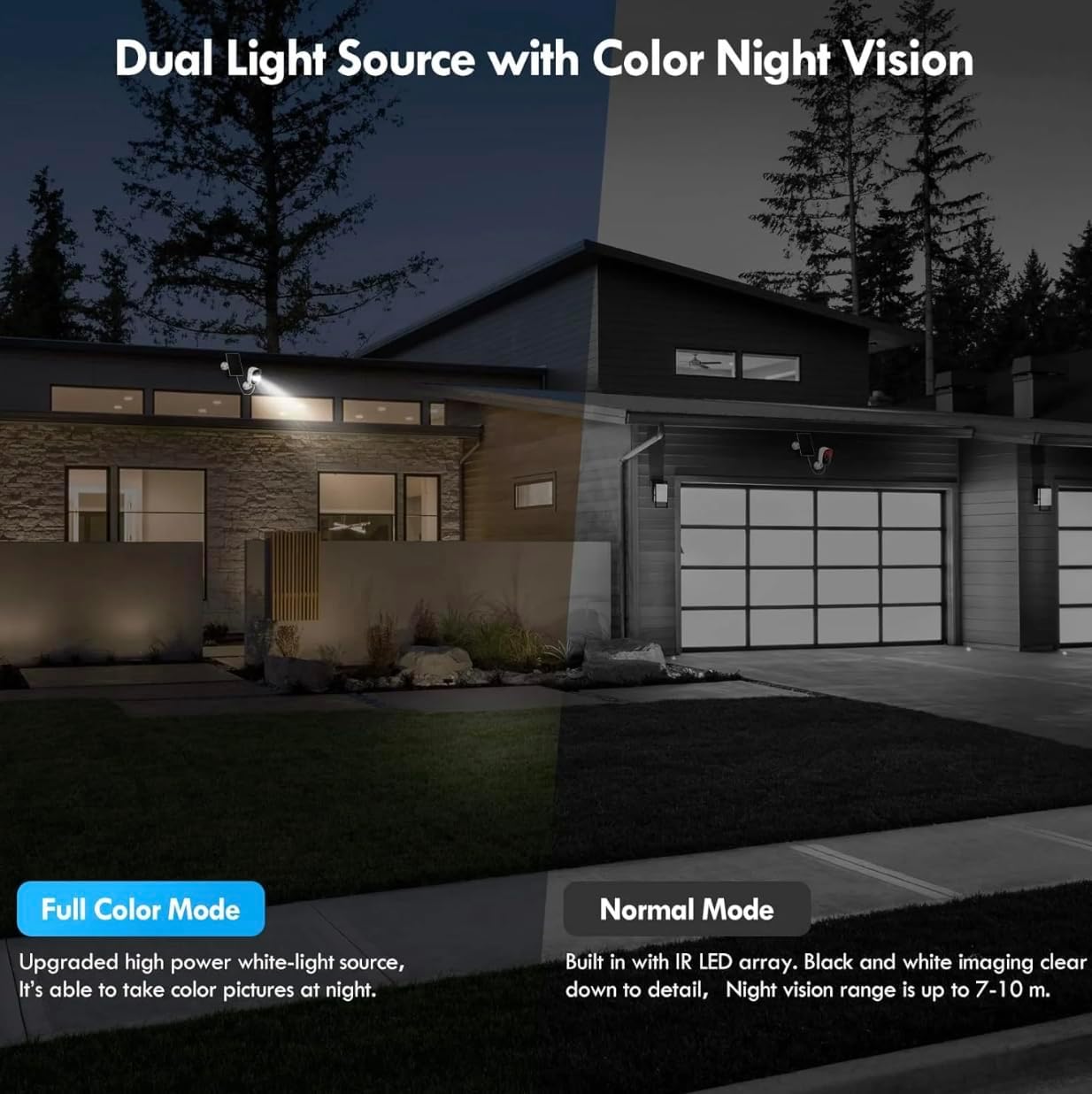
Image: A split image comparing "Full Color Mode" and "Normal Mode" night vision. Full Color Mode, enabled by the camera's upgraded high-power white-light source, shows a brightly lit, colorful night scene. Normal Mode, using IR LED array, displays a clear black and white image with a night vision range of 7-10 meters.
- Color Night Vision: When enabled, the built-in spotlight activates to provide full-color video in low-light conditions.
- Infrared Night Vision: Provides clear black and white video up to 33 feet (10 meters) using infrared LEDs, without activating the spotlight.
- Select your preferred night vision mode in the app settings.
5. Storage Options
Recordings can be stored locally or in the cloud.

Image: The VicoSafe CG6S camera's Micro SD card slot is highlighted, indicating support for up to 128GB storage (card not included). Alongside, a cloud icon with "3-day Free Storage" text illustrates the camera's secure cloud storage option.
- Micro SD Card Storage: Insert a Micro SD card (up to 128GB, not included) into the camera's slot for local storage of recordings.
- Cloud Storage: The camera offers free 3-day rolling cloud storage. Additional cloud storage plans and advanced AI features are available through a 30-day free trial in the VicoHome App.
Maintenance
1. Cleaning
Regularly clean the camera lens and solar panel to ensure optimal performance.
- Use a soft, damp cloth to wipe the lens and camera body.
- For the solar panel, ensure it is free from dust, dirt, and debris to maximize charging efficiency.
- Do not use harsh chemicals or abrasive cleaners.
2. Battery Care
The camera is powered by a rechargeable battery, supplemented by the solar panel.
- Ensure the solar panel receives adequate sunlight to maintain battery charge.
- If the camera is installed in a shaded area or during prolonged periods of low sunlight, occasional manual charging via the USB cable may be necessary.
- Avoid exposing the camera to extreme temperatures outside its operating range to prolong battery life.
3. Firmware Updates
Keep your camera's firmware updated for improved performance and security features.
- The VicoHome App will notify you if a new firmware update is available.
- Follow the in-app instructions to perform the update. Ensure the camera has sufficient battery charge before starting an update.
Troubleshooting
| Problem | Possible Cause | Solution |
|---|---|---|
| Camera not connecting to Wi-Fi | Incorrect Wi-Fi password; 5GHz Wi-Fi network; camera too far from router; weak signal. |
|
| Poor video quality | Weak Wi-Fi signal; dirty lens; low light conditions. |
|
| Battery not charging via solar panel | Insufficient sunlight; dirty solar panel; faulty connection. |
|
| Frequent false motion alerts | High sensitivity; unoptimized activity zones; environmental factors (e.g., moving branches). |
|
Specifications
| Model Name | CG6S |
| Brand | VicoSafe |
| Connectivity Technology | Wireless (Wi-Fi 2.4GHz only) |
| Indoor/Outdoor Usage | Outdoor |
| Video Resolution | 2K (1440 Pixels) |
| Night Vision | Color Night Vision, Infrared Night Vision (33 Feet Range) |
| Special Features | AI Motion Detection, Spotlight, Alarm, 2-Way Talk, 24/7 Monitoring, Free VicoHome App |
| Storage Options | Micro SD Card (up to 128GB), Cloud Storage (3-day free rolling) |
| Power Source | Battery Powered, Solar Panel (1.6W) |
| Waterproof Rating | IP65 |
| Compatible Devices | Smartphone (Android, iOS) |
| Item Dimensions | 5 x 10 x 10 inches |
| Item Weight | 1.5 Pounds |
Warranty and Support
For warranty information and technical support, please refer to the official VicoSafe website or contact their customer service directly. Details are typically provided in the Quick Start Guide included with your product or available through the VicoHome App.
For common issues, please consult the Troubleshooting section of this manual or the FAQ section within the VicoHome App.